Hostinger AI Builder manual mode is a perfect tool that allows creating a website or an online store without any experience in coding or design. The whole process is based on customizing a website template.
Learn more: What’s the Difference Between Hostinger AI Builder and Other Content Management Systems?, How to use Hostinger AI Builder
Dark theme
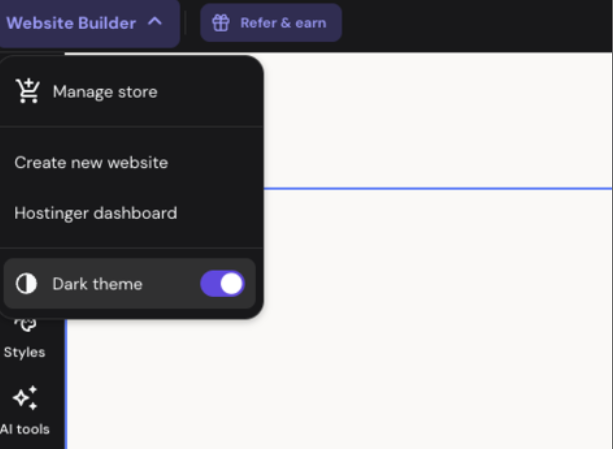
Click the Builder dropdown in the top-left corner of the editor, then turn on the Dark theme toggle to switch the editor’s interface to a dark background.
NOTES
- Dark theme is off by default and does not follow your Hostinger dashboard theme setting.
- The canvas and content editing controls, such as section and element settings panels, stay in light theme for better contrast, even when Dark theme is turned on.
Within the builder, there are two main toolbars – the left-side toolbar and the upper toolbar – that include everything you need to run a successful website. Let’s overview the main areas of the builder
Website Editor
Access the builder, and you’ll see the main tools on the left:
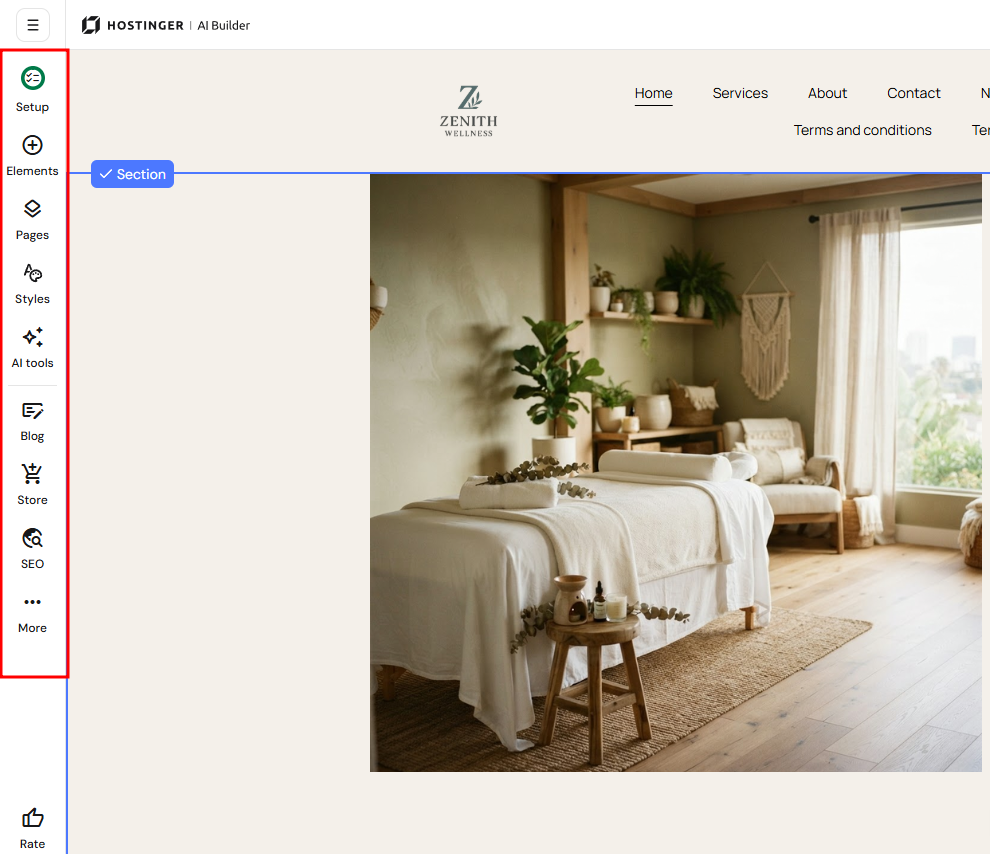
Here’s what you’ll find there:
|
Elements |
In the Elements panel on the left, you can find a variety of elements that you can use to populate your website Learn how to add and customize website elements |
|
Pages |
In the Pages panel on the left, you can find and manage all your website pages: The navigation menu is always visible in the header section |
|
Styles |
In the Styles panel on the left, you can find the global style settings: In addition to the global style settings, you can customize all website elements locally – click on any element and explore its individual settings |
|
Blog |
In the Blog management panel on the left, you can:
Learn how to start creating a blog |
|
Store |
In the Store panel on the left, you can enable the eCommerce platform on your website Learn how to start creating an online store |
|
AI tools |
In the AI tools panel on the left, you can access the following:
|
|
SEO |
SEO is a really wide topic, but here are the main tools and features that we offer: Learn how to make your website appear on Google |
|
More… |
In the More… panel on the left, you can find more options, such as additional languages, integrations, form submissions, media library and others |
Even though there’s no dedicated tab for sections on the left-side toolbar, you can easily add custom sections to any of your website pages
Website Settings
Within the builder, find the website settings in the bottom-left corner:
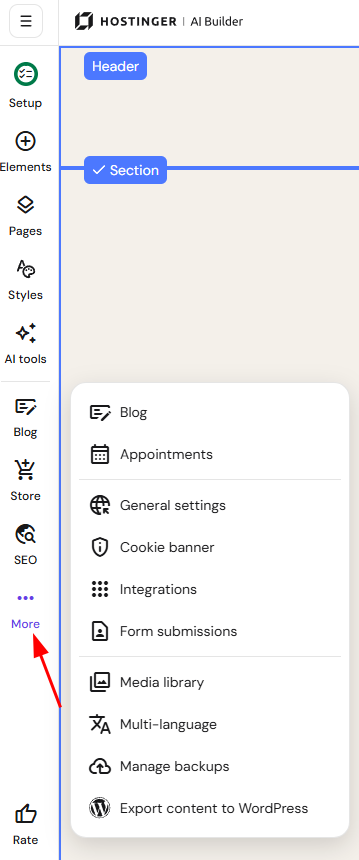
Here’s what you’ll find there:
|
General settings |
In the general website settings, you can: |
|
Integrations |
Built-in integrations include Google Analytics, Hotjar, WhatsApp, and more Custom integrations can be added in two ways:
|
|
Form submissions |
This section of your website settings is dedicated to forms that your clients submit via the contact form and subscription form elements on your website |
|
Media library |
Locate necessary files and manage them more quickly using the media library |
Mobile Editor
To view the mobile version of your website, click on the mobile phone icon in the top toolbar:

By default, website elements are displayed on the mobile view in the order they’ve been added to the desktop view. Even if you later reorder elements on the desktop view, these changes are not automatically applied to the mobile version. You can sort the elements on the mobile view manually. This way, you can lay out elements differently on desktop and mobile views.
Learn more: How to Edit the Mobile Version of a Website
Other Options
In the upper toolbar, you can see the following options:

|
Redo/Undo |
If you accidentally delete an element or a section, you can easily restore it using the undo/redo buttons in the upper toolbar |
|
Save |
Most changes made within the builder are saved automatically |
|
Preview |
It doesn’t matter if your website has already been published or is still a draft – you can easily preview it from your editor |
|
Publish |
Learn how to publish a website If you are eager to launch your website but still have some unfinished pages, you can publish the homepage only and hide the rest of your pages while you’re working on them |
Additional resources to build your website
- How to connect a domain to Hostinger AI Builder
- How to create a company website
- How to create a portfolio website
- Link in bio websites
- How to add a sticky bar
- Coming soon mode
- AI Image Generator
- Moving your content
- How to create and restore website backups
- How to fix editor and display issues
Once you’re familiar with these core areas, you’ll be able to navigate the Hostinger AI Builder editor confidently and build out your website with the right tools for each task.