Add links to various places on your Hostinger AI Builder manual mode website, including the navigation menu, text, images, buttons, and social icons.
Adding a link to the navigation menu
-
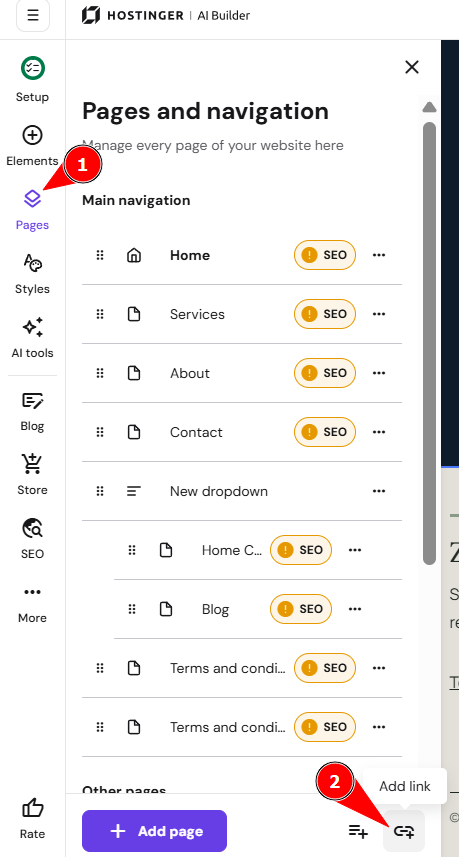
Within the AI Builder, open the Pages and navigation panel on the left
-
Click Add link:
-
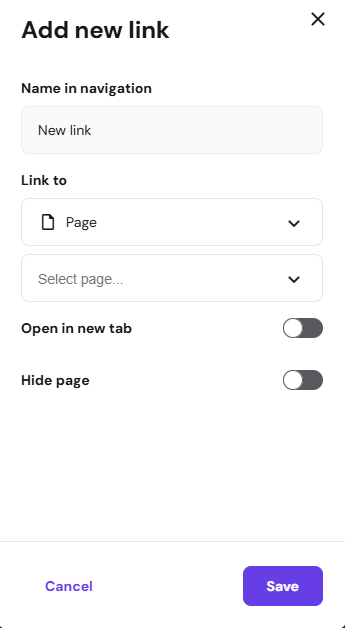
Rename the link; you can use any symbols, including emojis 📞 ✉️ 🚚
-
For the Link to, select the object to link to:
-
Web address – insert any URL
- Pages – select from existing pages
-
File download – upload a file from your local device
-
Section – link to a particular section within your website
-
Phone number – insert any phone number, including the country code
-
Email address – insert any email address
- WhatsApp – insert any phone number connected to WhatsApp
-
-
(Optional) Open in new tab
-
(Optional) Hide page – hides a page (in this case, the link) from the navigation menu
-
Finally, save the changes:
Adding a link to a text element
-
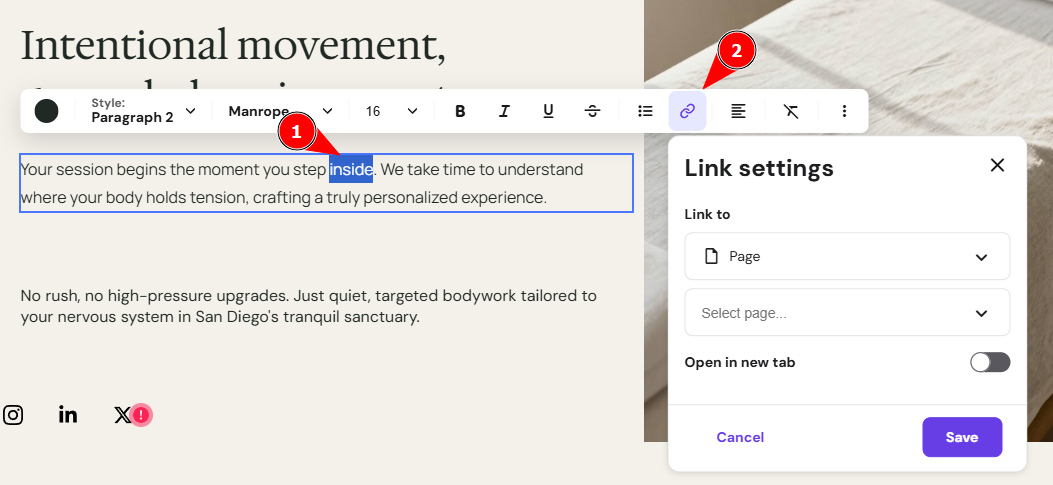
Click on a text element and select Edit text
-
Select (highlight) the text you want to hyperlink
-
Click on the link symbol
-
For the Link to, select the object to link to
-
(Optional) Open in new tab
-
Finally, save the changes:
Adding a link to an image element
-
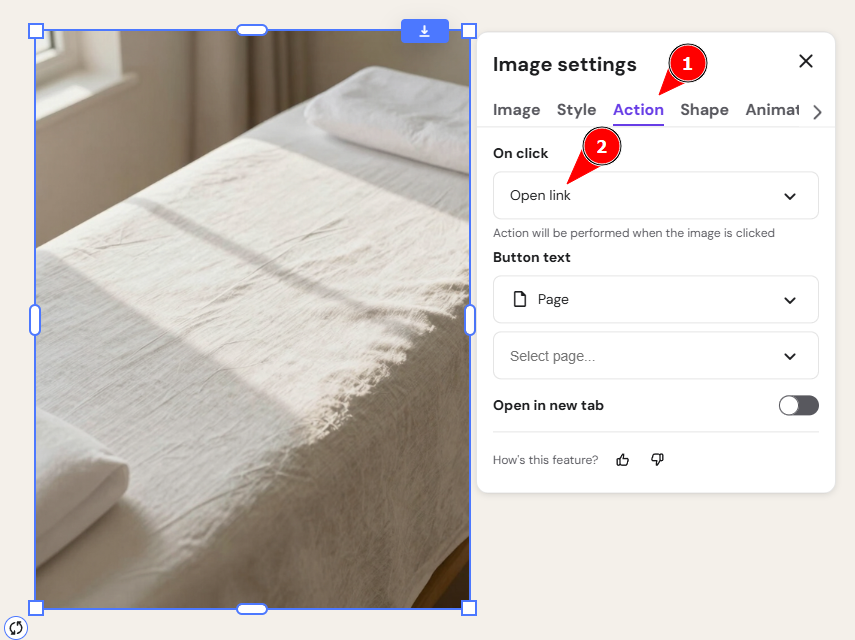
Click on an image element and select Edit image
-
Open the Action tab
-
For the On click, select Open link
-
For the Link to, select the object to link to.
-
(Optional) Open in new tab
-
Click outside the settings box to close it; the changes are saved automatically:
Adding a link to a button element
-
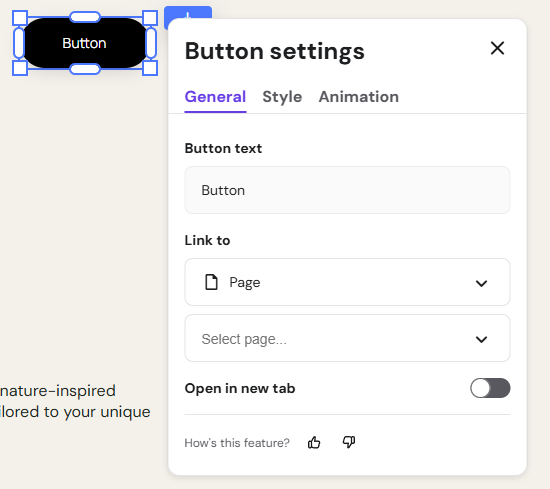
Click on a button element and select Edit button
-
(Optional) Rename the button
-
For the Link to, select the object to link to.
-
(Optional) Open in new tab
-
Click outside the settings box to close it; the changes are saved automatically:
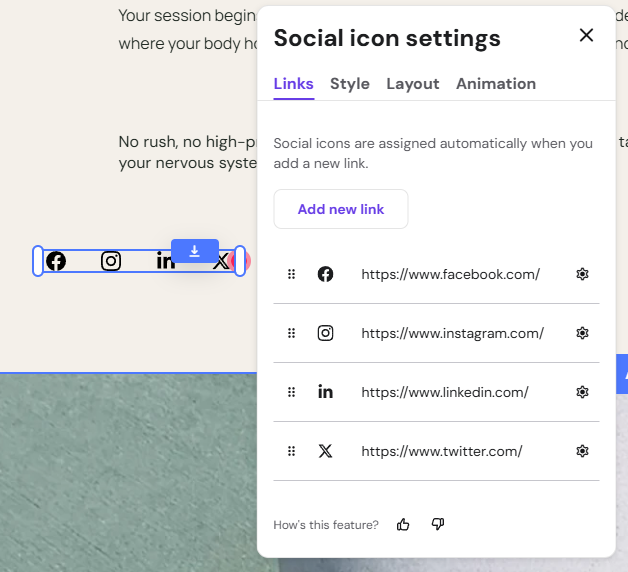
Adding links to your social media channels
-
Add a social icons element to the preferred place on your website
-
Click on the element and select Edit social icons
-
Click on the settings wheel next to the suggested icons (Twitter, Facebook, Instagram) and insert your own links there, or click Add new link to add links to other social media platforms
-
Click outside the settings box to close it; the changes are saved automatically: