Change colors on your Hostinger AI Builder manual mode website either globally, through the site-wide style settings, or locally, for a specific element or section.
Global styles settings
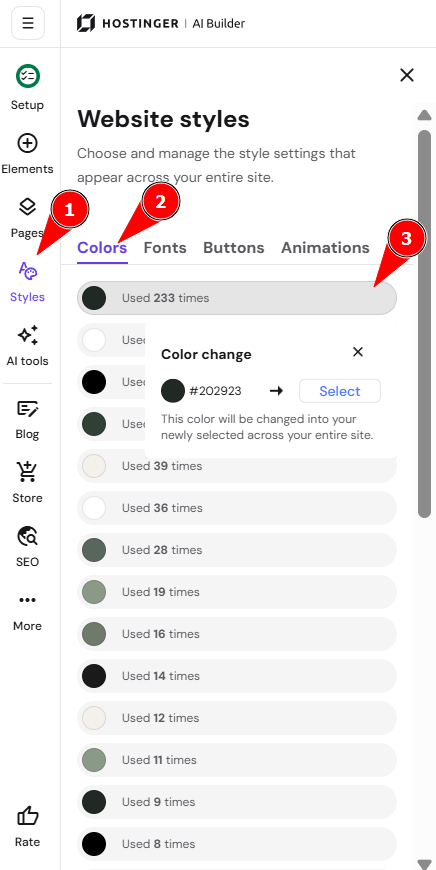
- Within the editor, expand the Styles panel on the left
- Open the Colors tab. Here, you’ll find all colors that are used across your website. The most frequently used colors appear at the top of the list.
- Click on Change next to any color, then Select, pick a new color and click Accept, and it will replace the previous color all across your website:

Remember that you can still edit the appearance of individual elements and sections manually anytime (see below).
Local style settings
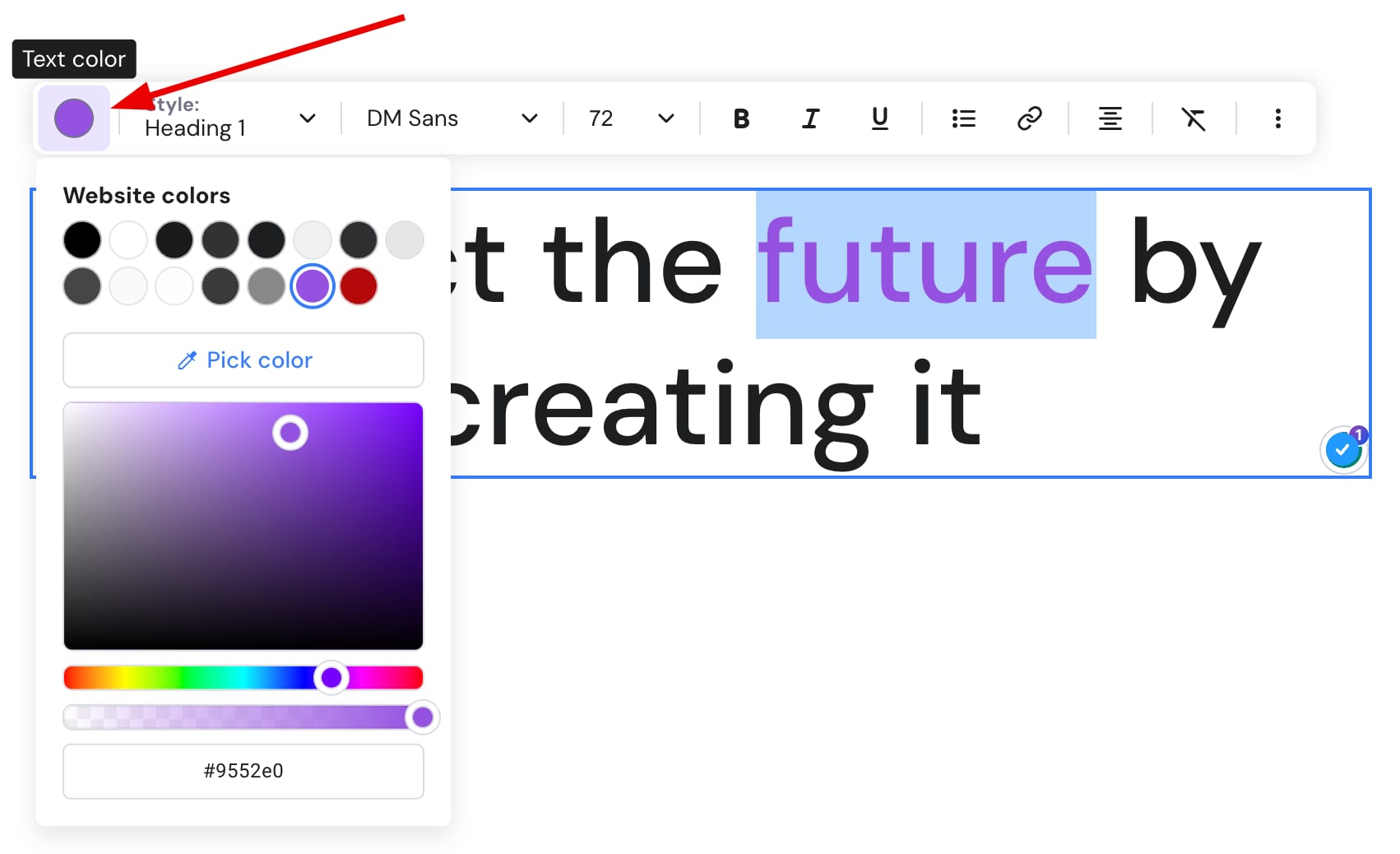
- Click once on a preferred element, select Edit, and change its color individually. For example, click once on a text element and select Edit text on the top left corner.
- Then, select (highlight) a portion of text you’d like to change the color of and click on the color picker (if you double-click the text, the color picker will show up from the start):

Learn more:
- How to add and customize website elements
-
Customize the style of the website’s navigation menu
-
Change the section background
-
Customize text color in the online store
if you wish to edit the Header navigation styles, you should do it via Header settings.