Add a background color to text elements in Hostinger AI Builder manual mode to make your text more reader-friendly.
Add a text background
To apply color background for text elements:
-
Click on a text element, and select Edit text
-
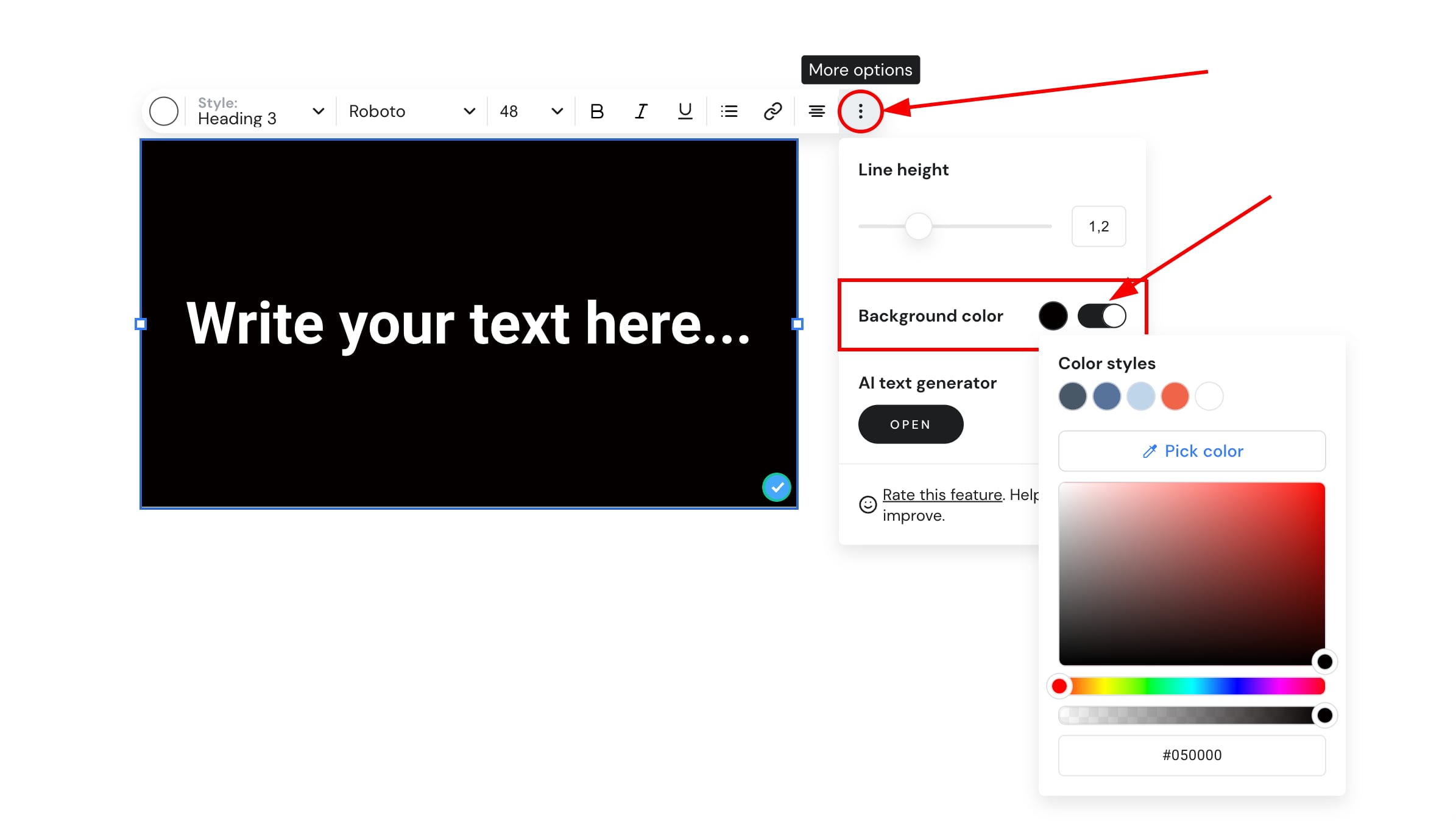
Click on the ellipsis button ⋮ to open more options
-
Enable the background color option, and select the preferred color:
Your text now has a background color, making it easier to read against your page design.