Together with pages and elements, sections are important structural components of a website.
While using Hostinger AI Builder manual mode, you may choose from a variety of section types: image gallery, footer, contact, etc. You can even insert blank sections into your page and design them from scratch – all website sections are easily customizable.
Adding a new section
To add a new section, you can follow these steps:
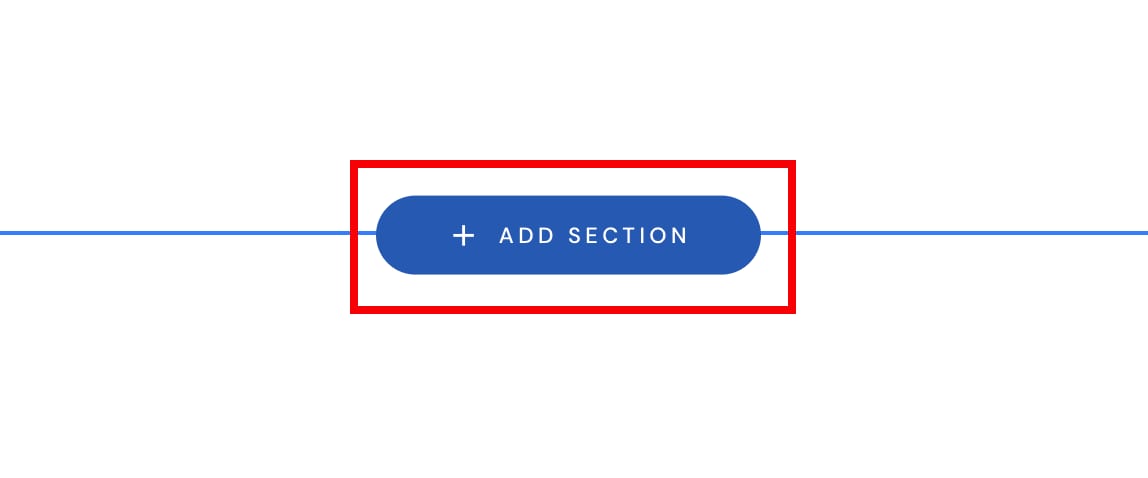
- Access the builder, place the cursor in between two sections, and click on Add section:
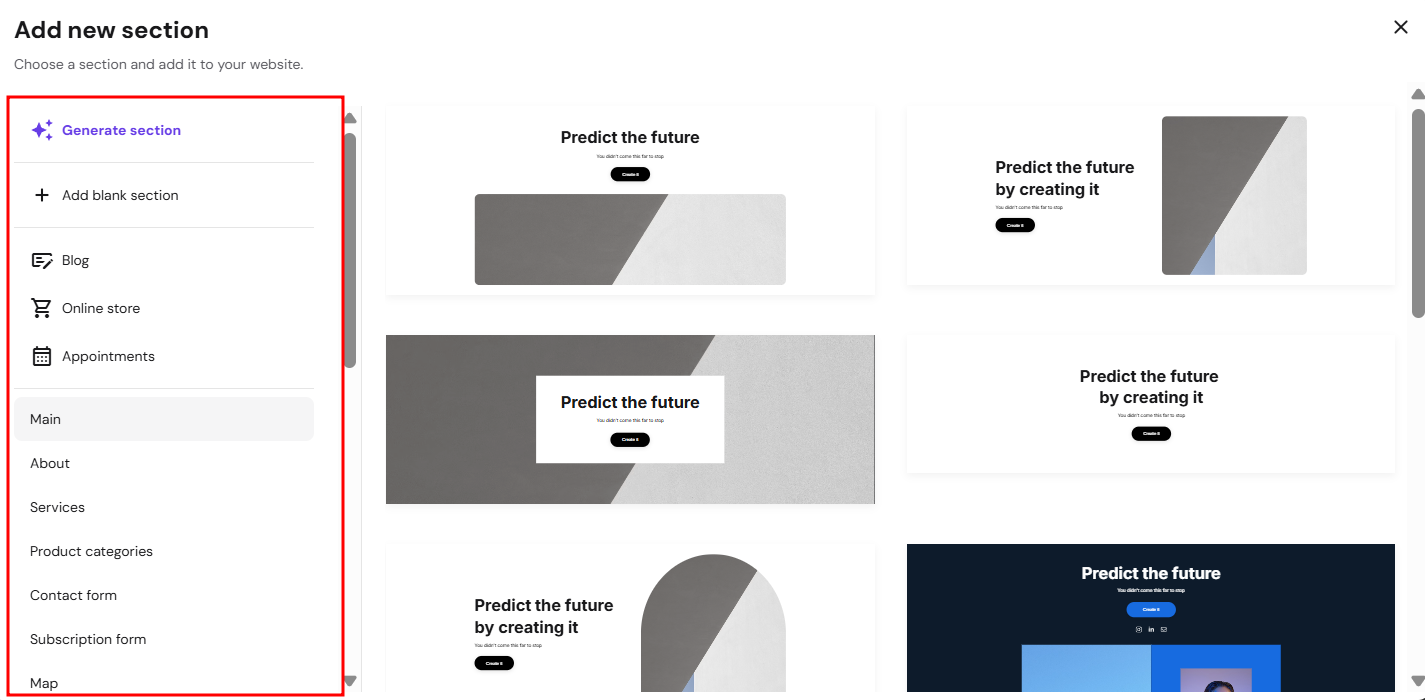
- On the left, choose the type of a section, generate section with AI, or get creative with a blank section:
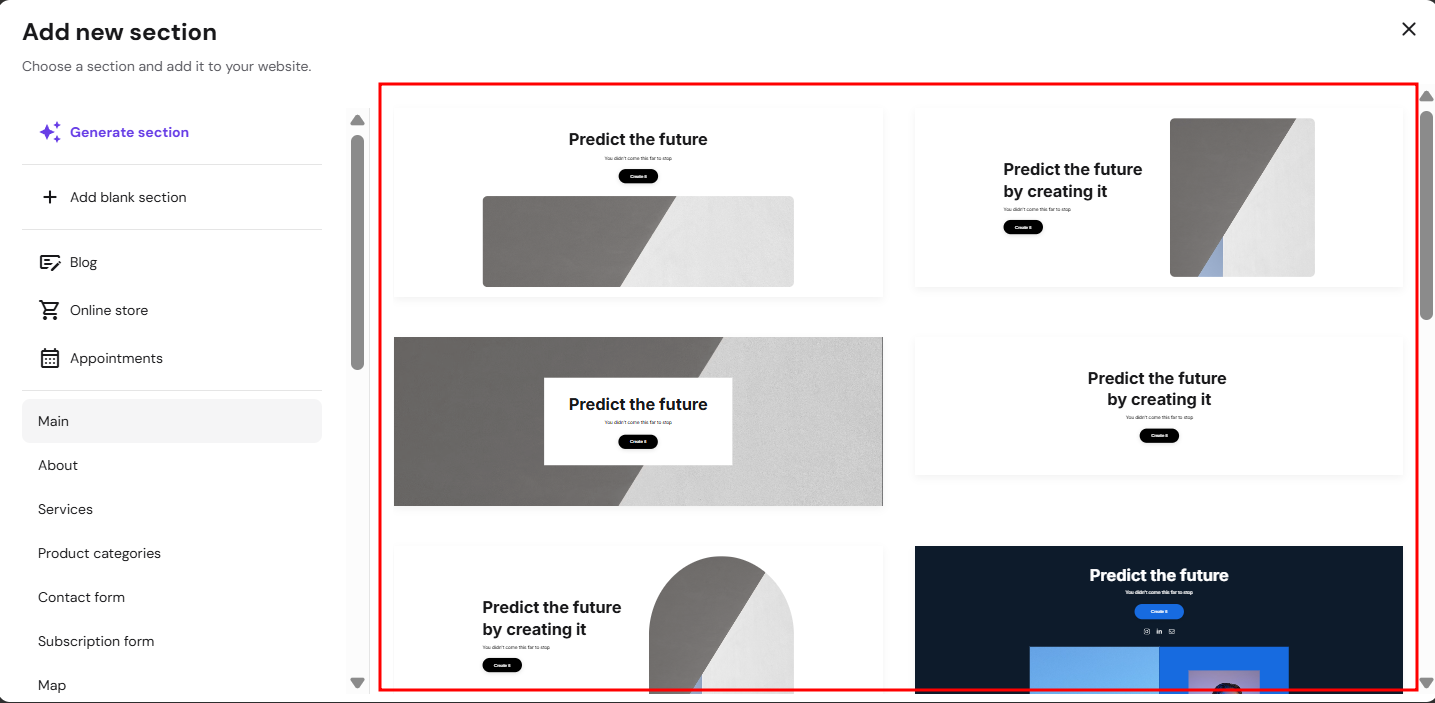
If you select a specific type of section, you’ll get a variety of section templates to choose from. Click on the preferred template, and such a section will be inserted into your page:
Remember that you can easily personalize sections: add, remove, or re-organize elements, change the background, and so on!
Customize section settings
To open section settings, click on the section in question. You’ll see the settings menu in the top-right corner of a section. There’s also a section height handle on the bottom section border – drag it up or down to resize the section:
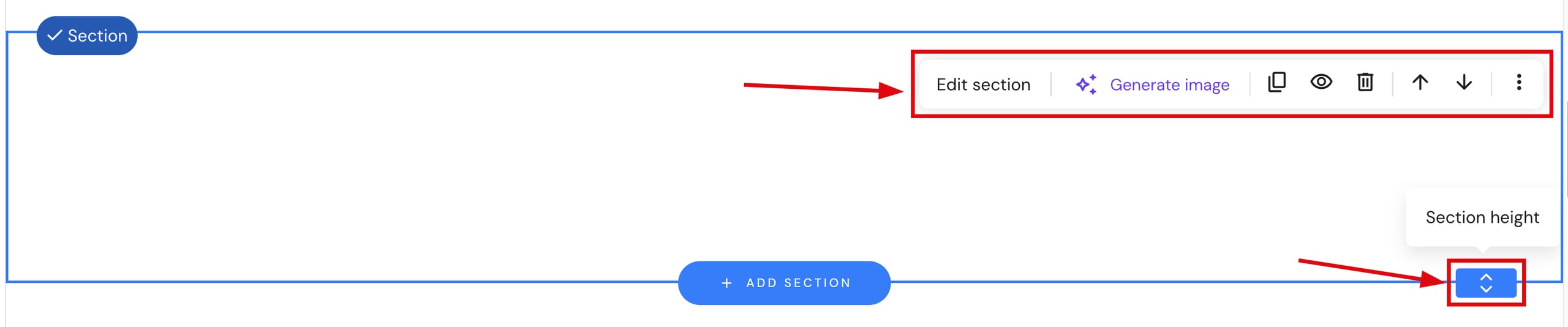
Here, you can do the following:
|
Edit section |
It consists of three main tabs:
|
|
Generate image |
Use the AI Image Generator to create an authentic image background for the section |
|
Duplicate |
Duplicate a section |
|
Hide/Show |
|
|
Delete |
Delete a section |
|
Move up/down |
Move a section up or down |
|
More |
Your website now has sections added, customized, and organized the way you want.
Additional resources for section types and features: