Add a video background to a section on your Hostinger AI Builder manual mode website using the free video backgrounds provided in the section settings.
Add a video background
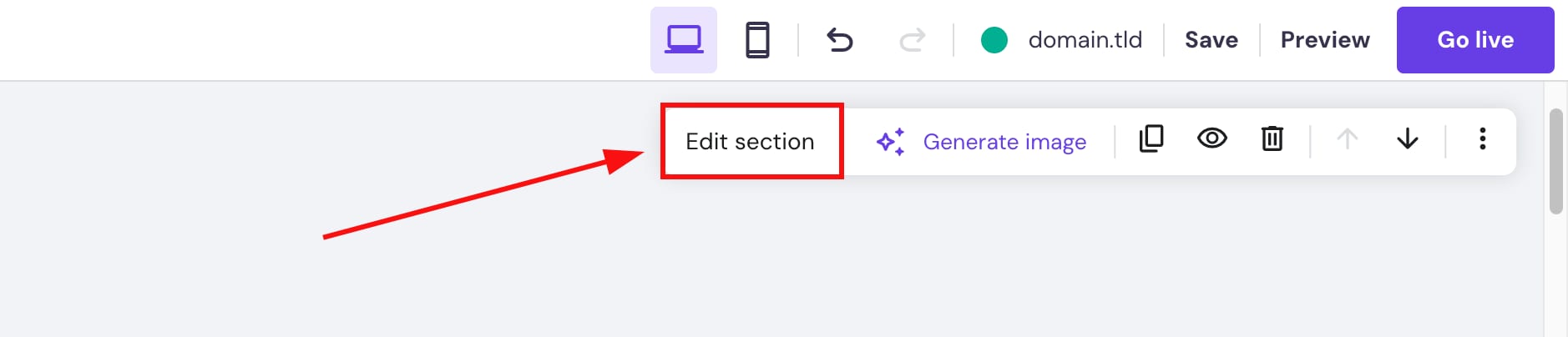
- Within the builder, click on the section you want to edit and select Edit section:

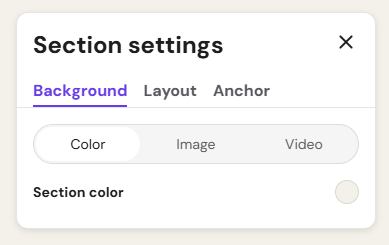
- Choose background settings:

Currently, the video background only supports video Pexels.
To use your own video as a section background you may convert your video to .gif and upload the GIF as a section background image.
It is not recommended to use GIFs for a section background because they may affect your website speed. See how to add an image background to a section for more details.
Video backgrounds can also be accessed and applied from section settings by selecting the “Video” option from the background tab and then choosing out of the list of free video backgrounds provided there:
-
Videos are royalty-free
-
There are videos suited for horizontal (desktop) and vertical (mobile) sections
-
Can change the dimness of the video to make the text more readable
-
Use the search function to find the video that best fits you!
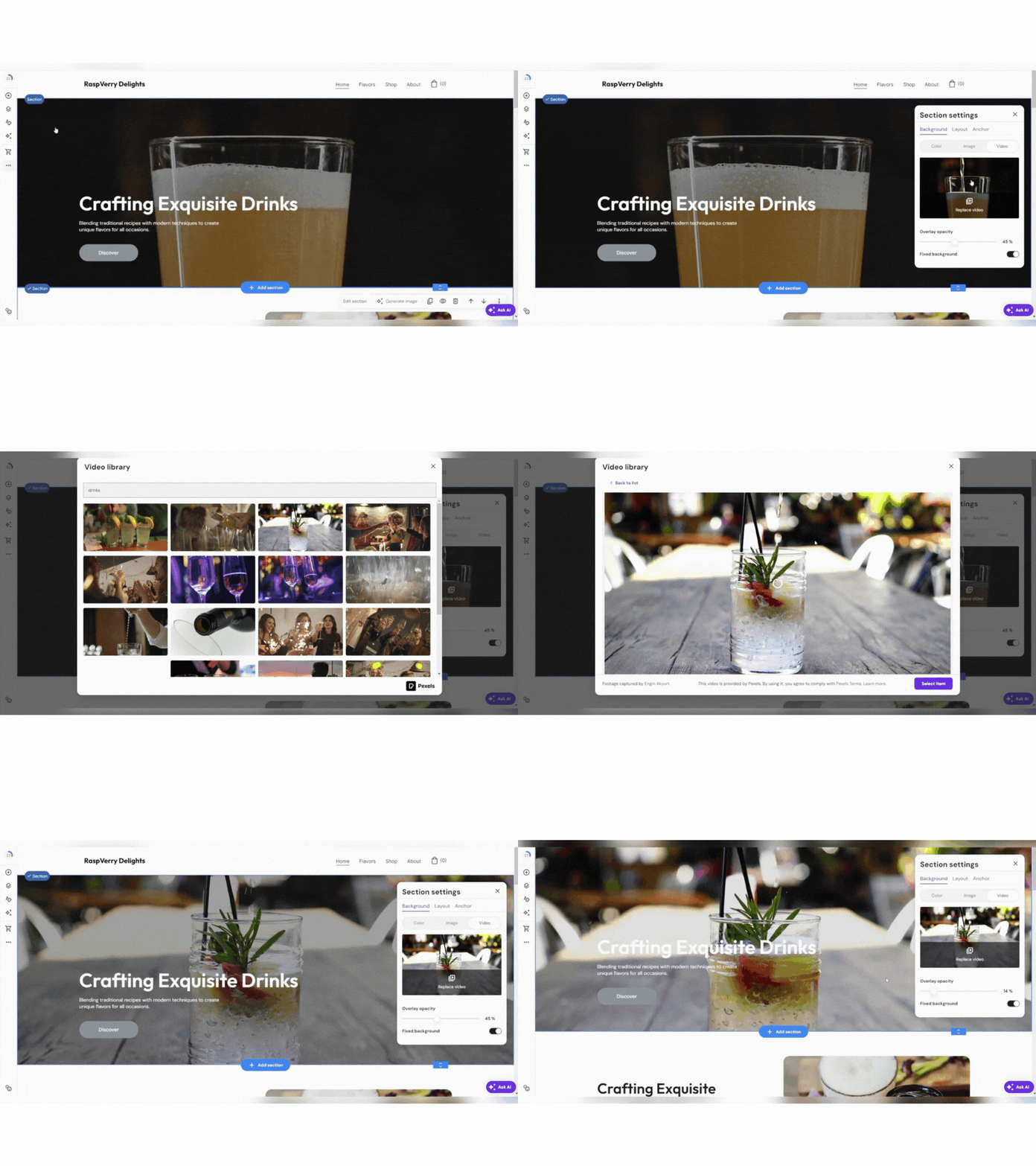
Your section now displays your chosen video background.