A favicon is the small icon displayed in the browser tab next to a page’s meta title, and Hostinger AI Builder manual mode lets you replace the default globe icon with your logo, initials, or another custom image.

Adding a favicon
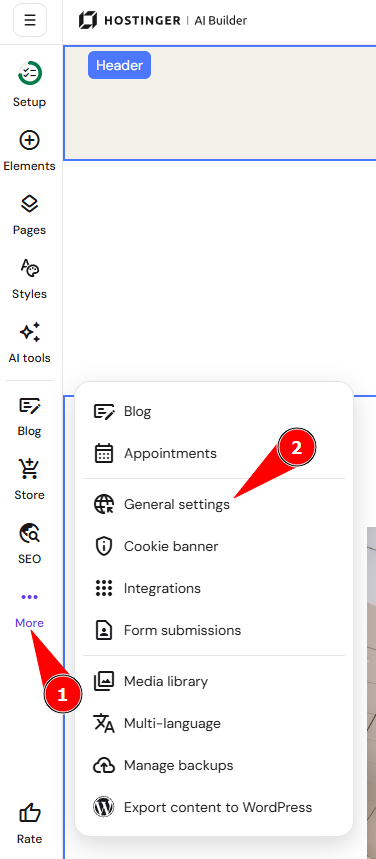
- Within Hostinger AI Builder, click Ellipsis more.
- Access the general website settings.
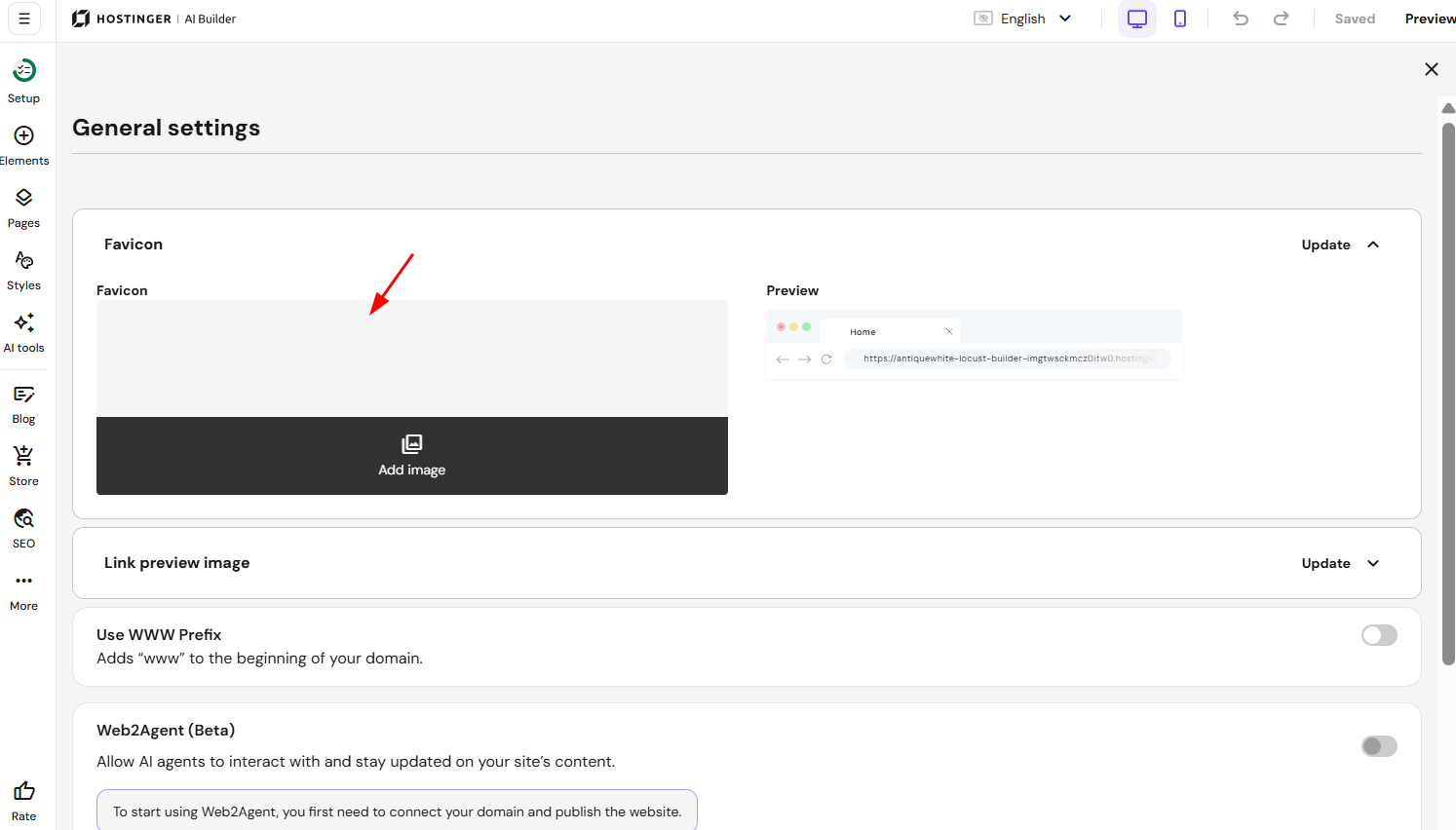
- Expand the Favicon section.
- Click on Add image or Replace image, and upload your file:
 Save the changes and publish your website.
It depends solely on Google whether the favicon gets indexed in the search results or not. Learn more: Define Website Favicon for Search Results.
Troubleshooting
It takes some time for the favicon to update in browser tabs. However, make sure that:
-
While editing your website, the builder isn’t open in multiple browser tabs or devices simultaneously
-
The uploaded file is not too large; the recommended favicon size is 32×32 PX
-
The format of your file is supported: .PNG, .JPG, or .JPEG
-
You’ve updated the website after making the changes
If you’ve done everything that’s mentioned above, but the favicon doesn’t show up, clear the browser cache or check the favicon by accessing your website using the following:
-
An incognito/private browsing window
-
Another device: try a smartphone, tablet, or laptop
-
Another network: try Wi-Fi instead of mobile data or vice versa