Hostinger AI Builder: How to manage blog settings in manual mode

Configure blog post, header, and section settings in Hostinger AI Builder manual mode.

Updated 1 week ago

Configure your blog settings in Hostinger AI Builder manual mode, covering blog post settings, header settings, and section settings.

Blog post settings

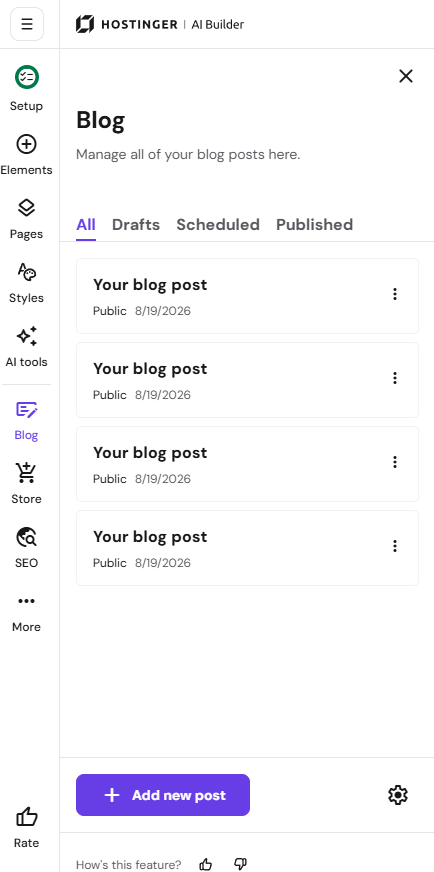
  1. Within the builder, expand the Blog management panel on the left.
  2. Then, click on any blog post to open its editor:
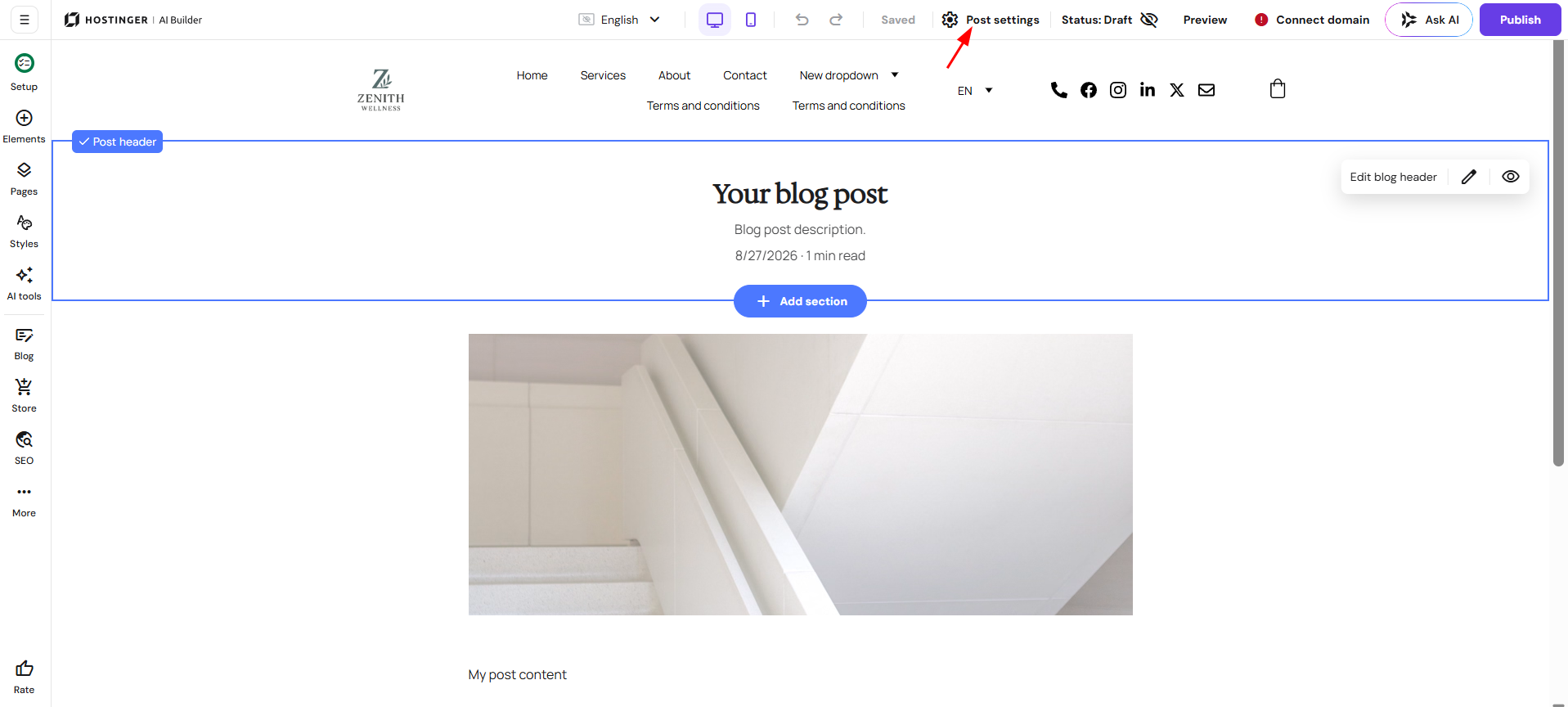
  3. Look for the Post settings in the top toolbar:

    There are three tabs for blog post settings:
General

Featured image

Categories

Here, you can edit the following attributes of a blog post:

  • Title

  • Description

  • URL

  • Author(s)

  • Publication date

You can also schedule the blog post here

Change the cover image of your article

Assign your blog post to one or more categories

Blog post header settings

To open the blog post header settings, click on the post header section and then select Edit blog header:
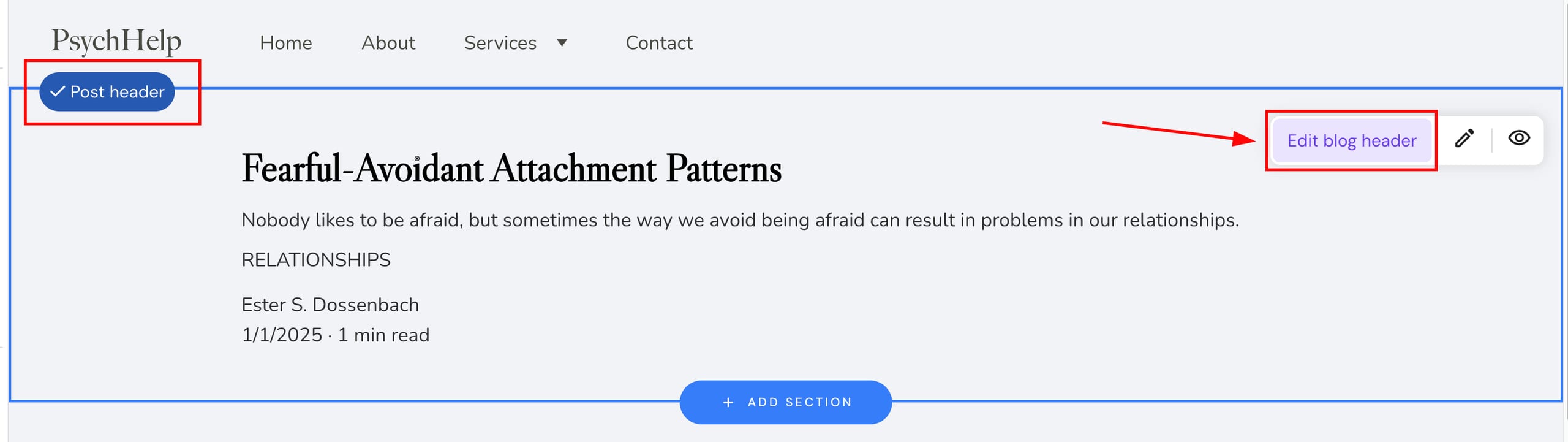
Hostinger Website Builder blog header with the Edit blog header button highlighted

There are three tabs of post header settings:

Style

Layout

Background

  • Text colors: set a dark or light color for the title and description

  • Text size

  • Visibility: show or hide the description, category, author, publication date, and reading time of a blog post

  • Alignment: change the post header alignment

  • Padding: change the top/bottom padding of the post header

  • Section background: set a color or image background for the post header

NOTE

  • Other blog post sections (below the header) also have individual settings and allow changing the background, creating an anchor, duplicating the section, and moving it up or down:

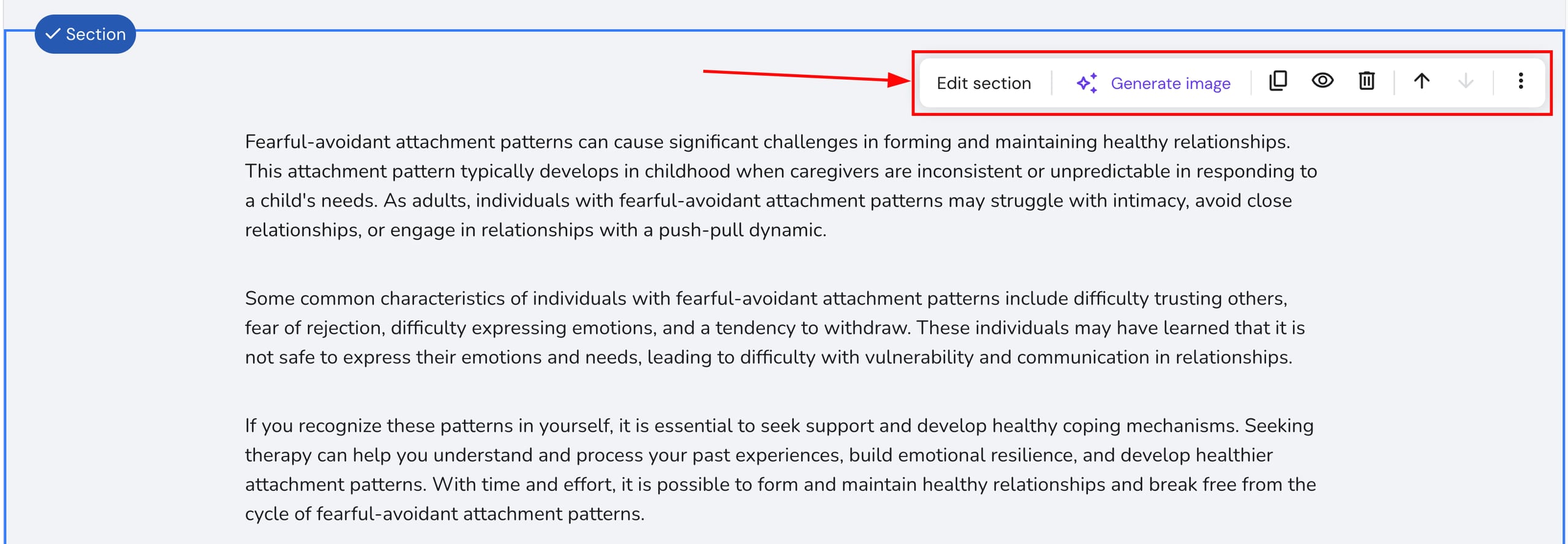
    Hostinger Website Builder section toolbar with Edit section and Generate image options highlighted

Blog Section Settings

Blog sections display multiple blog posts on your website. Click on any blog section to reveal its settings menu:
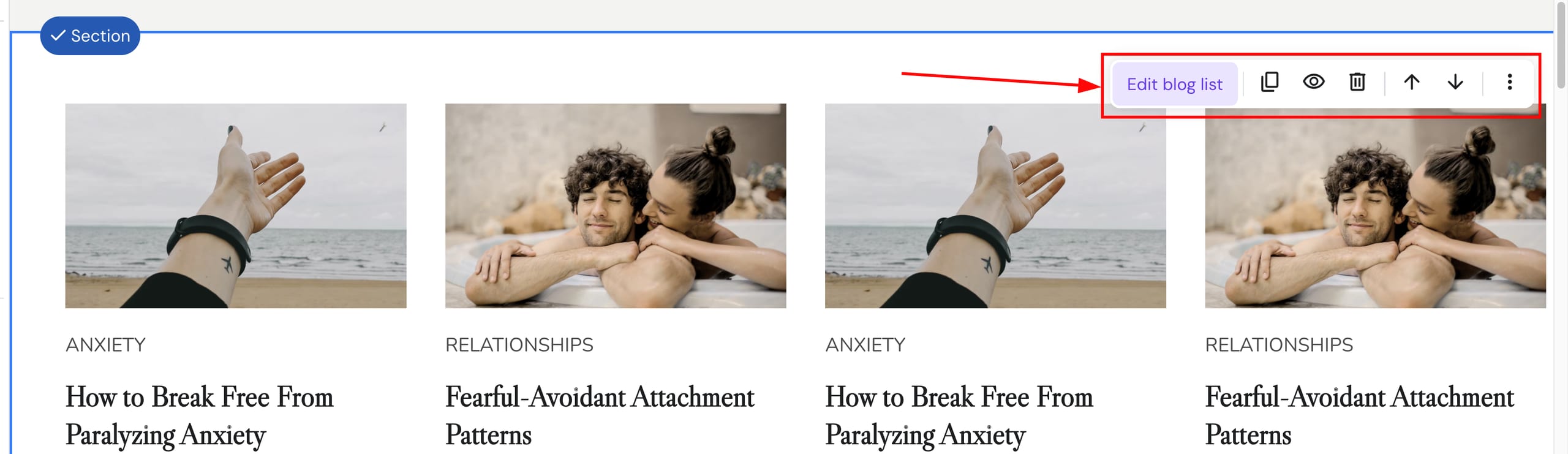
Hostinger Website Builder blog section with the Edit blog list button highlighted

Click on Edit blog list to find more settings:

Layout

  • Posts per page: set how many blog posts to show within a particular blog section

  • Columns: set how many blog posts to show per row

  • Column gap: change the gap between blog posts

  • Padding: change the top/bottom padding of a blog section

Style

  • Text color: set a dark or light color for titles and descriptions

  • Visibility: show or hide the featured image, title, description, category, author, publication date, and reading time of blog posts

Posts

  • Only show some posts: display different blog posts (by category) on different blog sections

Background

  • Section background: set a color or image background for the blog section

Search

  • Enable blog post search

  • Choose its position (left, center, or right), and configure its style, including fill color, text and icon color, border color, corner radius, and width, along with its placeholder text.

Your blog is now configured across posts, headers, and sections, ready to display content the way you want.