Add animations to your Hostinger AI Builder manual mode website using native animation settings or third-party animated elements.
Enabling native animations
You can enable native animations in two ways:
-
Globally (site-wide): a single selected animation applies to all elements throughout the whole website
-
Locally (per element): apply animations for each of your website elements individually; this way, you can set different types of animations for different elements
Embed code elements don’t support native animations.
Enabling site-wide animations
- Within the AI builder, expand the Website styles panel on the left.
- Open the Animations tab and select from the preferred animation style: fade, slide, scale, slide left, slide right, blur in, or rise.
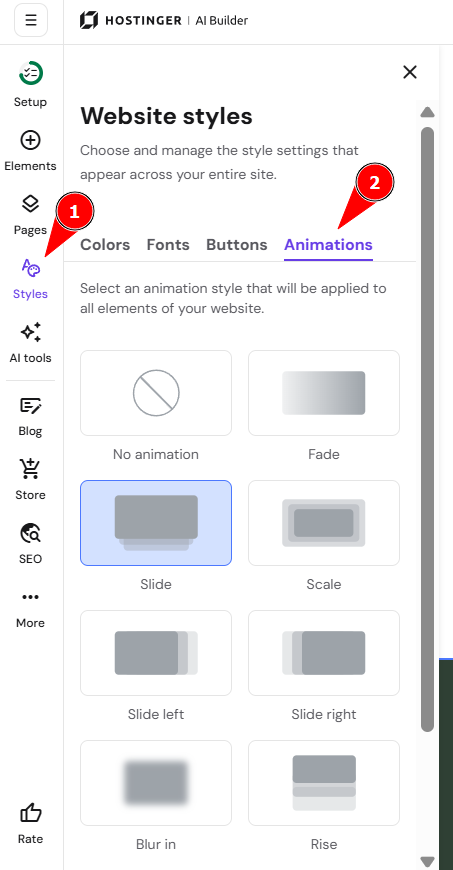
This way, the selected animation is applied to all elements and sections throughout your website. You can disable the animation for a particular element in its local settings by choosing No animation. For instance, that’s how you can turn it off for the text element:
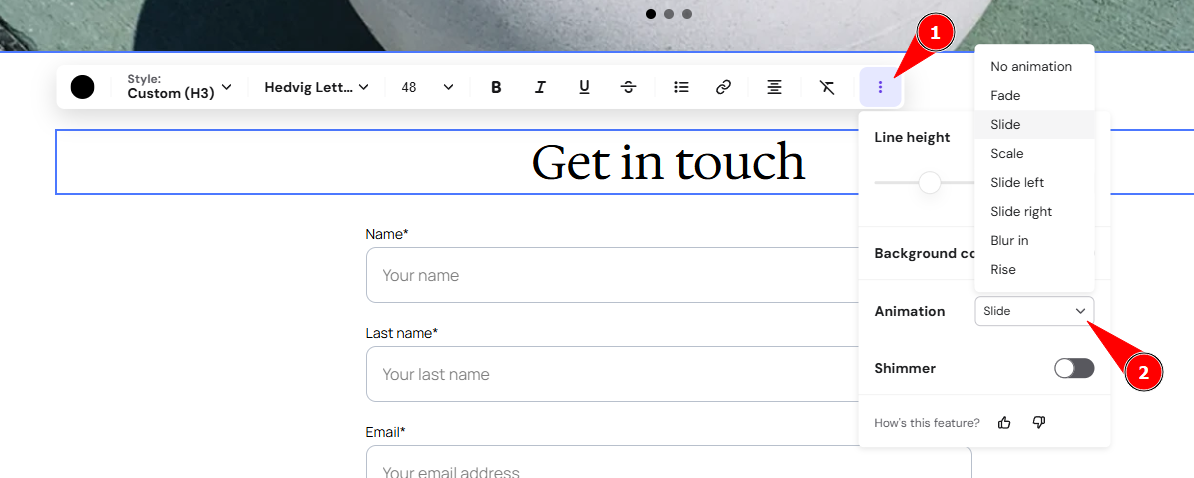
After enabling or disabling animations, update your website for the changes to reflect online. To check how the website looks with animations, go to the preview mode or open the live website.
Enabling animations for particular elements
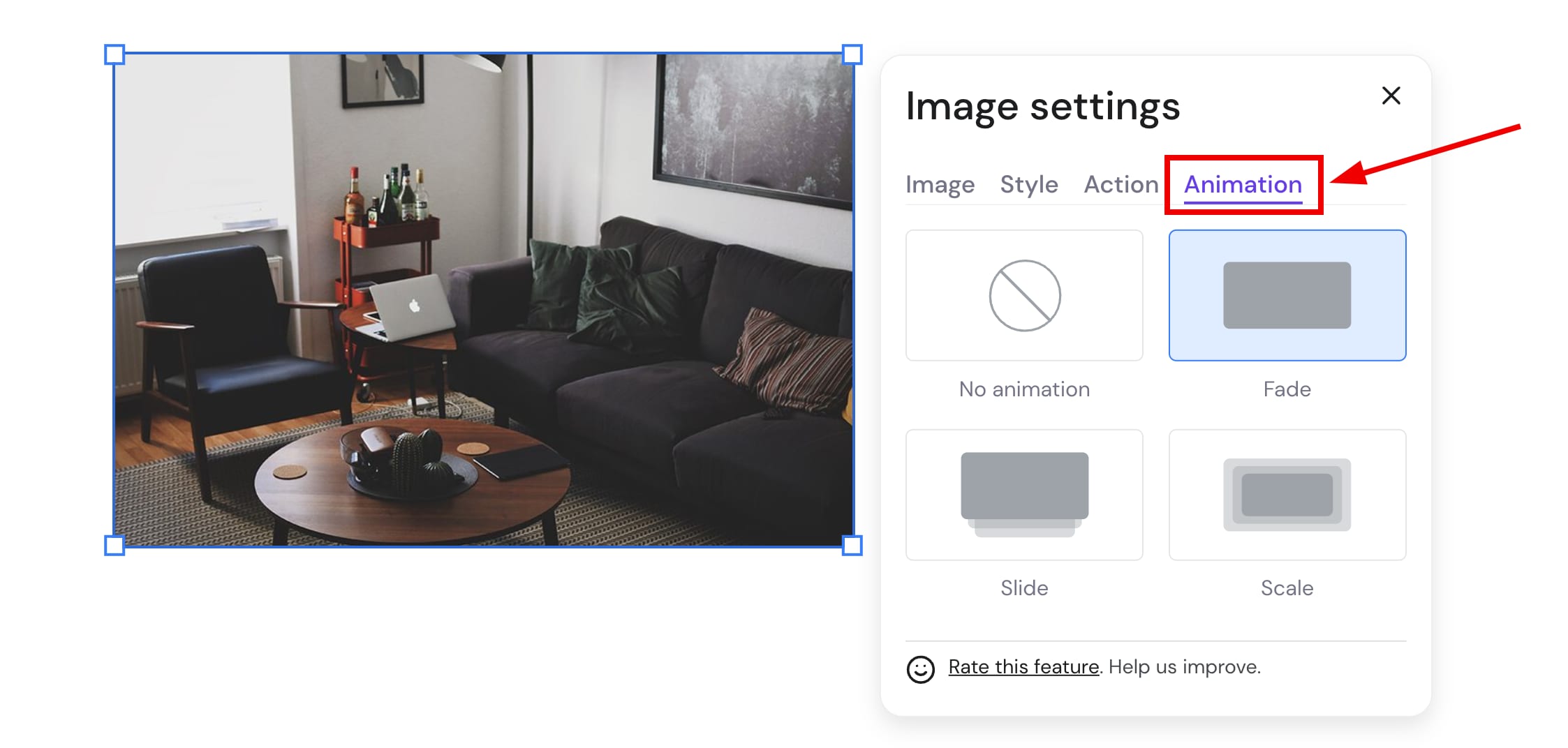
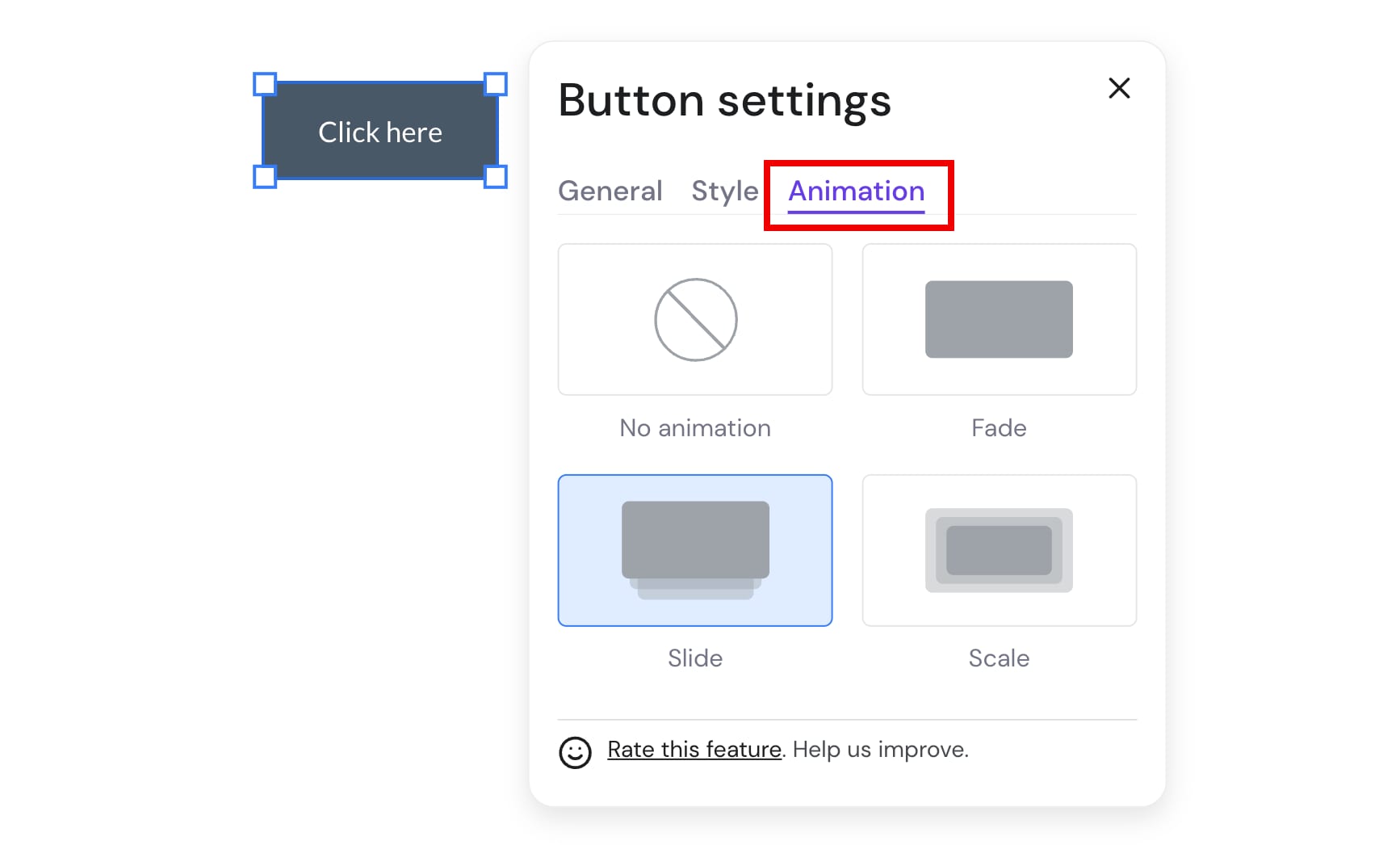
Within the AI builder, click on the element in question and select Edit or Change to open its settings. Then, find the Animations settings and enable the preferred one. For image and card elements, you can also set a hover effect and a loop effect. For example, the text element settings:
Image element settings:
Button element settings:
And so on! After enabling animations, update your website for the changes to reflect online. To check how the website looks with animations, go to the preview mode or open the live website.
Embedding third-party animated elements
You can embed free animations into your website using third-party tools. In this example, Lordicon animations are used.
- Log into Lordicon and click on any animation you like; customize it if necessary:

- Click on HTML and copy the code:
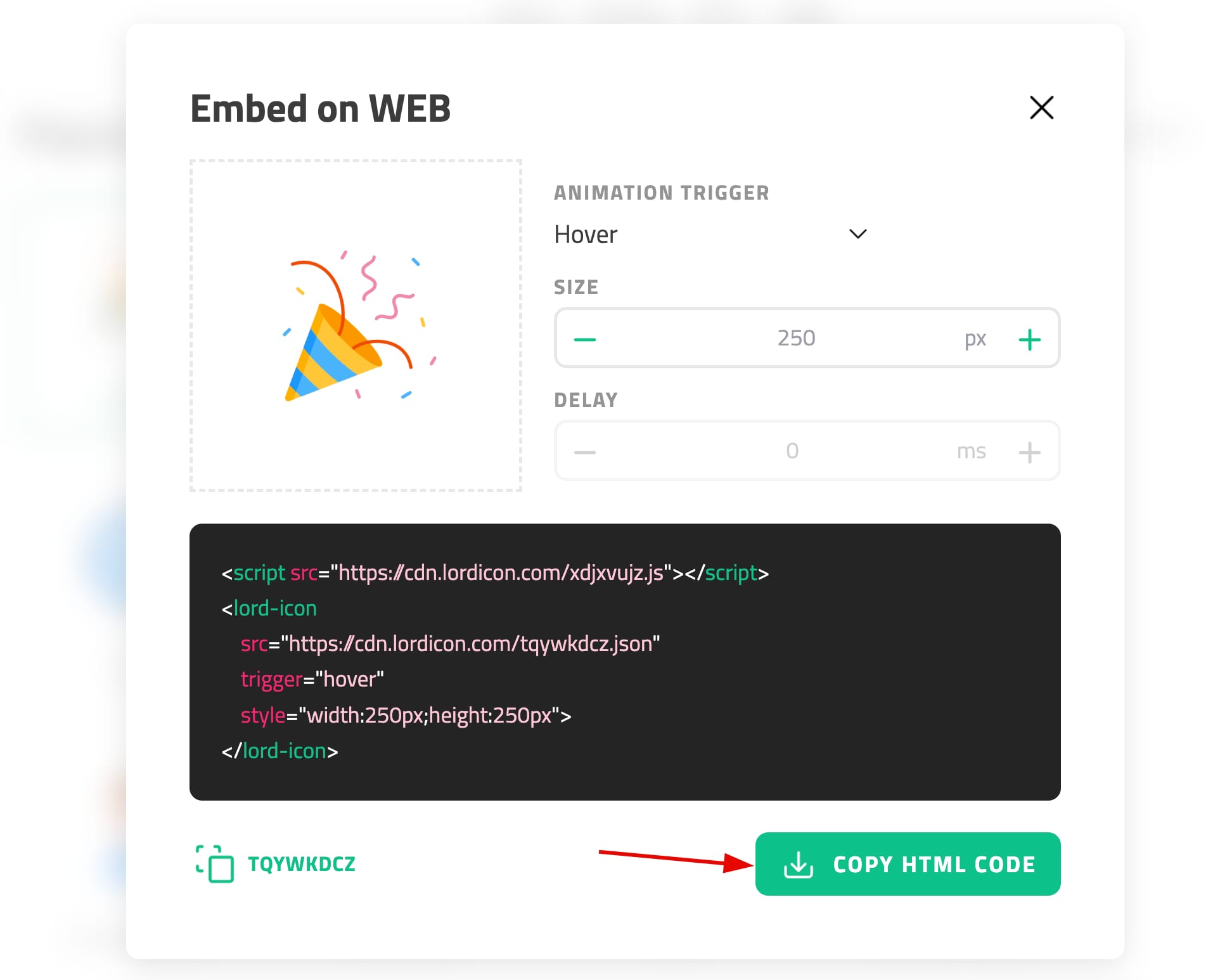
- Now, open the AI builder and add an embed code element to the preferred place on your webpage.
- Paste the animation code to the embed element, and the animation will be displayed on your page:
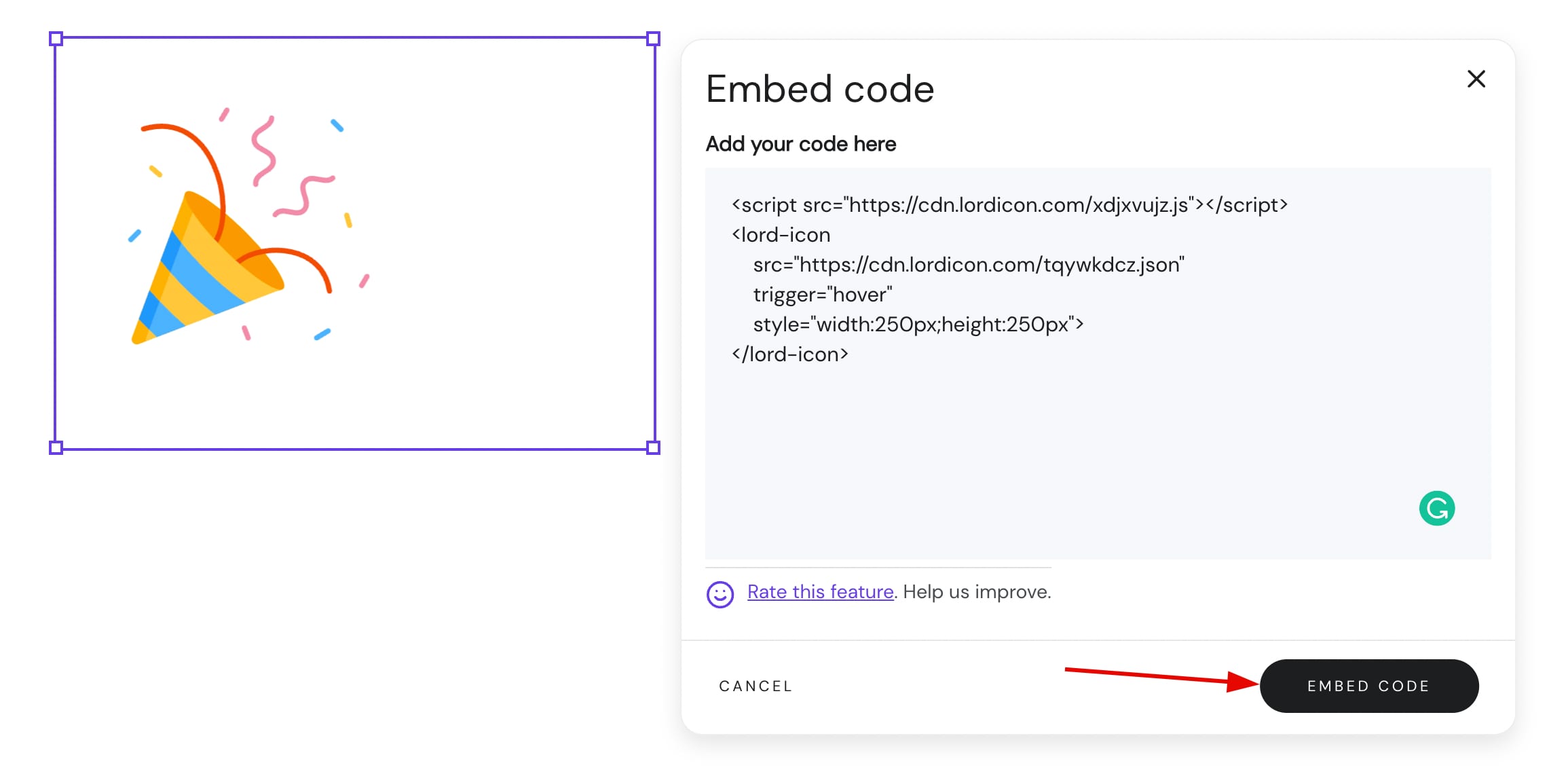
Feel free to resize the code element if necessary. - Finally, update your website for the changes to reflect online.
To check how the website looks with animations, go to the preview mode or open the live website.