Use Hostinger Agent skills to get structured, guided results without needing to write a complex prompt yourself.
Before you start
Premium skills, such as the skills in Business Advisor, are included in the Agent Plus subscription. Premium skills show an Upgrade to Agent Plus button until you upgrade. See Hostinger Agent pricing for what Agent Plus includes.
What are Hostinger Agent skills?
Skills are structured, guided tasks built into each Hostinger Agent. They are the most efficient way to get a specific result without having to determine the correct prompt yourself. When you select a skill, the agent takes the lead by breaking the task into steps and asking you the necessary questions in a logical order.
For example, selecting Keyword Research with SEO Consultant will prompt you for details about your business, your target audience, and the topics you care about, then deliver a prioritized keyword list. You do not need to know SEO methodology to get a useful output.
Using skills
You can initiate skills in two ways. Directly in the chat, by clicking on the bolt icon:
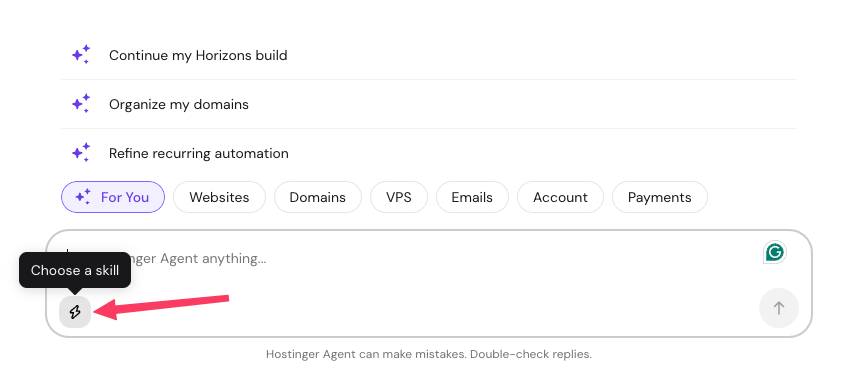
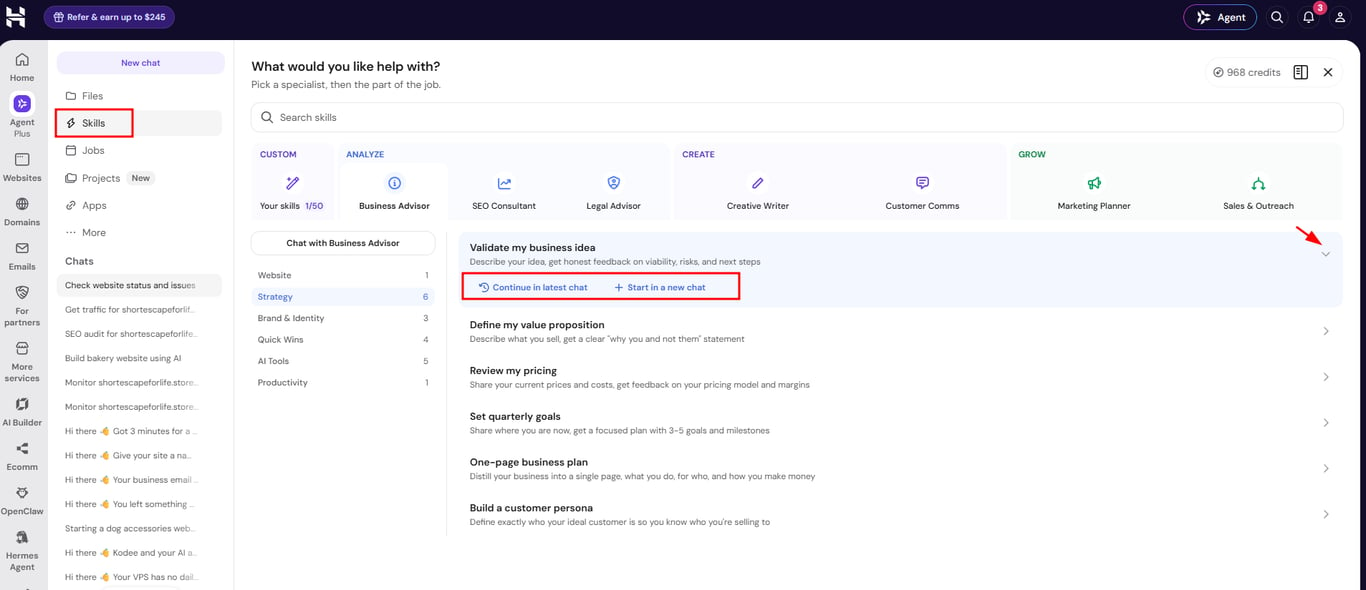
Or open the Skills tab in the chat widget and selecting the one you want. Click the arrow (❯) next to a skill to reveal Continue in latest chat and Start in a new chat, then choose whether to use it in your latest chat or a new one.
Support requests vs. skills
Hostinger Agent handles two kinds of requests differently, as explained in Hostinger Agent pricing and how conversations with Hostinger Agent work. Support requests, such as troubleshooting, account management, and service setup, are free and do not require selecting a skill. Business requests, such as strategy, outreach, or brand and identity work, use Agent credits according to their complexity, and this is where skills apply.
How the Skills tab is organized
Open the Skills tab to see every skill organized by specialist. Each specialist groups its skills into sub-categories.
- Your skills — custom skills you save yourself (up to 50). See “Create your own skill” below.
- Based on AI Memory — personalized skill suggestions based on your account, will no longer be visible once you turn on AI memory.
- Business Advisor — Website, Strategy, Brand & Identity, Quick Wins, AI Tools, Productivity.
- SEO Consultant — Research, Local, Content for SEO, Strategy, Technical, Optimization.
- Legal Advisor — Policies, Starting Up, E-Commerce, Compliance.
- Creative Writer — Blog & Articles, E-Commerce, Social, Website, Lead Generation, Creative.
- Customer Comms — External (for example, drafting professional emails).
- Marketing Planner — Strategy, Social Media, Advertising, Content, Growth. Hostinger Agent generates a marketing campaign strategy, budget allocation, and channel-specific ad copy for email, social media, and search.
- Sales & Outreach — Outreach, Strategy.
Hostinger Agent regularly adds, renames, and retires skills, so the Skills tab is always the current source for what is available. Each skill’s description there explains exactly what it does and what information it needs from you before you select it.
Guides for popular Hostinger Agent tasks
- Website overview: checks your website’s health and names the one fix that matters most this week. See how to get a website overview with Hostinger Agent.
- Get your first 100 visitors: creates a growth plan to bring the first visitors to your website. See how to ask Hostinger Agent to get your first 100 visitors.
- Create a recurring job: runs a check or task on a schedule, such as confirming your website is online. See how to ask Hostinger Agent to check something at regular intervals.
- SEO audit: reviews your website’s SEO and lists what to improve. See how to use Hostinger Agent for an SEO audit.
- Design a logo: creates a logo from your brand name, business description, and chosen style. See how to design a logo with Hostinger Agent.
- Plan my Black Friday: builds a Black Friday campaign plan for your store, with promo copy, sale emails, and social posts. See how to plan a Black Friday campaign with Hostinger Agent.
- Marketing skills, such as Social media content, Content calendar, Instagram strategy, Brand awareness plan, and Product launch plan: create social media posts, posting calendars, growth plans, traffic plans, and launch plans. See how to use Hostinger Agent for marketing.
- Hiring documents: ask in a regular chat for job descriptions, interview questions, and 30-day onboarding plans. See how to ask Hostinger Agent to create hiring documents.
- Create a website: build a website from a description in the chat. See how to use Hostinger Agent to create a website.
- Deploy a website: publish a website to your hosting from the chat. See how to ask Hostinger Agent to deploy a website to your hosting.
- Manage website files: ask in a regular chat to create, edit, rename, or delete your website files and run terminal commands. See how to manage website files with Hostinger Agent.
- Business planning, research and sales: write a one-page business plan, brainstorm business names, analyze competitors and markets, review prices, and write sales emails, proposals, and presentations. See how to use Hostinger Agent for business planning, research and sales.
- Sales follow-up emails: find leads in your Google Sheet who haven’t replied, email them from your Gmail, and log each follow-up on a weekday schedule. See how to send automatic sales follow-up emails with Hostinger Agent.
- Images and videos: generate and edit images, write video scripts, and add a new image to your website. See how to create images and videos with Hostinger Agent.
- Legal pages: draft a privacy policy, terms of service, refund policy, and cookie policy, and add them to your website. See how to create legal pages with Hostinger Agent.
- Automate the boring stuff: ranks your repetitive tasks by what to automate, turn into a template, or stop doing. See how to plan automations with Hostinger Agent.
Create your own skill
Save instructions you use often as a custom skill, so you can reuse them in any conversation without retyping them. You can create a custom skill in two ways: ask Hostinger Agent to save a task from the chat (only available for Agent plus), or use Create skill in the Skills tab. Only you can see your custom skills, and you can save up to 50.
Save a custom skill from the Hostinger Agent chat
- Ask Hostinger Agent to complete a task you repeat often. For example: Write 3 Instagram captions for my bakery’s weekly special. Keep them under 150 characters, friendly tone, and add 3 hashtags each.

- Once the result is ready, type “Save this as a skill” in the same chat.

- Hostinger Agent names the skill and saves it, then confirms in the chat. For example: Your Bakery Weekly Special Captions skill is saved.
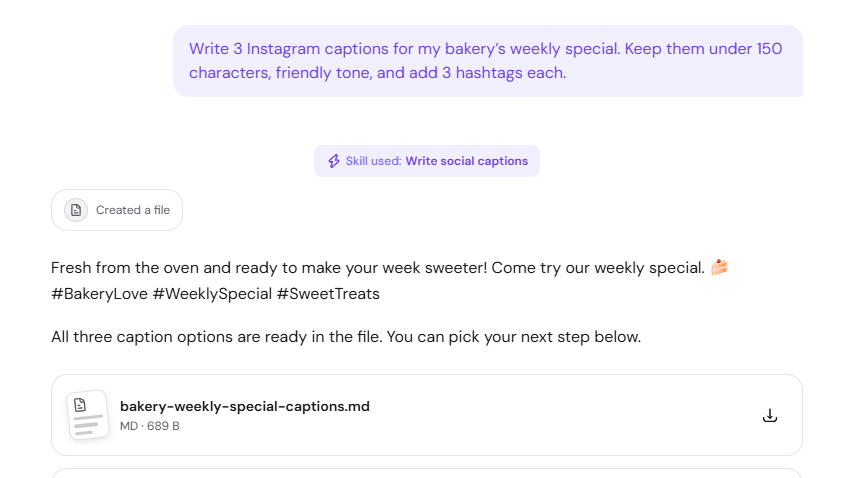
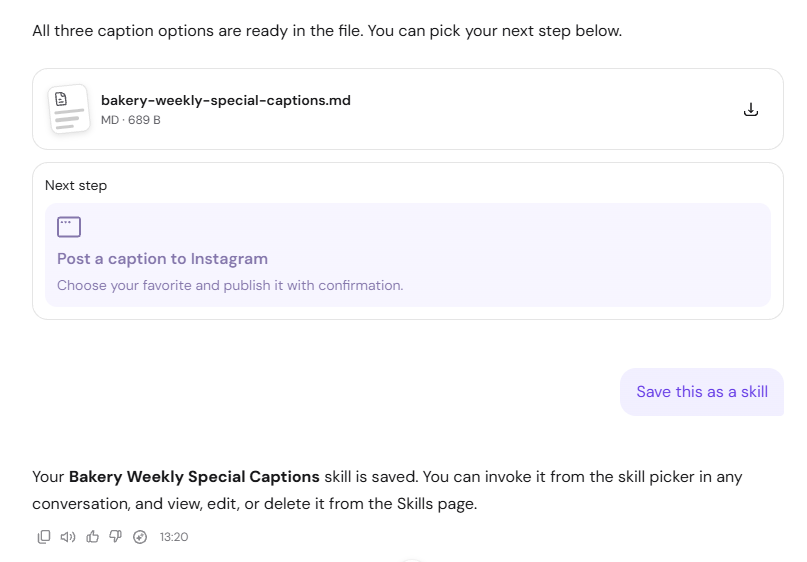
After saving, quick actions appear in the chat to use the skill, edit it, or automate it.
Create a custom skill in the Hostinger Agent Skills tab
- Open the Skills tab in the chat widget and select Your skills.
- Click Create skill.

- Enter a name of up to 80 characters, an optional description of up to 200 characters, and instructions of up to 4,000 characters for what Hostinger Agent should do.

- Click Create skill.
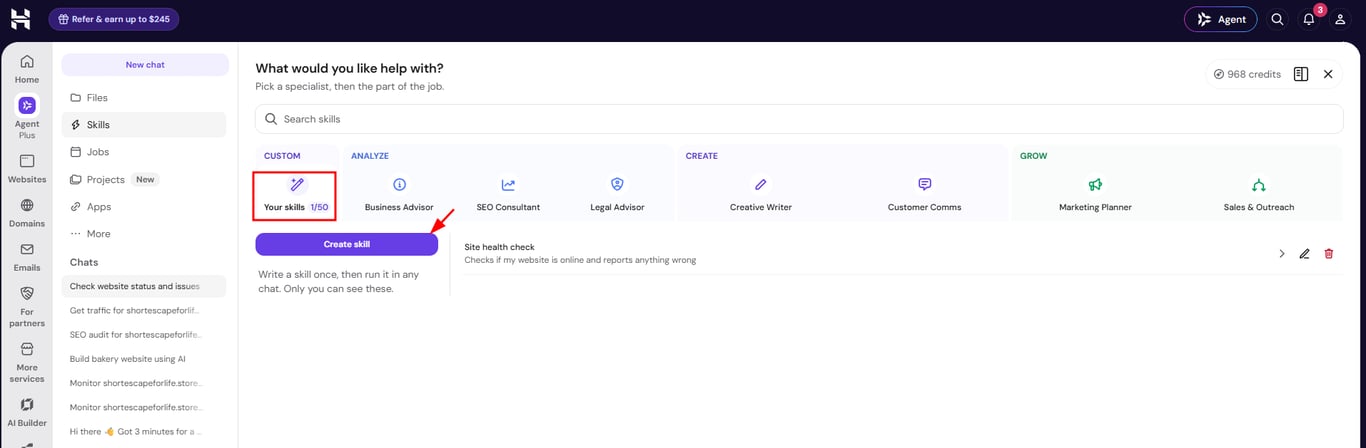
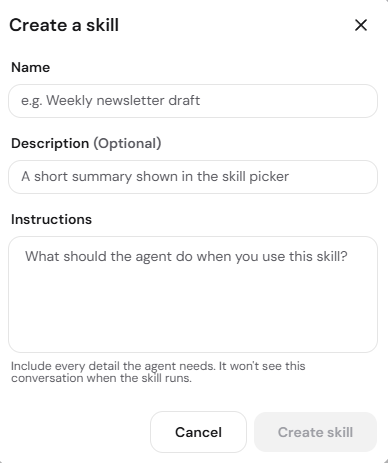
Every custom skill goes through a safety check before it is saved. If the check rejects a skill, the reason appears so you can reword the instructions.
Use, edit, and delete your Hostinger Agent custom skills
Your custom skills appear in the Skills tab under Your skills, with each skill’s name and description. A counter next to Your skills shows how many of the 50 skills you have used, for example 2/50.
- To use a custom skill, click the arrow (❯) next to it and select Continue in latest chat or Start in a new chat. You can also select it with the bolt icon in any chat.
- To edit a custom skill, click the pencil icon next to it.
- To delete a custom skill, click the trash icon next to it.
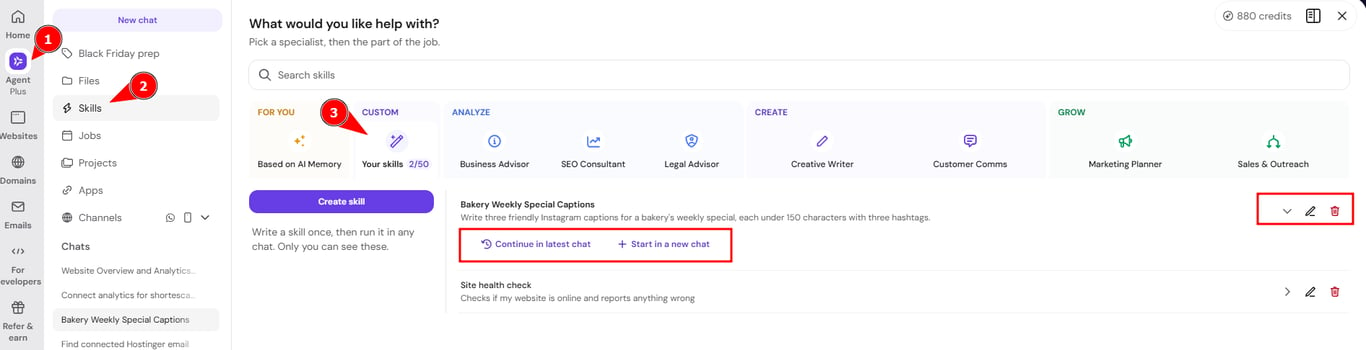
Tips for better skill results
- Provide specific answers when prompted by a skill. For example, if a skill asks about your target audience, and your answer is “everyone,” the output will be generic.
- Review the skills menu descriptions to determine which tool best fits your current project.
- If you want to refine the idea before selecting a skill, you can start chatting and later switch to a skill once you have a specific task in mind.
You can now efficiently automate your tasks using Hostinger Agent skills to save time and improve the quality of your content.