Hostinger Agent can manage your website files for you: it creates, edits, renames, and deletes files and runs terminal commands on your hosting plan. You describe the change in plain language, for example “Create a maintenance page for my website”, and Hostinger Agent asks you to confirm before it changes anything. Changes made by Hostinger Agent go live on your website right away.
Before you start
- You need a website on a web or cloud hosting plan.
- Managing files works in a regular Hostinger Agent chat, without selecting a skill. For guided tasks, see how to use Hostinger Agent skills.
- To deploy a new website or project that Hostinger Agent builds from scratch, see how to ask Hostinger Agent to deploy a website to your hosting instead.
How to ask Hostinger Agent to change your website files
- Click Agent in the top-right corner of the Hostinger dashboard. If you’re in Hostinger File Manager, Hostinger Agent detects the website and file you have open.
- Describe the change, and name the website if you have more than one. For example:
- “I have an empty default page. Please make a coming soon page and make it green.”
- “Create a file named testinfo.php under domain.tld.”

- “Create a maintenance page for my website. I want to edit the website and don’t want visitors to see it yet.”

- Read Hostinger Agent’s summary of what it will change, then click Confirm to proceed or Deny to cancel.
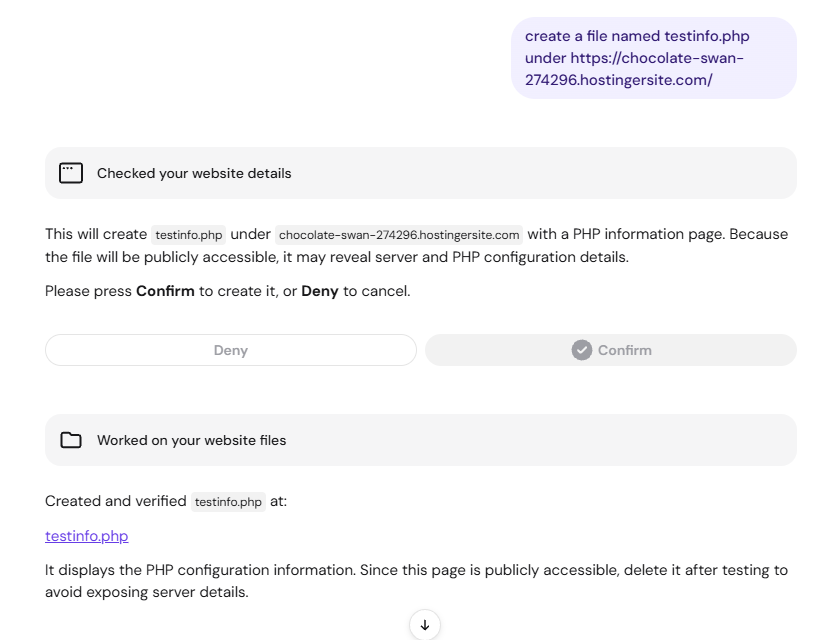
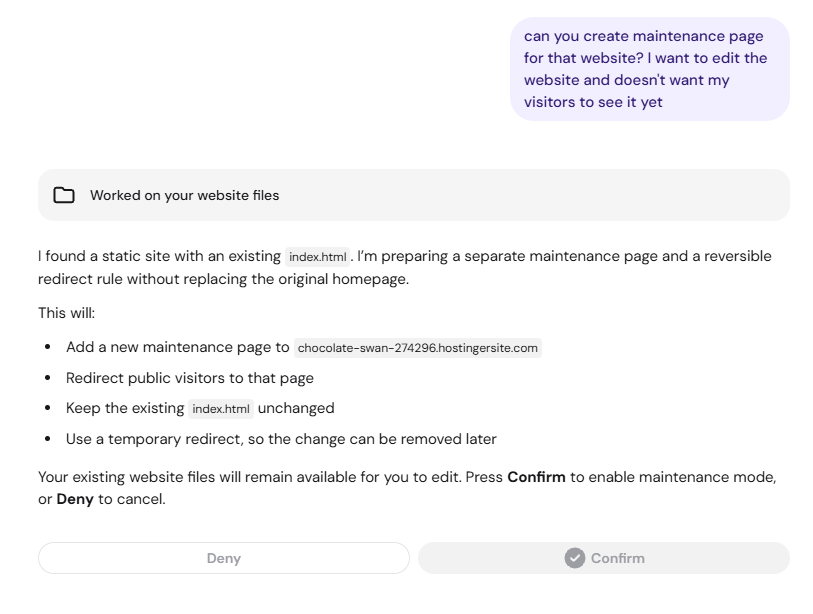
Hostinger Agent makes the change and confirms which file it created or edited. Quick action suggestions appear below the reply, for example to preview the page or undo the change.
When changes made by Hostinger Agent go live
Changes made by Hostinger Agent apply to your website immediately, without the Deploy step in Hostinger File Manager. Manual edits you make in Hostinger File Manager still wait for Deploy.
Files that Hostinger Agent creates in public_html are publicly accessible. Ask Hostinger Agent to delete test files, such as PHP information pages, when you no longer need them.
Hostinger Agent can now handle routine file changes for you, so you can update your website without writing code. To make changes yourself, see How to use the Hostinger File Manager. For everything else Hostinger Agent can do, see Hostinger Agent: Features and overview.