Hostinger Agent website deployment lets the agent publish a site it builds in its Sandbox directly to your Hostinger hosting plan, after you click Confirm in the chat. Hostinger Agent can deploy five types of projects: static sites, PHP sites, WordPress plugins and themes, Node.js apps, and new databases, depending on your hosting plan. Nothing changes on your site until you approve the deployment. You can ask the agent for the deployment status and build logs at any time. Deploying to your hosting is separate from creating a website with Hostinger AI Builder from the chat, which builds a new AI Builder website instead of deploying files to your hosting plan.
Before you start
- A hosting plan that supports the type of project you want to deploy.
- For WordPress plugins and themes, an existing WordPress site.
Supported deployment types for Hostinger Agent
Hostinger Agent deploys five types of projects to your hosting:
- Static sites on Cloud hosting plans.
- Static and PHP sites on Agency Hosting plans.
- WordPress plugins and themes on an existing WordPress site, including sites with many files.
- Node.js apps.
- New databases. Hostinger Agent never shows the database password in the chat.
Hostinger Agent writes the project and prepares the deployment files itself, so you don’t need to upload or package any files.
Deploy a website from the Hostinger Agent chat
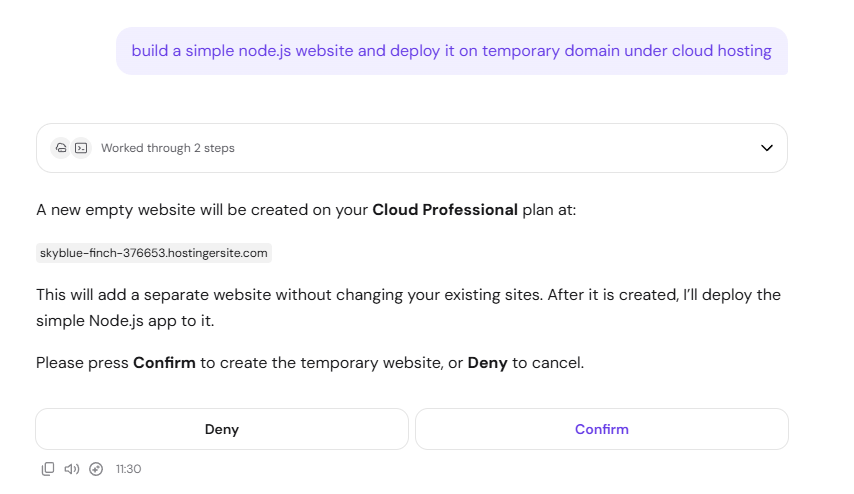
Ask Hostinger Agent to build your site and deploy it, then approve the deployment on the confirmation card.
- In the Hostinger Agent chat, describe what to build and where to deploy it. For example: Build a simple Node.js app that says hello and deploy it to
domain.tld. - Review the confirmation card that appears in the chat.
- Click Confirm to deploy, or click Deny to cancel. Nothing is deployed if you deny the request.
Check Hostinger Agent deployment status and build logs
Ask Hostinger Agent for the deployment status, the build status, or the build logs of your deployment. Hostinger Agent shows the build logs when a build fails, so you can see what caused the error. For Node.js build errors, see How to fix the Failed to build the application error in Hostinger Node.js.
How Hostinger Agent keeps deployments safe
Hostinger Agent deployments include three safeguards:
- Every deployment needs your confirmation, and denying a request deploys nothing.
- Deployments run under your own Hostinger session, not a shared account.
- Hostinger Agent checks archives before uploading them, and removes rejected archives from your hosting files.
Your site is now deployed to your hosting plan, and you can keep asking Hostinger Agent for its status or build logs in the same chat.