Setting up a hosting plan in Hostinger happens in agent-led onboarding, a chat in Hostinger dashboard that asks whether you are migrating an existing website or creating a new one. Based on your answers, the chat starts a website migration, sets up a Hostinger AI Builder, WordPress, Node.js, or PHP/HTML website, or invites your developer to do the setup for you. You can also skip the chat and set up the hosting plan manually with step-by-step screens. Both setup methods ask you to choose a domain or a temporary domain.
Set up a hosting plan with agent-led onboarding
Agent-led onboarding is the chat-based setup that opens when you start setting up a new hosting plan in Hostinger dashboard. You can start it from either of these places:
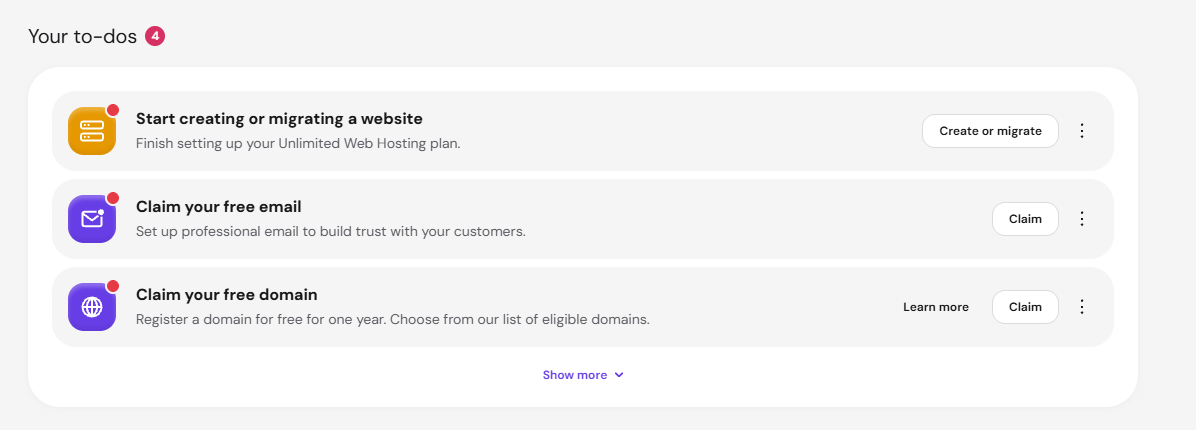
- Home → Your to-dos → click Create or migrate next to Start creating or migrating a website.
- Websites → click Setup next to your hosting plan.

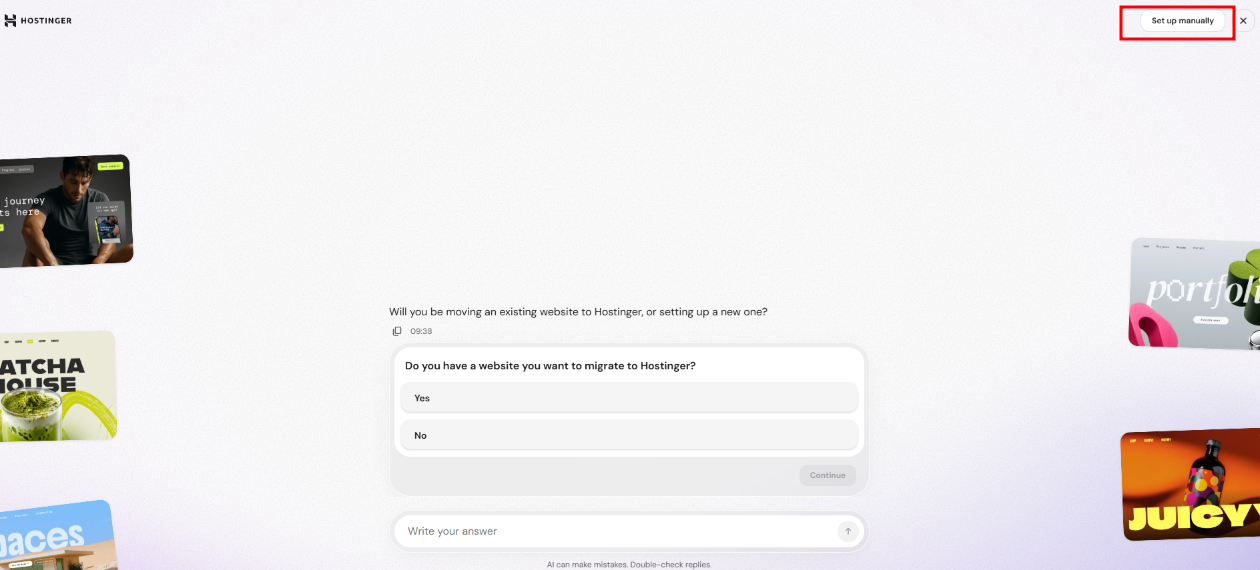
The chat first asks: Do you have a website you want to migrate to Hostinger? Select an answer and click Continue:
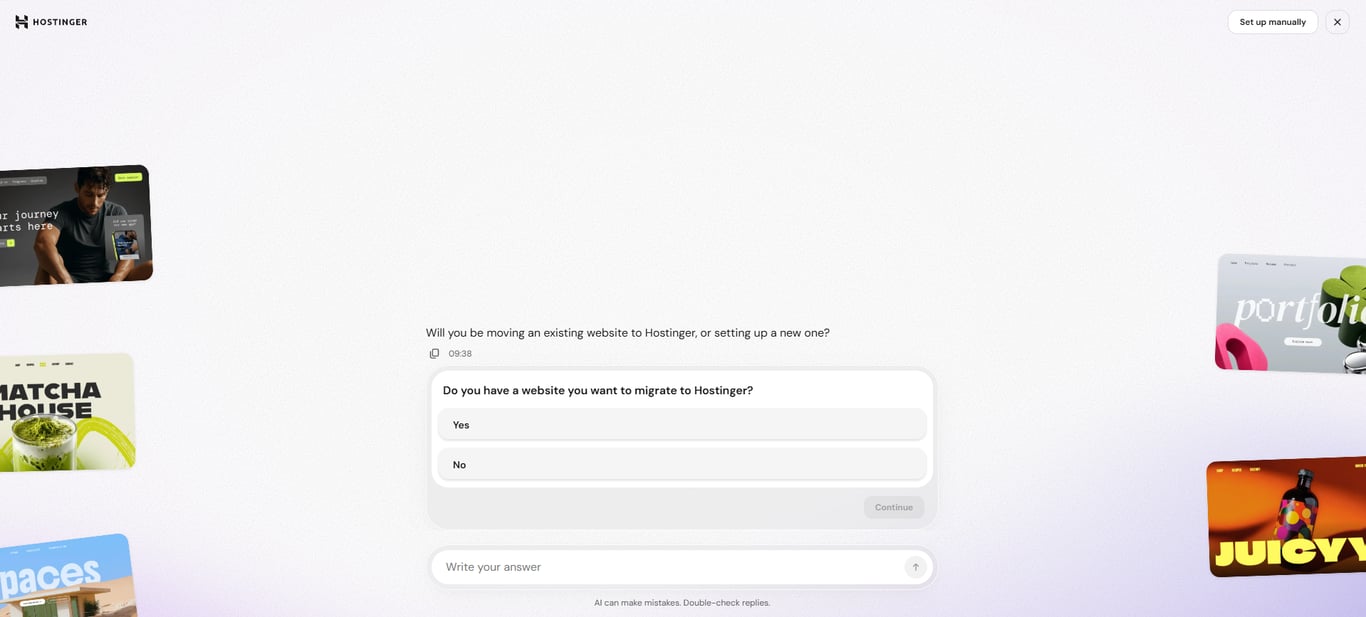
- Yes – Follow the steps in Migrate an existing website during hosting plan setup.
- No – Follow the steps in Create a new website during hosting plan setup.
You can also type in the Write your answer field at any point, for example to ask for the previous options again. To start the setup chat over, click Start new chat in the top-right corner. To use step-by-step screens instead of the chat, click Set up manually and follow the steps in Set up a hosting plan manually.
Migrate an existing website during hosting plan setup
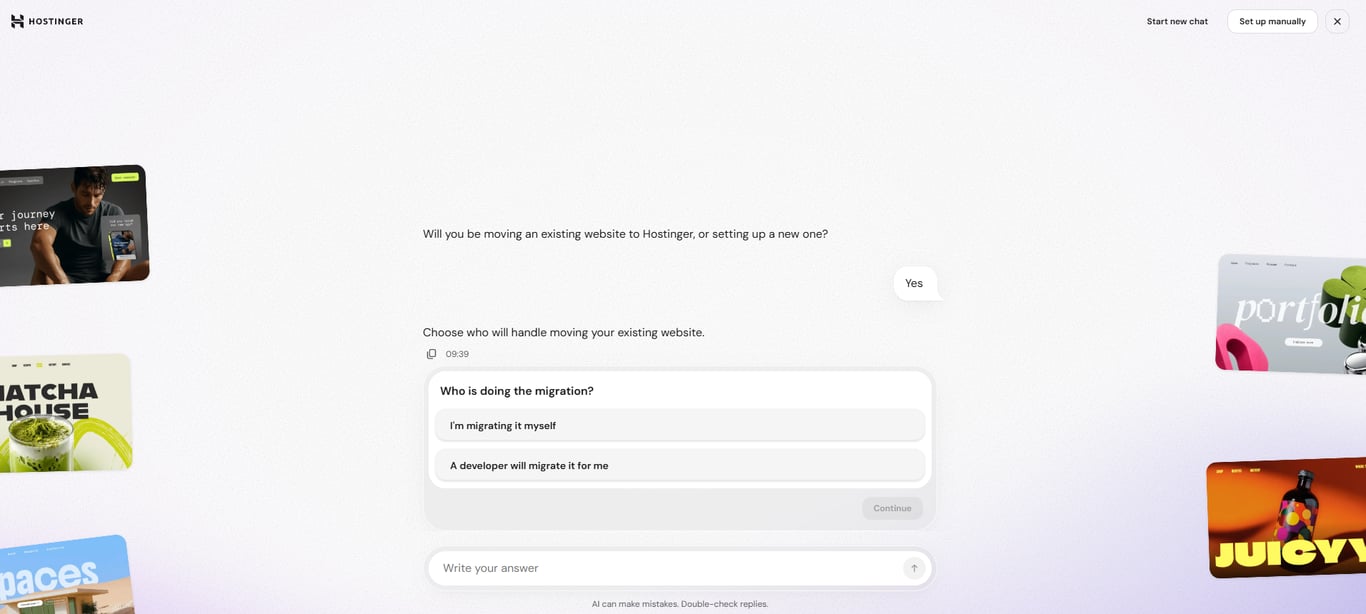
After you select Yes, the chat asks who is doing the migration:
- I’m migrating it myself – Continue with the import options below.
- A developer will migrate it for me – Invite your developer, as described in Invite a developer during hosting plan setup.
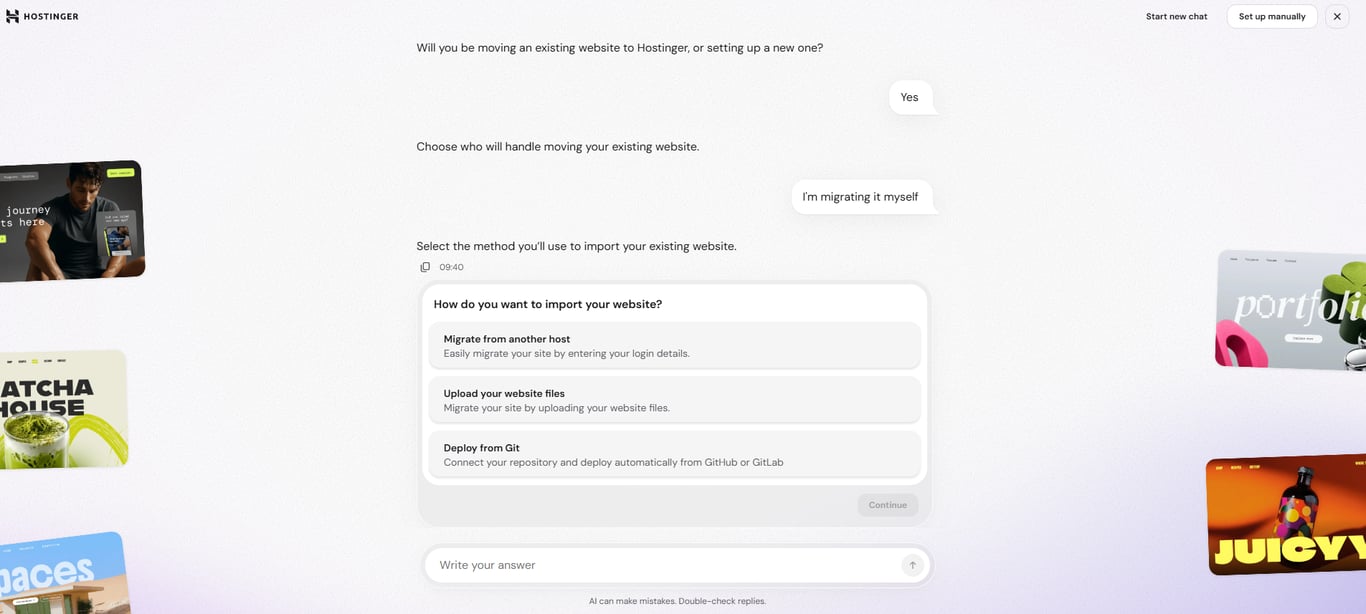
If you migrate the website yourself, the chat offers three ways to import it:
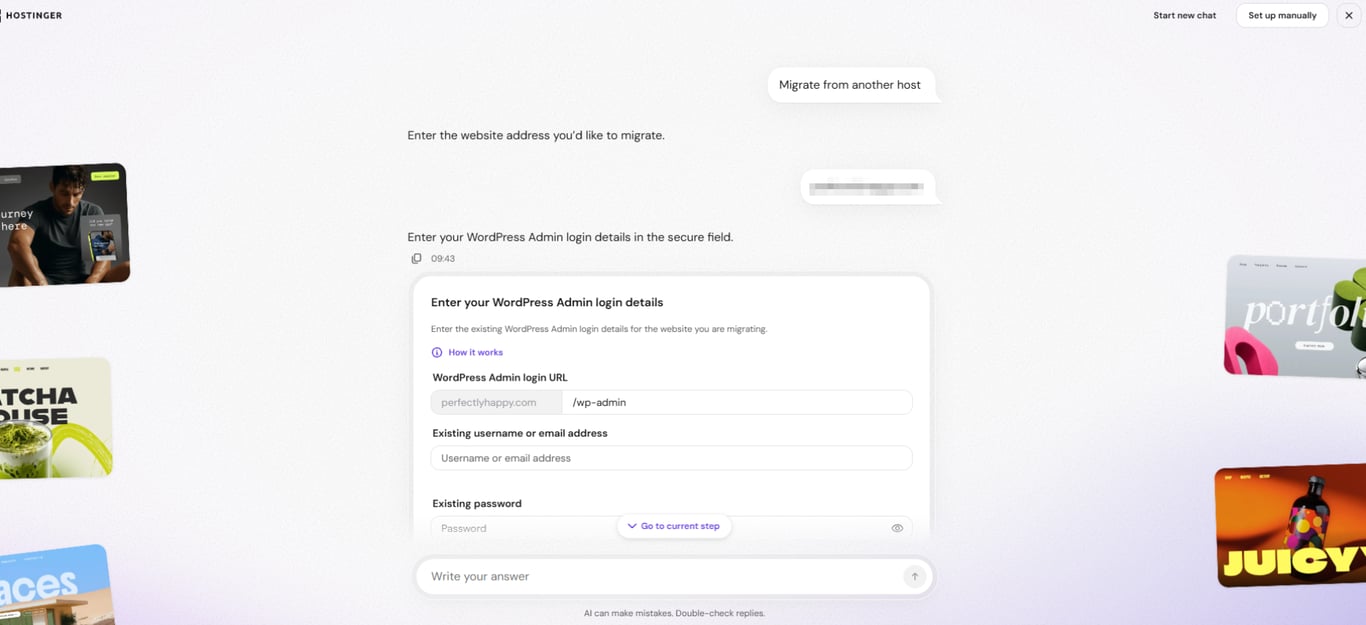
- Migrate from another host – Enter the URL of the website you want to migrate. If the chat detects a WordPress website, the Enter your WordPress Admin login details form opens directly. Otherwise, choose the platform your website uses: WordPress or cPanel.
- Upload your website files – Choose a domain, then upload your website backup files in the upload card. Supported formats are
.zip,.sql,.tar,.tar.gz,.tgz,.7z,.gz, and.sql.gz. - Deploy from Git – Choose a domain, then follow the steps in the chat to deploy your repository from GitHub or GitLab.
For Migrate from another host, enter the login details for your current website, then click Verify and continue:
- WordPress – The WordPress Admin login URL (
/wp-adminby default), your existing username or email address, and your existing password.
- cPanel – The cPanel login URL (port
:2083by default), your existing username, and your existing password.
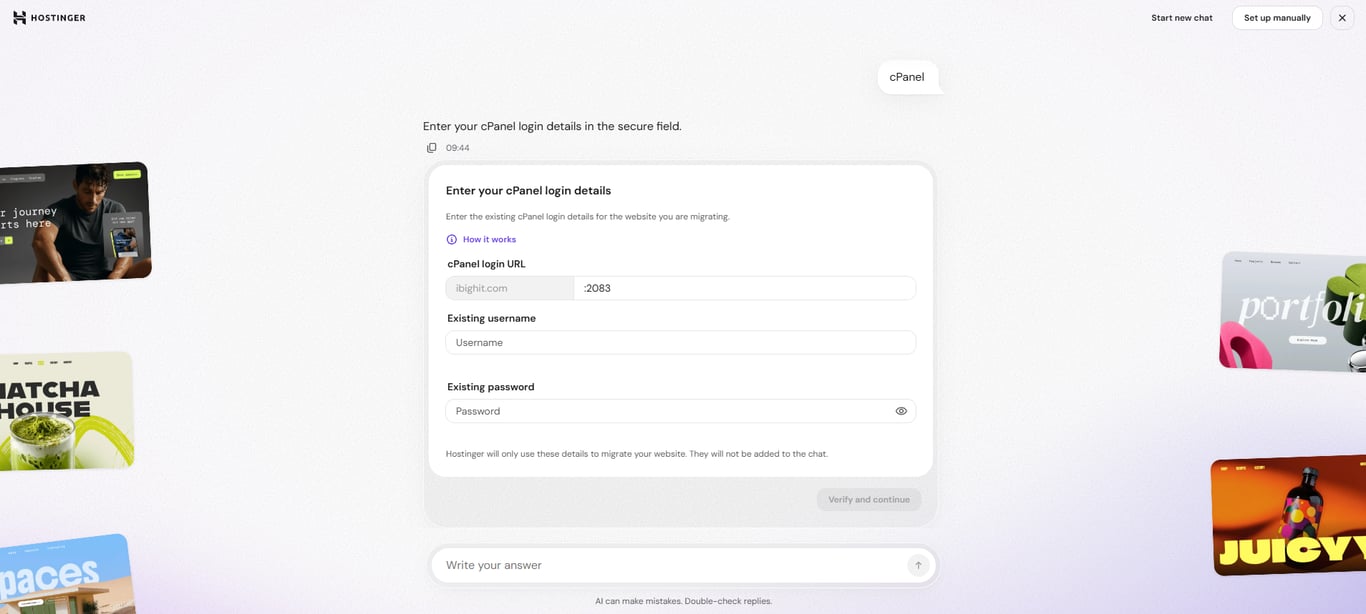
Hostinger uses these login details only to migrate your website, and they are not added to the chat. For migration requirements and what is included in a migration, see How to migrate a website to Hostinger.
Create a new website during hosting plan setup
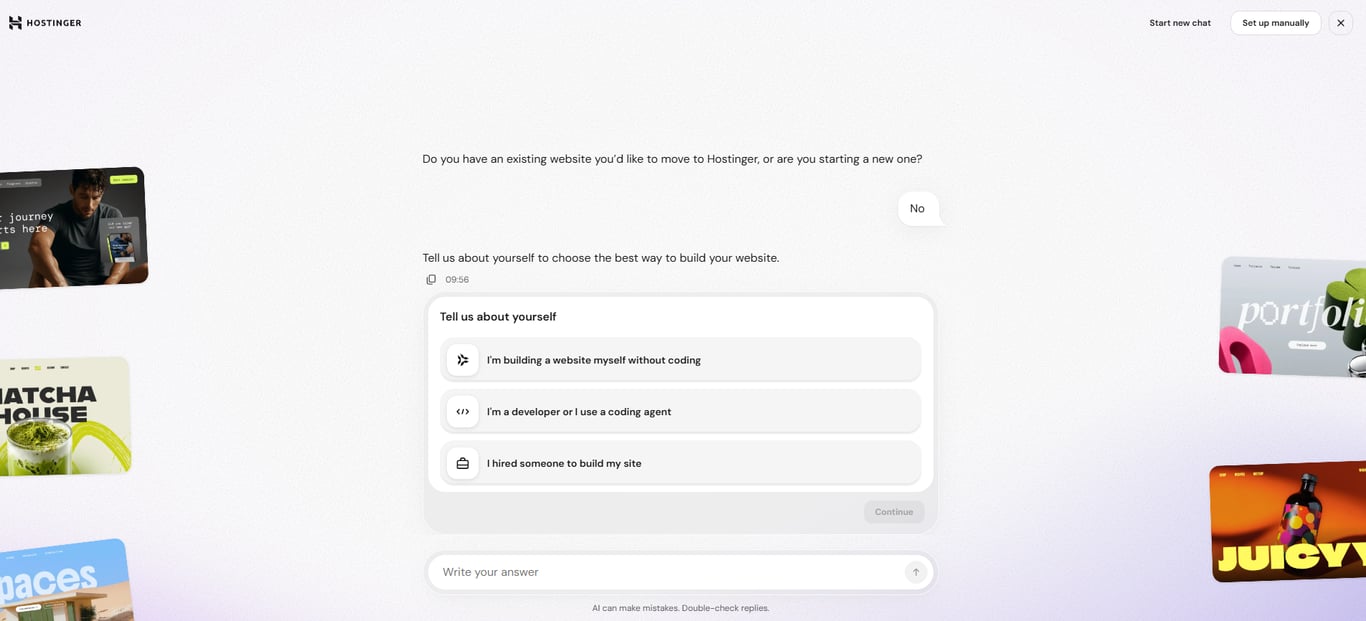
After you select No, the chat asks you to tell it about yourself. There are three options:
- I’m building a website myself without coding – Build the website with Hostinger AI Builder.
- I’m a developer or I use a coding agent – Set up a Node.js, WordPress, or PHP/HTML website.
- I hired someone to build my site – Invite the person who builds your website.
Build a website without coding using Hostinger AI Builder
Select I’m building a website myself without coding, then answer the questions about your website:
- Select what you want to build: Show your work or ideas, Sell products or services, or Build a tool or app. You can also type your own idea under Other.
- Describe what the website is about in a few words.
- Select the features you want, such as Online payments, Bookings & appointments, A contact form, or Live chat.
- Select a look and feel: Minimalistic & focused, Bold & expressive, Warm & friendly, or Elegant & editorial. You can also type your own idea under Other.
- Choose how to build the website, then click Continue.
A summary of your answers appears in the panel next to the chat. There are three build options:
- Build it visually – Edit text, images, and sections by hand with drag-and-drop editing.
- Build it by chatting – Shape and customize the whole website through a conversation with AI. This option uses AI credits.
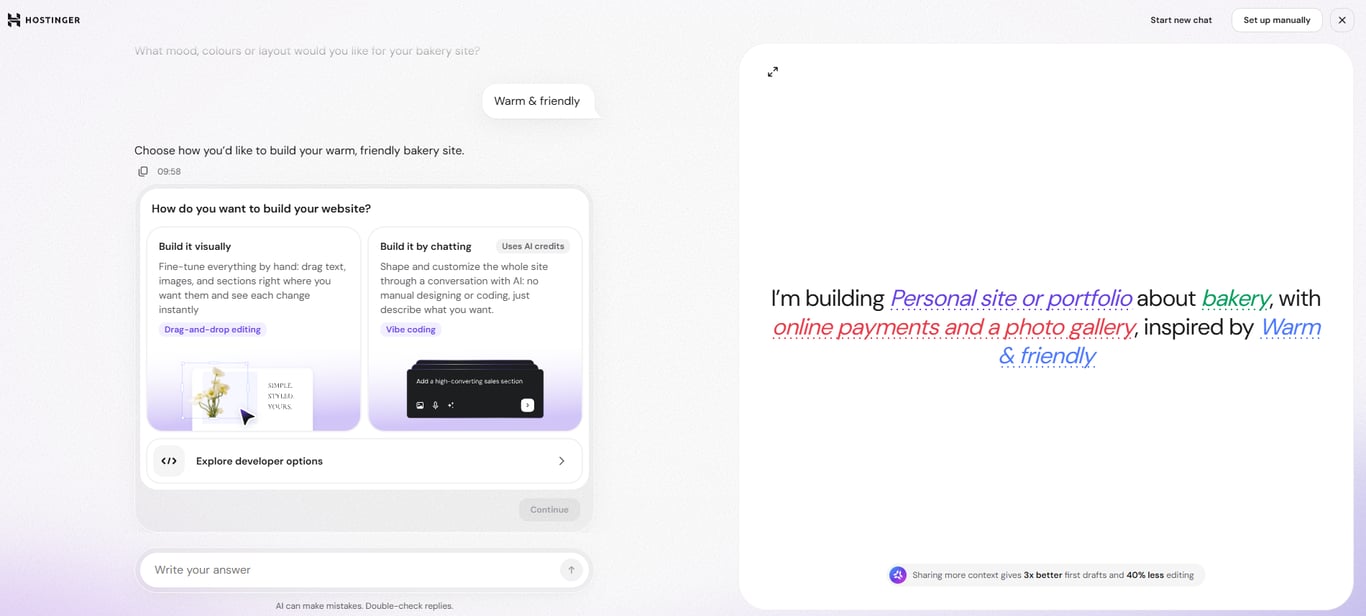
- Explore developer options – Opens the developer options: Push your code, we host it, Build on WordPress, and Upload your PHP or HTML.
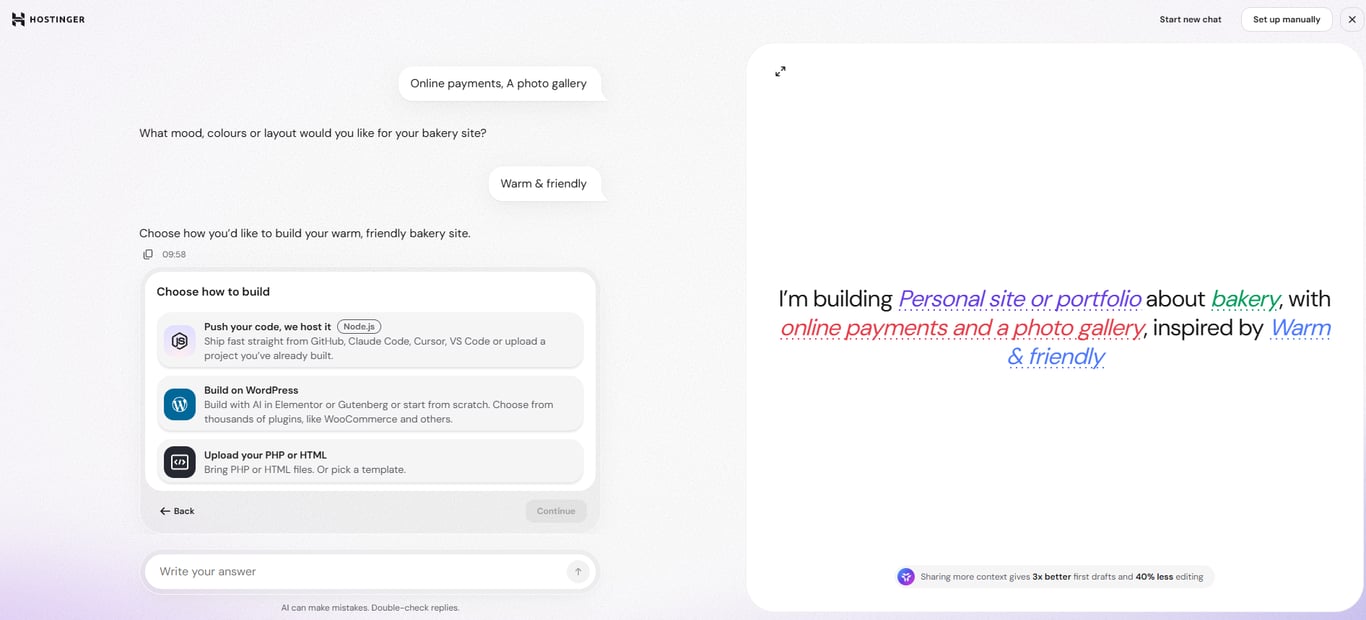
After you choose a domain, the Your website is ready card appears. Click Open editor to start editing your website in Hostinger AI Builder.
Set up a Node.js, WordPress, or PHP/HTML website as a developer
Select I’m a developer or I use a coding agent, then choose how to build the website and click Continue:
- Push your code, we host it – Deploy a Node.js web app from GitHub, Claude Code, Cursor, or VS Code, or upload a project you have already built.
- Build on WordPress – Build with AI in Elementor or Gutenberg, or start from scratch.
- Upload your PHP or HTML – Upload PHP or HTML files, or pick a template.
- Explore AI Builder – Opens the Hostinger AI Builder options.
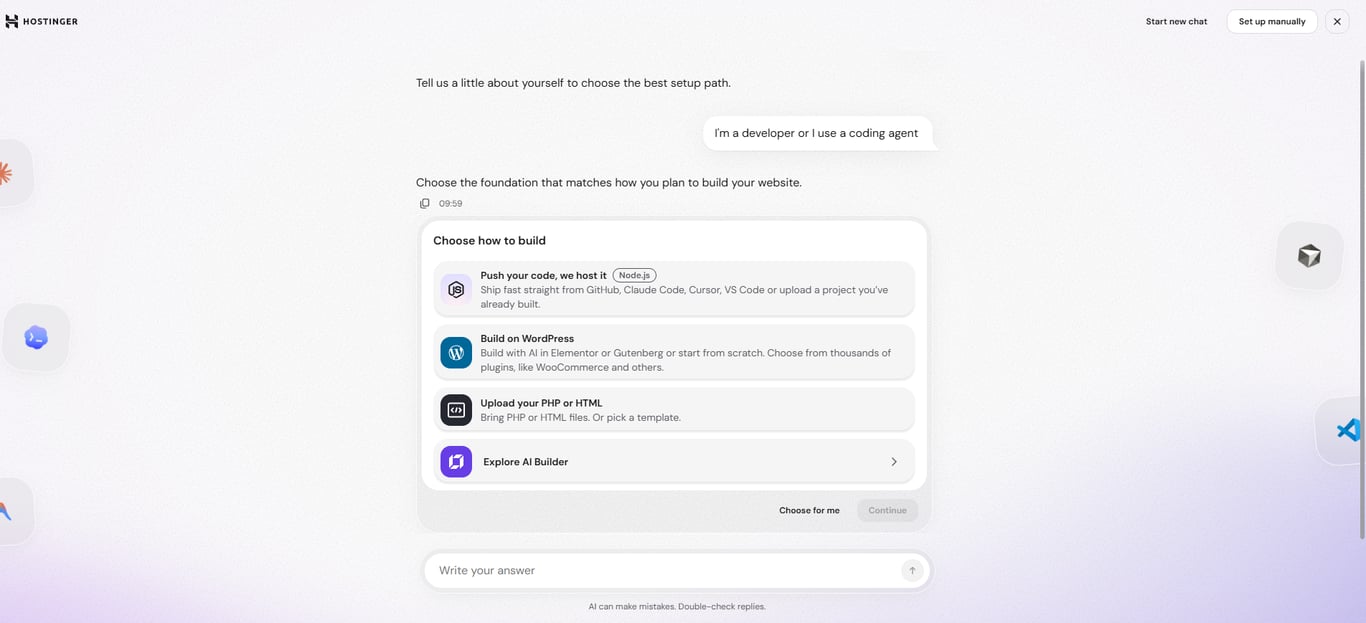
Each option starts with choosing a domain. The next steps depend on the option you select.
Push your code, we host it
After you choose a domain and a data centre, the Deploy your web app card offers four ways to provide your code:
- Import your Git repository – Click Connect with GitHub or Connect with GitLab. The app deploys now and redeploys automatically on every push.
- Public repository URL – Enter the URL of a public GitHub or GitLab repository and click Next.
- Upload your files – Upload your app as a single
.zip,.tar.gz,.tgz,.tar, or.gzarchive. - Start from a template – Search for and select a pre-built GitHub template.
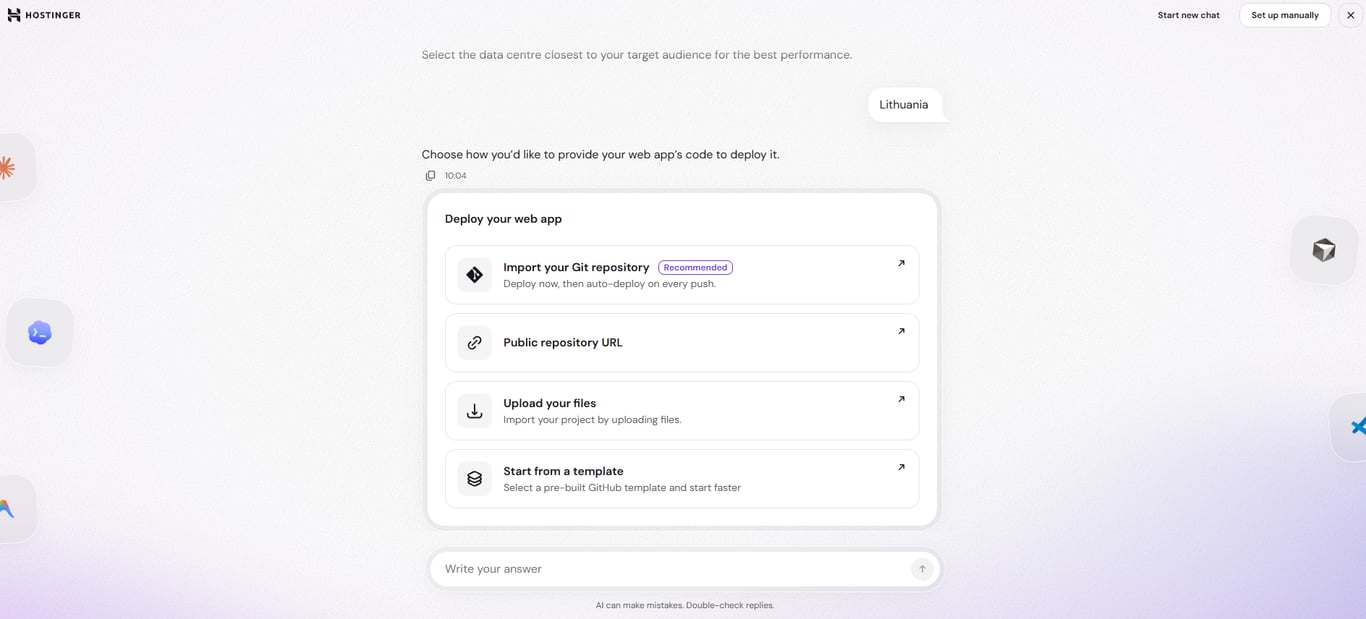
For build settings, supported frameworks, and managing the app after deployment, see How to add a Node.js web app in Hostinger.
Build on WordPress
After you choose a domain and a data centre, complete the Create login details for your WordPress website card:
- Enter the Admin email, Admin password, and Admin username, and select the Admin language. The password must be 8–50 characters long and use only Latin letters, with at least one number, one symbol, one lowercase letter, and one uppercase letter.
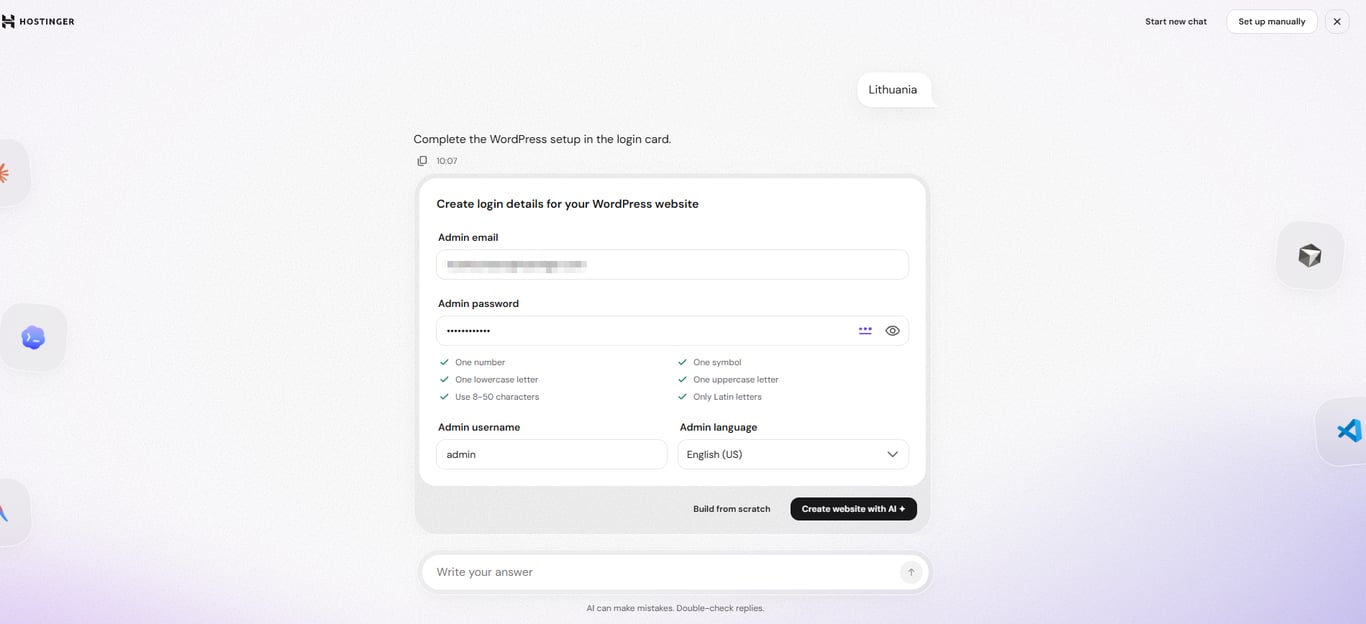
- Click Build from scratch to install a blank WordPress website, or Create website with AI to generate the website with AI after installation.
WordPress installs on your domain, and the Your website is ready card appears. If you selected Create website with AI, click Create website with AI on the card to open Hostinger AI Website Builder for WordPress in your WordPress admin panel.
Upload your PHP or HTML
After you choose a domain, your hosting will be set up. To upload files after the setup instead, see How to upload a website from backups.
Invite a developer during hosting plan setup
Selecting I hired someone to build my site or A developer will migrate it for me opens the Invite someone to help you create or migrate your site card:
- Enter the email address of the person you want to invite.
- Optionally, select the checkbox to allow them to make purchases, such as a domain or email, using your default payment method.
- Click Continue, then confirm your identity with the verification code. The invite is then emailed to the person you entered.
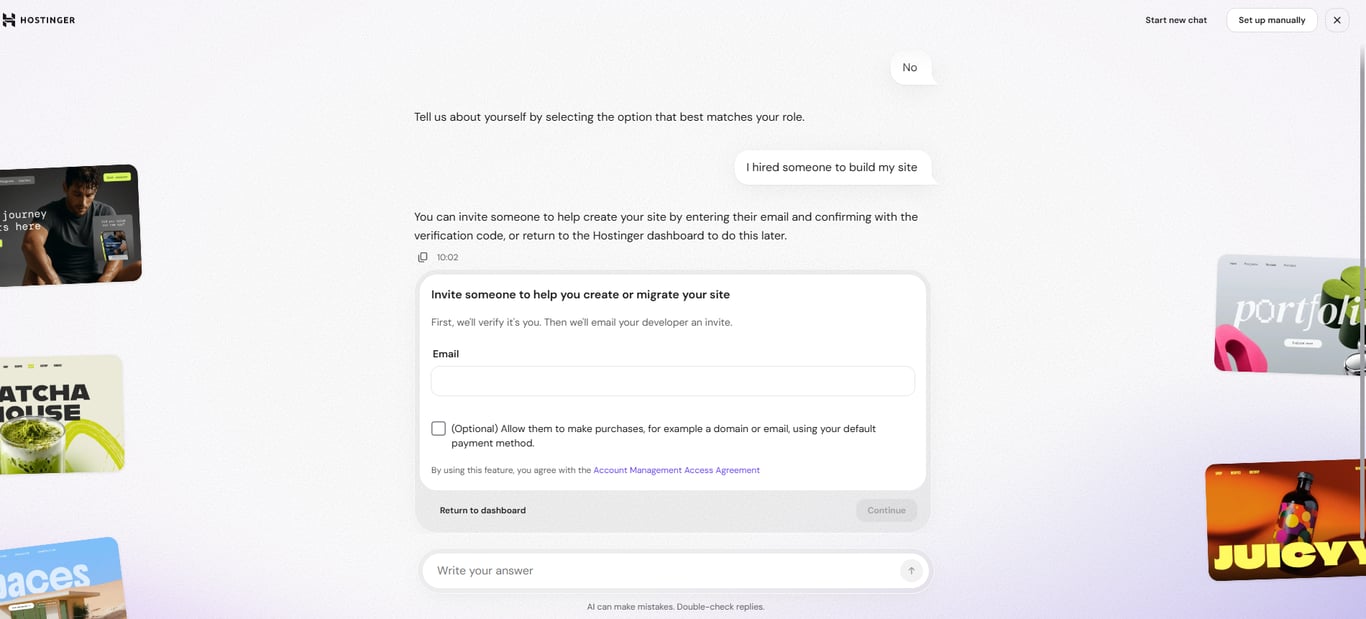
To send the invite later, click Return to dashboard. For more on what invited users can do, see How to share access to your account at Hostinger.
Set up a hosting plan manually
To set up your hosting plan with step-by-step screens instead of the chat, click Set up manually in the top-right corner of the setup chat.
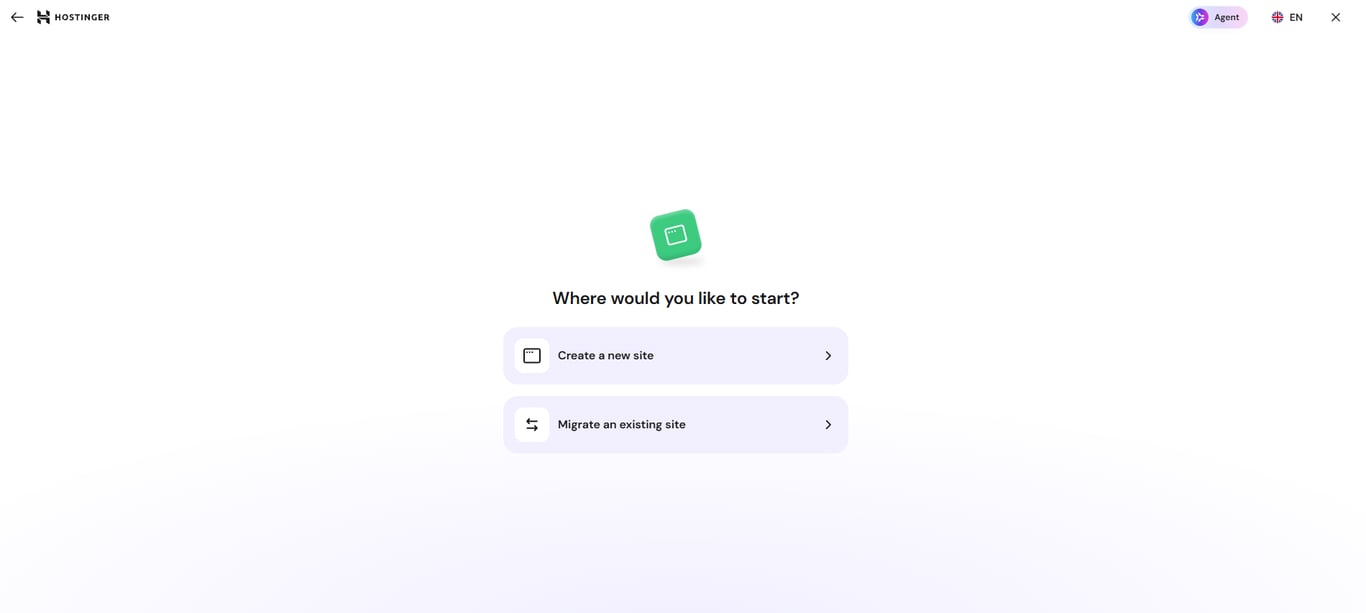
The first screen asks Where would you like to start? There are two options:
- Create a new site – Choose how to build a new website.
- Migrate an existing site – Choose how to import a website you already have.
Create a new website with manual setup
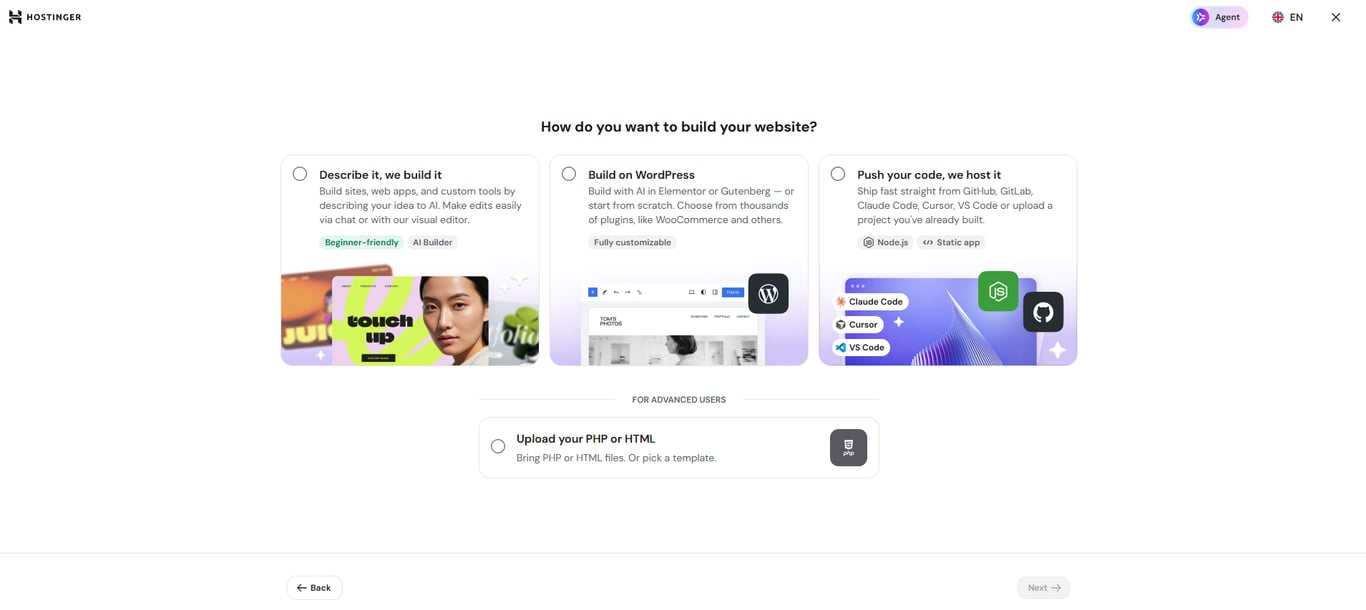
After you select Create a new site, choose how you want to build your website and click Next:
- Describe it, we build it – Build a website, web app, or custom tool with Hostinger AI Builder by describing your idea to AI. Next, choose your building style: Manual for drag-and-drop editing, or Agentic to shape the website through a conversation with AI. The Agentic style uses AI credits.
- Build on WordPress – Build with AI in Elementor or Gutenberg, or start from scratch.
- Push your code, we host it – Deploy a Node.js or static app from GitHub, GitLab, Claude Code, Cursor, or VS Code, or upload a project you have already built.
- Upload your PHP or HTML – Upload PHP or HTML files, or pick a template. This option is listed under For advanced users.
Build on WordPress, Push your code, we host it, and Upload your PHP or HTML continue with choosing a domain. Follow the remaining steps on screen to complete the setup.
Migrate an existing website with manual setup
After you select Migrate an existing site, choose how you want to import your website and click Next:
- Migrate from another host – Migrate the website with your WordPress admin login or cPanel login details.
- Upload your website files – Upload the files of a static website, a WordPress, PHP, or other website, or a Node.js app.
- Deploy from GitHub – Connect your GitHub repository and deploy it automatically. This option works with static websites, WordPress, PHP, and other websites, and Node.js apps.
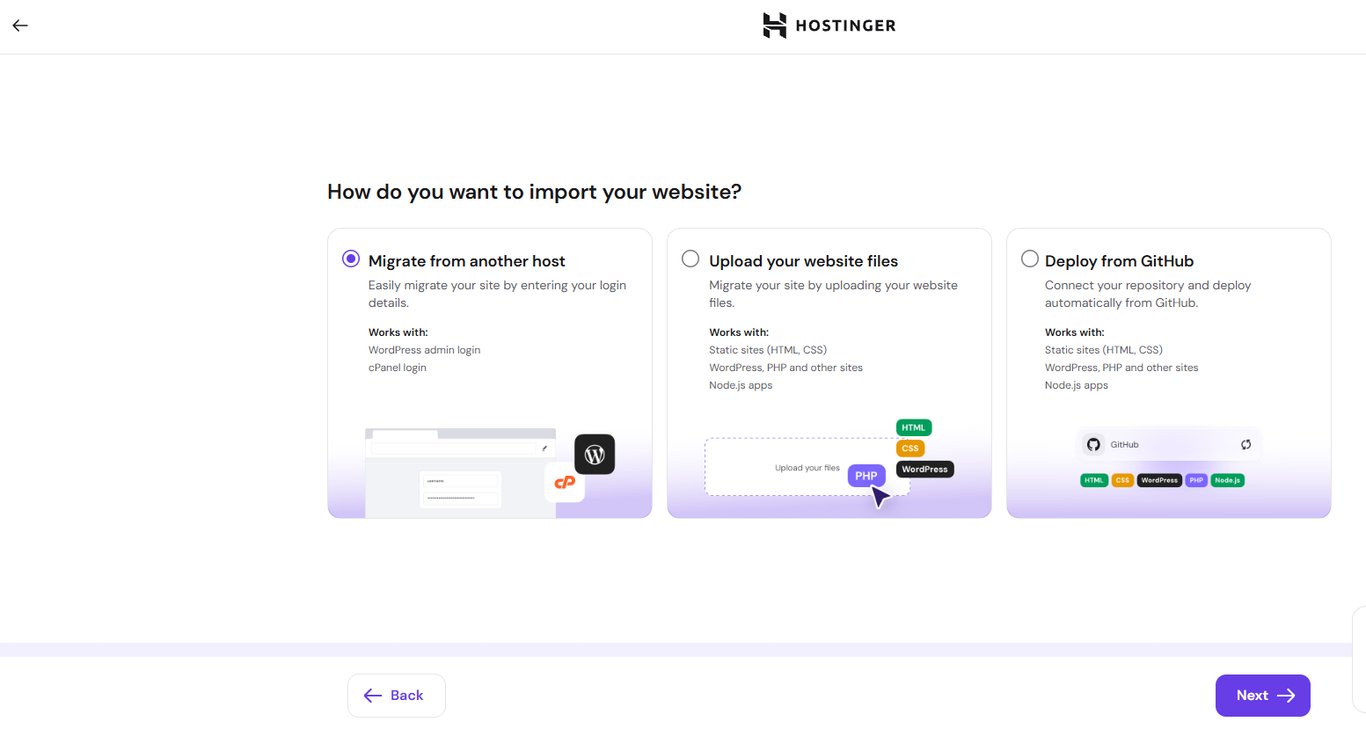
Migrate from another host and Upload your website files continue with choosing a domain.
Deploy from GitHub opens the Install & Authorize Hostinger page on GitHub. Select All repositories or Only select repositories, then click Install & Authorize to return to Hostinger dashboard.
For migration requirements and what is included in a migration, see How to migrate a website to Hostinger.
Choose a domain and data centre during hosting plan setup
Both setup methods ask: What domain name do you want to use for this website? Type a domain you want to register or a domain you already own, select it, and click Next. To set up the website without a custom domain, click Use temporary domain.
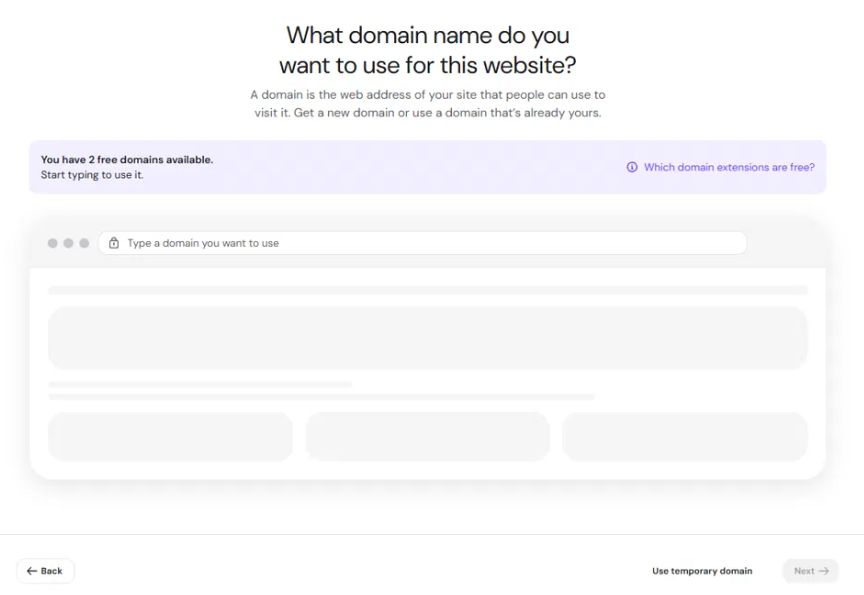
If your hosting plan includes a free domain, the manual setup shows how many free domains are available. Click Which domain extensions are free? to see the eligible extensions.
A temporary domain uses a random address on hostingersite.com. You can connect a custom domain later.
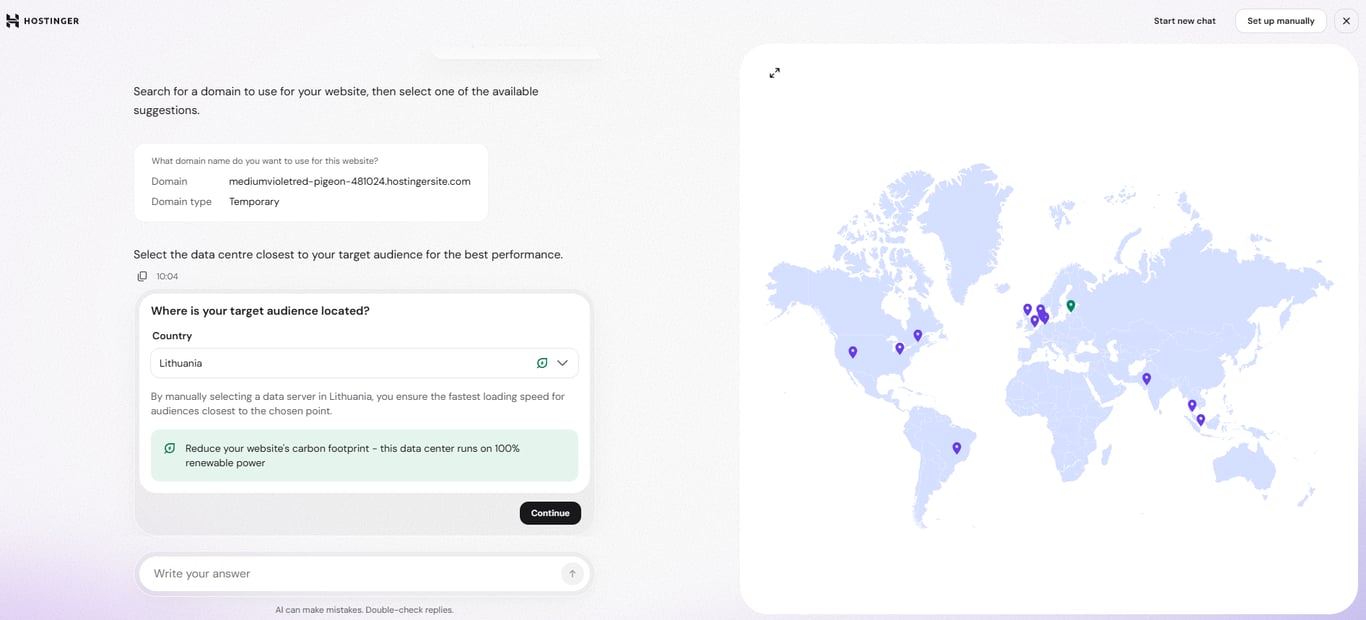
For Node.js and WordPress websites set up in the chat, the chat then asks: Where is your target audience located? Select a Country and click Continue. The data centre closest to that country hosts your website. For the available locations, see Hostinger server locations.
Once the setup confirms your website is ready, your hosting plan is set up, and you can manage the website from the Websites page in Hostinger dashboard. For Premium web hosting plans and above, you can create or migrate additional websites after the setup.