Share access to your account at Hostinger with Account Sharing, which lets a developer or collaborator manage selected services, such as a hosting plan, domain, or email plan, without your login credentials. Assign each shared user the Collaborator or Admin role, and remove their access at any time.
Granting access
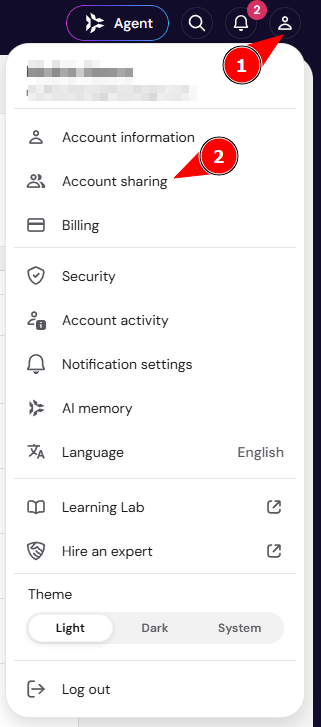
To grant access, click on your profile icon on the top right of Hostinger dashboard and click the Account Sharing button:
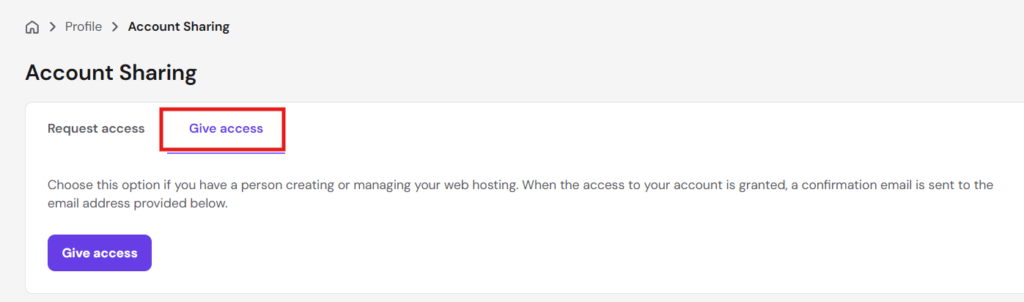
Now, on the Account Sharing page, click on the Give Access button:
Then, you will be presented with further options:
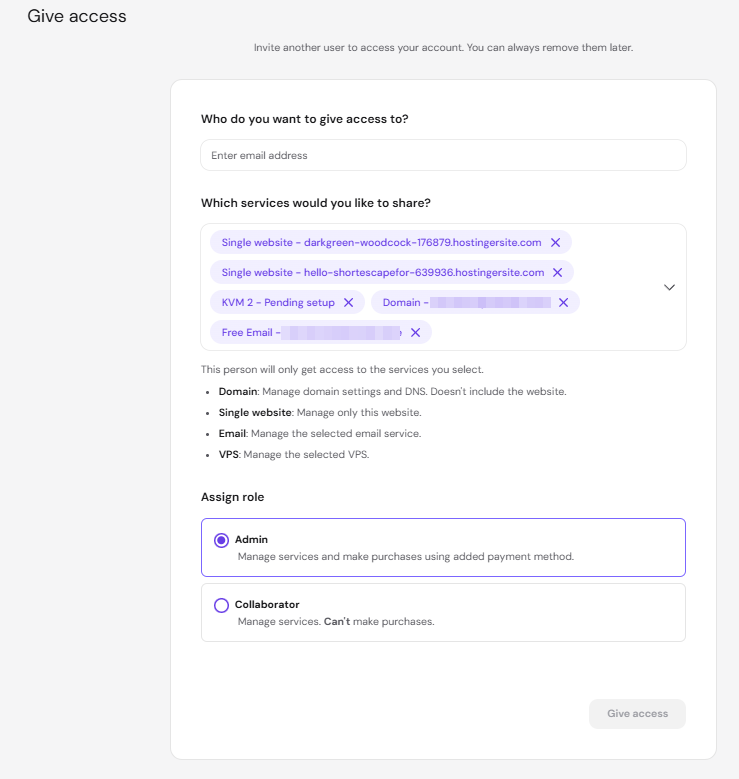
Here, you can select the services you wish to share and assign an access level. Give access lists what each selected service grants access to, for example that sharing a domain includes DNS management but not the website.
When everything is good to go, click on Give Access. A confirmation message will be sent to the user; they must click on the link to be granted access to your account.
A confirmation email will be sent to the user; they must click on the link to be granted access to your account.
NOTE
-
If the new user does not have a Hostinger account yet, they will be prompted to create one
What roles are available for a shared user?
When you grant access, you choose a role for the shared user: Collaborator or Admin. Each role has a different set of permissions.
| Action | Collaborator | Admin |
|---|---|---|
| Manage website files | ✅ Allowed | ✅ Allowed |
| Add subdomains | ✅ Allowed | ✅ Allowed |
| Edit DNS, if the domain is included in the shared access | ✅ Allowed | ✅ Allowed |
| Purchase using the owner’s saved payment method | ❌ Not allowed | ✅ Allowed |
| Add or manage payment methods | ❌ Not allowed | ❌ Not allowed |
| Change account email, password, or profile info | ❌ Not allowed | ❌ Not allowed |
| Invite other users to the account | ❌ Not allowed | ❌ Not allowed |
| Transfer, unlock, or edit domain contact info | ❌ Not allowed | ❌ Not allowed |
| Set up a new hosting, VPS, or email plan | ❌ Not allowed | ❌ Not allowed |
| Claim a free domain or free email | ❌ Not allowed | ❌ Not allowed |
| Delete the account | ❌ Not allowed | ❌ Not allowed |
| Create or set up email accounts | ❌ Not allowed | ❌ Not allowed |
NOTES
- Domain restrictions also cover managing auto-renewals, selling domains in the aftermarket, responding to a domain buying service, and managing backorders.
- Creating separate shared access to a free email plan isn’t possible. This is only available for paid email plans.
Due to these restrictions, the panel for a shared user shows fewer options than the owner account.
What actions can the user with granted access perform on the account?
A user with granted access will be able to make changes to your websites, such as modify files and databases, as well as change hosting-related settings in your control panel. For the full list of allowed and restricted actions, see What actions can the user with granted access perform on the account at Hostinger.
What actions cannot be done?
To ensure your account’s privacy and security, a user with granted actions cannot perform the following actions:
- Manage or add payment methods to your account
- Invite others to access the account
- View or change profile information (for example, change email, name, phone, address, and password)
- Do the following tasks with domains: transfer or unlock domains, change domain’s contact details, manage auto-renewals, sell domains in the aftermarket, respond to a domain buying service, or manage backorders
- Create separate access for free email plans. It is now only possible for paid email plans.
- Delete your account
- Set up new hosting or email plans
- Claim a free domain and a free email
Due to these restrictions, the Panel for an account with granted access will show fewer options than the owner account.
Managing shared access
For the current users with granted access, check the Users that have access to your account list on the Grant access tab, where the email addresses, access type, services, and status will be listed.
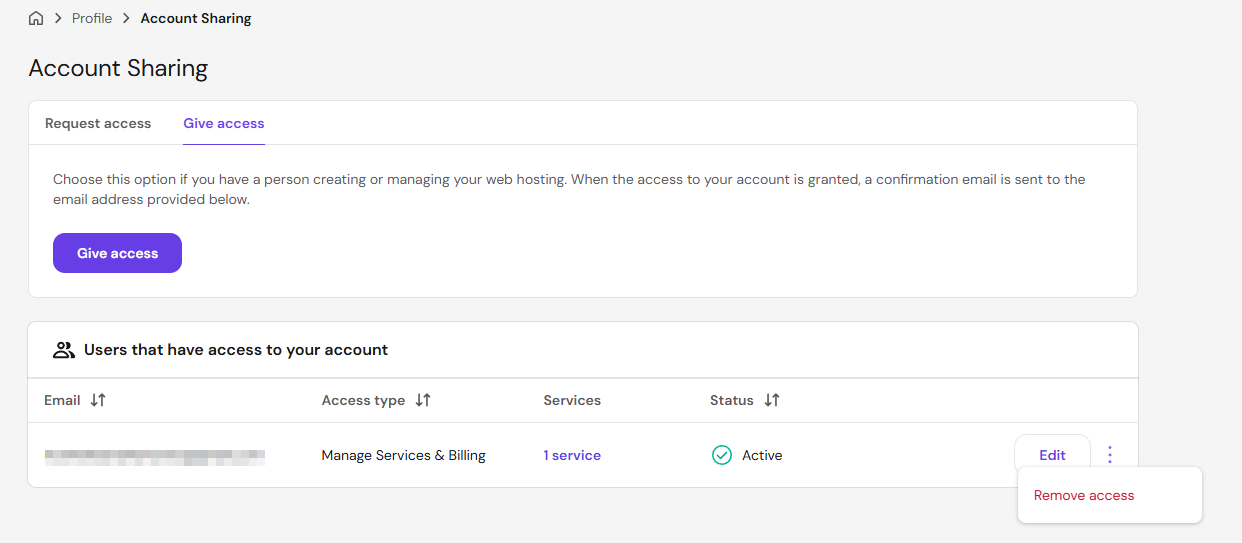
To revoke any access to your account, click on ⋮ → Remove access next to the email address.
Select the number of services next to a user to see the exact services shared with them and what each service grants access to, for example that a shared domain includes DNS management but not the website.
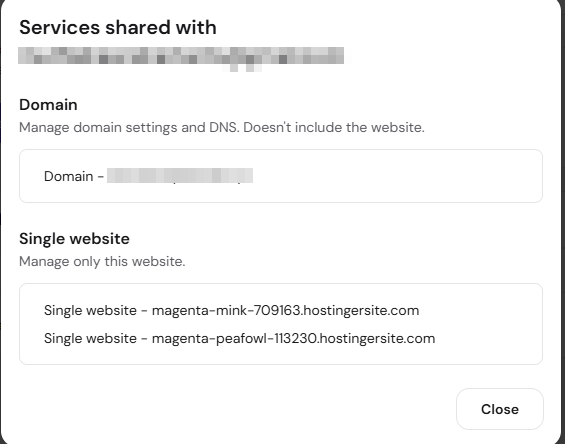
Common questions about Account Sharing access
Why can’t I manage website files if I only have access to a domain or email plan?
Access to website files depends on which service the account owner shared with you. If the owner shared a hosting plan with you, you can manage website files, subdomains, and hosting settings. If the owner shared only a domain or email plan with you, you cannot access website files or hosting settings: domain access allows DNS management only, and email access allows managing the email plan only.
Ask the account owner to share the hosting plan with you if you need to manage website files. To do this, the owner goes to their profile icon → Account Sharing → Give Access, then selects the hosting plan from the service list.
Why can’t I share access to only one domain or website?
Account Sharing grants access to an entire hosting plan, not to a single domain or website. Sharing a hosting plan gives the other user access to all websites under that plan. Sharing a domain service gives the other user DNS management only, not website files or hosting settings.
Share the hosting plan if the other user needs to manage website files or hosting settings. Share the domain service if the other user needs to manage DNS only. To limit access to one specific website, create a separate FTP account for that website, or upgrade to an Agency plan, which supports per-website access sharing. See How to share access to websites in Hostinger for both options.
Why do I see “Action for this resource is not allowed”?
This message appears when a shared user tries to perform an action reserved for the account owner. Check the Collaborator and Admin permissions listed earlier in this article to confirm whether the action is restricted for your role. This restriction is by design, not an error.
Ask the account owner to perform the action from their own account. If you believe your role should allow the action, ask the account owner to contact Hostinger support.
What should I do if I didn’t receive the Account Sharing invitation email?
Check your spam or junk folder first, since delivery can take up to 15 minutes. Confirm that the account owner used the correct email address when granting access.
Ask the account owner to grant access again to resend the invitation email. Select the link in the email to accept access once you receive it. Create a Hostinger account, or sign in with Google or Facebook, if you don’t have a Hostinger account yet.
Where can I find the account I was given access to?
Log in to Hostinger dashboard using the email address that received the invitation, then go to your profile icon → Account Sharing. The account appears under Accounts I have access to. For the full process from the shared user’s side, see How to get shared access to another account at Hostinger.
If the account doesn’t appear, confirm that you accepted the invitation email and that you’re logged in with the correct email address.
Share access via SSH (VPS Only)
If you are using a Hostinger VPS, you can provide access to a developer or team member by creating a separate SSH user. This allows them to manage the server via a terminal without needing access to your Hostinger account.
- Log in to your VPS terminal as root.
- Create a new user by running: adduser username (replace “username” with your choice).
- Set a secure password for the new user.
- To allow the user to execute administrative commands, add them to the sudo group: usermod -aG sudo username.
- Provide the new user with your VPS IP address and their specific credentials.
Your shared users can now manage the services you granted them without your Hostinger login credentials, and you can remove their access at any time.
NOTES
- Hostinger dashboard Access: Using the Access Management feature is best for users who need to manage billing, domains, or website settings via the Hostinger dashboard interface.
- SSH Access: Creating an SSH user is recommended for technical tasks or development work directly on a VPS, as it keeps your Hostinger dashboard account fully private.
- Security: Always use the “Change permissions” option in the Access Management tab to revoke access once the collaboration is finished.