Git is a Version Control System (VCS) used to track changes in files and coordinate work among developers. This integration allows you to seamlessly deploy PHP files, WordPress websites, and custom static projects from GitHub or GitLab directly to your hosting plan.
Before you start
- Git integration is available for custom PHP and HTML websites hosted on web and cloud hosting plans.
- This does not apply for Node.js websites, instead please refer to the guide on deploying Node.js from a GitHub repository.
- Agency Hosting plans support a separate GitHub integration for existing websites.
- Hostinger AI Builder websites do not support Git integration.
Set up Git deployment
Git deployment on Hostinger dashboard supports both GitHub and GitLab through OAuth, allowing you to connect your Git provider account and deploy directly from your repositories — no SSH key setup required. You can deploy PHP files, WordPress websites, and similar projects using this integration.
You can start Git deployment two ways: from an existing website’s dashboard, or directly from the Websites list when creating a new website via Import website → Deploy from GitHub, which opens the same GitHub (or GitLab) authorization screen described in step 4 below. This option is not available on Agency hosting plans.
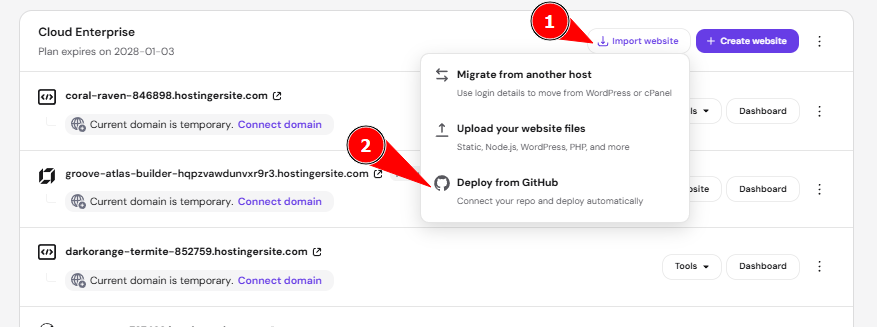
For the initial deployment of a Git repository:
- Go to Hostinger dashboard → Websites.
- Locate the website and click on Dashboard next to it.
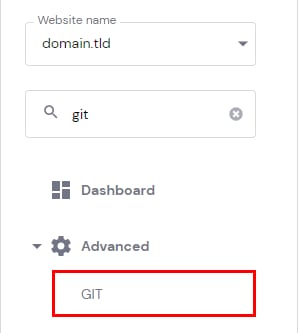
- On the sidebar, select Advanced → Git.
- Click Connect with GitHub or Connect with GitLab, depending on which Git provider hosts your repository, to connect your account via OAuth.
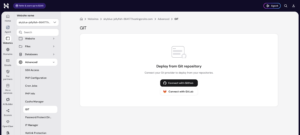
- Install and authorize the Hostinger extension on your GitHub account or specific repository when prompted by GitHub. If you’re connecting GitLab instead, follow the authorization prompts shown by GitLab.
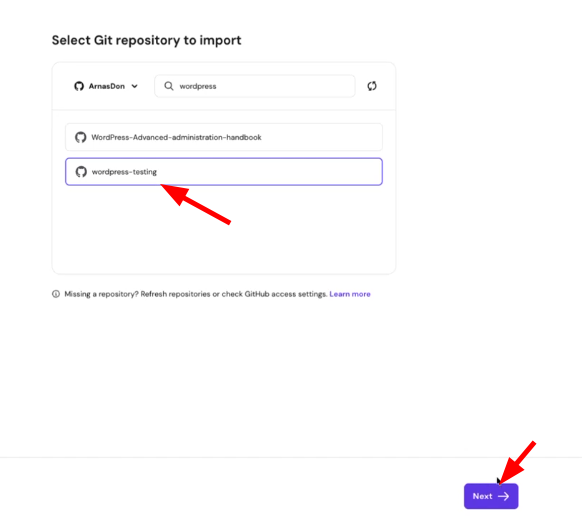
- Once authorized, select the repository you want to deploy from the list and click Next.
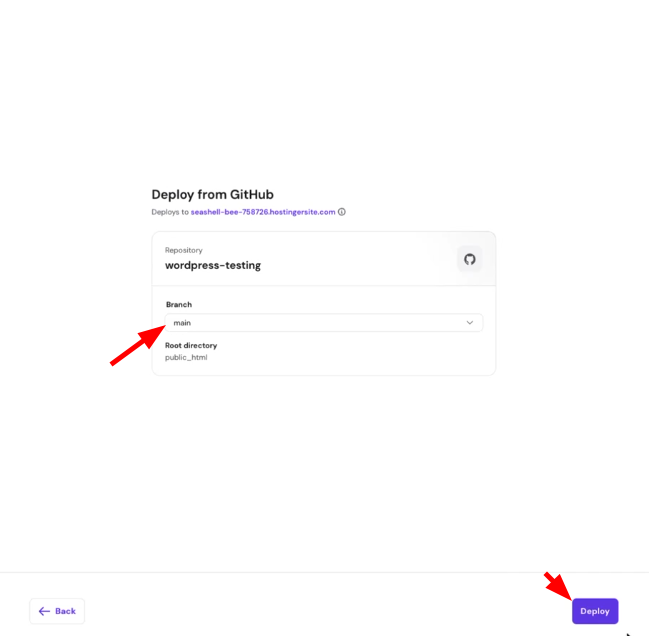
- Confirm your deployment settings:
- Repository: Pre-filled based on your selection.
- Branch: Select the branch you want to deploy (defaults to
main). - Root directory: The folder where your repository files will be deployed. Defaults to
public_html. You can change this to any valid directory on your hosting account (e.g.,public_html/my-project) - Click Deploy.
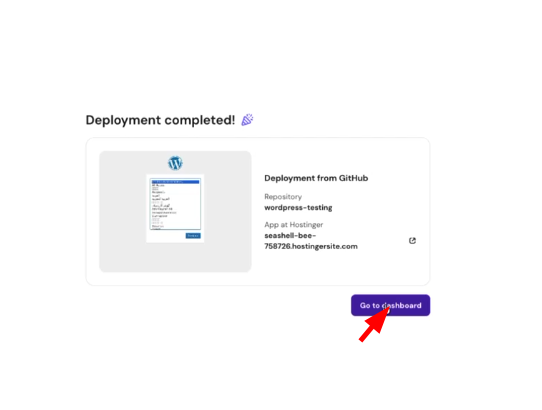
- An automated confirmation message appears when the deployment is complete. Click Go to dashboard to return to your Git management screen.
- Repository: Pre-filled based on your selection.
Manage your deployed Git repository
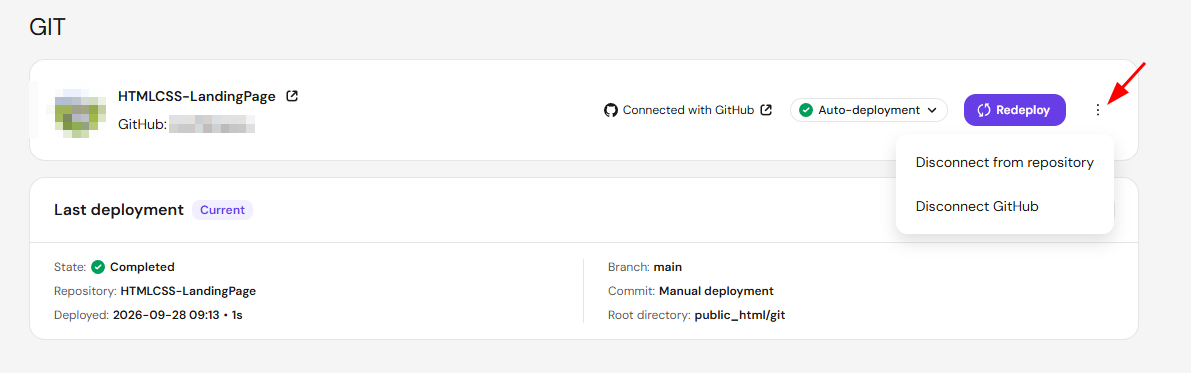
From your Git overview section, you can monitor and control your active repository settings:
- View repository details: Check your active connected repository and Git provider account credentials.
- Auto-deployment status: Click the Auto-deployment dropdown next to your connected repository to turn off automatic deployments, which stops new deployments from triggering when updates merge into your deployment branch. Turn automatic deployments back on using the same dropdown.
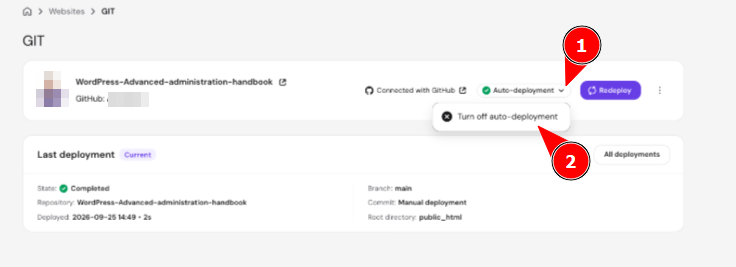
- Manual deployment: Click Redeploy to manually fetch and apply the latest changes from your repository.
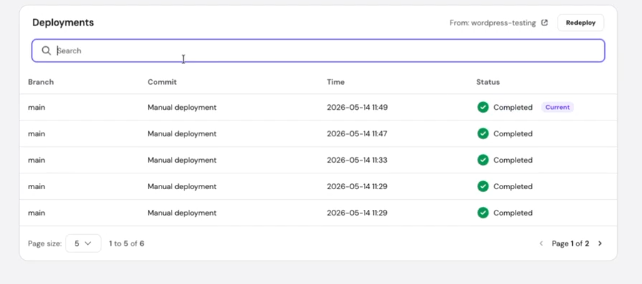
- Deployment history: Access the All deployments to review previous deployment details, including the branch name, commit ID, timestamp, and status.
- Disconnect repository: Click the options button ⋮ → Disconnect from repository if you need to unlink your project. Your website files will reflect the deployed state of your chosen repository branch.
- Disconnect Git provider: Click the options button ⋮ → Disconnect GitHub or Disconnect GitLab, depending on which provider is connected, if you want to unlink your entire account from Hostinger, rather than just the current repository connection.
NOTE
- Disconnecting or changing your deployment repository will cause newly deployed files to overwrite existing data in your target directory.
GitHub integration for Agency Hosting websites
Agency Hosting plans support GitHub integration for existing WordPress, PHP, and HTML websites. This integration does not support GitLab or Node.js full-stack applications.
To connect a repository, follow the same steps as in Set up Git deployment. Use the integration to pause or resume automatic deployments, review completed deployments, and manually redeploy a website.
With Git integration set up, your website updates automatically whenever you push changes to your connected repository, or on demand with a manual redeploy.