The Hostinger hosting dashboard provides all the essential features to manage your hosting plan’s settings, resources, and website files in one place.
If you have a web, Cloud or Agency hosting plan, you can access the user-friendly hosting dashboard through Hostinger dashboard for all your websites created with PHP/HTML, such WordPress and other CMS, or Node.js. This interface allows you to monitor your website status, manage databases, settings and resources.
Before you start
Hostinger AI Builder websites do not use this dashboard as they have different capabilities and alternative built-in features.
- If all your websites are created with Hostinger AI Builder, the hosting dashboard will not be available.
- If you need specific hosting dashboard features (like the File Manager) for a project, you can add a new PHP/HTML website using a subdomain or temporary domain. Note that these features will only be available for that website, not for the other Hostinger AI Builder websites on your hosting plan.
How to access the hosting dashboard
-
Log in to your Hostinger account and navigate to the Websites section of Hostinger dashboard.
-
Locate your domain and click on Dashboard.
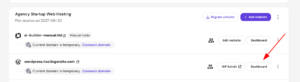
You will be directed to the hosting dashboard main page.
Dashboard overview
The main dashboard page displays:
- Website info card – your website name, creation date, a shortcut to the live site, and quick-action buttons: WP Admin, Manage domain, Set up free email, plus status indicators for Vulnerabilities, LiteSpeed, SSL, and CDN.
- Site health (WordPress only) – shows your WordPress version, PHP version, active theme, plugin update status, and detected vulnerabilities, each with a Review or Update link.
- Essentials – quick links to manage your database, view your backups, open File Manager, clear your cache, and view your hosting plan.
- Performance – a PageSpeed score for desktop and mobile, with a Run speed test button.
- Plan resource usage – disk usage, inodes, number of websites, CPU, and memory.
- Tips to improve – tailored recommendations, such as reinstalling a failed SSL certificate.
Sidebar
The sidebar contains the all the available management options for your website and a dropdown to ensure you are managing the correct website.
- Click Dashboard at any time to return to the main page.
- To display the specific tools, click on the category to expand it, or use the search bar for fast access to specific settings.
Here are the available menu under sidebar:
- WordPress (only for WordPress)
- Overview – view and manage key WordPress details without logging into wp-admin.
- Security – manage WordPress-specific themes, plugins, and auto-update.
- AI Troubleshooter – get AI-assisted diagnosis to optimize website.
- Staging – create a staging environment to test changes safely before publishing.
- Copy Website – duplicate your WordPress site to a new domain or subdomain.
- Presets – create or apply pre-built content and design presets to speed up site building.
- Hosting Plan
- Plan Details, – view your domain, IP address, nameservers, server location, and plan limits.
- Resources Usage – monitor CPU, RAM, disk, and other resource consumption.
- Renew – manually renew your hosting plan before or after expiration.
- Upgrade – move to a higher-tier hosting plan for more resources.
- Performance
- AI Troubleshooter (only for WordPress) – get AI-assisted diagnosis to optimize website.
- Object Cache (only for WordPress) – enable object caching to reduce database load and speed up dynamic content.
- Page Speed – run a PageSpeed Insights analysis and get optimization suggestions.
- CDN – enable and configure Hostinger’s Content Delivery Network to speed up global content delivery.
- Analytics – view visitor statistics, traffic sources, and access logs for your website.
- Security
- Malware Scanner – scan your website for malicious files.
- SSL – install and manage your website’s SSL certificate.
- Domains
- Subdomains – create or delete subdomains under your main domain.
- Parked Domains – point additional domains to show the same content as your main site.
- Redirects – set up redirects to send visitors from one URL to another.
- Website
- Auto Installer – install WordPress and other CMS in a few clicks.
- Migrate Website – bring an existing website hosted elsewhere into your Hostinger plan.
- Copy Website – duplicate your website within your hosting plan.
- Error Pages – customize the pages shown for errors like 403 or 404.
- Website Development – hire a freelance developer through Fiverr for website development.
- Files
- File Manager – upload, edit, compress, and manage your website’s files directly in the browser.
- Backups – create, download, or restore backups of your website’s files and databases.
- FTP Accounts – create and manage FTP accounts to transfer files, including finding your website’s root/home directory path.
- Change Password – update the password used to access your hosting plan via FTP or SSH.
- Databases
- Management – create or delete MySQL databases and users.
- phpMyAdmin – access your database contents directly through the phpMyAdmin interface.
- Remote MySQL – allow external connections to your database from outside Hostinger.
- Advanced
- SSH Access – enable and manage SSH access to your hosting account.
- PHP Configuration – adjust PHP version, extensions, and configuration values for your site.
- DNS Zone Editor – add, edit, or remove DNS records for your domain.
- Cron Jobs – schedule automated tasks to run at set intervals.
- PHP Info – view your site’s current PHP version, extensions, and settings.
- Cache Manager – enable or purge server-side caching for faster load times.
- GIT – deploy and manage a Git repository directly to your hosting account.
- Password Protect Directories – restrict access to specific folders with a username and password.
- IP Manager – allow or block specific IP addresses from accessing your website.
- Hotlink Protection – prevent other websites from linking directly to your images or files.
- Folder Index Manager – control whether directory contents are listed when no index file is present.
- Fix File Ownership – correct file and folder ownership issues that may cause permission errors.
- Activity Log – review a record of actions performed on your hosting plan.
You can now efficiently manage your hosting environment and access all relevant website information at a glance. Using these tools regularly helps ensure your website remains secure and performs optimally.
NOTES
- The hosting dashboard for Node.js websites will present a different layout and options.
- If you wish to switch from the Hostinger AI Builder to a PHP-based site to use the hosting dashboard features, you must change the website platform. Note that original content created will be lost during this process.