The Password Protect Directories feature in Hostinger lets you set a password to limit access to your website, or parts of it. Protect a directory from the website dashboard, and fix a password prompt that keeps reappearing by clearing your browser cache, recreating the protection, or removing the protection block from the .htaccess file.
How to set up a password protect directory
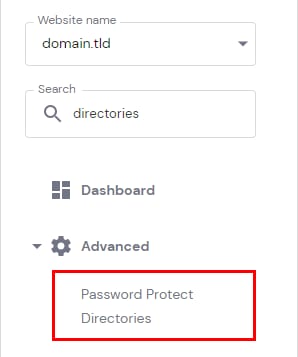
To access this feature, go to Websites → Manage site, it will redirect to Dashboard section, search for Password Protect Directories on the left sidebar, and click on it:
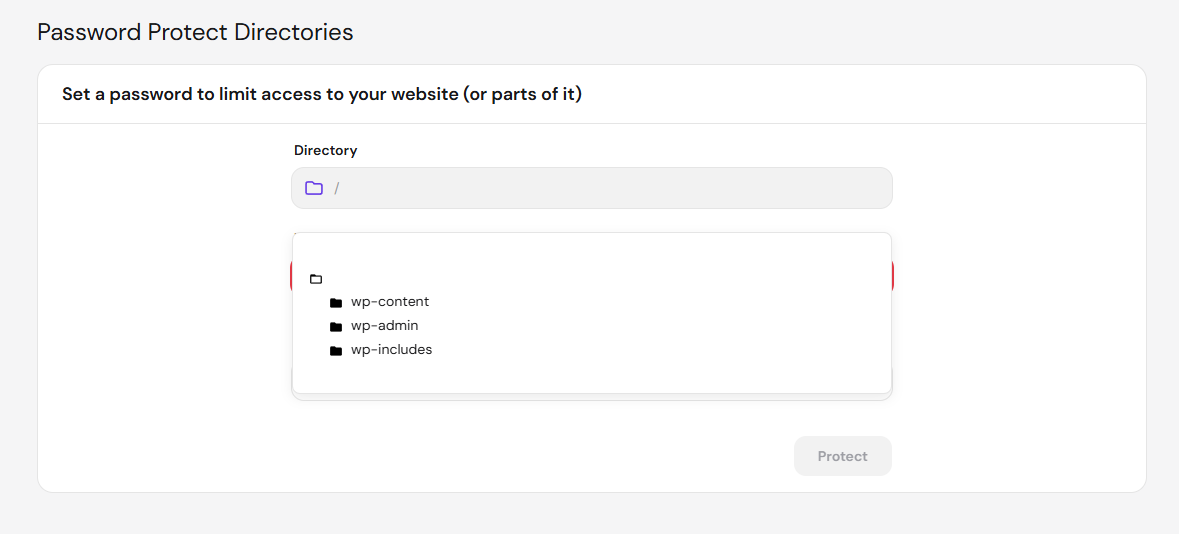
Once in there, select which directory you would like to protect:
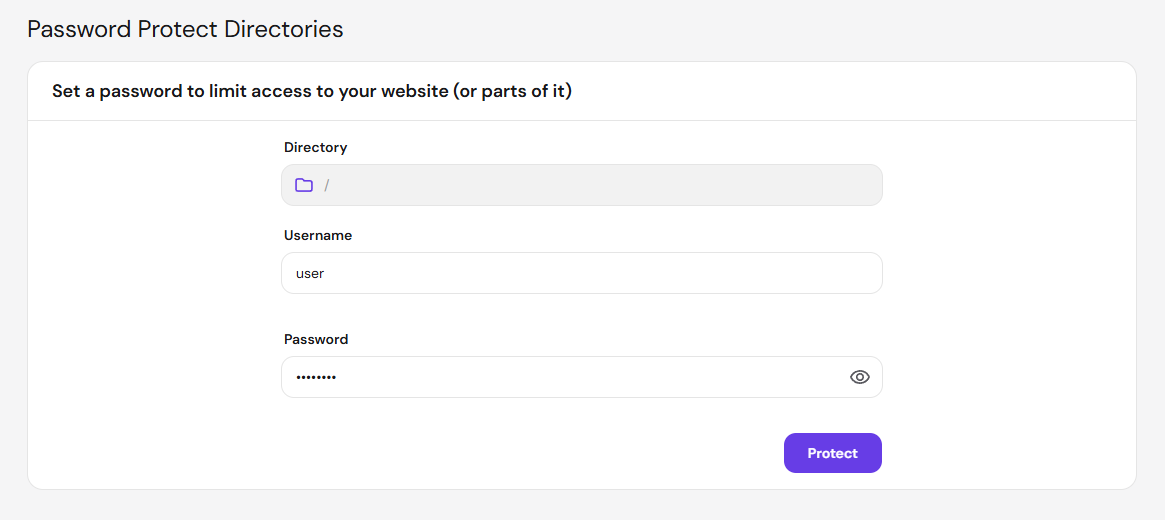
Assign a username and a password for it, and click on Protect:
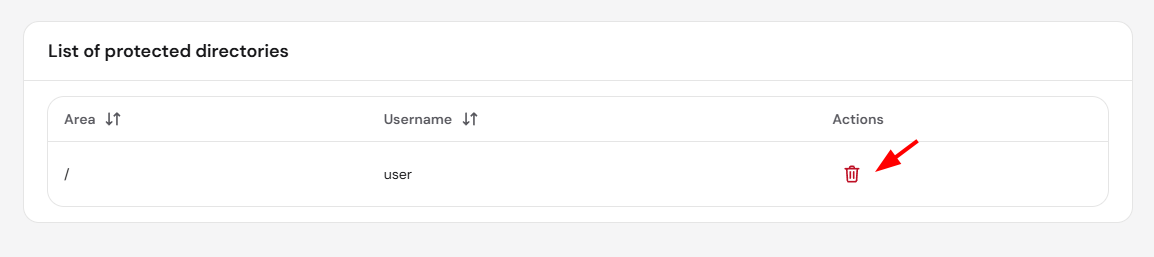
All the password-protected directories will be listed on the same page below, where you will have the option to remove the protection by clicking on the bin icon:
Fix a password prompt that keeps reappearing in Password Protect Directories
The password prompt can keep reappearing even when you enter the correct username and password. Follow these steps in order, and test the website after each one:
- Clear your browser cache, then open the website in a private browser window and log in again.
- Go to Password Protect Directories, click the bin icon next to the protected directory, then protect the directory again with a new username and password.
- Open the .htaccess file of the protected directory in File Manager, as explained in how to create a .htaccess file at Hostinger. Delete the block that starts with # DO NOT REMOVE THIS LINE AND THE LINES BELOW PWPROTECTID and ends with # DO NOT REMOVE THIS LINE AND THE LINES ABOVE, followed by the same ID and PWPROTECTID. Save the file.
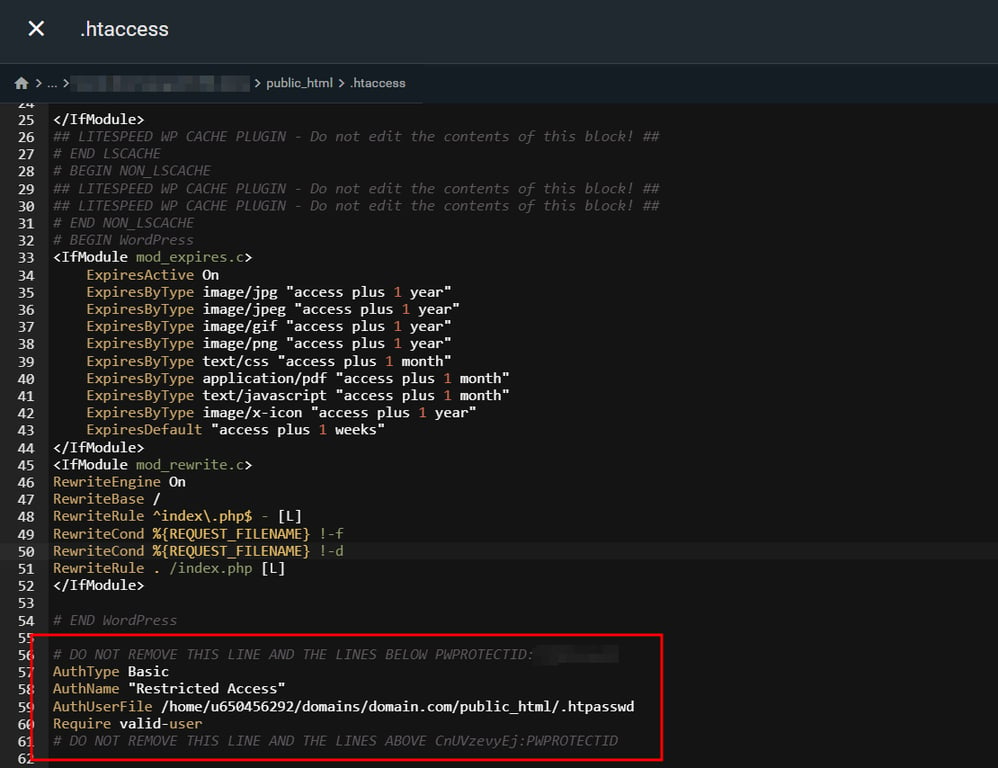 Deleting this block removes password protection from the directory, so the directory becomes publicly accessible.
That’s it! Now you know how to password-protect your website or a part of it.
NOTES
-
If you’re seeing the password prompt appear twice, see why does a password-protected directory ask for the password twice.
- If you’d rather build a custom login experience for your visitors instead of a basic password prompt, see how to add a login form to a website in Hostinger.