The Analytics section in Hostinger dashboard shows your website’s traffic data, including bandwidth, requests, visitor countries and devices, access logs, and 4xx and 5xx errors.
You can find it by selecting Analytics on the left sidebar of your website’s hosting dashboard. Once there, you will be presented with a short overview and detailed information:
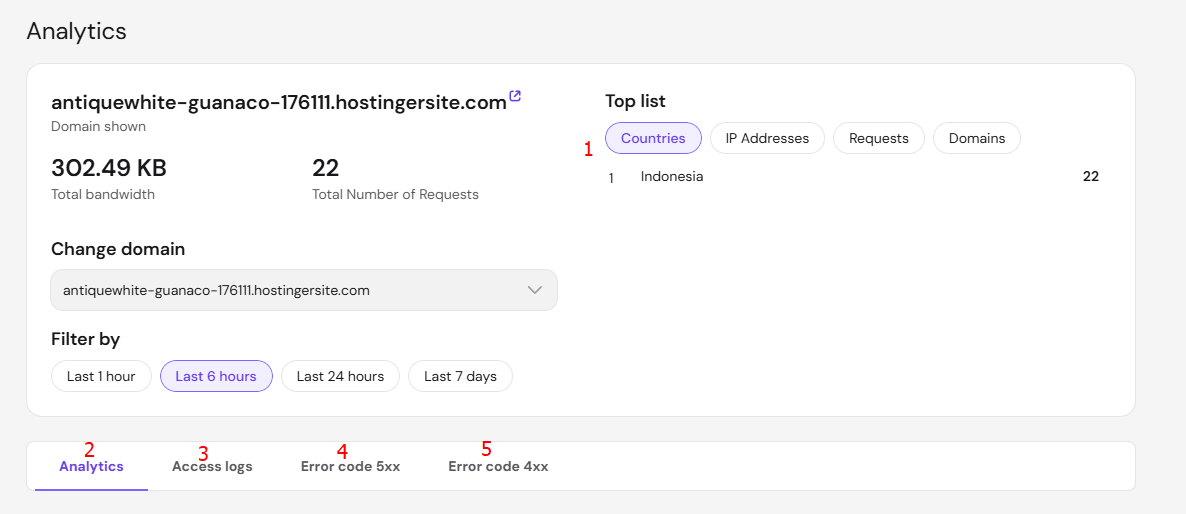
Overview
This section provides you with all the summarized information for tracking your access logs:
-
Total Bandwidth – shows the amount of data transmitted over an internet connection (based on filter).
-
Total Number of Requests – shows the number of requests made by visitors (based on filter).
-
Button to change your domain – here, you can choose to see statistics of a different domain in your account.
-
Filter – the time period for which you want to see data: last hour, 6 hours, 24 hours, or even 7 days.
-
Top list filter – a summary of top Countries, IP Addresses, Requests, and Domains visited.
Analytics
Here you can find a graphic visualization of website visits, including:
-
Total requests – shows HTTP or/and HTTPS requests to all hosting account.
-
Unique IP addresses – the number of distinct IP addresses that accessed your hosting account.
-
Bandwidth – the amount of data that was transmitted in a fixed amount of time.
You can also further data, like RAM and CPU usage for the past 30 days, on the Resources Usage page.
Access logs
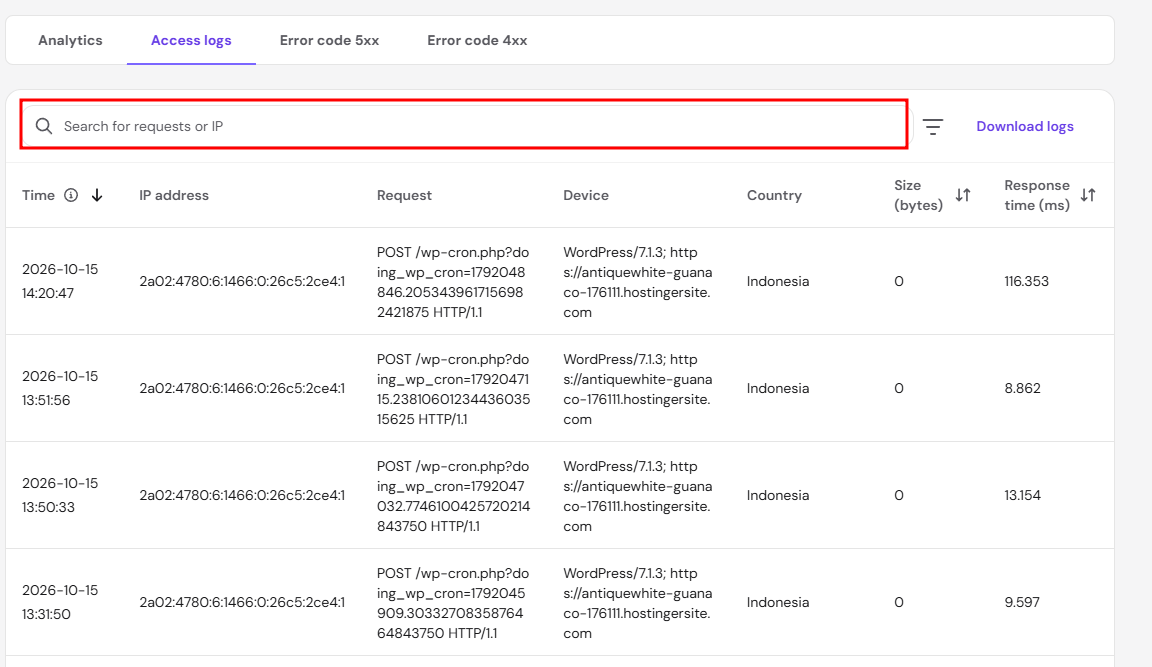
This area shows the HTTP requests that are automatically logged by the server. It contains a search bar to find specific requests or IPs and more comprehensive stats about each visit to your website:
-
Time – the exact time the request was made.
-
IP Address – IP address of the visitor.
When Hostinger CDN is active, the IP Address column in Access logs (and the 4xx error log) may reflect CDN IP addresses rather than real visitor IP -
Request – the type of request (GET or POST), and the resource associated with it.
-
Device – the type of device and browser used as reported by the User-Agent header.
-
Country – the country of the request by IP geolocalization.
-
Size (bytes) – the size of the request, shown in bytes.
-
Response time (ms) – the response time to the request, shown in milliseconds.
Due to variations on the user side, such as using a VPN or changing the User-Agent header, the reported data on Device and Country may differ from the actual request. To measure your website’s overall load speed instead of single requests, analyze your website’s speed with PageSpeed Insights.
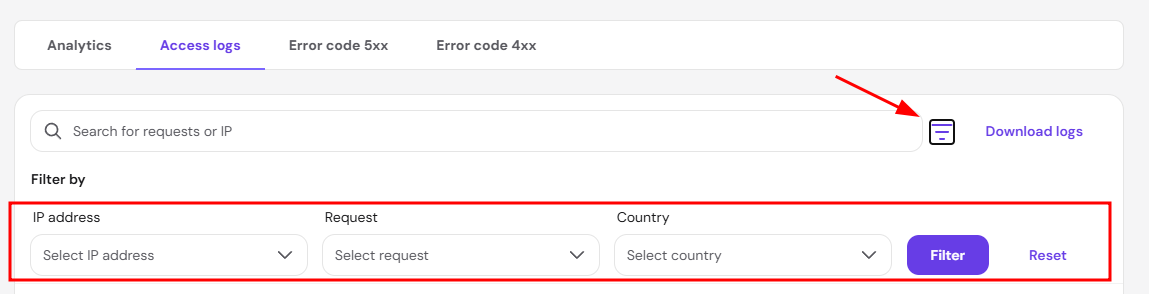
You can also filter by the top 10 visitors’ IP, type of request, and location:
Error code 5xx
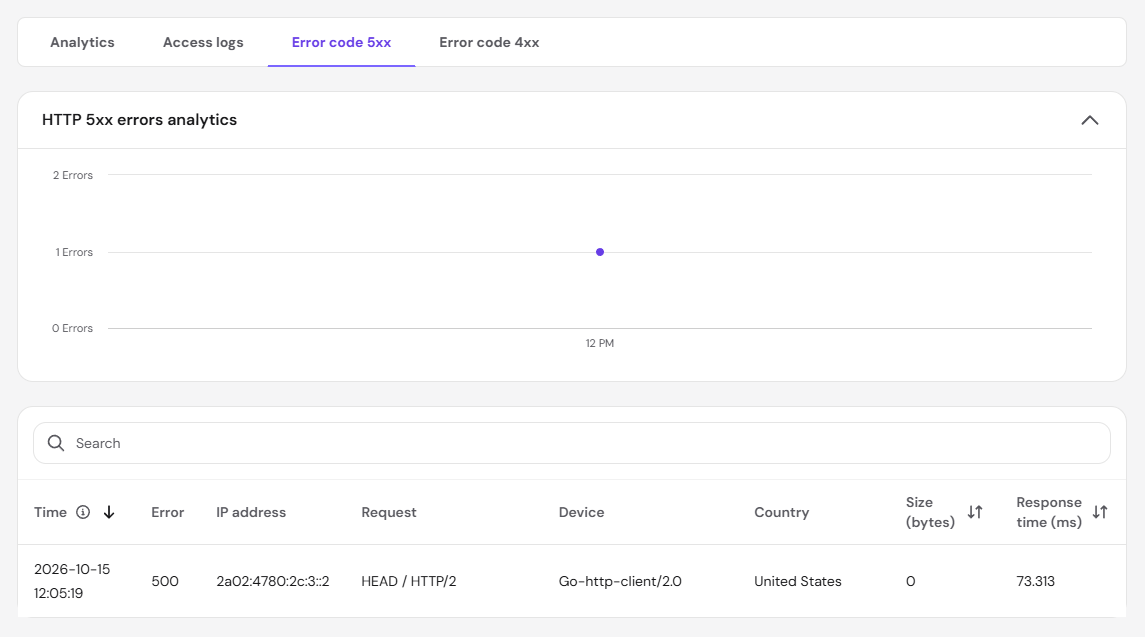
In this area, a graph will show all 5xx errors generated for the selected period, as well as a detailed description that will make troubleshooting easier:
-
Time – the exact time the error occurred.
-
Error – the specific type of error (e.g. 500, 502, etc.).
-
Request – the request that generated the error.
-
Device – the device used.
-
Country – the country of the request.
-
Size (bytes) – the size of the request, shown in bytes.
-
Response time (ms) – the response time to the request, shown in milliseconds.
In case you encounter any errors in this section, refer to the following guide: Troubleshooting 5xx errors. If no data is shown and a “There is no activity to report yet” message appears instead, it means that your website didn’t have any 5xx errors during the selected period.
Error code 4xx
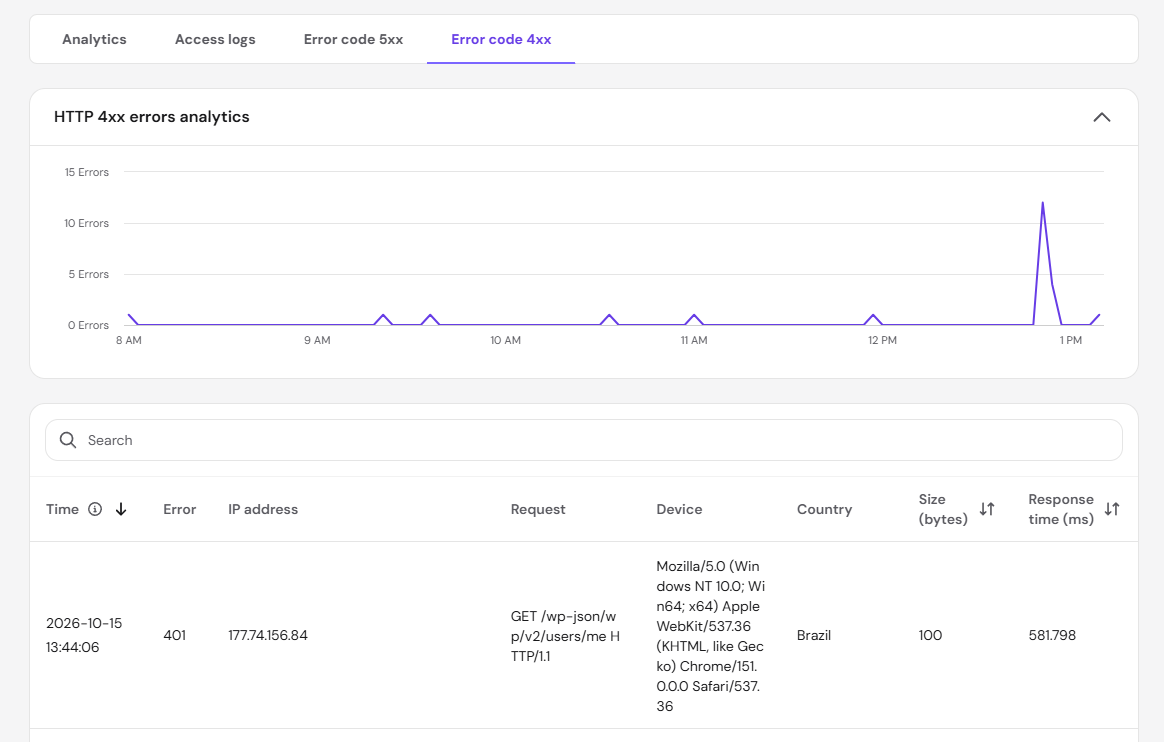
Here you will find any 4xx error generated for the selected period, with a detailed description to pinpoint the root cause:
-
Time – the exact time the error occurred
-
Error – the specific type of error (eg. 403, 404, etc.)
-
IP Address – IP address of the visitor
-
Request – the request that generated the error
-
Device – the device used
-
Country – the country of the request
-
Size (bytes) – the size of the request, shown in bytes
-
Response time (ms) – the response time to the request, shown in milliseconds
In case you encounter any errors in this section, you can refer to the guides on how to fix 403 and 404 errors. If no data is shown and a “There is no activity to report yet” message appears instead, it means that your website didn’t have any 4xx errors during the selected period.
Review the Analytics section regularly to track your website’s traffic and catch 4xx and 5xx errors early.
Additional resources
-
For more detailed website metrics, you can use Google Analytics.