You can easily install applications automatically with the help of our Auto Installer. This feature allows you to install any of the available CMS and applications, for example, WordPress, Joomla, Drupal, and many others.
Step 1 – Open Auto Installer
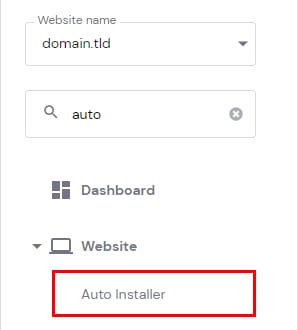
Installing applications automatically is as easy as opening your hosting Dashboard by navigating to Websites → Dashboard. Search for Auto Installer on the left sidebar and click on it:
NOTE
-
The dashboard section on Hostinger dashboard will not appear if you only have websites built with Hostinger AI Builder; to enable the dashboard section and its sidebar options, you can switch to WordPress or another CMS
Step 2 – Choose an application to install
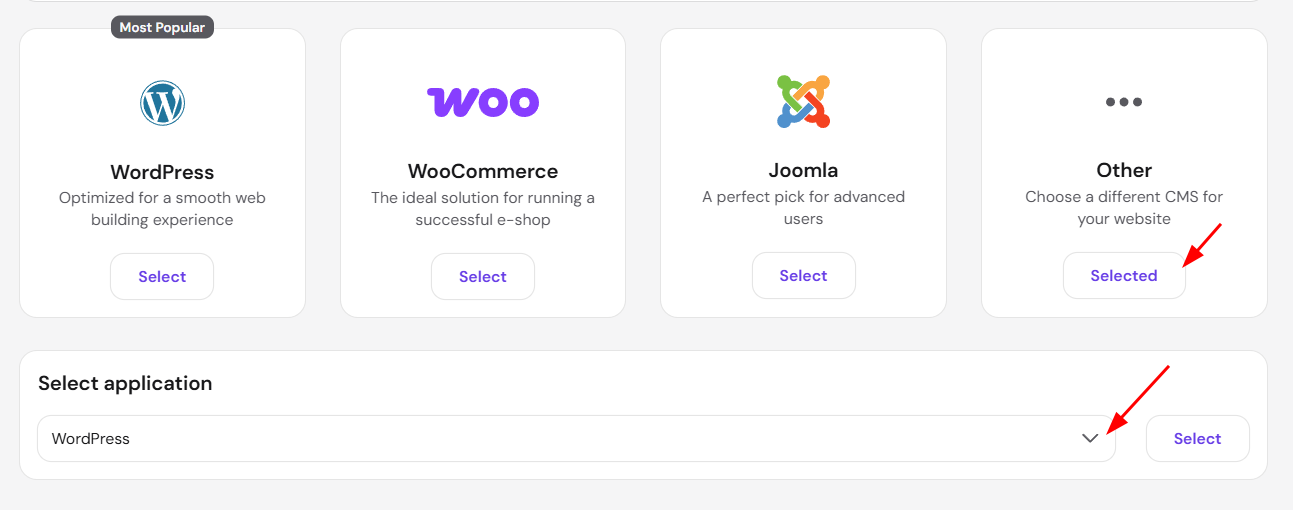
In Auto Installer, you can either select one of the most popular CMS or use the search box to look for a specific application:
Step 3 – Insert the installation details
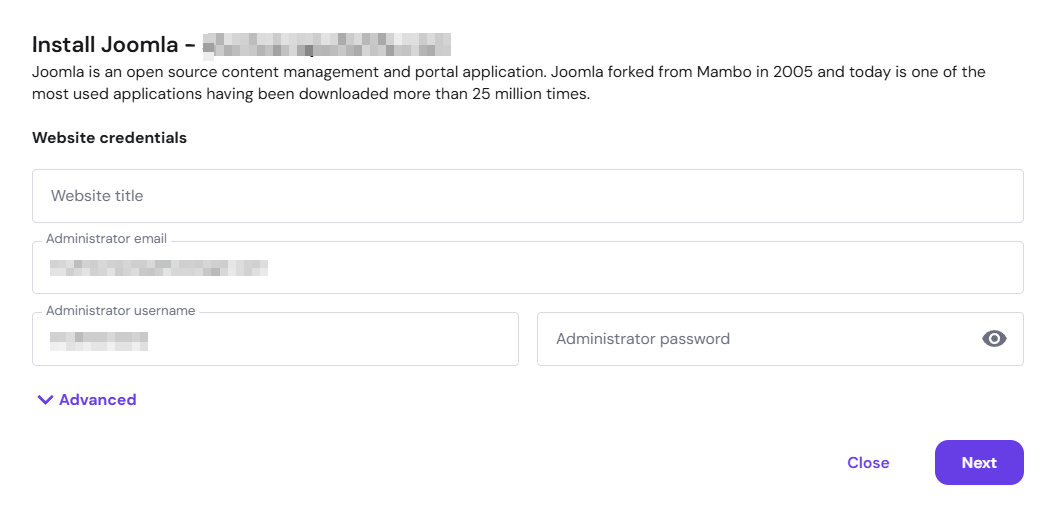
Fill in all the required details:
-
Website title – the name for your website
-
Administrator email – the email for the admin user
-
Administrator username – the admin username. It’s recommended to use a unique username
-
Administrator password – create a strong password for your admin account
Custom Settings
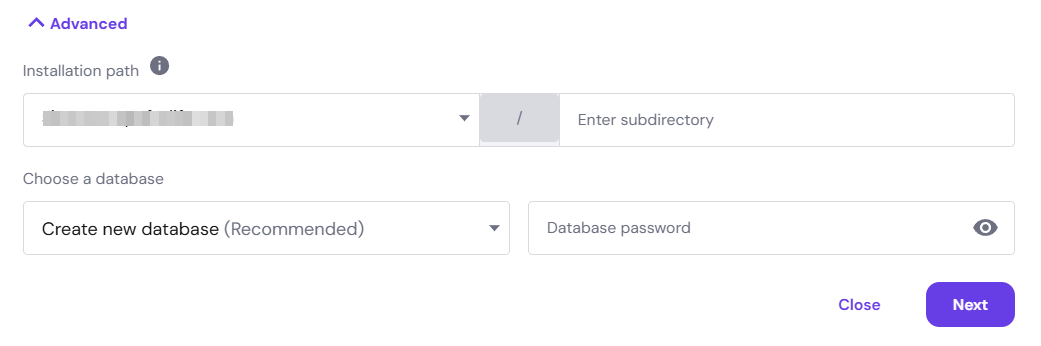
In case you want to specify a different subdirectory for your application installation (for example, domain.tld/blog), or use an existing database, expand the Advanced section and fill in the information. To install on a subdomain, click on the arrow and select the desired subdomain under installation path:
Step 4 – Select version details
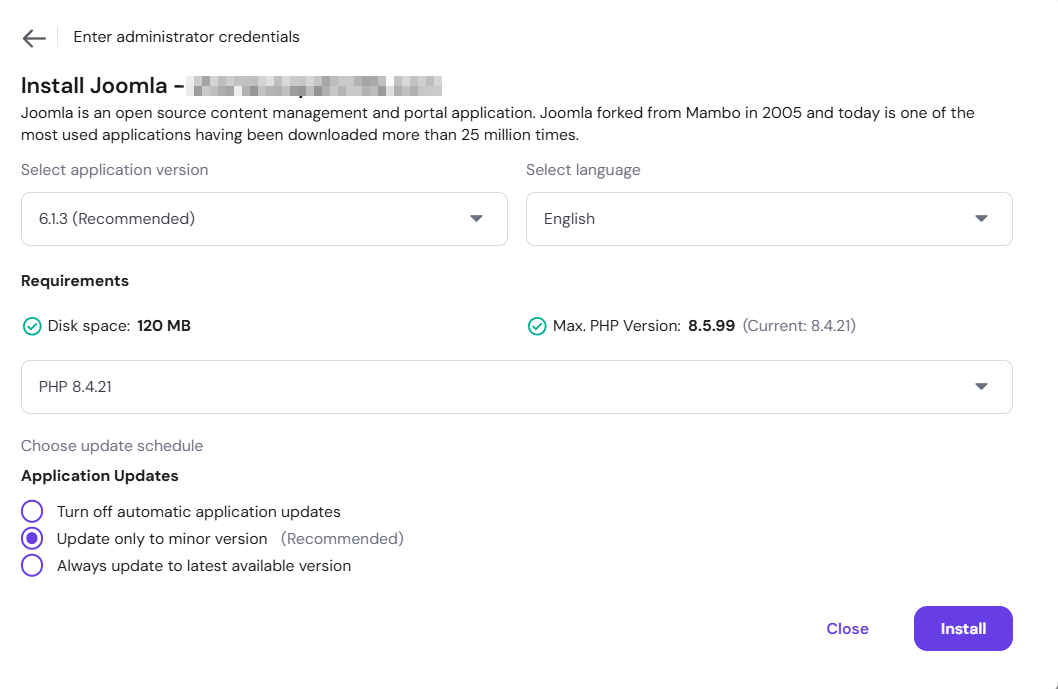
Once that’s done, click on Next to select the opions regarding your application’s core version. The options may vary depending on the selected application:
-
Application version – it’s recommended to choose the latest version
-
Language – the language of the administration interface
-
Update schedule – it’s recommended to update to minor version
Click on the Install button and after a few minutes, the installation will be completed. To check the result, clear the browser cache and visit your website.
NOTE
- If your desired application or the latest version isn’t available, see missing or outdated scripts on Auto Installer at Hostinger.
Manage your installation
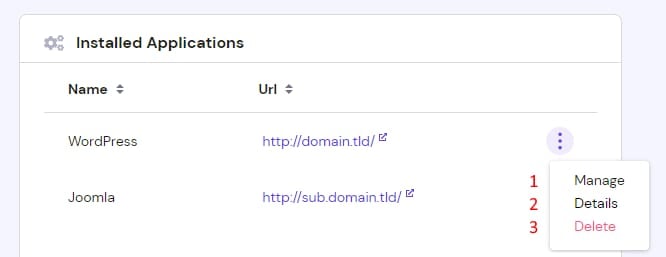
To manage the installation, click on the ⋮ button in the Auto Installer page to find the following options:
-
Access your Content Management System admin dashboard
-
Check the details of your website – URL, database name, admin username, and email
-
Delete the installed application