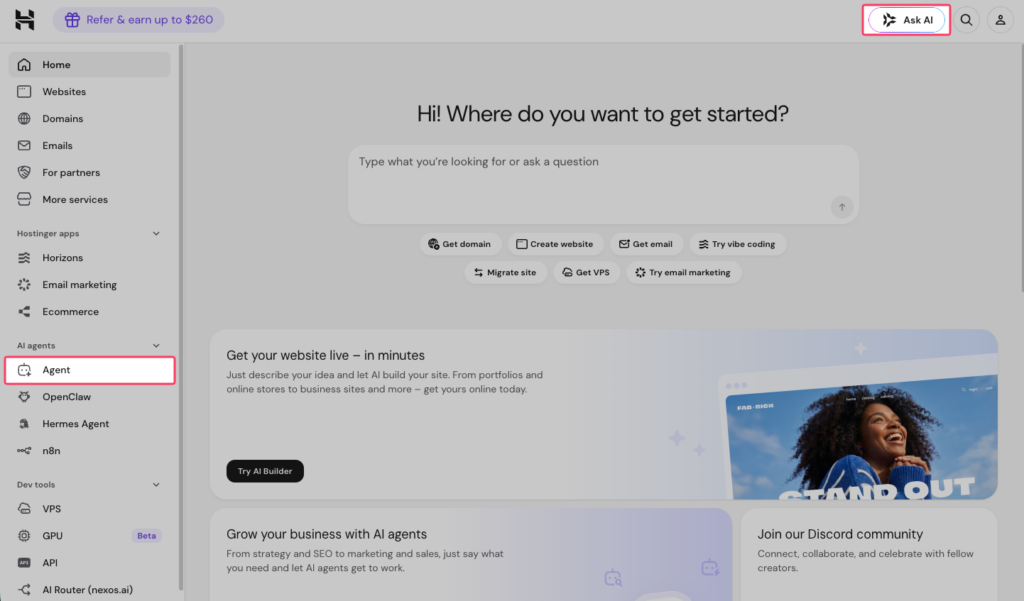
You can reach it on Hostinger dashboard from both the sidebar, by clicking on Agent, or from the top-right, by clicking on Ask AI:
Hostinger Agent works alongside the rest of Hostinger dashboard, so it helps to be familiar with how to use Hostinger’s services overall.
What can Hostinger Agent do?
Hostinger Agent can both advise and act – it doesn’t just answer questions, it can take direct actions on your Hostinger account. You can ask it to:
- Troubleshoot hosting issues and get step-by-step guidance
- Add, update, or delete DNS records
- Manage domains and subdomains
- Restart or configure a VPS
- Start a website migration
- Create a website using Hostinger AI Builder, directly from the chat
- Generate content, SEO plans, legal documents, and business strategies
For actions that are irreversible or have a significant impact (e.g., deleting a record or making a purchase), Hostinger Agent will pause and display a confirmation card before proceeding. See how Hostinger Agent compares to ChatGPT for handling Hostinger-specific tasks.
Navigating Hostinger Agent
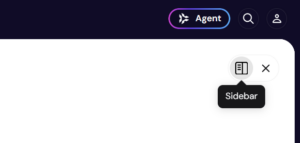
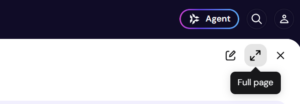
You can choose how Hostinger Agent appears on your screen using the layout selector in the chat widget:
- Sidebar – the agent stays docked to the side of your screen, so you can work in Hostinger dashboard and chat simultaneously. Opening Agent in the sidebar hides the Home chat input on the Hostinger dashboard Home page, which reappears when you close the sidebar.

- Full page – opens Hostinger Agent as a dedicated workspace with the full navigation panel, giving you access to Chat, Skills, Files, Jobs, and Apps.

The navigation panel includes the following:
- Chat – start or continue a conversation
- Files – access files shared in your sessions
- Skills – browse and search specialized skills by category
- Jobs – track tasks the agent is handling
- Projects – group related chats and share instruction across them
- Apps – connect and manage integrations
- WhatsApp – continue your conversation with Hostinger Agent on WhatsApp by scanning a QR code or selecting Chat on WhatsApp. Your WhatsApp session stays active for 3 days and refreshes with each message you send. You can also send voice notes on WhatsApp, and Hostinger Agent transcribes them and responds in text.
Your available credits are shown at the bottom of the navigation panel, or in the top-right when on full-screen layout. See Hostinger Agent’s pricing for details on how credits and plans work.
Chat controls and workspace tools
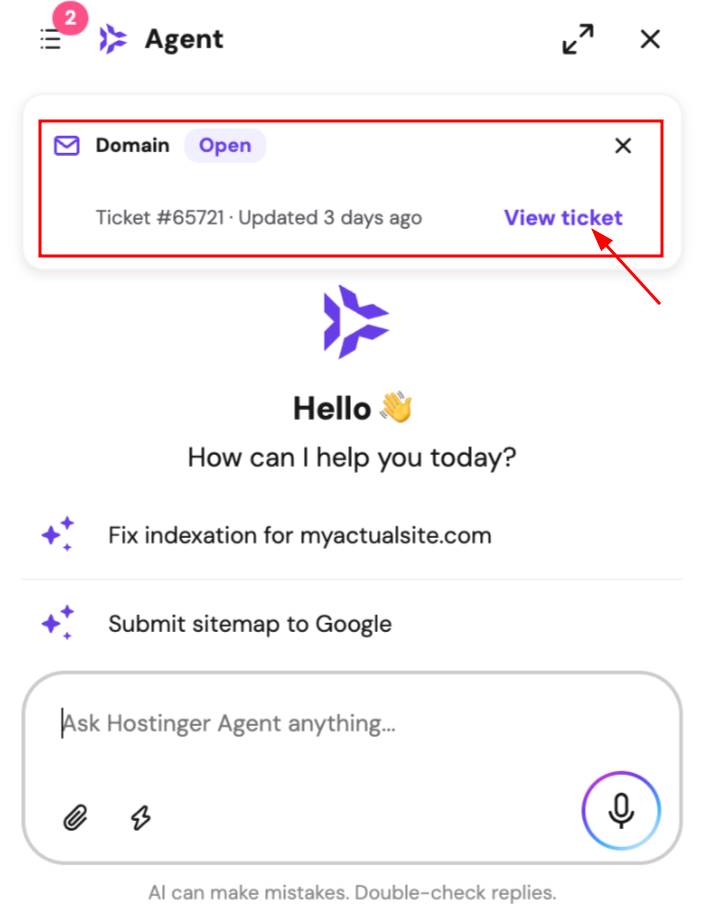
- Support ticket banner: If you have an open support ticket, a banner appears at the top of the Hostinger Agent widget showing the ticket’s topic, ticket ID, status, and when it was last updated. Select View ticket to open the full ticket.

- Rate replies: Use the thumbs up or thumbs down icon on any agent message to rate the response. Feedback helps improve future replies.
- Stop generating: Click the stop button while an agent is composing a reply to halt output immediately. Content already produced is preserved in the conversation.
- Personalized suggestions: Context-aware prompt suggestions appear above the chat input. Select one to continue your task without typing a new prompt from scratch.
- Post-resolution recommendations: When you confirm that your issue is resolved, for example by thanking the agent, Hostinger Agent may show a product recommendation card based on your account and chat history, suggesting a product suited to your business.
- Edit and iterate on images: Upload an image in the chat and ask the agent to modify, remix, or use it as a reference for generating a new image – all within the same conversation.
- Conversation history: Access a dedicated history tab in each workspace to browse, search, and resume past conversations. See how conversations with Hostinger Agent work for more details.
- Files viewer: All files created or uploaded during your sessions are collected in a file gallery. Filter by file type, preview, and download directly from the panel.
- Charts: Hostinger Agent can visualize data as bar charts, pie charts, or line charts. This is especially useful when working with numerical information like sales data, email campaign stats, or website performance metrics.
- Cards: Hostinger Agent can display information as visual cards, which may include icons, text, and color. Some cards are interactive: selecting a card can send a message on your behalf or open a specific URL.
- Response mode: Paid subscribers can switch between two response modes per message directly from the chat input. Fast for quick, concise replies, or Advanced for deeper, more thorough responses when the task requires it.
Additional capabilities
The agent chat includes the following capabilities:
- File attachments. You can attach files directly in the agent chat. Supported formats include images, PDFs, and text-based files (CSV, JSON, TXT, MD). The agent will analyze the content and respond based on what you’ve shared. Click the attachment icon in the chat input to upload.
- Web search and page reading. The agent can search the live web for up-to-date information and read the content of any URL you paste into the chat. Useful for competitive research, checking current pricing, or analyzing a specific page without leaving the conversation.
- Image generation. The agent can generate images based on your prompts. Generated images appear inline in the conversation with a lightbox viewer for full-size preview.
- Long-term memory. The agent retains context and key details from past conversations: the more you interact, the more personalized responses become. Memory can be turned on or off in settings, and agents will ask your permission before saving anything new. From the Memory Management page, you can view, edit, delete, or import memories in bulk. Note that agents can also draw on your past conversation history for context – this is separate from saved memories and is browsable from the History tab.
- App integrations. Connect your agent to 1000+ external tools, including Google Sheets, Slack, Notion, and HubSpot. Once connected, the agent can pull data, send messages, and update records directly from the chat interface. App connections can be managed from your agent’s settings. See Connect apps and custom MCP servers to Hostinger Agent for setup steps.
- Image editing and remixing. Upload any image to the agent chat and ask the agent to modify it, extend it, or use it as a reference to generate new images. All edits happen inline within the conversation.
- File gallery. All files – uploaded by you or created by your agents – are collected in a dedicated gallery. You can filter by file type, preview contents, and download files with one click.
- Sandboxes. Hostinger Agent can spin up a Sandbox, a temporary, isolated computer, to run code, work with files, and produce finished deliverables such as presentations, spreadsheets, and downloadable project packages. Files created in a Sandbox appear in the file gallery for download. A Sandbox does not persist between sessions.
- File previews and version history. Open any agent-created file for a full preview directly in chat. Each update is saved as a new version, so you can compare changes and roll back to any earlier version at any time.
- Conversation History. All workspaces include a History tab. Browse your past conversations and resume any of them instantly.
- Guided task wizards. For certain complex tasks – like business planning or logo design – the agent walks you through a structured, multi-step form before generating output. Instead of writing one long prompt, you answer a series of focused questions, and the agent uses your answers to produce a more accurate result.
- In-message reply suggestions. After an agent responds, quick-reply chips may appear directly inside the message (for example, “make it shorter” or “make it longer”). These are different from the context-aware suggestions above the chat input – they’re action shortcuts specific to that response, so you can refine output in one click without typing a follow-up.
- Remove my data from data brokers. The Legal Advisor agent can search major data brokers and people-search sites (such as Spokeo, BeenVerified, Whitepages, and Radaris) for your personal information and submit opt-out or erasure requests on your behalf. Tell the Legal Advisor agent to remove your data from data brokers. The agent searches for your listings across known data broker sites. Opt-out or erasure emails are drafted and shown for your approval, then sent via your connected Gmail or Outlook account once you approve them. The agent cites the applicable legal basis automatically (CCPA/CPRA in the US, GDPR Article 17 in the EU/UK). You receive a report categorizing results as: Done for you, Needs you, or Watch list. You can optionally set up a monthly rescan to catch brokers who relist your information over time. The agent only removes your own data and never requests sensitive identifiers such as your Social Security Number. Find this skill under the Legal Advisor expert in Hostinger Agent.
Access Hostinger Agent from the Websites page
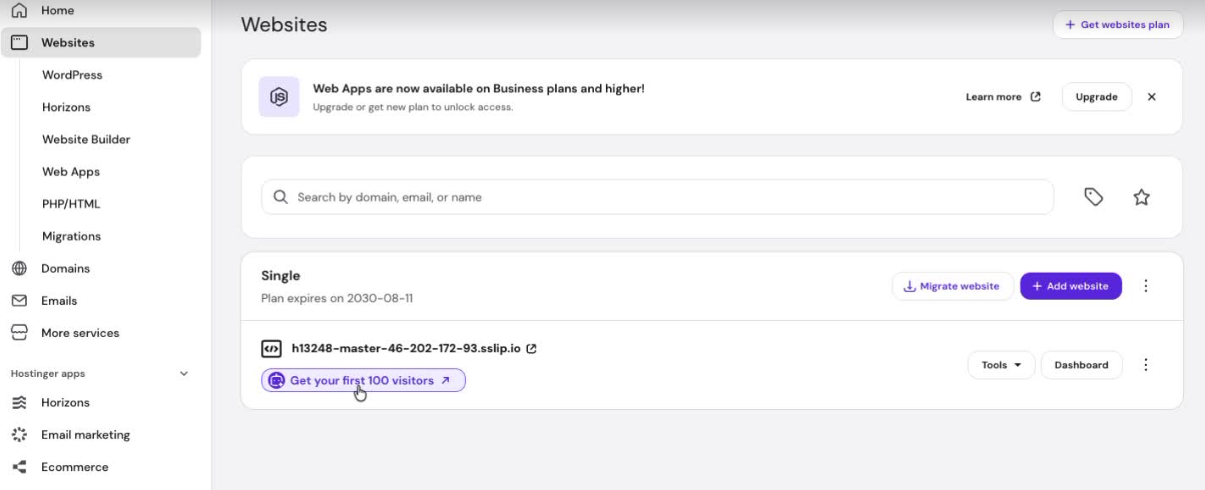
On eligible website cards in the Websites section of Hostinger dashboard, click Get your first 100 visitors to launch a guided skill that creates a growth plan for that website. This opens Hostinger Agent with the skill pre-loaded:
With this specialized Hostinger Agent at your disposal, you can streamline your business operations and focus on growth.
Creating a website from chat
You can ask Hostinger Agent to build a website directly in the chat, without switching to AI Builder yourself. Describe the site you want, and Hostinger Agent may ask a few clarifying questions before starting the build.
Since building a website uses AI Builder credits, Hostinger Agent shows a confirmation card summarizing what it’s about to build. Click Confirm to start the build, or Deny to cancel.
The build runs in the background, so you can keep chatting with Hostinger Agent while you wait. A message with a link to your new website arrives once it’s ready.
If you want changes after the site is built, describe them in the same chat, and Hostinger Agent applies the edits to the website directly.
Managing Hostinger Reach from chat
You can manage your Hostinger Reach email marketing account directly through Hostinger Agent, without opening the Reach dashboard. Ask Hostinger Agent to:
- Create, update, or look up contacts, including custom fields, tags, and bulk operations
- Pull campaign and automation reporting, such as open rates, click rates, and step-by-step automation breakdowns
- Build a segment from a description, for example “create a segment of everyone with a @hostinger.com email”
- Audit your existing Reach data, such as your contacts, campaigns, or automations
Hostinger Agent completes these requests in the same conversation, so you don’t need to switch to the Reach dashboard to check performance or make changes. See Hostinger Reach: Getting started with your AI email marketing assistant for more on using Reach directly.
Connecting with an agency from chat
Ask Hostinger Agent for professional help with your website, and it can recommend a Hostinger agency partner suited to your request. Hostinger Agent checks whether an agency’s services cover what you’re asking for and whether the agency supports your language before showing a matching agency card with a Contact agency button.
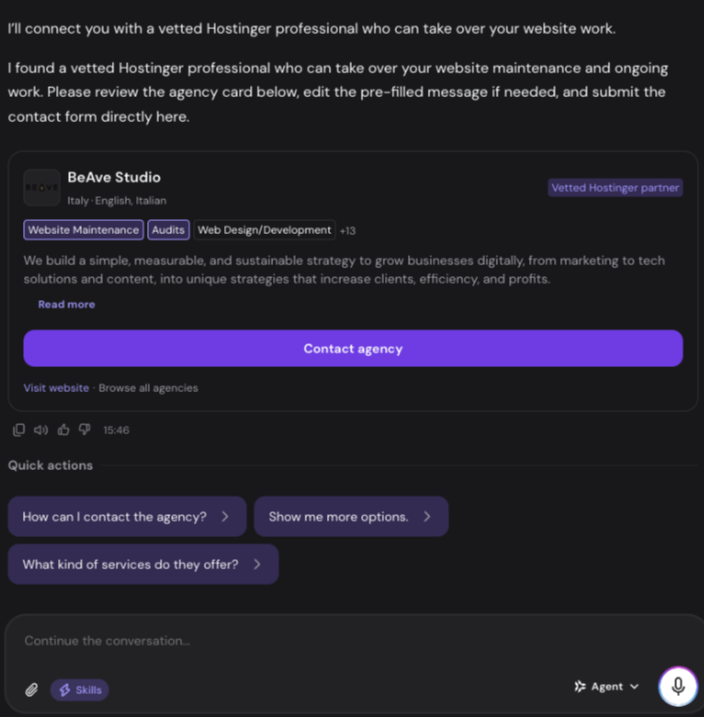
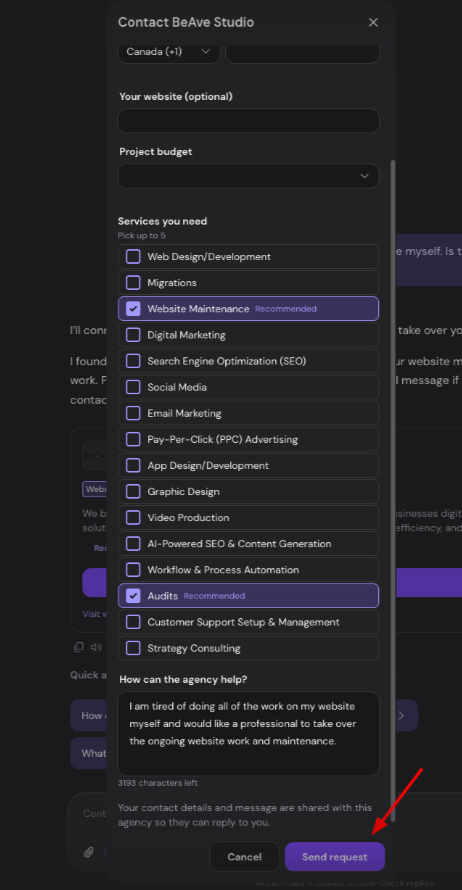
Select Contact agency to open a request form. Services that match your original request are pre-selected as Recommended; you can adjust them, add your project budget and website, and edit the pre-filled message before selecting.
See how Hostinger Agent can handle business planning, customer avatar creation, website building, and a full marketing plan in a single conversation: