Hostinger Agent Projects group related chats under one shared set of instructions, so you don’t have to repeat context in every new conversation. Create a project, add existing or new chats to it, and edit or delete it at any time from the Projects panel.
Create a project
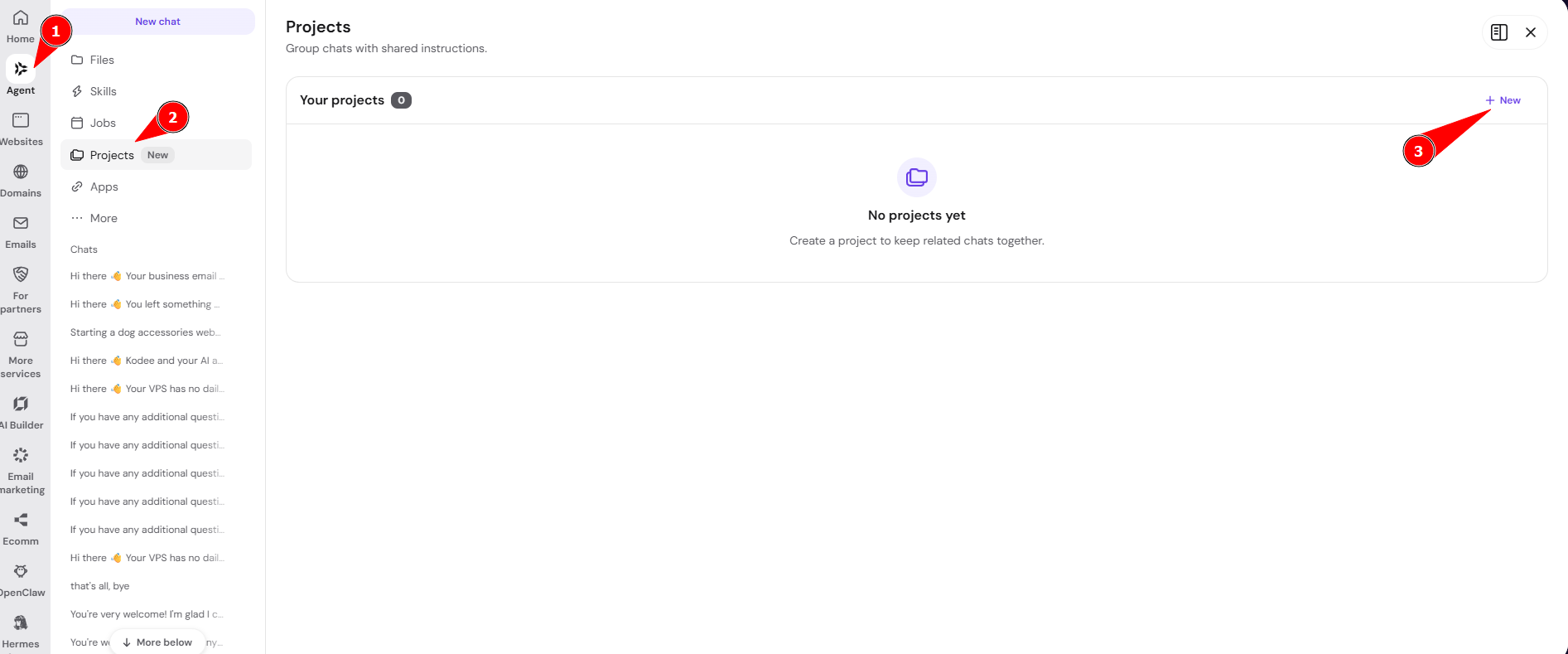
- In Hostinger dashboard, click Agent in the sidebar, then select Projects in the navigation panel.
- On the Projects page, click + New.
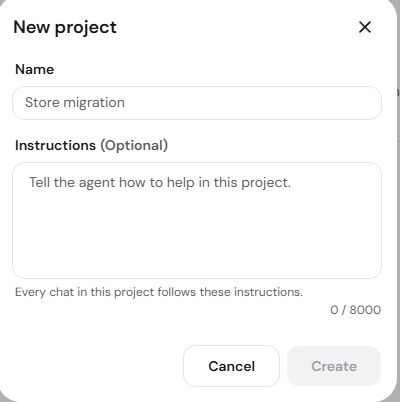
- Enter a Name for the project, and optionally add Instructions — shared context that every chat in the project follows, up to 8,000 characters.
- Click Create.
Add chats to a project
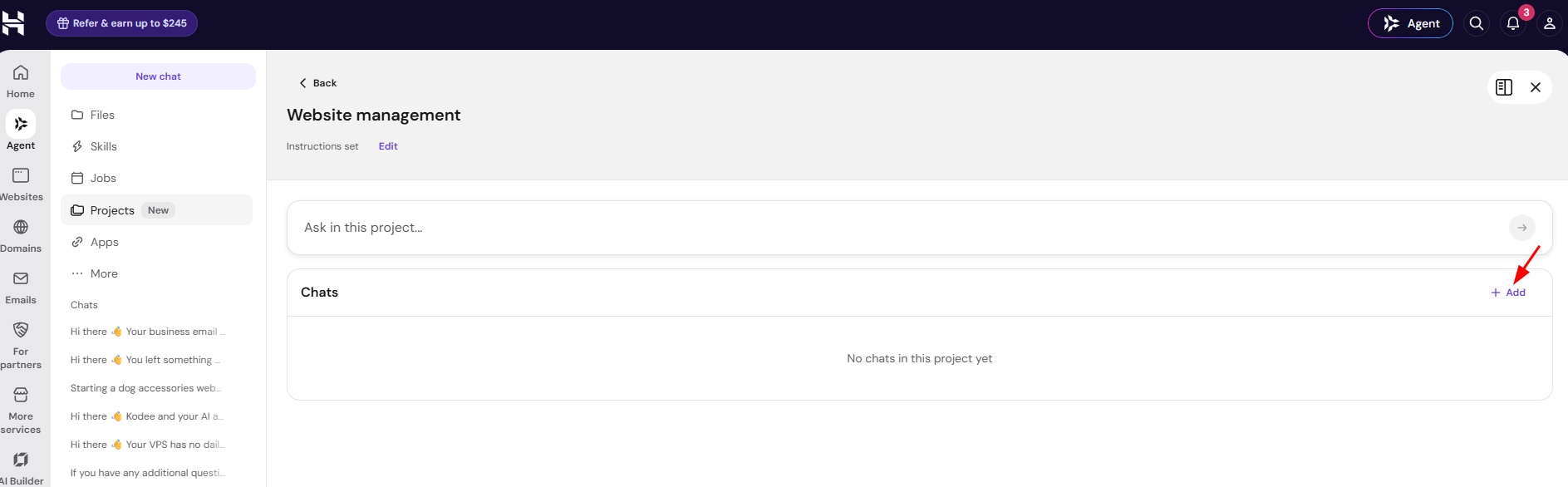
- Open the project and click + Add next to Chats.
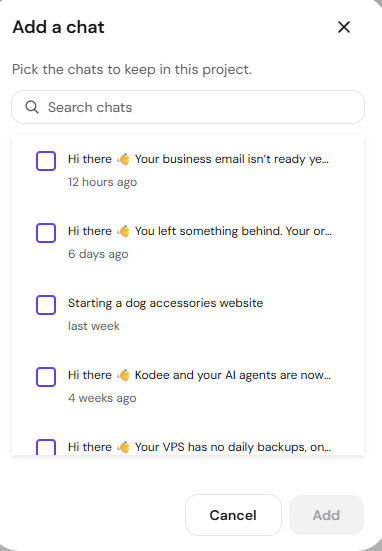
- In the Add a chat window, search or scroll to find existing chats, select the ones you want to keep in the project, and click Add.
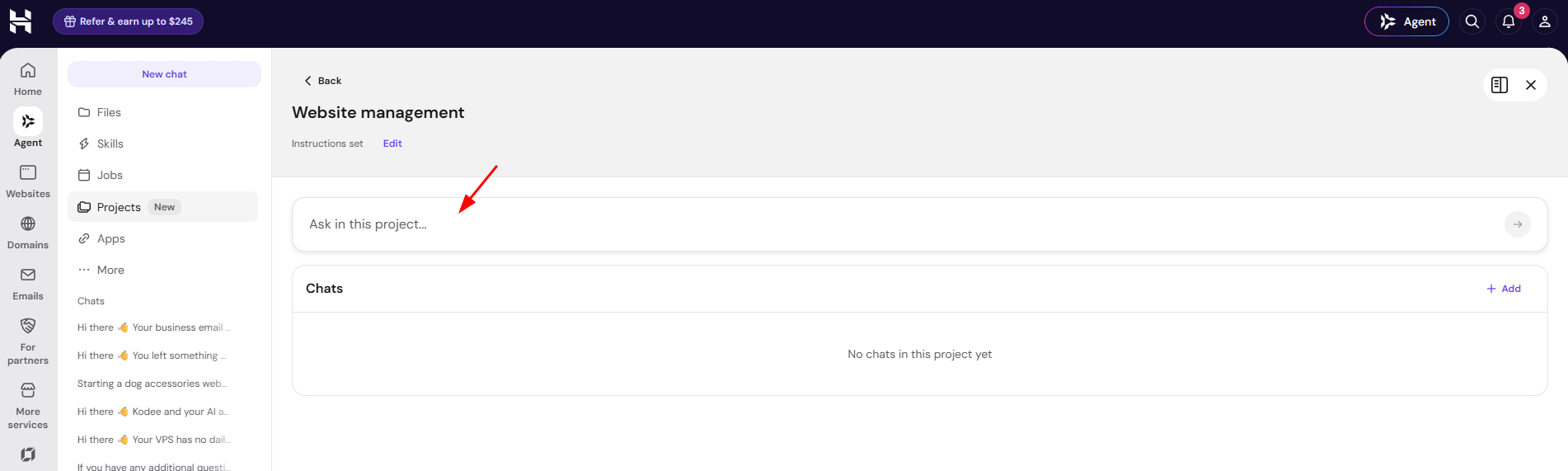
Alternatively, type directly into Ask in this project… at the top of the project page to start a brand-new chat that’s already scoped to the project.
Edit or delete a project
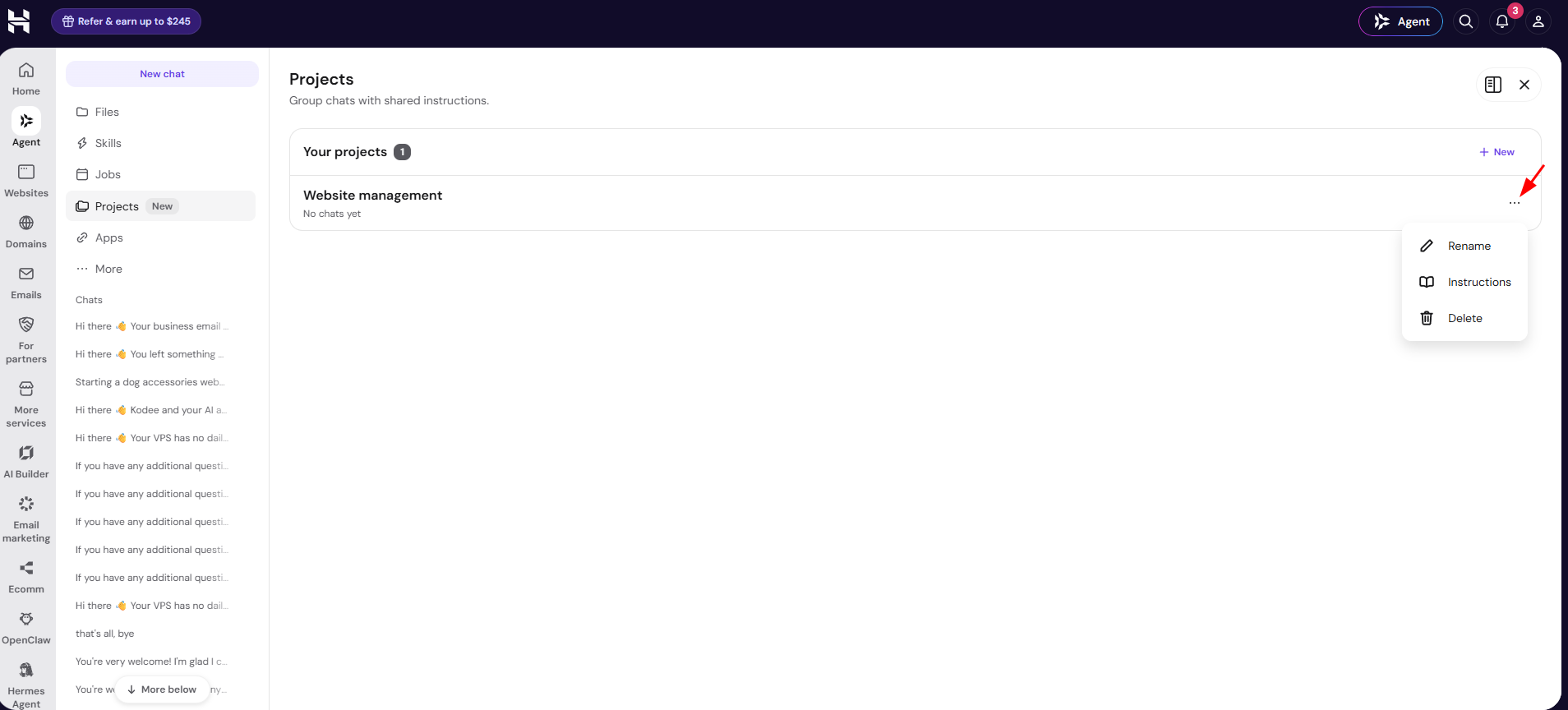
To update a project’s name or instructions, click the ⋯ icon next to the project on the Projects list and select Rename or Instructions, it will open the same editor. Select Delete from the same ⋯ icon to remove the project.
Chats added to a project automatically apply its instructions, so you can pick up related work without re-explaining the context each time.