Hostinger Agent can run a recurring check for you, such as confirming your website is online, at intervals of 5 minutes or longer. Agent repeats the check and reports each result until you ask it to stop.
Set up a recurring check
A recurring check is one of several tasks Hostinger Agent can perform for you. For a full list of what Agent can do, see Hostinger Agent: Features and overview and How to use Hostinger Agent skills.
- Tell Hostinger Agent what to check and how often. For example: “Check if domain.tld is online every 5 minutes and let me know until I tell you to stop.”
- Review the confirmation card. It states the frequency, the first run time, and what the job will do. Nothing runs until you confirm it.
- Select Confirm to schedule the job, or Deny to cancel it.

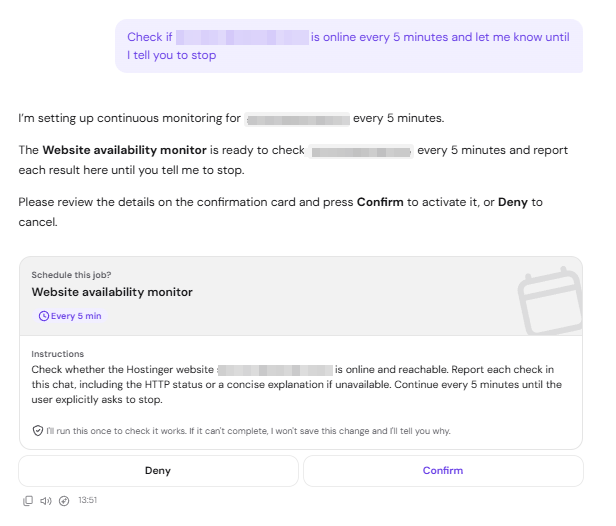
Agent runs the job once immediately to confirm it works. It does not save the job if that first run fails, and explains why in the chat.
The minimum interval is 5 minutes
Recurring checks cannot run more often than every 5 minutes. Agent explains the 5-minute minimum and offers to schedule the check at 5 minutes instead if you ask for a shorter interval.
This minimum applies to recurring checks only. A one-time check can sometimes run sooner, such as within 2 minutes.
Recurring vs. one-time checks
Not every request that mentions “every X minutes” creates a recurring job. Agent may schedule a single one-time check instead of a recurring one if your request combines a frequency and a stop condition in the same sentence. For example, “check it every 3 minutes and stop after the first check” can be read as a one-time request.
Always check the confirmation card before you confirm it.
NOTES
- A card showing Once and a single date and time schedules one check only. It does not repeat.

- A card showing a repeating frequency, such as Every 5 min, schedules a recurring job that continues until you ask Agent to stop it.

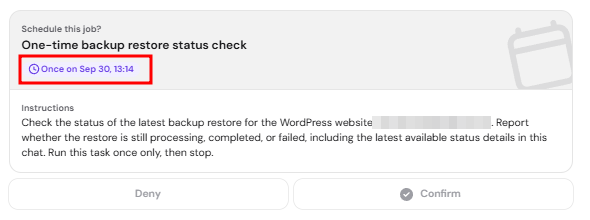
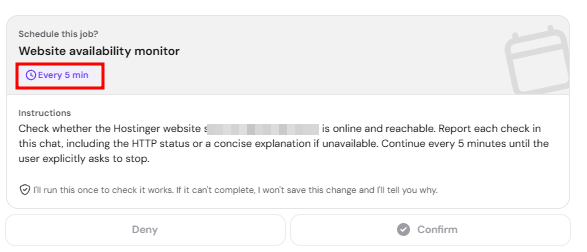
Ask for the frequency without a stop condition if you want ongoing monitoring. For example: “Monitor domain.tld every 5 minutes until I tell you to stop.”
Where you’ll see the results
A one-time check posts its result back into the same chat where you set it up. A recurring check does not post its results into the chat, even if that chat is still open. Instead, each completed run of a recurring check appears in the Inbox on the Jobs page.
Open the Jobs page from the sidebar to see the result of each run, including the exact check performed and its outcome.
NOTE
- Each run uses Hostinger Agent credits, whether the check succeeds or not.
Manage jobs from the Jobs page
Select Agent in the sidebar, then select Jobs to open the Jobs page. The Jobs page lists every check you have set up, split into two sections: Inbox, which shows completed run results, and Scheduled, which shows jobs that are active, completed, or inactive.
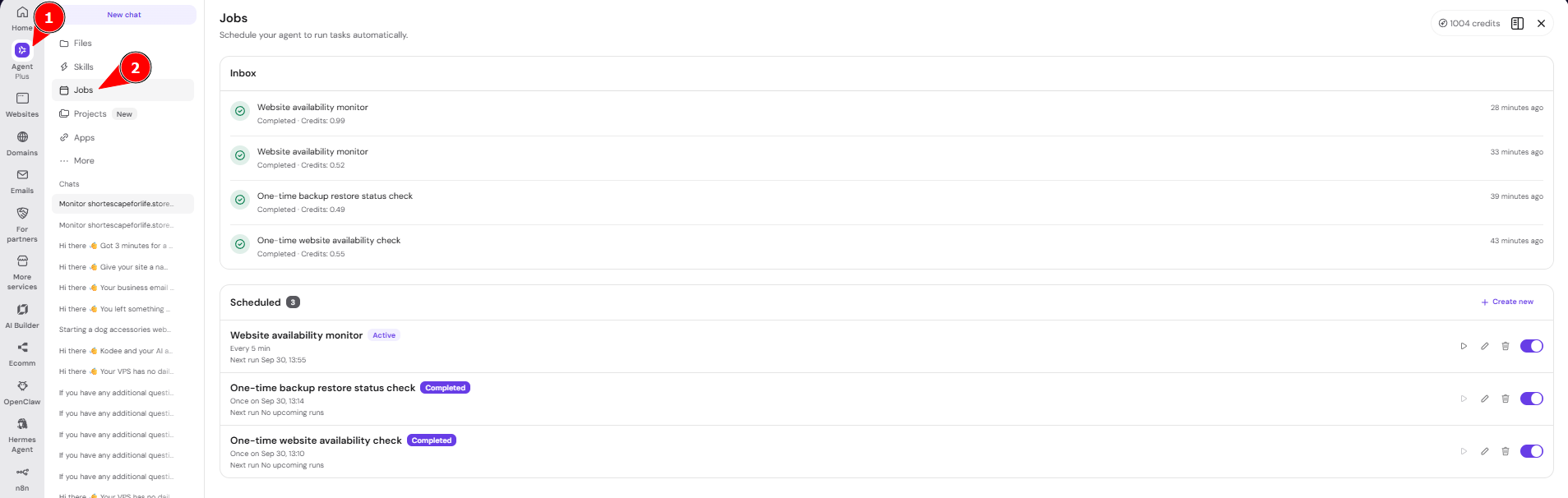
From the Jobs page, you can:
- Select + Create new to set up a job directly, without going through the chat.
- Select Run now next to a scheduled job to trigger it immediately, outside its regular schedule.
- Select Edit next to a job to change its details, such as its frequency or instructions.
- Select Delete next to a job to remove it permanently.
- Use the toggle next to a job to turn it on or off without deleting it.

You can also manage a job from the chat. For example, tell Agent “Stop the website availability monitor job”, and Agent asks you to confirm before it stops the job.
Turning off or deleting a job does not delete its past results. Completed run results remain available in the Inbox.
Your recurring check is set up, and you can adjust or stop it at any time from the Jobs page or by asking Agent directly.