A Hostinger Agent website overview is a short health and growth report for one of your websites. It checks whether key pages load, summarizes what the site presents, flags problems such as broken links or placeholder content, and names one priority fix for the week. To get one, ask Hostinger Agent for an overview of your domain, download the report from the chat or the Files page, and schedule it to arrive every Monday if you want regular updates.
Before you start
- The website overview is a business request, so it uses Agent credits. See Hostinger Agent pricing for how credits work.
- A scheduled weekly overview is a job, and jobs are included in the Agent Plus subscription. Each run uses Agent credits, and a run is skipped if your credit balance is empty.
Get a website overview from Hostinger Agent
Ask Hostinger Agent for an overview of your domain, and it runs the Website overview skill automatically. See how to use Hostinger Agent skills to learn how skills work.
- Open Hostinger Agent and start a new chat.
- Type a request with your domain name. For example: Give me an overview of
domain.tld - Wait while Hostinger Agent checks your website. The label Skill used: Website overview appears above the reply.
The reply includes four parts:
- Overview: a short summary of your website’s current state, for example whether the site is reachable and which pages return errors.
- Fix this week: the single most important fix for the week, with the reason it matters.
- Report file: the full website overview as a downloadable Markdown (
.md) file. - Recommended next steps: cards for follow-up actions, such as fixing broken pages, Connect analytics, or Send this every Monday.
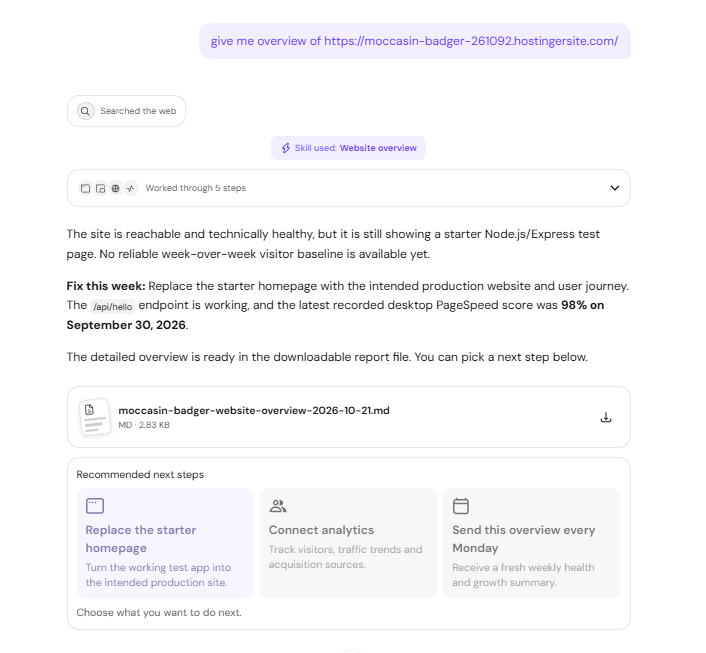
What the Hostinger Agent website overview report includes
The Hostinger Agent website overview report covers your website’s health, content, and the most valuable next fix. The report file includes these sections:
- The review date and the scope of the checks.
- A summary of the website’s current state.
- What the site presents, such as its platform, main navigation, offers, and products.
- A timeline of meaningful signals, such as pages that returned errors or the latest recorded PageSpeed result. See how to analyze your website’s speed in Hostinger to run a new speed test.
- Strengths and priority risks, such as broken internal links or leftover placeholder text. See how to fix the 404 error at Hostinger if the report lists pages that return Not Found.
- The fix for this week.
- Measurement gaps and the limits of the data used.
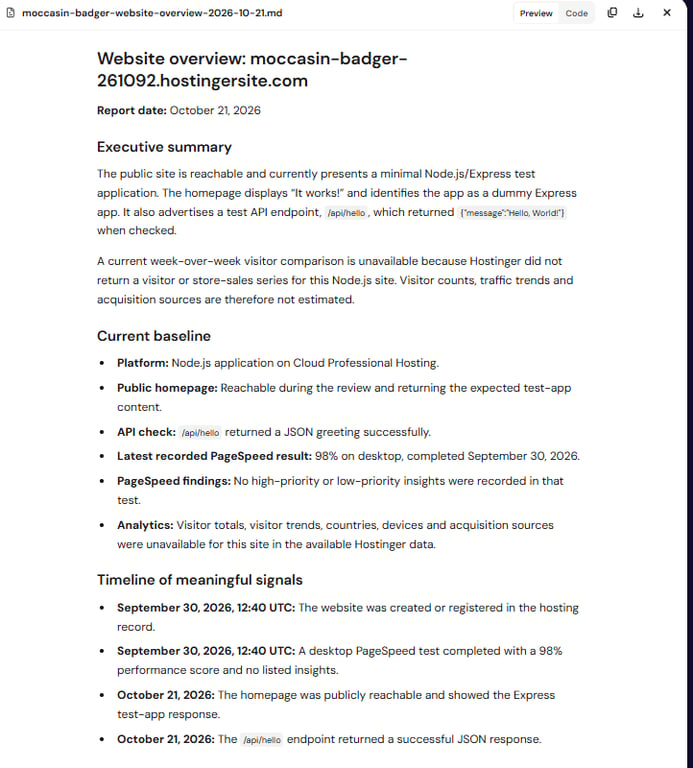
The website overview compares visitors week over week only when visitor or store-sales data is available for your site. If no traffic data is available, the report states that a week-over-week comparison isn’t possible and doesn’t estimate visitor numbers. See how to check your website’s traffic in Hostinger to view visitor statistics in the Hostinger dashboard.
Find your Hostinger Agent website overview reports
Every website overview report is saved as a file in Hostinger Agent, so you can open it again after the chat ends.
- In the chat: click the report file to open a preview panel, or click the download icon to save the
.mdfile.
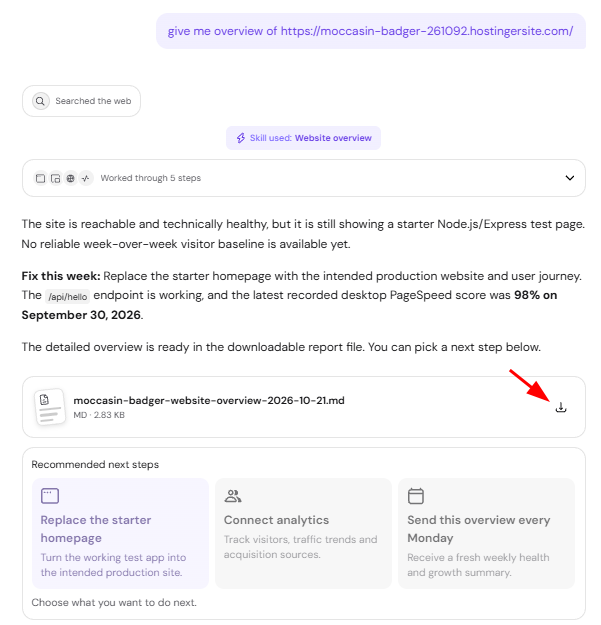
- On the Files page: select Files in the Hostinger Agent sidebar. The list shows all files created in your chats, and each file has icons to view, star, download, or delete it.
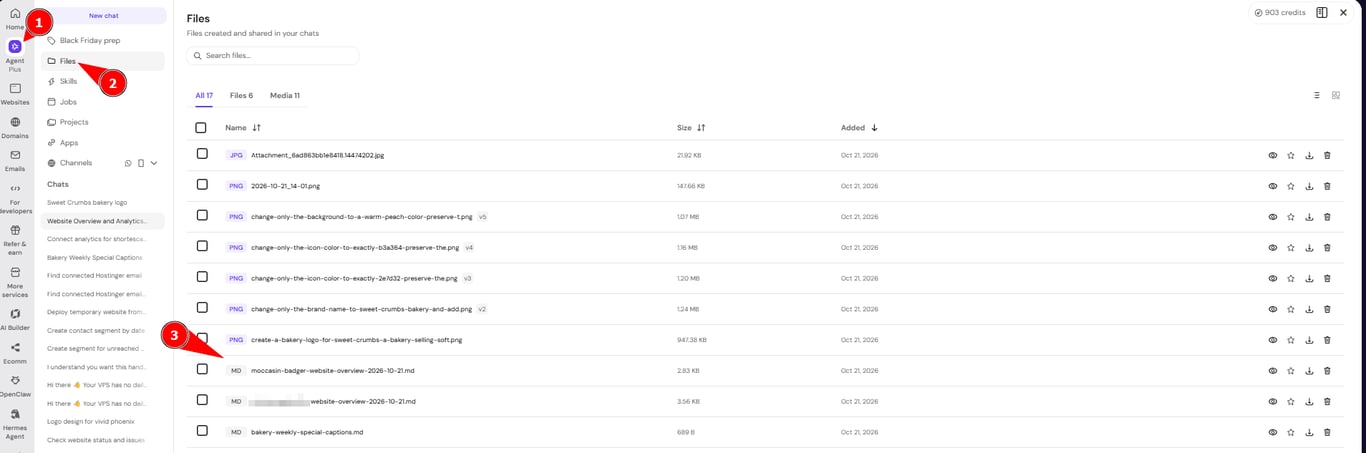
Get the Hostinger Agent website overview every Monday
Schedule the website overview as a weekly job, and Hostinger Agent creates a new report every Monday.
- In the chat with your overview, click Send this every Monday, or type: Send me this website overview every Monday for
domain.tld - Answer the question about what time on Mondays to send it, for example: 9 am. Hostinger Agent uses your local time zone.
- Review the confirmation card. It shows the job name, the schedule, and the instructions Hostinger Agent follows on every run.
- Click Confirm to schedule the job, or Deny to cancel.
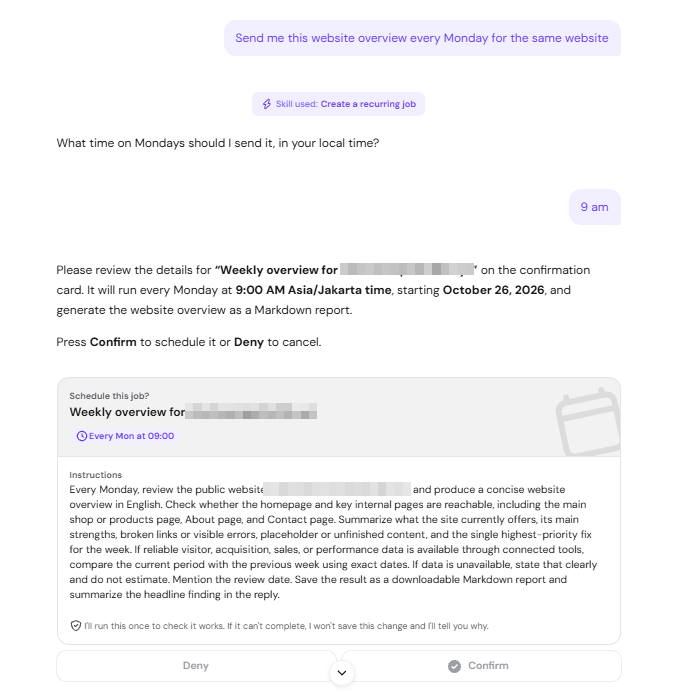
Hostinger Agent runs the job once to check that it works, then confirms the schedule and the date of the first run.
To manage the weekly overview, select Jobs in the Hostinger Agent sidebar. The Active list shows each job’s name, schedule, and next run, with a toggle to turn the job on or off. Completed runs and the credits each run used appear in the Inbox list. For more about scheduled jobs, see how to ask Hostinger Agent to check something at regular intervals.
Add visitor data to the Hostinger Agent website overview
Connect Google Analytics to include visitor counts, traffic trends, and acquisition sources in your website overview. See connect apps and custom MCP servers to Hostinger Agent for more about app connections.
- Click Connect analytics under Recommended next steps, or type: Help me connect analytics for this website.
- Click Connect on the Google Analytics card.
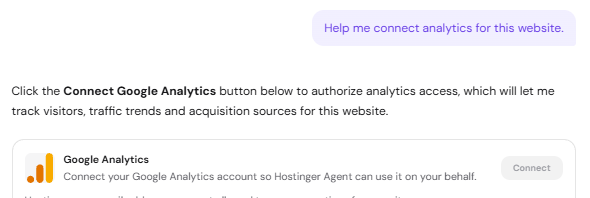
- Sign in to your Google account and authorize access.
NOTE
- See How to set up Google Analytics at Hostinger if your website doesn’t use Google Analytics yet.
Your website overview now gives you a quick view of your site’s health and the one fix that matters most this week, delivered on demand or every Monday.