Hostinger Agent can audit your website’s SEO and give you a prioritized fix list. Ask for the audit, confirm a few details, and Agent checks both technical health and content quality before ranking what to fix first.
Run an SEO audit
- Ask Hostinger Agent to run an SEO audit of your website. For example: “Run a full SEO audit of my website and give me a prioritized fix list.”
- Select Run SEO audit in the chat.
- Confirm the website URL, the platform it runs on, and your main SEO concern, or answer check all of them if you want a full review.

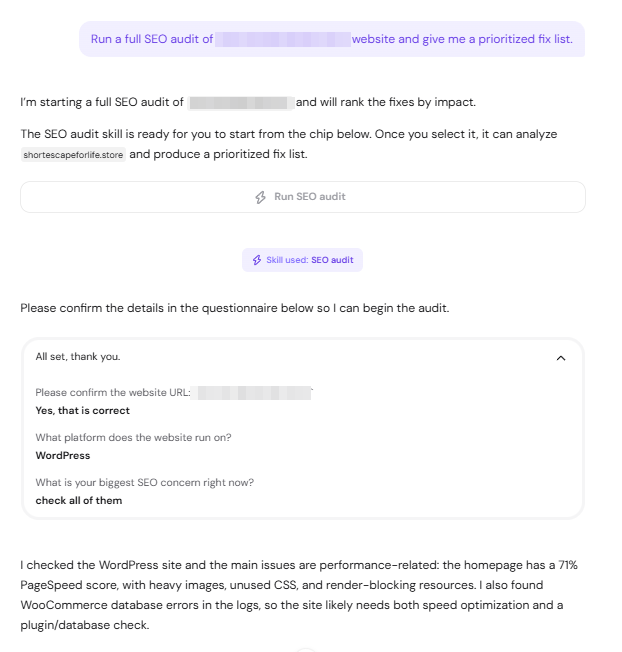
Agent then crawls the site and checks technical signals, such as SSL, sitemap and robots.txt status, PageSpeed and Core Web Vitals, and crawlability, alongside content signals, such as placeholder text, thin product or category descriptions, and missing metadata.
Understand the audit result
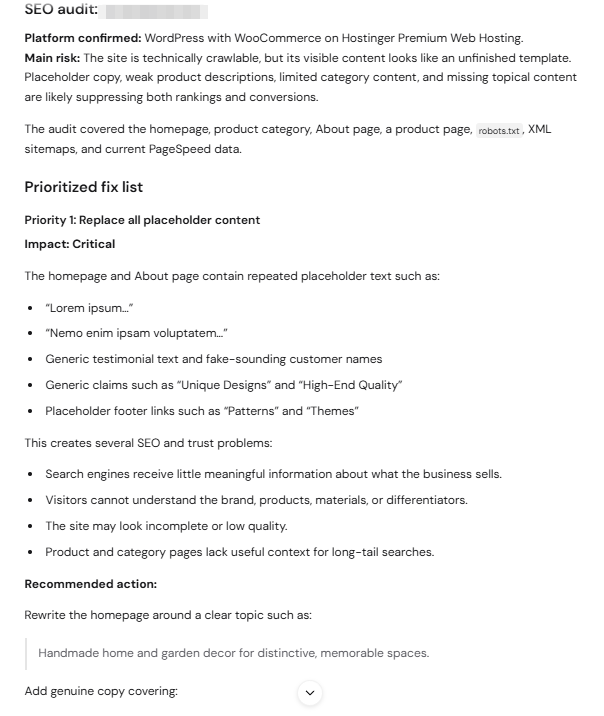
A completed audit includes a prioritized fix list, each item ranked by impact, plus a technical findings summary split into what Agent confirmed working and what still needs manual verification, such as your Google Search Console coverage or mobile PageSpeed results.
NOTES
- Agent cannot access your Google Search Console data from the chat. Add your domain to Google Search Console and check it directly for indexing and traffic data the audit cannot confirm on its own.
- A large audit can exceed a single check’s tool limit. Agent splits it into smaller checks automatically rather than skipping parts of the site.
- Agent does not always retrieve a fresh PageSpeed or performance score.
Apply fixes directly
Whether Agent can apply a fix itself depends on the type of change and, for content, the platform your site runs on.
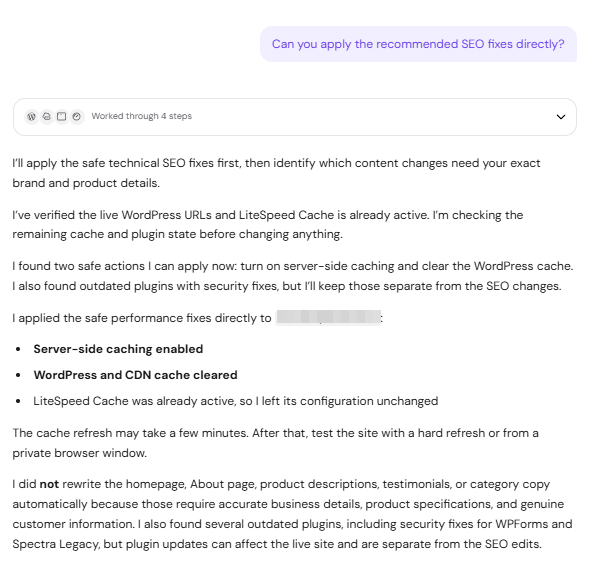
- Safe technical and performance settings, such as enabling server-side caching or clearing the cache, are applied directly on either platform.
- SEO metadata, such as page titles and meta descriptions, has a direct editor on AI Builder sites (agentic mode and manual mode), so Agent can apply it there immediately. On WordPress, this metadata lives inside your SEO plugin, such as All in One SEO, which Agent cannot commit changes to directly. Agent prepares the exact titles and descriptions for you to paste into your plugin instead.
- Brand-specific content, such as your homepage copy, About page, or product descriptions, is not rewritten automatically on either platform. Agent drafts this content once it has real business and product details, rather than publishing placeholder or generic text on your behalf.
- Plugin updates are flagged separately from SEO fixes, since they can affect a live site. Back up your site and check compatibility before applying them.
Apply the fix list
- Ask Hostinger Agent to apply the fixes you want done directly. For example: “Can you apply the recommended SEO fixes directly?”

- Review what Agent applied and what it left for you, since some fixes are applied immediately while others are prepared for you to add yourself.
- For WordPress metadata, open each page in your SEO plugin, paste in the prepared title and description, and save the page.
Your SEO audit is complete, and you can ask Hostinger Agent to re-run it after making changes to check your progress.