The AI visibility score in the Hostinger dashboard shows how well AI tools such as ChatGPT, Claude, and Perplexity can read your website, out of 100. AI visibility runs the same checks as the Hostinger AI Visibility Checker and saves every scan, so you can track your score over time. To use it, run a scan from the Analytics section, review your score and full report, fix the issues with Improve score, and track your progress in Score over time and Scan history.
Before you start
- AI visibility is available on web hosting, cloud hosting, and Agency Hosting plans.
Run an AI visibility scan in the Hostinger dashboard
Run your first scan from the AI visibility page in the Analytics section of your website’s hosting dashboard:
- Go to Websites in the Hostinger dashboard.
- Hover to your website then click Manage site to open its hosting dashboard.
- Select Analytics → AI visibility in the left sidebar.
- Click Scan website.
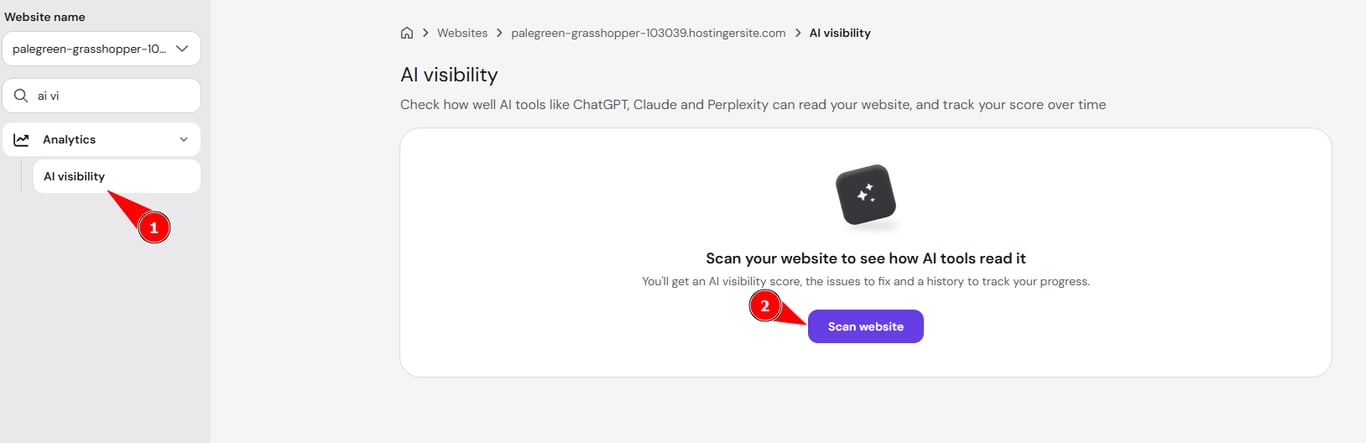
When the scan finishes, the page shows your AI visibility score and the date and time of the scan next to Last scanned.
Understand your AI visibility score and scan summary
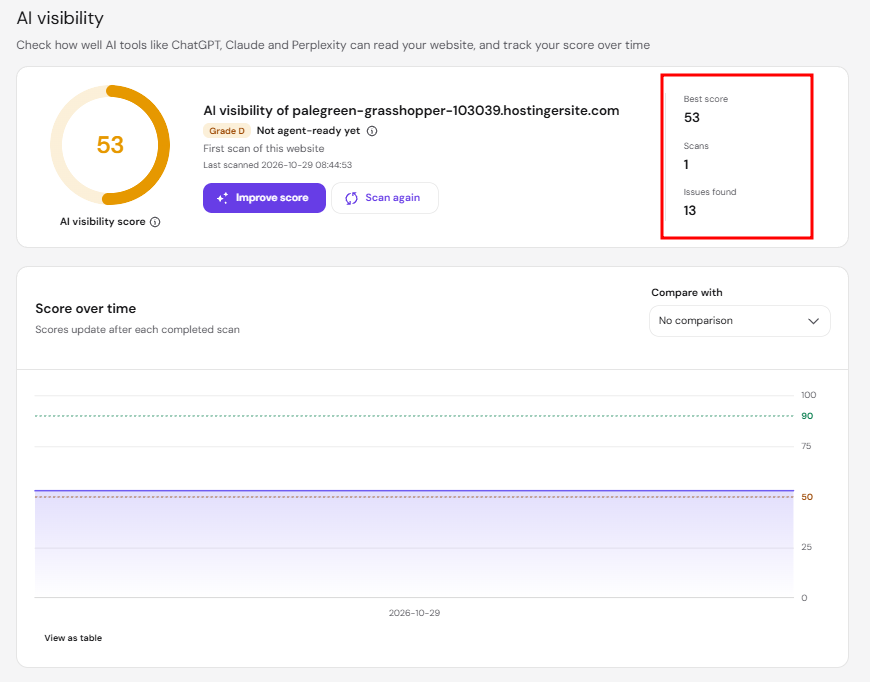
Your AI visibility score is a number out of 100, shown with a letter grade and a status. For example, a score of 53 receives Grade D and the status Not agent-ready yet, while a score of 90 receives Grade A and the status Agent-ready. The first scan shows First scan of this website, and later scans show the change in points since the previous scan.
The score is the total of seven categories: Crawl permission, Findability, Readability, Structured meaning, Commercial legibility, Agent-native content, and Agent interaction. To learn what each category checks and its maximum points, see How to use the Hostinger AI Visibility Checker.
Three figures next to the score summarize your scans:
- Best score – the highest AI visibility score from all your scans.
- Scans – the total number of scans run on your website.
- Issues found – the number of checks with zero or partial points in the scan.
Review the AI visibility full report
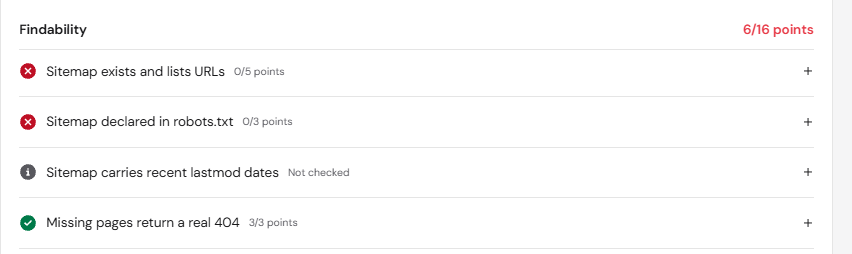
The Full report section lists every check run on your website, grouped by category, with the points earned out of the maximum. For example, Crawl permission shows 17/20 points when one of its checks fails. The section header shows the number of issues to fix.
Each check has one of three results:
- Passed – a green check mark with full points, for example 4/4 points.
- Failed – a red cross with zero or partial points, for example 0/3 points or 3/4 points.
- Not checked – the check depends on something missing. For example, llms.txt is well-formed isn’t checked when
llms.txtisn’t served.
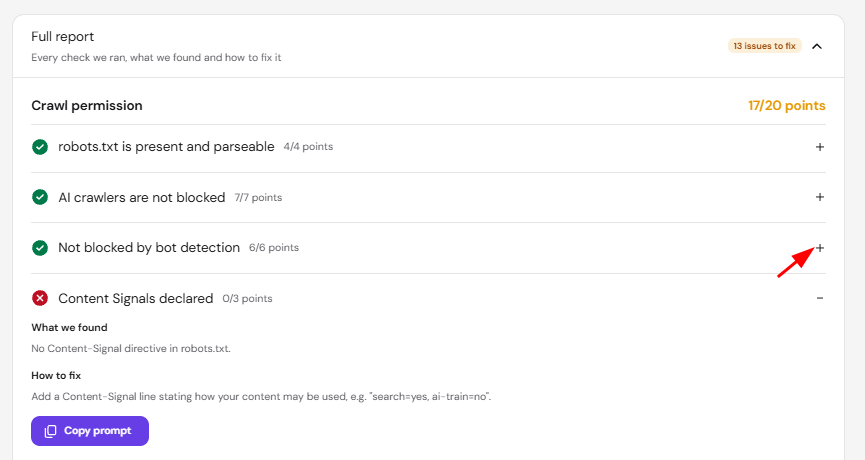
Click + next to a check to expand it:
- What we found – the result of the check. For example, no Content-Signal directive in
robots.txt. - How to fix – the change needed. Failed checks only.
- Copy prompt – copies the fix instructions for that check, ready to paste into an AI coding assistant. Failed checks only.
Fix AI visibility issues with Improve score
Improve score copies the fix instructions for every failed check at once:
- Click Improve score.
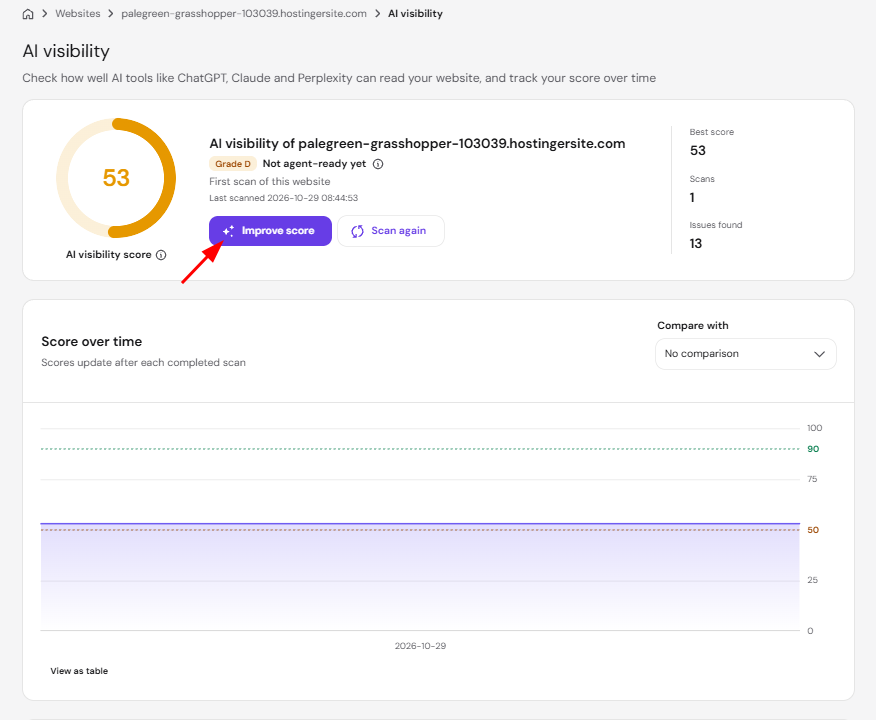
- Review the How to improve your score window. It lists the goal, issue, and fix for each failed check, and the total number of issues found.
- Click Copy instructions.
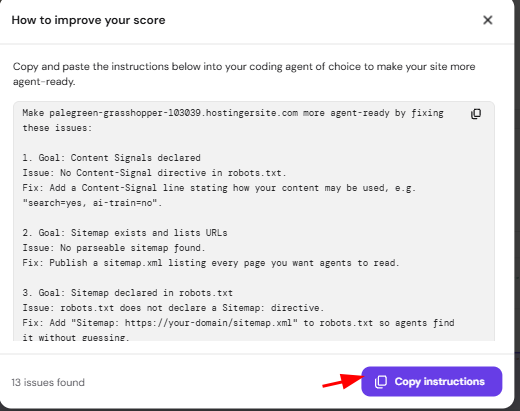
- Paste the instructions into your AI coding assistant to apply the fixes.
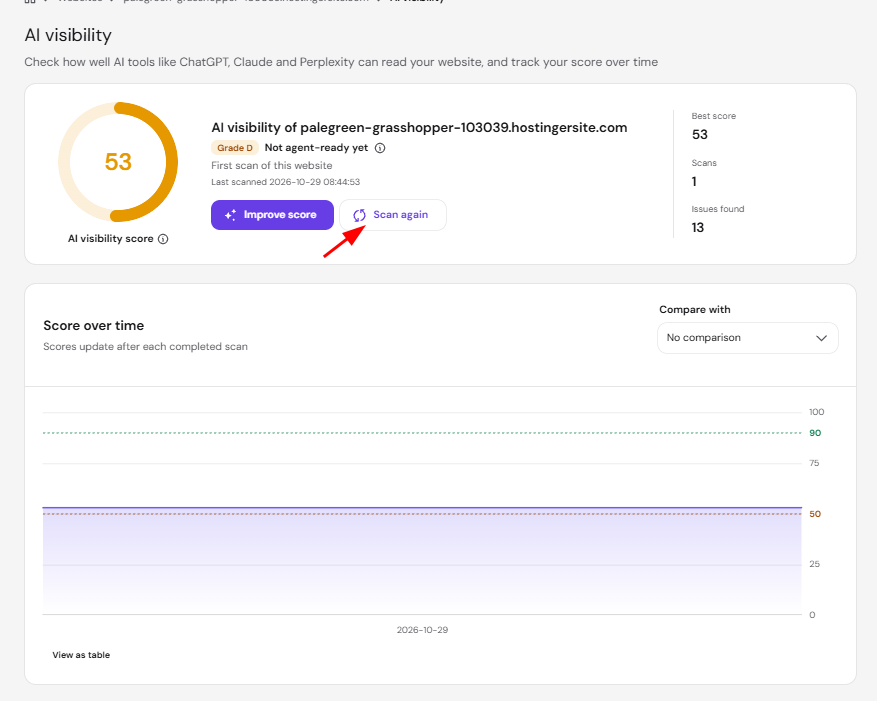
- Click Scan again to check your updated AI visibility score.
For example, the instructions for a missing sitemap read:
- Goal: Sitemap exists and lists URLs.
- Issue: No parseable sitemap found.
- Fix: Publish a sitemap.xml listing every page you want agents to read.
Four Hostinger articles cover fixes for common failed checks:
- AI crawlers are not blocked – allow or block AI crawlers on your Hostinger website. On web and cloud hosting, you can also edit website files using the Hostinger File Editor, such as
robots.txt. - Not blocked by bot detection – see Hostinger CDN: Search engine crawlers and SEO for the CDN settings that can block crawlers, such as Under Attack mode and blocked bots.
- llms.txt is served – enable LLMs.txt on your website.
- AI agent access – Web2Agent in Hostinger makes WordPress websites accessible to AI agents.
For fixes to other checks, see How to use the Hostinger AI Visibility Checker.
Track your AI visibility score over time
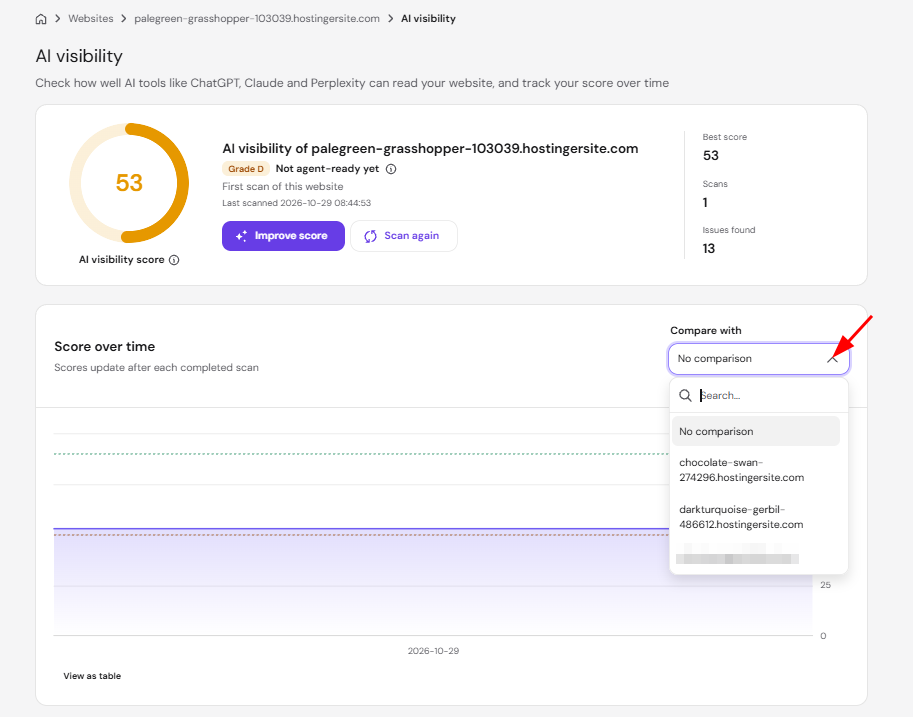
The Score over time chart shows your AI visibility score after each completed scan. Use the View as table option to see the same scores as a table.
To compare your score with another website, select it from the Compare with dropdown above the chart. The dropdown lists the other websites in your hosting plan and includes a search field. Select No comparison to show only your website.
The Scan history section lists every scan of your website in a table:
- Date – the date and time of the scan.
- Score – the AI visibility score and grade. Click the arrows next to Score to sort the table.
- Change – the change in points since the previous scan, or First scan.
- Actions – select a scan to view its full results. The scan currently displayed shows Viewing.
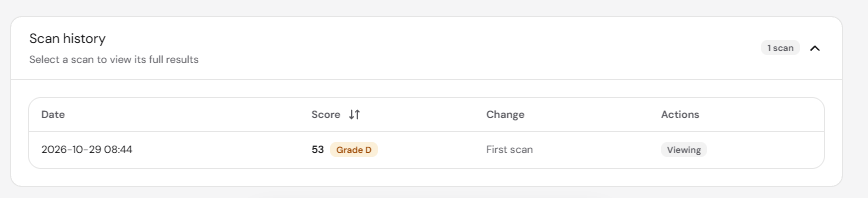
Every scan is saved to your scan history, so each fix you make shows up as a change in your AI visibility score.