Use the Websites section in Hostinger to manage every website added to your hosting plan from one place.
Access the Websites section
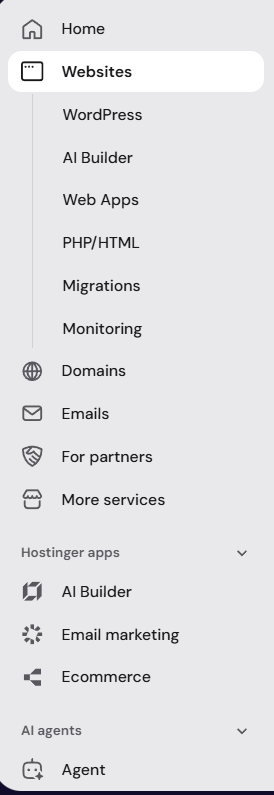
You can find all the websites added to your hosting plan in one place — the Websites section of Hostinger dashboard. Start by clicking on it from the left bar:
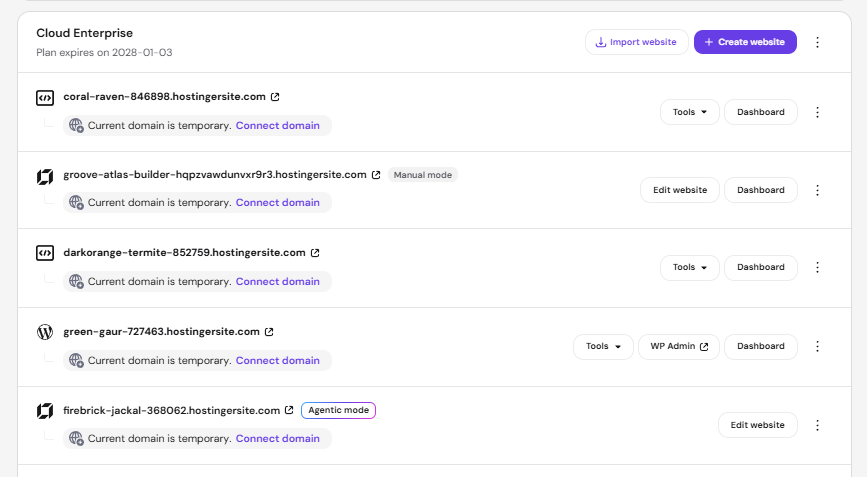
Each website will show the following information:
-
An icon indicating if a website is created using WordPress, AI Builder, Web app, or any other CMS
-
The title of the hosting plan the website is hosted on
- The expiration date of the hosting plan
-
For WordPress-based sites, you will find a shortcut to the WP Admin and the Dashboard button to reach the hosting dashboard
-
For websites built using other CMS, you will find the Dashboard button to reach the hosting dashboard
-
For websites built using Hostinger AI Builder manual mode, you will find the Edit Website button to reach the editor, as well as the Dashboard button, where it shows domain status, email status, Reach (email marketing) status, analytics summary, and the onboarding checklist.
- For websites built using Hostinger AI Builder agentic mode, you will find the Edit Website button to reach the editor.
- The vertical ellipsis ⋮ button for more options such as Delete, Add tag, Add to favorites, and Change domain.
NOTE
- If a website is still using a temporary domain, a “Current domain is temporary” notice appears with a Connect domain link instead of the Change domain option in the ellipsis menu. Once a real domain is connected, Change domain then becomes available from the ellipsis menu.
Find and manage multiple websites
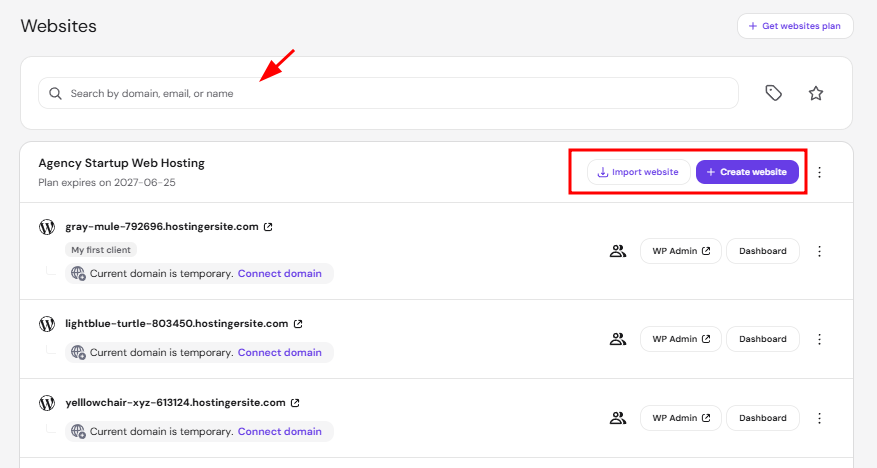
If you host a lot of websites, use the search bar to browse them more easily. If you manage both your own and your customers’ sites, you may use filters to view all websites, only your websites, or only your clients’ websites. You will also find the Create website and Import website buttons. Import website opens three options — Migrate from another host, Upload your website files, and Deploy from GitHub — each leading to its own dedicated flow, covered in how to migrate a website to Hostinger and how to deploy a Git repository in Hostinger. On Agency hosting plans, the third option is Clone website instead of Deploy from GitHub.
Now you know how to manage all your and your customers’ websites in Hostinger!