Deleting a website from a Hostinger hosting plan permanently removes its files, databases, and configurations from your web, cloud, or Agency hosting plan. Delete a website to free up a slot for a new website, or to release its domain name for use on a different hosting plan or Hostinger account.
Before you start
- Ensure your hosting plan is active to access and download any necessary data.
Step 1 – Prepare backups
Before you remove your website, it is strongly advised to download backups. This action is irreversible, and all files, databases, and configurations will be lost.
-
Download your website’s files and databases to your local device.
-
(Optional) Backup your emails.
Once you have secured your data, proceed to the next step.
Step 2 – Delete the website
To remove the website from your hosting plan, follow these steps:
- Go to the Websites section of Hostinger dashboard.
- Locate the website you want to remove and click on the options button (⋮).
- Click Delete.

- Review the confirmation dialog. Deleting a website permanently removes all files and databases.
- If you wish to remove the associated email service (Hostinger Mail or Titan Mail), check the Delete email service checkbox. If left unchecked, the email service remains active.
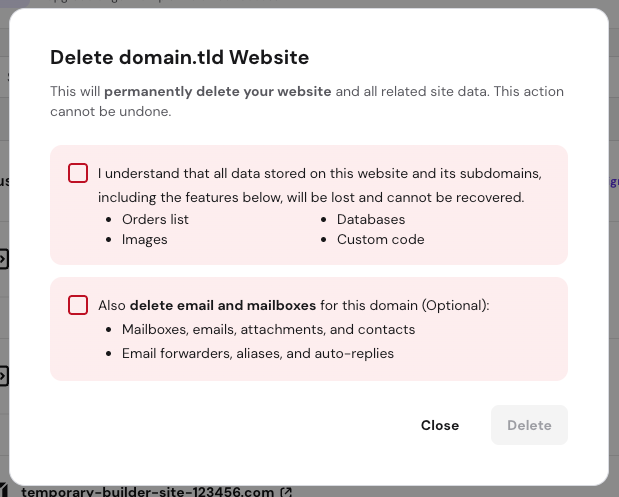
- Mark the first checkbox and optionally the second and click Delete.
- Wait up to 10 minutes for the deletion to complete. During this time, the website may still appear in Hostinger dashboard; reload the page to update the Websites list.
If you have a domain connected to the deleted website, it will stop displaying content and is now released and available to be used with a new website or project.