If you use Hostinger Email and wish to export your messages to EML format, follow the steps below 👇
Export emails in Webmail
- Access the Hostinger Webmail.
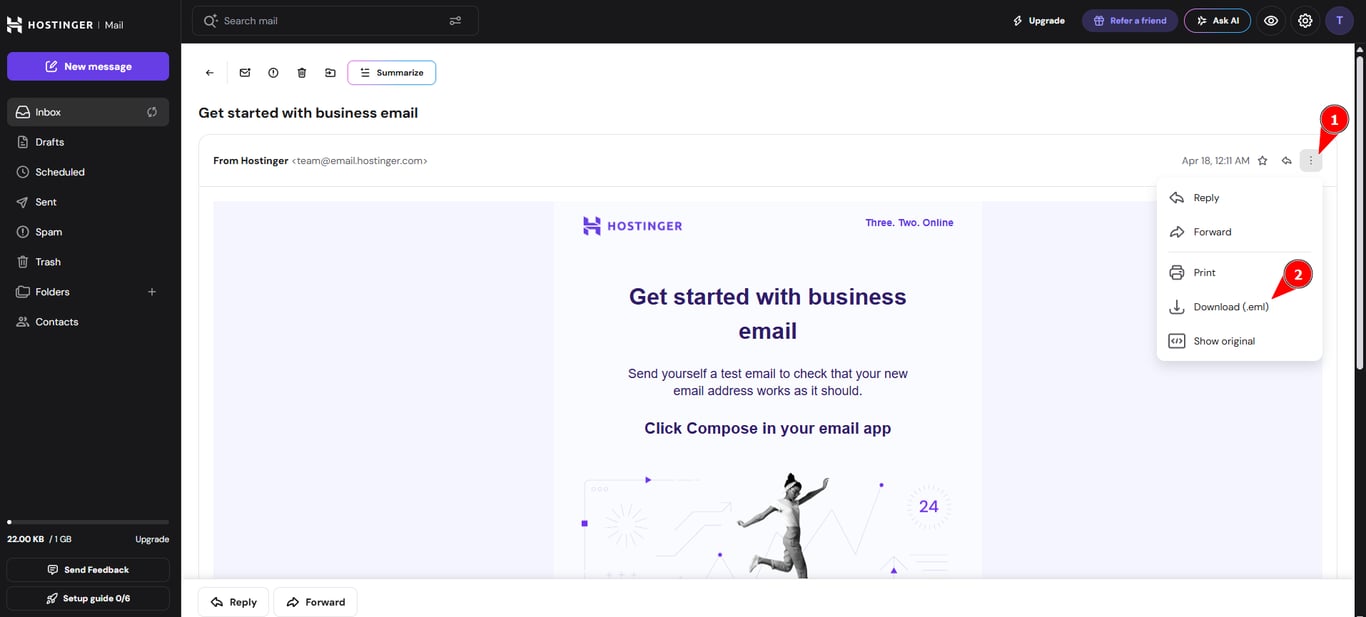
- To export a single message, open it and click the three-dot menu (⋮) in the message details, then select Download (.eml).
- To export multiple messages at once, select the checkboxes next to the emails in the messages list, then click the Download icon in the toolbar. You can only select 50 messages per download.
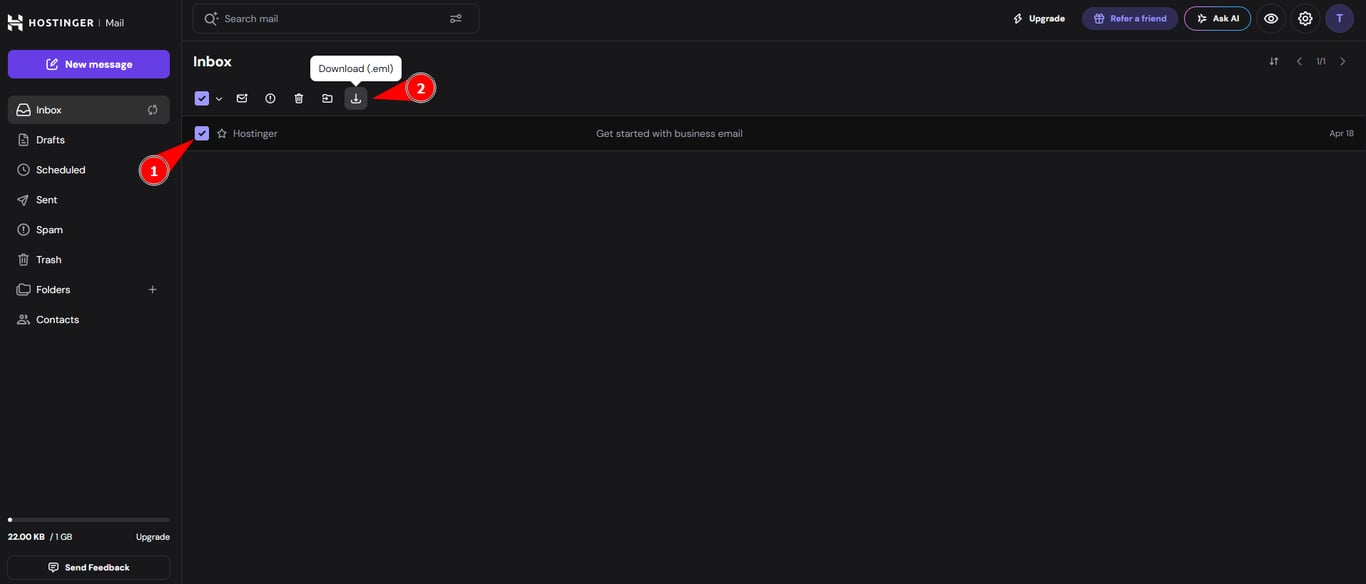
The selected messages download to your device as EML files in a ZIP archive.
If you want to transfer emails between two Hostinger Email accounts instead of exporting them to your device, see how to move data between Hostinger Email accounts.