Change the domain of a website at Hostinger to connect a different domain name to your existing site, or to switch it to a temporary domain. Your email service stays intact, but you need to re-create any subdomains afterward.
Before you begin
Changing the domain of a website doesn’t affect your email service. Your existing mailboxes and email data stay intact, so you don’t need to re-create them.
If there are any subdomains, they will also have to be re-created:
The subdomain files will remain intact; they should be recreated in the Hostinger dashboard Subdomain Tool as described in the guide above.
Change the domain of a website at Hostinger
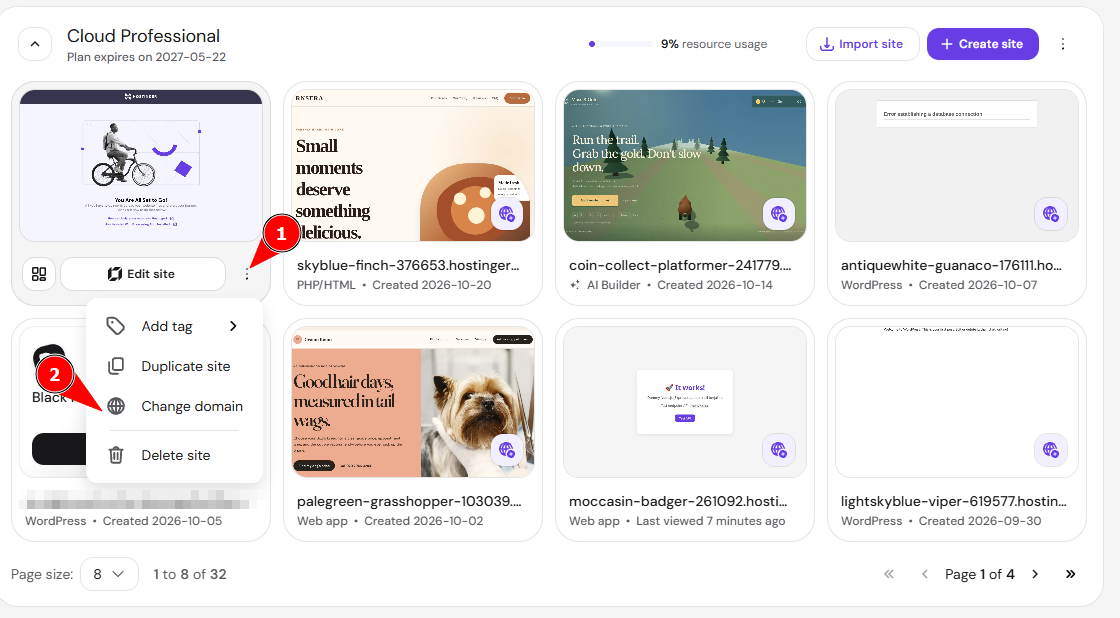
To change the domain locate the website in the Websites section. Then, click on the ellipsis button and select Change domain:
A registered domain name can’t be edited or swapped for a different name. To use a different name, register a new domain separately, then connect it to your website with Change domain. Until the new domain works, you can access your website content without a domain.
Change domain name to temporary domain
If you need to temporarily change your website’s domain, Hostinger now allows you to switch to a temporary domain from an actual domain name. To switch back from a temporary domain to your own domain later, follow How to connect a preferred domain name instead of a temporary one at Hostinger.
To switch your domain to a temporary domain:
-
Go to Websites → Websites List, click the ellipsis button next to your website, and select Change domain.

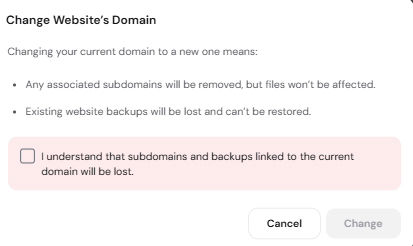
- Confirm that you understand your subdomains and existing website backups will be lost, then click Confirm.

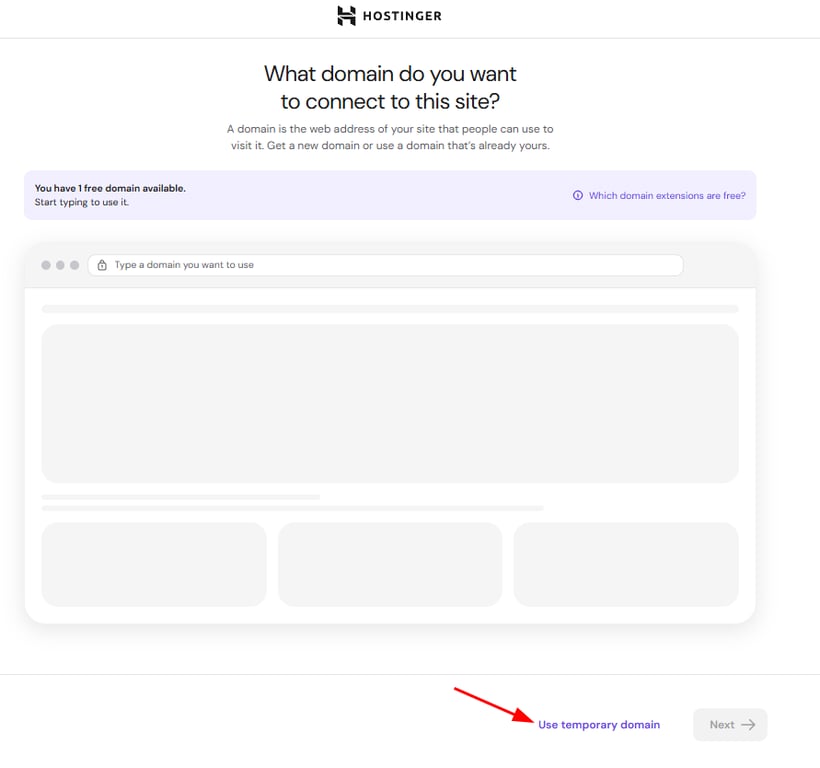
- Select the temporary domain option.

Your website is now connected to its new domain, and your mailboxes keep working without any changes. Re-create any subdomains your site uses by following How to create and delete subdomains.