Change the domain connected to your Hostinger AI Builder website directly from Hostinger dashboard. This applies whether your website is in manual mode or agentic mode.
Change your domain
Changing the domain name associated with your website in Hostinger AI Builder is simple and quick. Just follow the steps below:
-
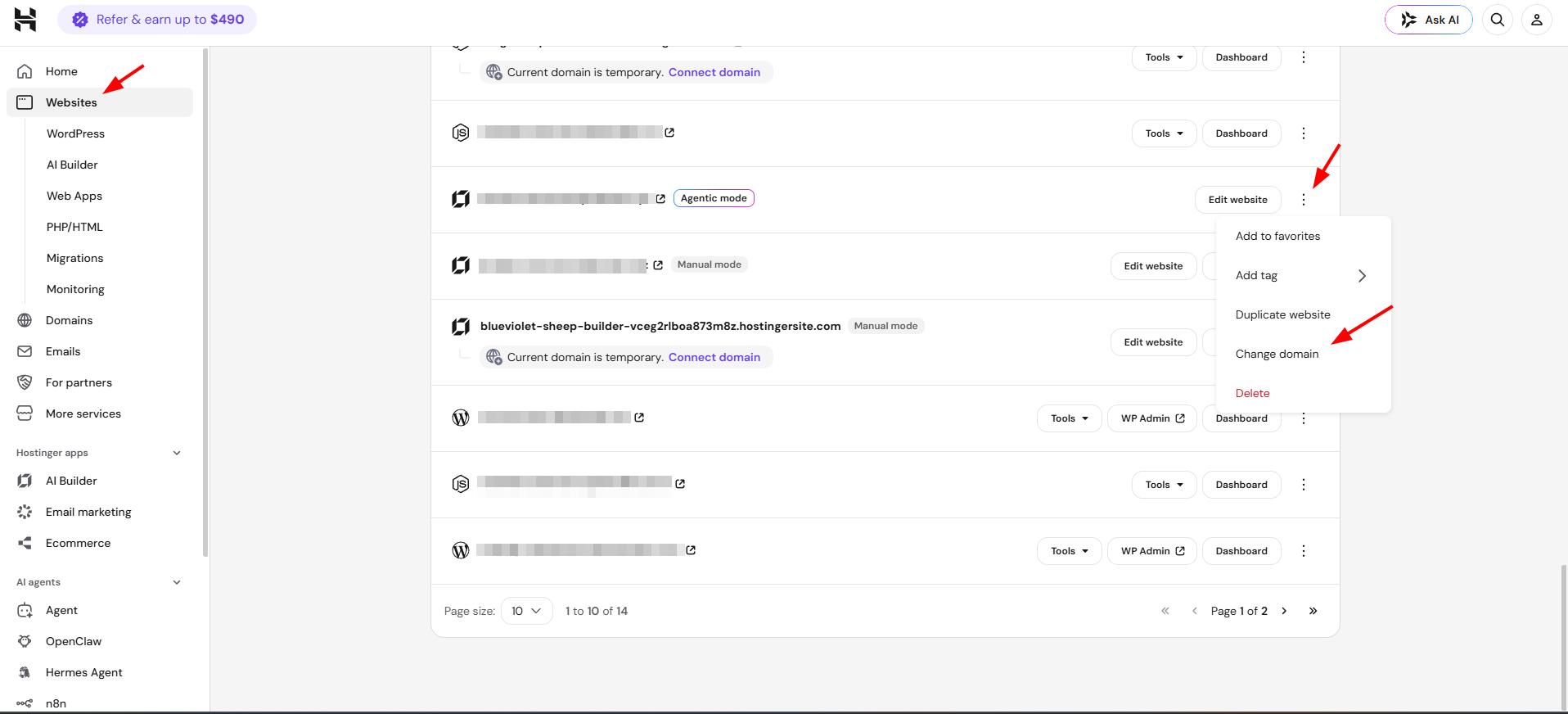
Inside your Hostinger dashboard, navigate to your Websites list dashboard.
-
Find the web application for which you want to change the domain and click on the tree dots button next to it
-
Click on Change domain for the specific web application that you wish to connect to your domain:
-
Enter the new domain you’d like to use and follow the instructions.
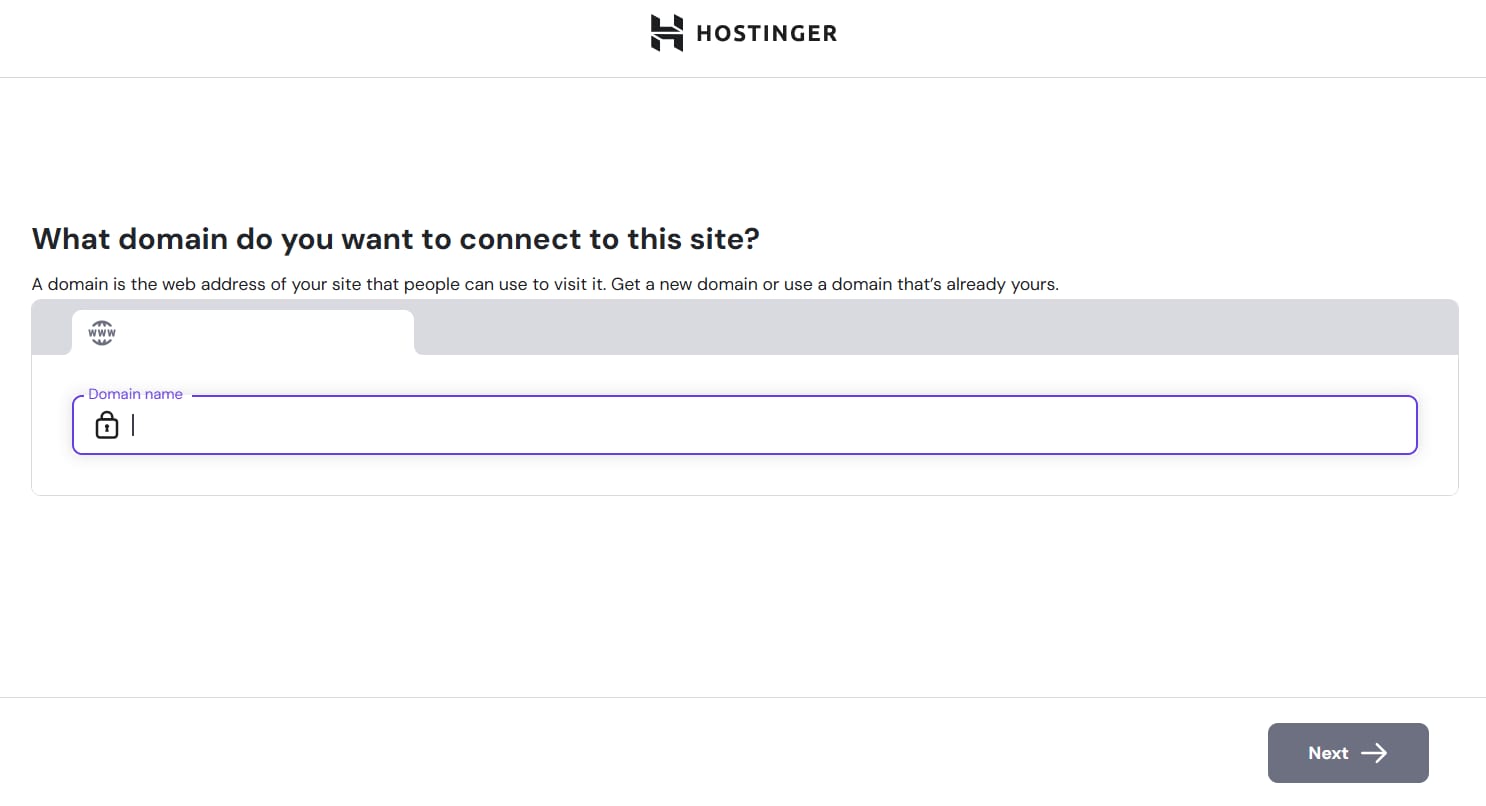
If you’ve just purchased a new domain from Hostinger, it will be automatically available in the dropdown list during the change. If it’s from another provider, make sure it’s properly pointed to Hostinger before starting the domain change process.
Changing your domain will reset your email plan, and all email data related to the old domain will be lost. Be sure to back up important data before making any changes. If there are any subdomains under the domain that’s being changed, they’ll also have to be updated manually.
NOTES
- To duplicate a website, see how to duplicate a website in Hostinger AI Builder.
- To check whether a domain is deleted when deleting a website, see is a domain deleted when deleting a website.
- To move a domain to a different website, see how to move a domain to a different website.
- To redirect a domain to Hostinger AI Builder, see how to redirect a domain to Hostinger AI Builder.
- For more information regarding domain management inside Hostinger AI Builder, check our complete guide here.