Manage domain-related tasks in Hostinger AI Builder agentic mode, including connecting and creating subdomains, changing domains, setting up redirects, and resolving offline websites.
Connecting a domain
Connecting a domain to your website in Hostinger AI Builder is simple and quick. Just follow these steps:
-
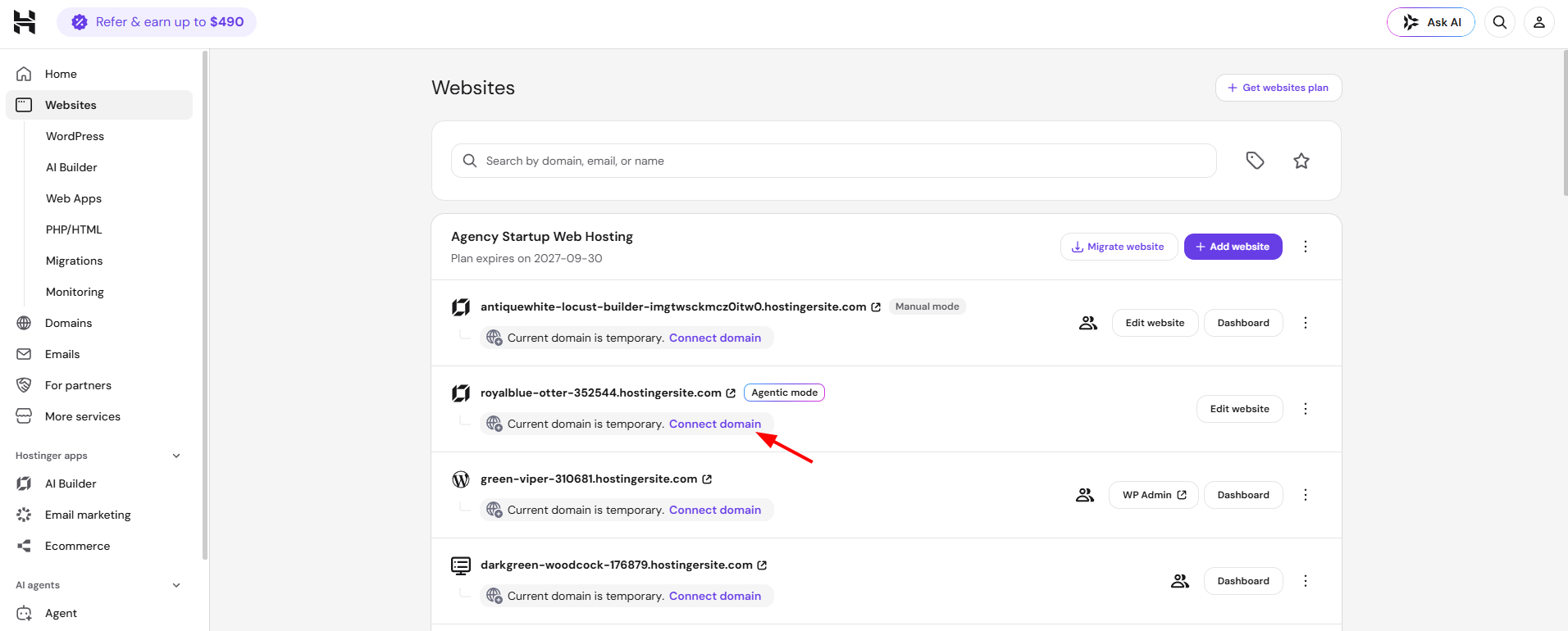
Inside your Hostinger dashboard, navigate to your Websites list dashboard.
-
Click on Connect domain for the specific web application that you wish to connect to your domain. Clicking this shows domains relevant to that specific project.
-
Follow the next steps on the Hostinger dashboard.
For detailed steps on how to connect your domain, check out this guide on connecting a domain.
Creating subdomains
If your root domain is already connected to Hostinger AI Builder, you can create a subdomain (subdomain.domain.tld) directly by adding it as a website this way: How to Add a Website
Connecting subdomains
Connecting subdomains to your website in Hostinger AI Builder is just as easy. Here’s what you need to do:
-
Navigate to the Websites list section on the left sidebar.
-
Click the three-dots (⋮) menu next to the specific web application, then select Change domain to connect it to your subdomain.
-
Follow the next steps on the Hostinger dashboard and add your subdomain name.
For detailed steps on how to connect your subdomain, check out this guide on connecting a subdomain.
You can also connect your domain or subdomain inside Hostinger AI Builder editor. For that, follow these steps:
-
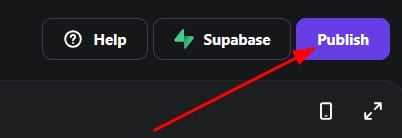
Click on the Publish button to prepare your website for going live:
-
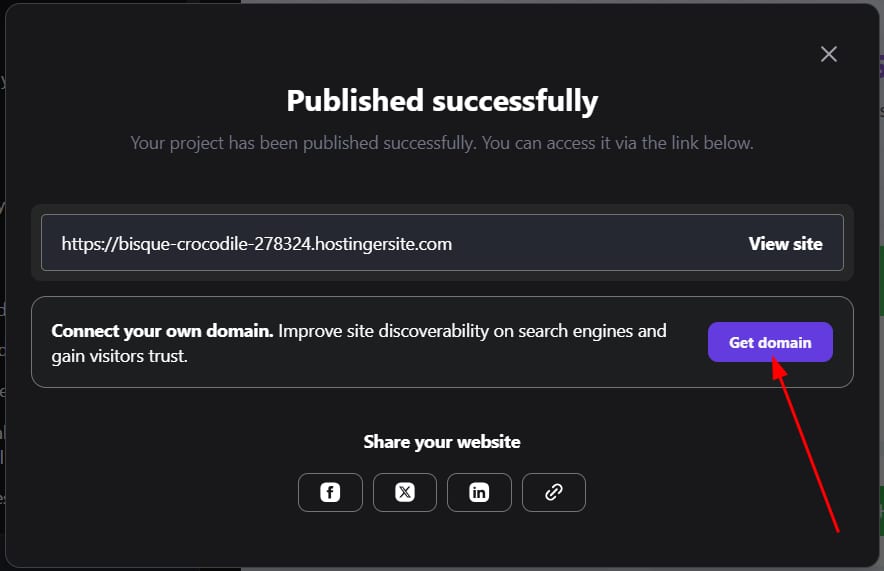
Once your website is ready to publish, you’ll see an option to Connect Domain. Click on the Get Domain button:
-
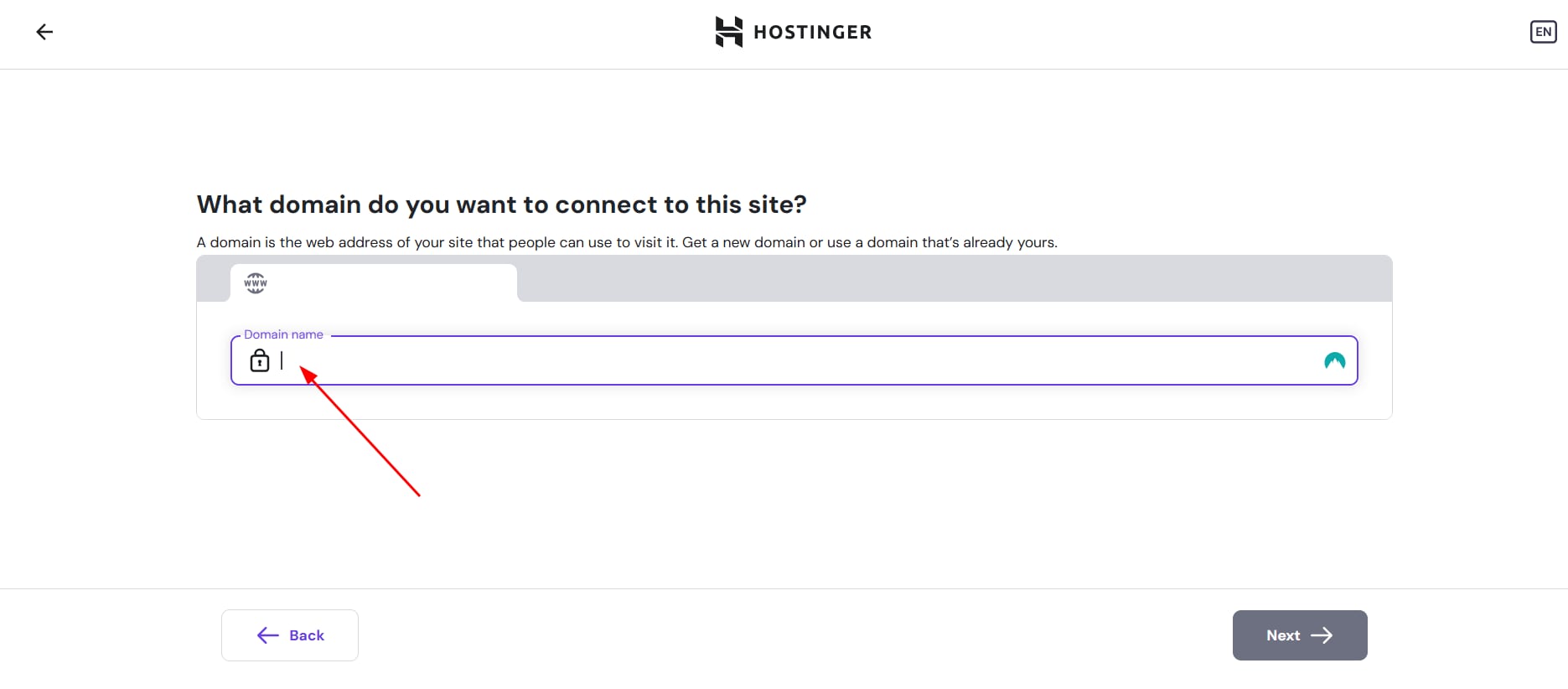
This will redirect you to the next screen where you’ll be able to enter the domain or subdomain you want to use. Enter the name and follow the next steps inside Hostinger dashboard.
Changing your domain name
Changing your domain is easy, you just need to do the following:
-
Inside your Hostinger dashboard, navigate to your Websites list dashboard.
-
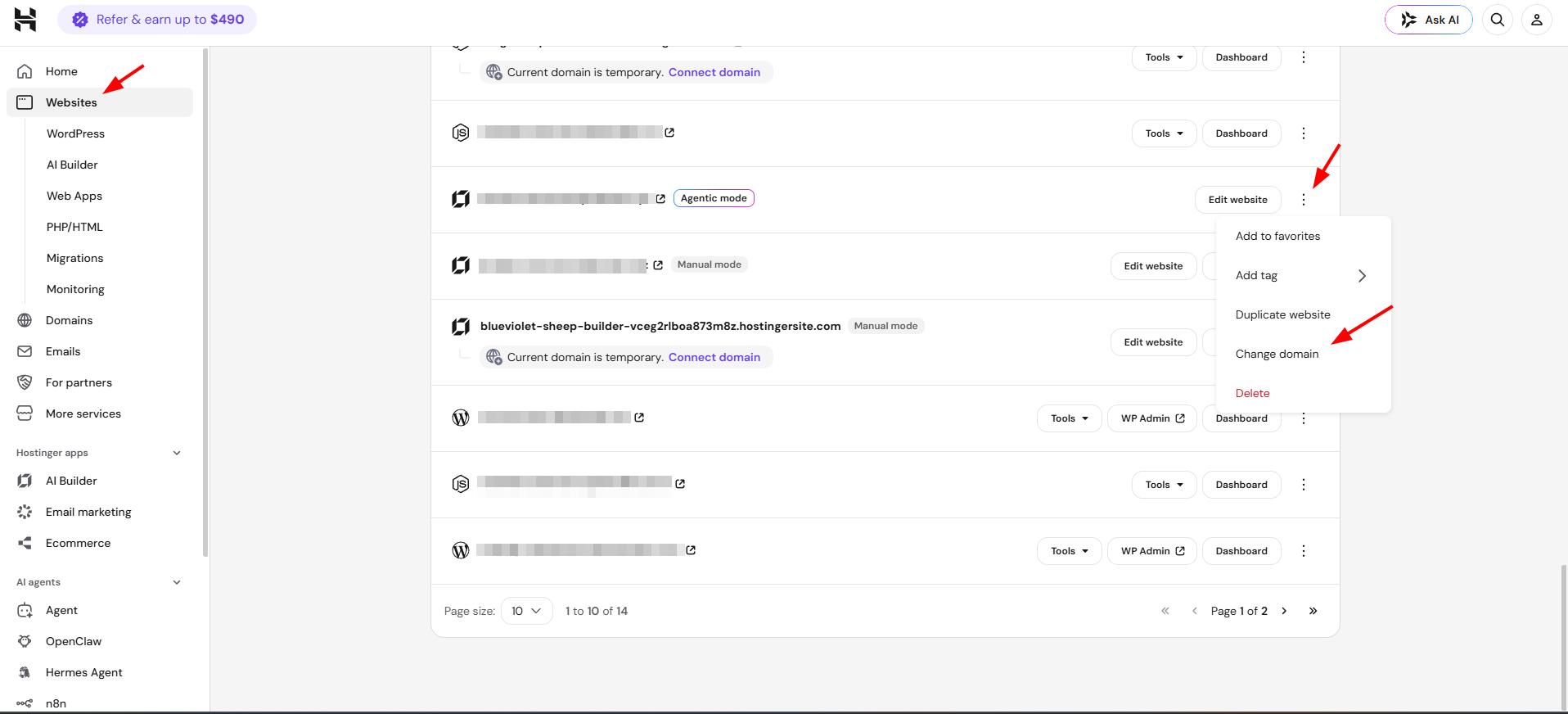
Click the three-dots (⋮) menu next to the specific web application, then select Change domain to connect it to your domain.
-
Enter the new domain you’d like to use and follow the instructions.
Changing your domain will reset your email plan, and all email data related to the old domain will be lost. Be sure to back up important data before making any changes. If there are any subdomains under the domain that’s being changed, they’ll also have to be updated manually.
Setting up redirections
Currently, Hostinger AI Builder doesn’t have a built-in feature for domain redirection. However, you can easily set up a domain redirect from the domain menu in your Hostinger dashboard. Here’s how:
-
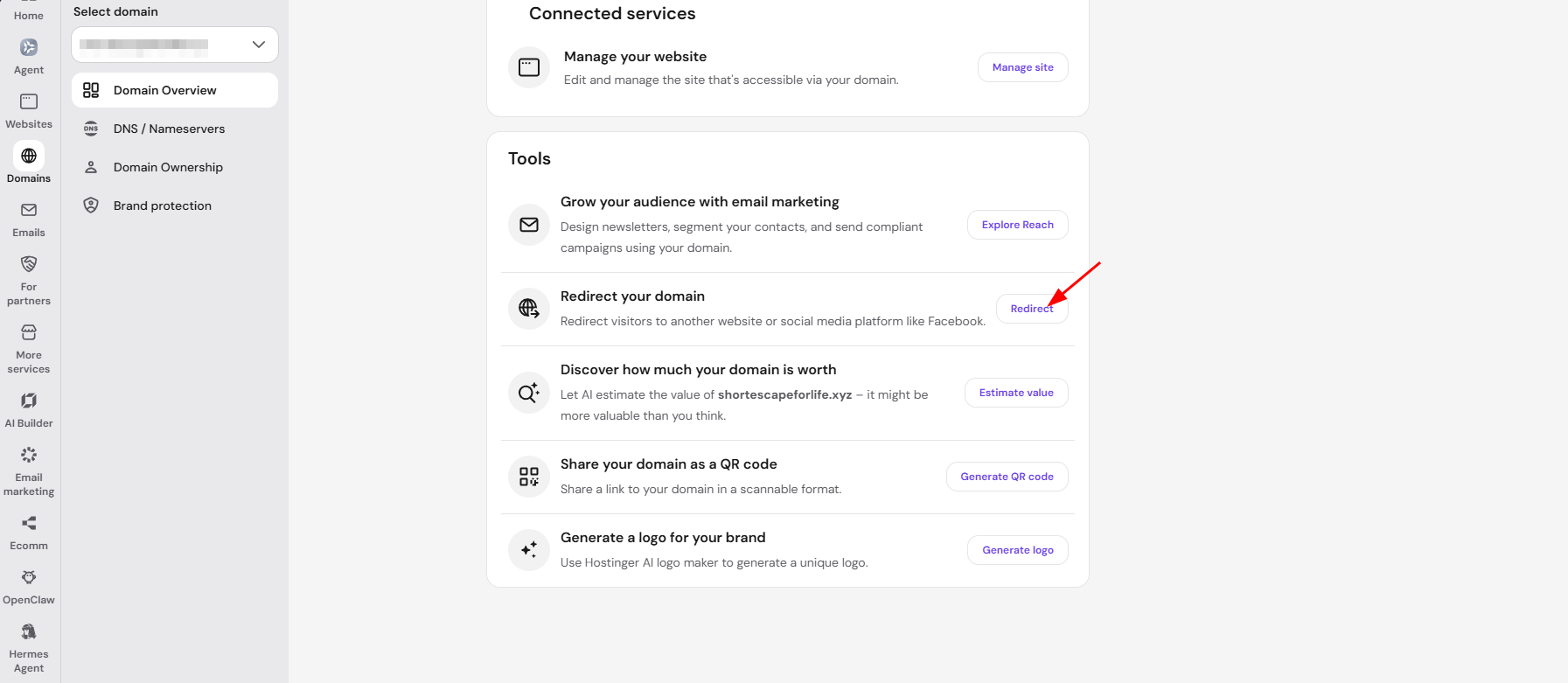
Go to the Domains section of your panel and select your domain. On the domain overview page, scroll down and select Redirect:
-
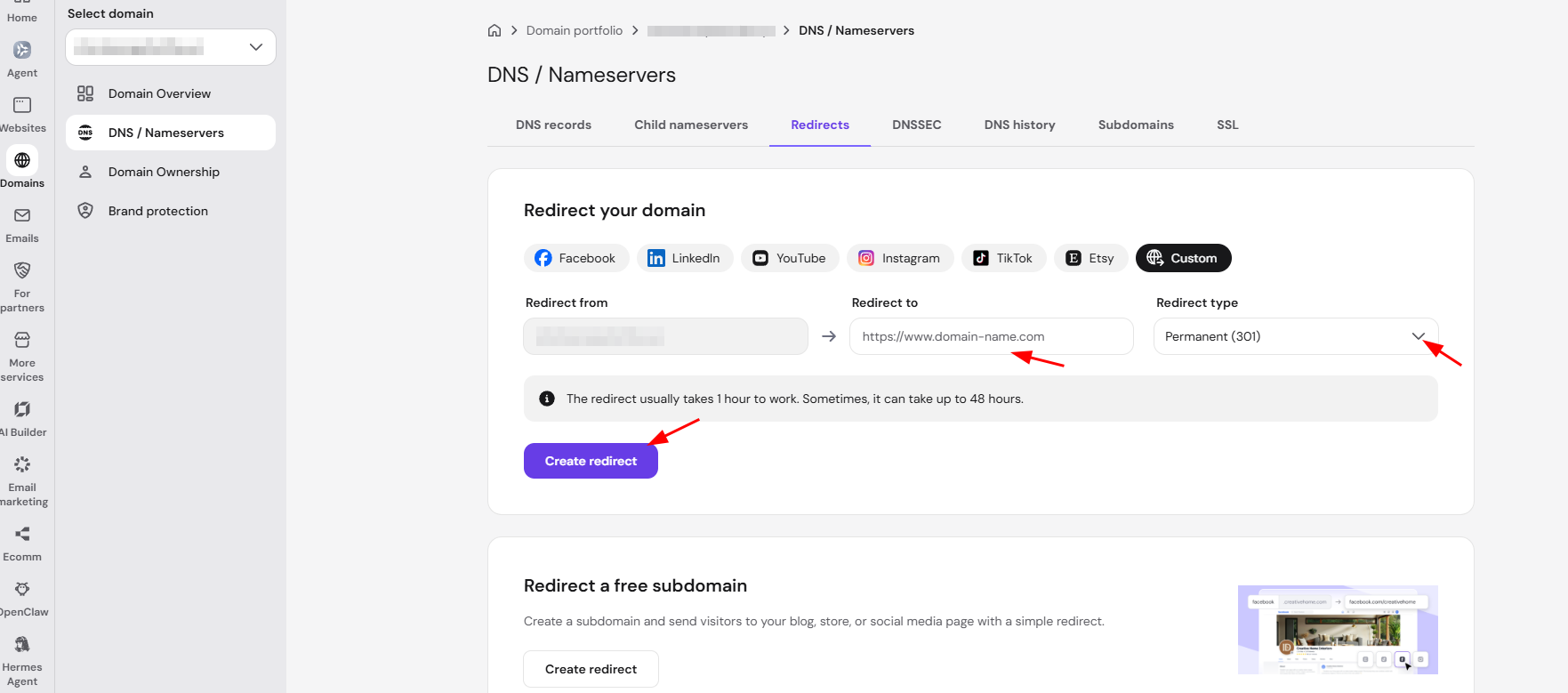
There, you will be able to create a redirect by filling in the following:
-
Redirect from — this field is pre-filled with your domain and cannot be changed.
-
Redirect to — enter the full destination URL you want visitors sent to, including https://.
-
Redirect type — select either Permanent (301) or Temporary (302), depending on whether the redirect is meant to be permanent or temporary.
-
- Click Create redirect. The redirect usually takes effect within 1 hour, though it can take up to 48 hours in some cases.
-
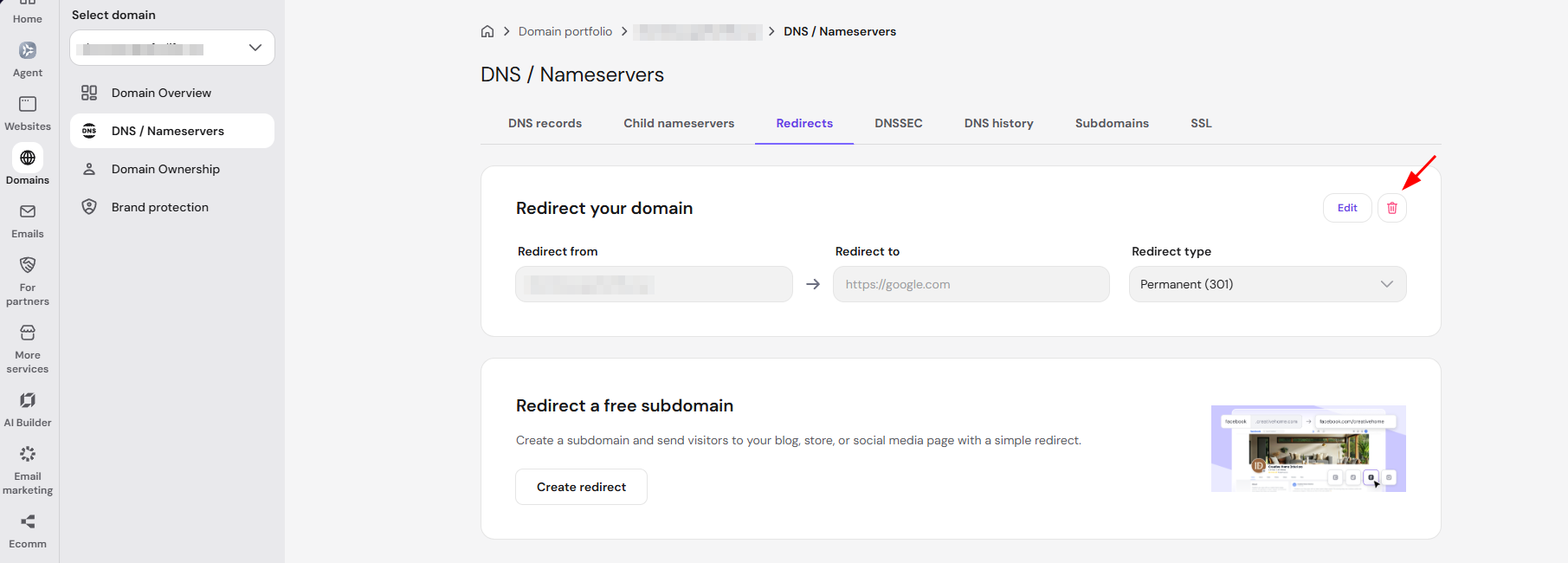
As soon as it is created, the redirect will appear at the bottom of the page, where you will also be able to remove or edit it if needed:
For more tips, you can check this guide on how to redirect a domain without a hosting plan.
What to do if your website is offline
If your website is offline, there are a few things you should check to resolve the issue:
-
Check if your website is published: In Hostinger AI Builder, websites need to be published before they can go live. To ensure your website is published correctly, follow these steps:
-
Go to your Website dashboard.
-
Verify that your site is published by following this guide on publishing your app.
-
-
Verify DNS settings: Your domain’s DNS settings need to be properly configured to point to your Hostinger server. Ensure the DNS records are set up correctly by following this guide on setting up DNS.
By following these simple steps, you can easily manage your domain-related tasks in Hostinger AI Builder. Whether you need to connect a domain, change your website’s domain, set up a redirect, or resolve any website offline issues, these guides should provide you with all the information you need.