Connect a subdomain to your Hostinger AI Builder agentic mode web application to make it accessible online. Your web application publishes on a temporary domain initially when you create it, and you can later replace the temporary domain with a custom domain (for example domain.tld) or a subdomain (for example app.domain.tld).
Before you start
- The subdomain must be from a domain you own.
- Only first-level subdomains are supported (for example,
app.domain.tld). - Second-level subdomains (for example,
shop.app.domain.tld) are not supported. - For other domain-related tasks, such as changing your domain or setting up redirects, see domain management in agentic mode.
Step 1 – Create a Hostinger AI Builder web application on a subdomain
If you have not yet created the website, start from adding it to your hosting plan:
-
Open Hostinger dashboard and go to Websites.
-
Select Create website on the desired hosting plan.
-
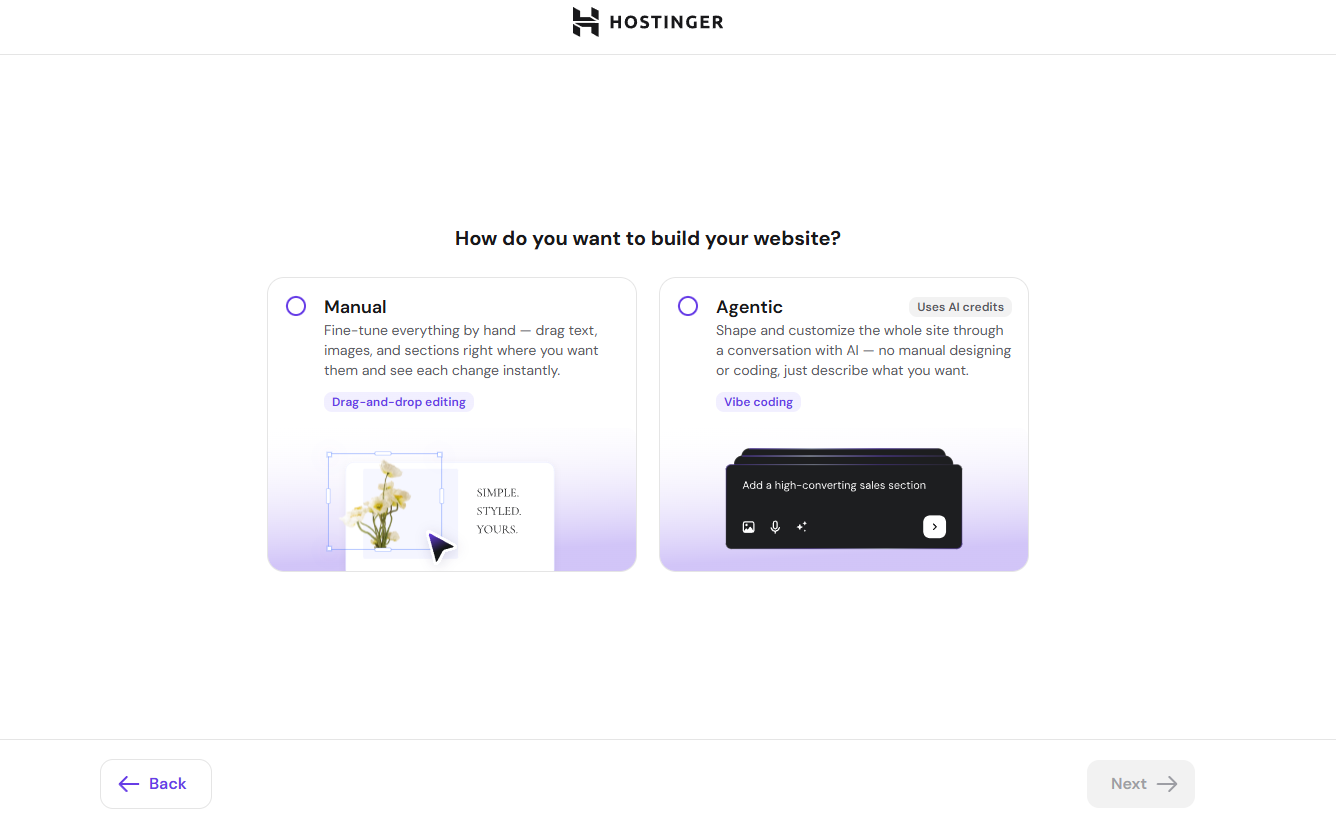
Choose Hostinger AI Builder, then choose Agentic

-
Complete the onboarding process.
-
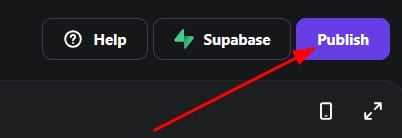
In the Hostinger AI Builder platform, click Publish.

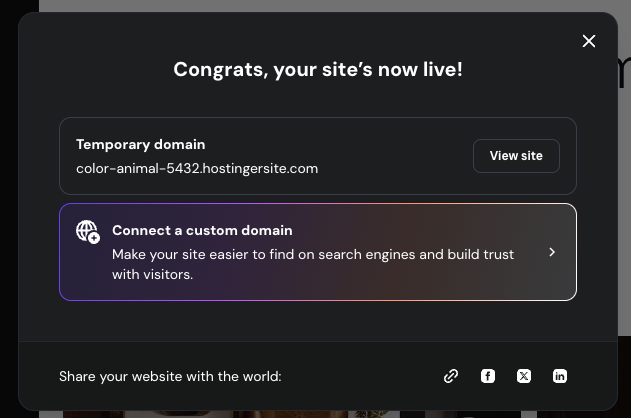
- On the pop-up, click on Connect to a custom domain

- Enter the subdomain name and continue.

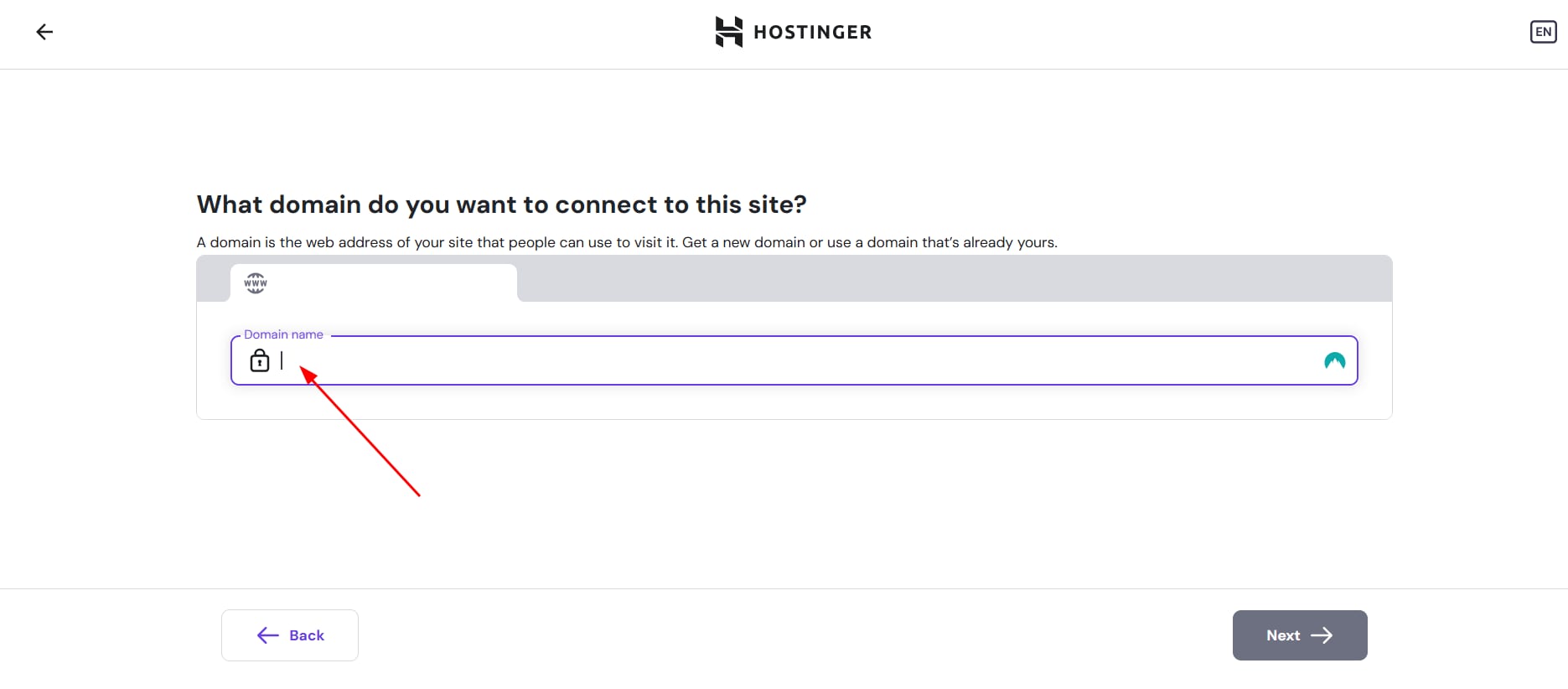
This connects the subdomain to the website. Now you can proceed to the next step to point the domain.
Connect the subdomain later
If you prefer to connect the subdomain at a later time, or if you have already created the website, follow these steps:
- Go to Hostinger dashboard → Websites
- Locate the website using a temporary domain, and click on Connect domain below the temporary domain name to continue with domain connection.
If the website was not published before connecting the subdomain, make sure to publish it before moving to the next step.
Step 2 – Point the subdomain
For the website to be accessible using the subdomain, the subdomain’s DNS must point to Hostinger.
If the domain uses Hostinger nameservers
If the main domain is pointing to Hostinger nameservers, no additional action is required.
The subdomain connects automatically and becomes available shortly.
If the domain uses external nameservers
If the domain’s DNS zone is managed outside Hostinger (for example, at Cloudflare):
- Go to Hostinger dashboard → Websites
- Locate the website using a temporary domain, and click on Check guide below the custom subdomain name, and continue with the instructions provided.
NOTES
- A Hostinger AI Builder website can be connected only to one address (domain or subdomain) at a time.
- Subdomains from domains registered under a different Hostinger account cannot be connected.