Hostinger Agent logo design uses the Design a logo skill to create a logo from your brand name, what your business does, and the style you choose. To design a logo, describe your brand in the logo form, generate a first concept, refine it in the chat, and download the final image from the chat or the Files page. Hostinger Agent creates a new image for every request, so a detailed description gives the best result.
Design a logo with Hostinger Agent
Ask Hostinger Agent for a logo in the chat, and it opens a short form about your brand. See how to use Hostinger Agent skills to learn how skills work.
- Open Hostinger Agent and start a new chat.
- Describe what you need. For example: Design a logo for my bakery called Sweet Crumbs.
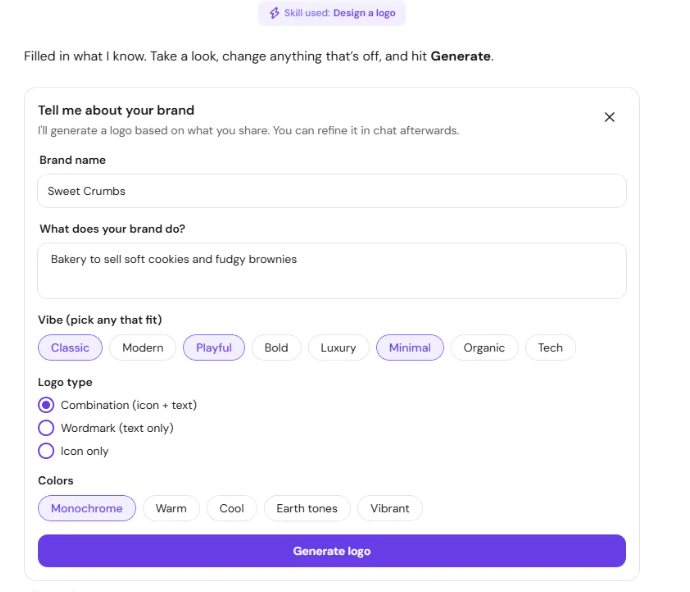
- Hostinger Agent uses the Design a logo skill and shows the Tell me about your brand form. It fills in the details it already knows.
- Review and complete the form:
- Brand name: the exact text for your logo.
- What does your brand do?: a short description of your business.
- Vibe: pick any that fit, such as Classic, Modern, Playful, Bold, Luxury, Minimal, Organic, or Tech.
- Logo type: Combination (icon + text), Wordmark (text only), or Icon only.
- Colors: Monochrome, Warm, Cool, Earth tones, or Vibrant.
- Click Generate logo. The first logo concept appears in the chat.

You can also start from Hostinger AI Builder manual mode. In the website editor, select AI tools → AI Logo Maker to open Hostinger Agent. To brainstorm a business name before you design the logo, see how to use Hostinger Agent for business planning, research and sales. For other images, such as banners or product photos, see how to create images and videos with Hostinger Agent.
Describe your Hostinger Agent logo in detail
Describe your logo in detail before you click Generate logo, because Hostinger Agent creates a new image for every request. A detailed first description gives a closer result than several small corrections. Include these four details:
- The exact text, with spelling and capitalization. For example: Sweet Crumbs Bakery.
- Colors described in words, such as deep forest green or soft peach, rather than color codes.
- What the icon shows and what to leave out. For example: one chocolate chip cookie with no crumbs around it.
- The background. For example: plain white.
Ask Hostinger Agent to help you write the description first if you’re not sure what to include. For example: Help me describe a logo for my bakery in detail before you generate it. See Hostinger Agent: tips for getting better results for more prompting advice.
Change your logo with Hostinger Agent
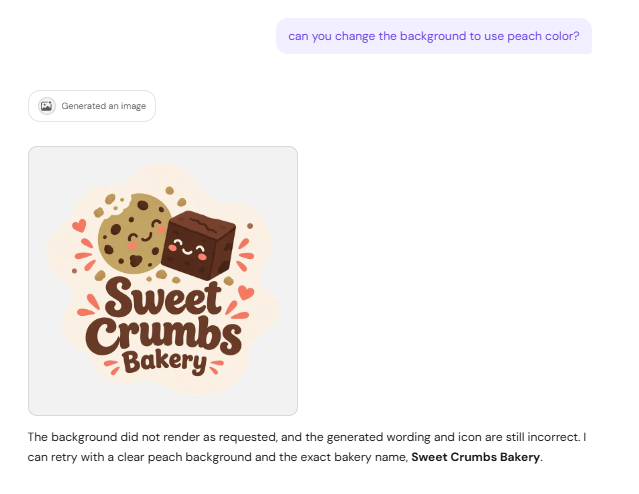
Describe the change you want in the same chat, and Hostinger Agent generates a new version of the logo. Each version is a new image, not an edit of the previous one, so other details can change between versions.
- Repeat the details you want to keep in every request. For example: Keep the same cookie icon and brown text, and change the background to soft peach.

- Start a new request with a full description if a version moves too far from what you want.
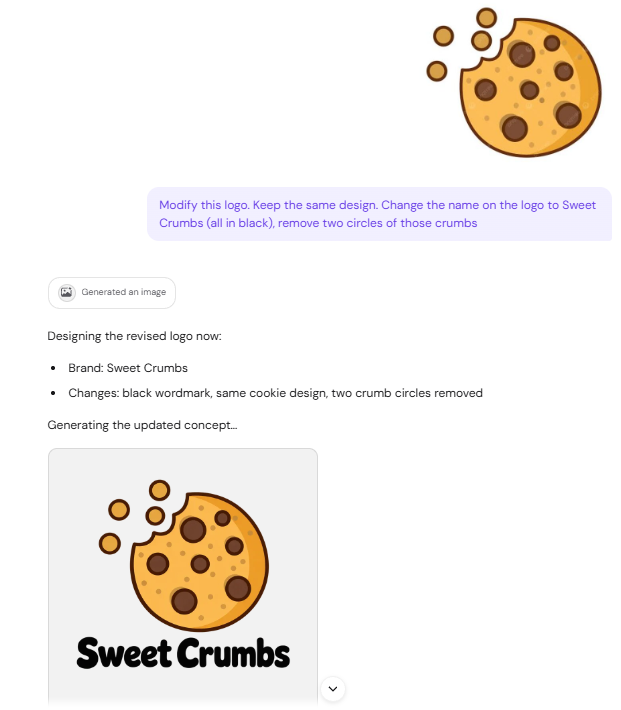
To base a logo on an existing design, attach the image in the chat and describe the changes. Hostinger Agent uses the image as a reference and creates a new logo, so the result is similar to the original rather than an exact copy.
NOTE
- To keep your existing logo exactly as it is, upload the original file to your website instead of recreating it. See Hostinger AI Builder: How to add, change, reposition, or replace the logo in manual mode.
Download your Hostinger Agent logos
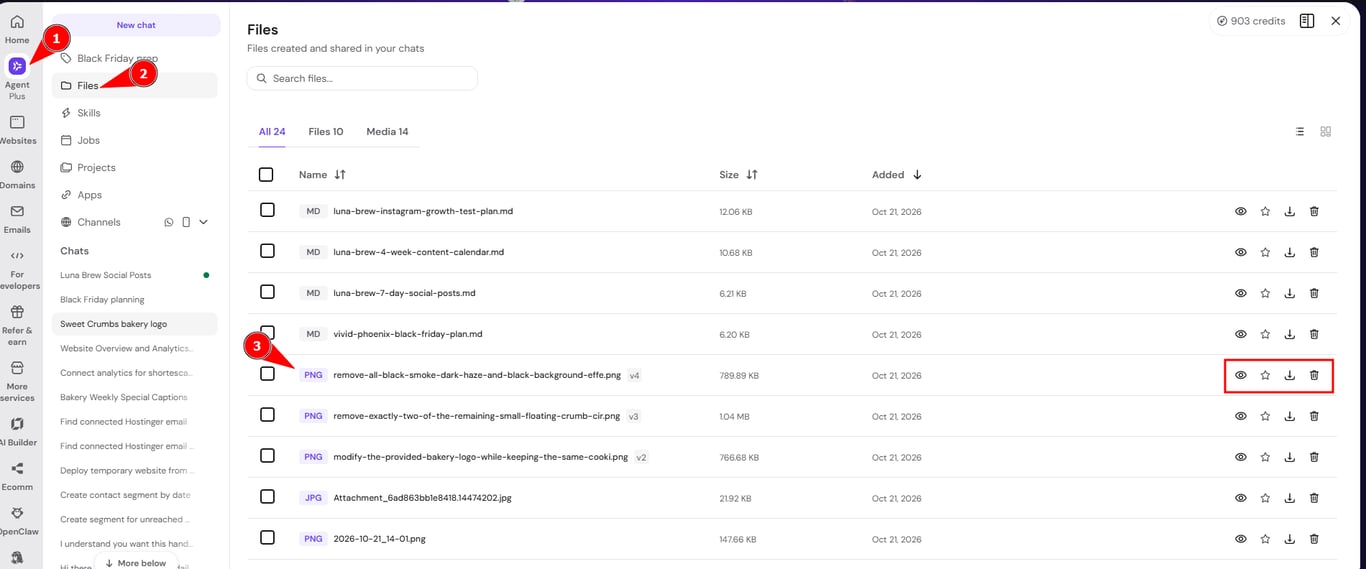
Every logo Hostinger Agent creates is saved as a PNG file, so you can download any version.
- In the chat: open a logo image to view it, then download it.

- On the Files page: select Files in the Hostinger Agent sidebar. Each logo version appears as a separate PNG file with icons to view, star, download, or delete it.

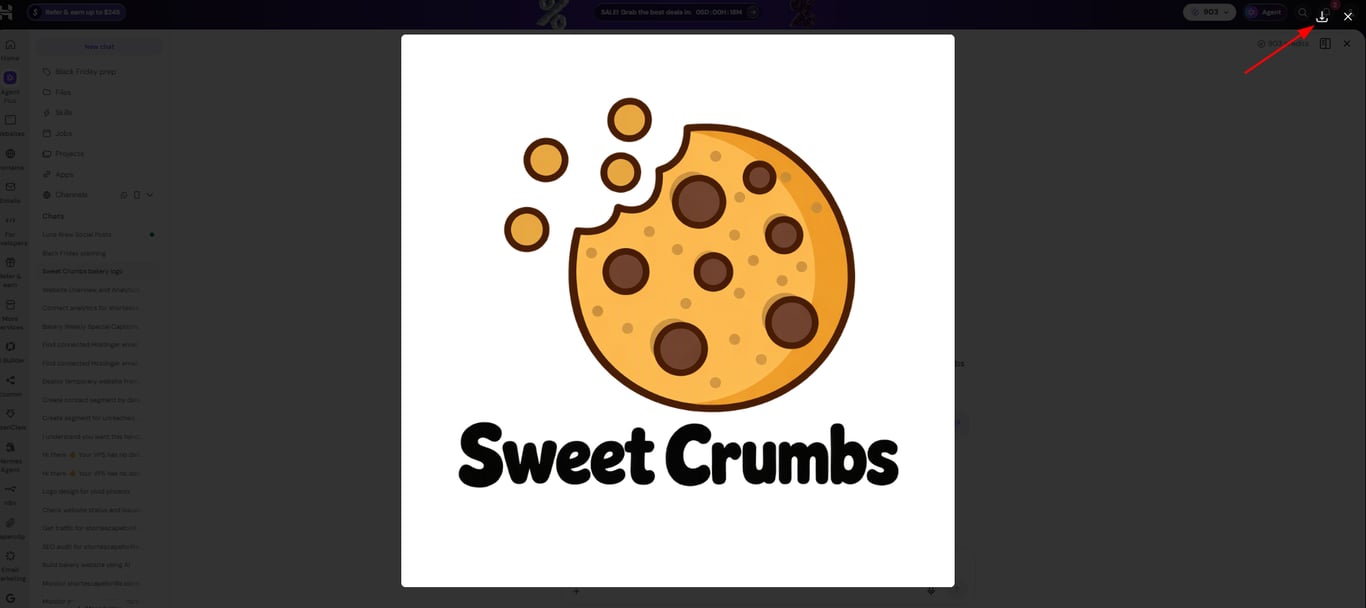
Your new logo is ready to download and add to your website, social media profiles, and other brand materials.