Personalize any website template in Hostinger AI Builder manual mode by adjusting colors, fonts, buttons, navigation, and more.
Before you start
- If you haven’t picked a template yet, see how to choose a website template in Hostinger AI Builder manual mode.
Changing colors in Hostinger AI Builder manual mode
You can customize colors in two ways: globally and locally. Learn more: How to customize website colors
Changing fonts in Hostinger AI Builder manual mode
You can customize text styles in two ways: globally and locally, the same as colors. Learn more:
Adding new pages, sections, and elements in Hostinger AI Builder manual mode
You can add an unlimited number of pages, sections, and elements to your website:
Changing buttons in Hostinger AI Builder manual mode
Click on a button element and select Edit button to open its settings. There are two tabs of them (General and Style):
|
General |
Style |
|
|
Learn more: “Add to bag” buttons
Editing the navigation menu in Hostinger AI Builder manual mode
The navigation menu is visible in the header section, which is the topmost section of your website. The header can also contain a logo.
To edit the navigation menu, click on the header, and you’ll see the settings menu on the bottom-right side of the header section:

If you can’t see the header section, it’s likely that all your website pages are hidden from the navigation menu
Copy-pasting sections and elements in Hostinger AI Builder manual mode
To speed up the website-building process, you can copy-paste elements and sections to other sections or even other pages of your website:
Duplicating items in Hostinger AI Builder manual mode
To save up some time, you can duplicate website pages, sections, and elements:
-
To duplicate a website page, follow How to duplicate a website page
-
To duplicate an element or section, click on it and hit the Duplicate button
Deleting or hiding items in Hostinger AI Builder manual mode
You can delete or hide content from your website:
-
Pages:
-
Elements and sections:
-
To delete an element or section, click on it and hit the Delete button (the trash bin icon)
-
Adding custom code in Hostinger AI Builder manual mode
There are two ways to add custom code to your website, depending on the type of code.
If code needs to be added to the <head></head> part of your website’s source code, use the Custom code field in your website’s integrations settings.
If code needs to be added to the <body></body> part of your website’s source code, use the Embed code element.
Customizing the mobile version in Hostinger AI Builder manual mode
Customize the mobile version of your website separately from the desktop version. Switch to the mobile view by clicking on the mobile phone icon in the upper toolbar:

By default, the mobile website’s version displays elements in the order they’ve been added to the desktop version. Even if you, later on, reorder elements on the desktop, these changes are not automatically applied to the mobile version. You can sort elements on the mobile view manually. This way, you can lay out elements differently on desktop and mobile views.
Adding a blog in Hostinger AI Builder manual mode
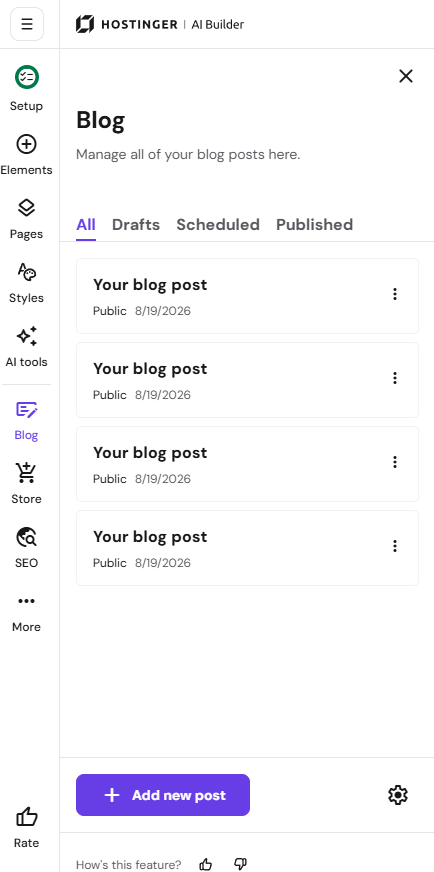
You can add a blog to any website template. Expand the Blog panel on the left and click on Start a blog:
Enabling eCommerce tools in Hostinger AI Builder manual mode
With the help of eCommerce tools, you can do the following:
-
Sell physical products
-
Sell digital products
-
Sell services
-
Accept appointments
-
Accept donations
Your website template is now customized to fit your brand and content needs.
Frequently asked questions
Can I customize different elements for mobile and desktop separately?
Yes. Reordering elements on desktop doesn’t automatically apply to mobile, so you can sort elements differently for each view.
Is there a limit to how many pages, sections, or elements I can add?
No. You can add an unlimited number of pages, sections, and elements to your website.
How do I add custom code to my website?
Use the Custom code field in your website’s integrations settings for code added to the head of your site, or the Embed code element for code added to the body.