The Domains section in Hostinger dashboard lets you manage every domain registered at Hostinger, whether you purchased it, transferred it, or got it free with your hosting plan. Click Domains in the left sidebar to open the Domain portfolio, where you can organize your domains into folders and open each domain’s management page with its Domain Overview, DNS / Nameservers, Domain Ownership, and Brand Protection settings. The sidebar also lists four more Domains pages: Domain search, Transfers, DNS, and Contact profiles.
Manage all your domains in the Domain portfolio
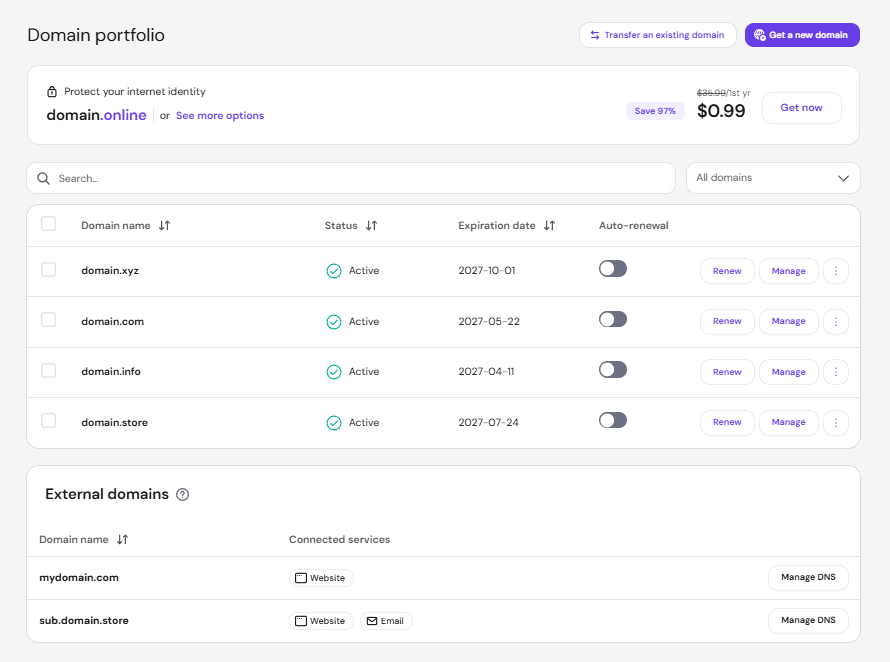
The Domain portfolio lists every domain in your Hostinger account, including domains you purchased, transferred, or got free with your hosting plan, and any external domains added to your hosting plan.
The list displays each domain’s name, Status, Expiration date, and auto-renewal status. Use the Auto-renewal toggle to manage domain auto-renewal for each domain, and use the Search bar and the All domains filter to find a specific domain.
Two buttons at the top of the Domain portfolio let you add more domains:
-
Get a new domain – purchase a new available domain name.
-
Transfer an existing domain – transfer a domain to Hostinger so you can manage your domains in one place.
Each domain in the list has three actions:
- Renew – renew the domain before it expires.
- Manage – open the domain’s management page, with its Domain Overview, DNS / Nameservers, Domain Ownership, and Brand protection settings.
- ⋮ – open more options for the domain.
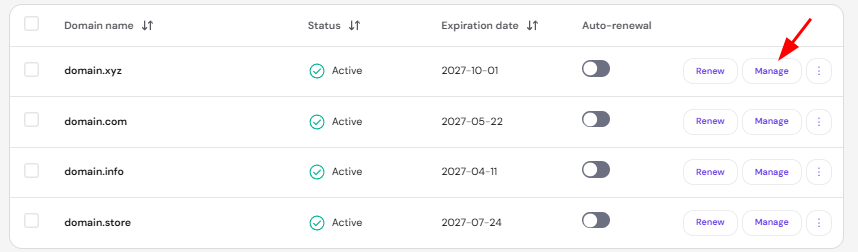
The management page will be disabled if the domain is expired.
Organize domains into folders
If you manage multiple domains, you can create folders to group them by client, project, or use case, then filter the domain list by folder instead of browsing a single flat list.
To move domains into a folder:
- Select the checkbox next to one or more domains in the list.
- In the action bar at the bottom, click Organize.
- Select an existing folder, or click New folder to create one.
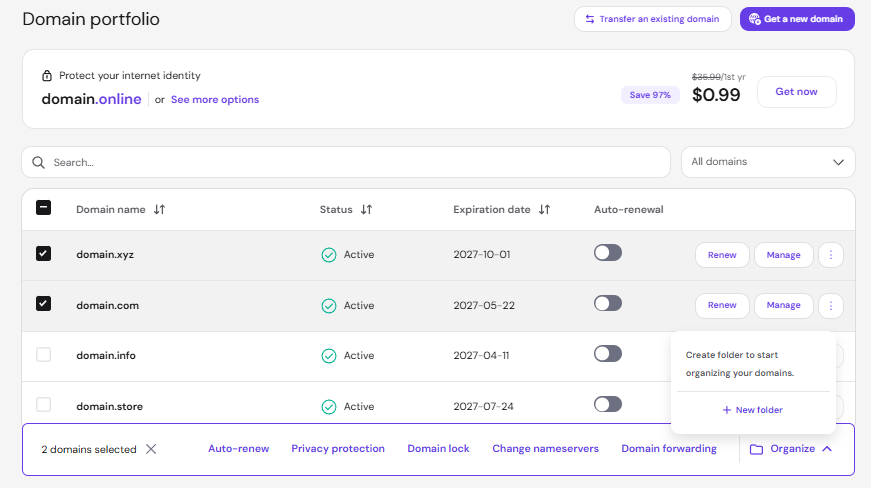
To filter the domain list by folder, use the All domains dropdown next to the search bar and select a folder.
Set up Pending setup domains in bulk
Domains awaiting setup are marked Pending setup. You can select multiple Pending setup domains — including ccTLDs and other domains that need additional registration details — using the checkboxes and register them in bulk via the action bar that appears at the bottom of the page. Domains that need extra information will be flagged in the flow so you can complete them in the same session. See How to purchase a domain name at Hostinger for full steps.
Manage external domains in the Domain portfolio
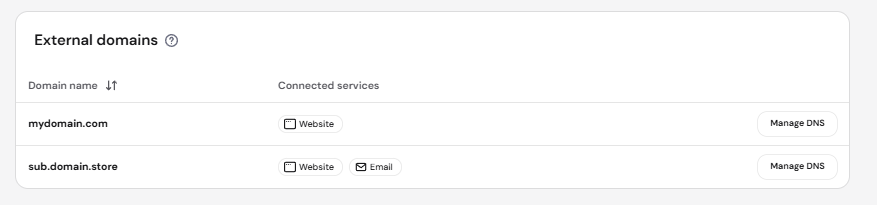
If you have added a domain purchased elsewhere to your hosting plan, you will find it listed under External domains below the domain list, with its connected services. From there, you have the option to transfer it to Hostinger.
For domains pointing to Hostinger by nameservers, click Manage DNS to access the active DNS Zone and manage the domain’s records. To connect a domain registered elsewhere, see How to host an external domain at Hostinger.
Review domain details on the Domain Overview page
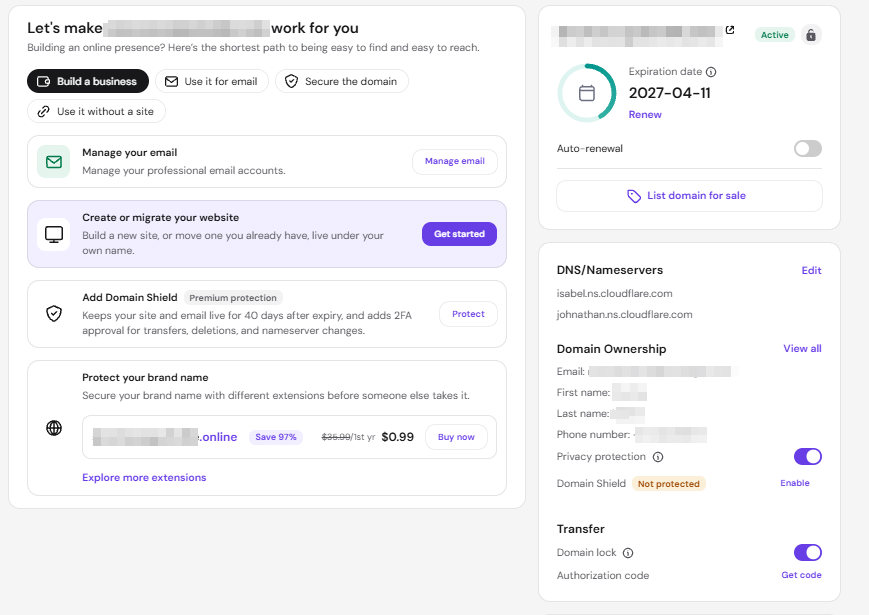
Click Manage next to a domain to open its Domain Overview page, where you can review all the general information about your domain:
-
Status label – will show if the domain is active or pending verification.
- SSL status icon – shown next to the status label, indicates whether your domain currently has an SSL certificate installed.
-
Expiration date – the date before which the domain needs to be renewed to stay active.
-
Toggles to enable or disable:
-
Domain auto-renewal.
-
Locking or unlocking your domain for transfer.
-
-
Authorization code – the authorization code or EPP code required to transfer your domain to another provider. The code itself will be hidden. To show it, click on the eye icon.
-
Nameservers – the nameservers your domain is pointing to, as well as an option to change them.
-
Domain Ownership – the domain’s contact information, including the email address, first name, last name, and phone number. Click View all to open the full Domain Ownership page.
-
Domain Shield – the Domain Shield protection status for your domain. Domain Shield keeps your website and email live for 40 days after the domain expires and adds two-factor authentication (2FA) approval for transfers, deletions, and nameserver changes. Click Enable to turn on Domain Shield if the status shows Not protected.
- Domain Overview also includes a panel with suggested next steps for your domain, grouped into four tabs: Build a business, Use it for email, Secure the domain, and Use it without a site. The Build a business tab, for example, includes cards to manage your email, create or migrate your website, add Domain Shield, and secure your brand name with other domain extensions.
Manage DNS and nameservers on the DNS / Nameservers page
The DNS / Nameservers page in Hostinger dashboard lets you change your domain’s nameservers and manage its DNS settings. There are seven tabs on the DNS / Nameservers page: DNS records, Child nameservers, Redirects, DNSSEC, DNS history, Subdomains, and SSL.
Change nameservers and DNS records for your domain
The DNS records tab shows your domain’s current nameservers (NS records) and its DNS records. Click Change Nameservers to point your domain to different nameservers.
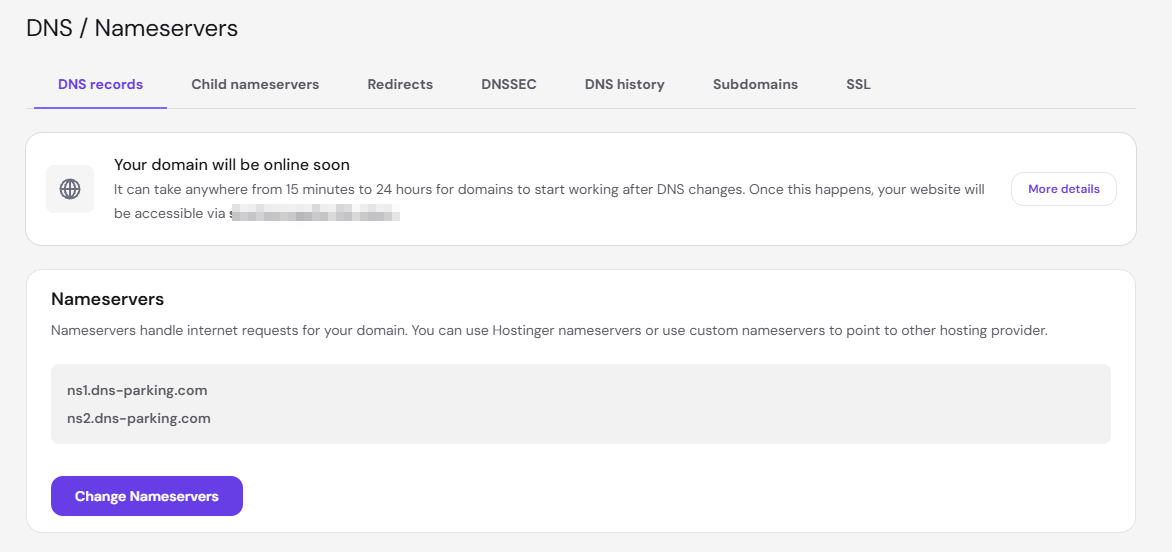
The Manage DNS records card lets you add and edit records that connect your domain to websites, email services, and other online tools. A DNS is managed at another provider notice appears if your domain uses external nameservers. Switch your domain to Hostinger nameservers to manage DNS records from this tab.
You can find a detailed guide here: How to Manage DNS Records at Hostinger.
More DNS tasks for your Hostinger domain
- How to fix DNS issue at Hostinger.
- How to Point a Domain to External Services at Hostinger.
- Changing DNS Records at other domain registrars for Hostinger.
- What Is DNS Propagation at Hostinger.
- How to Reset Your Domain’s DNS Zone at Hostinger.
Create child nameservers for your domain
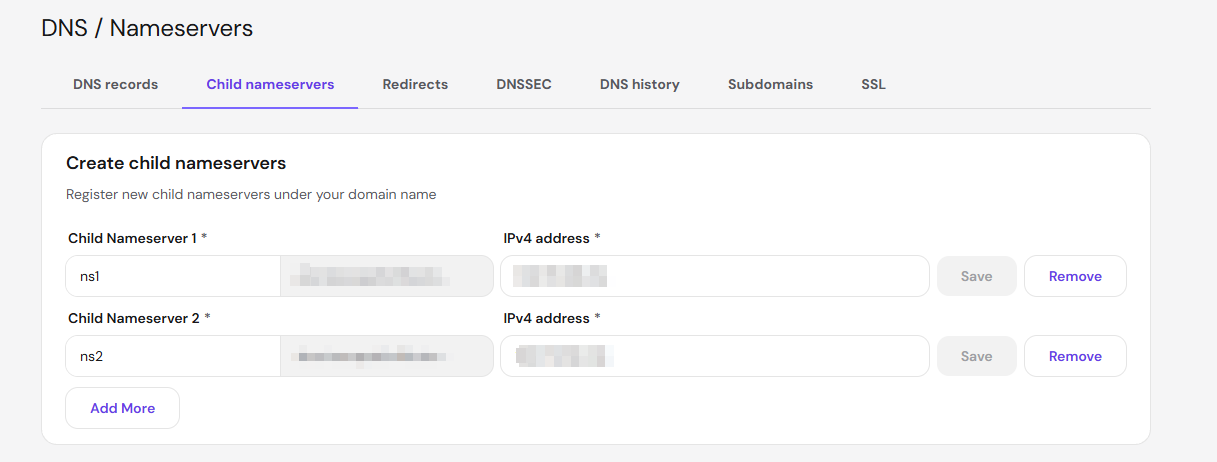
Child nameservers are custom nameservers registered under your own domain name, such as ns1.domain.tld, each pointing to an IPv4 address you choose. To create child nameservers in the Child nameservers tab:
- Enter the nameserver prefix, such as
ns1, in the Child Nameserver 1 field. - Enter the server’s IP address in the IPv4 address field, such as
185.185.185.185. - Click Save.
Click Add More to register additional child nameservers. Click Remove to delete one.
Manage domain redirects
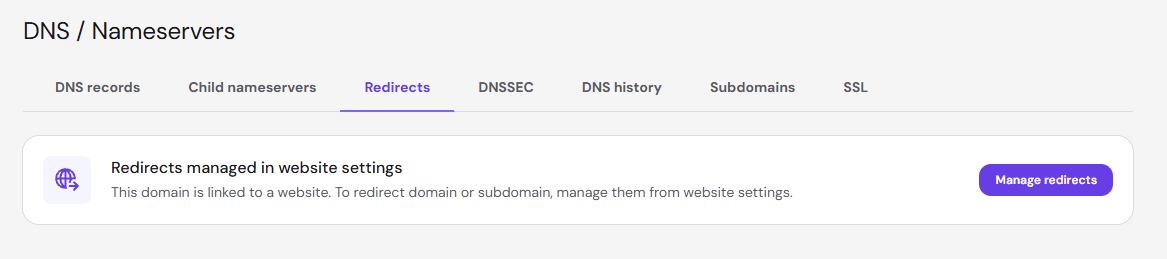
The Redirects tab shows how to set up redirects for your domain, and the options depend on how your domain is connected:
- Domain linked to a website – a Redirects managed in website settings notice appears. Click Manage redirects to redirect the domain or its subdomains from your website settings.
- Domain using external nameservers – redirects only work with Hostinger nameservers. Click Update nameservers to switch your domain to Hostinger nameservers and enable redirects.
Follow How to Set Up a Redirect in Hostinger for step-by-step instructions, or How to redirect a domain without a hosting plan at Hostinger if your domain has no hosting plan.
Add DNSSEC records to your domain
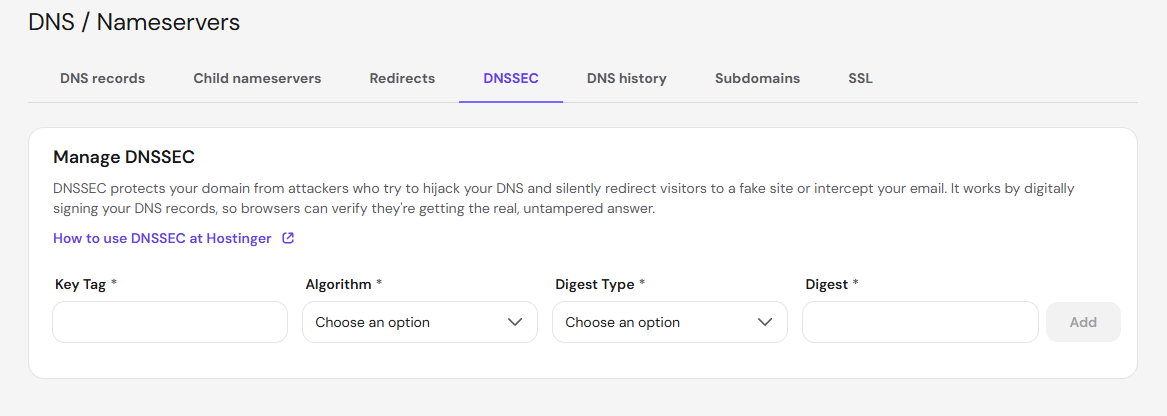
Domain Name System Security Extensions (DNSSEC) protects your domain from DNS hijacking by digitally signing its DNS records. DNSSEC signing lets browsers verify that visitors reach your real website and that email isn’t intercepted. To add a DNSSEC record in the DNSSEC tab, fill in the Key Tag, Algorithm, Digest Type, and Digest fields, then click Add.
Review and restore DNS history
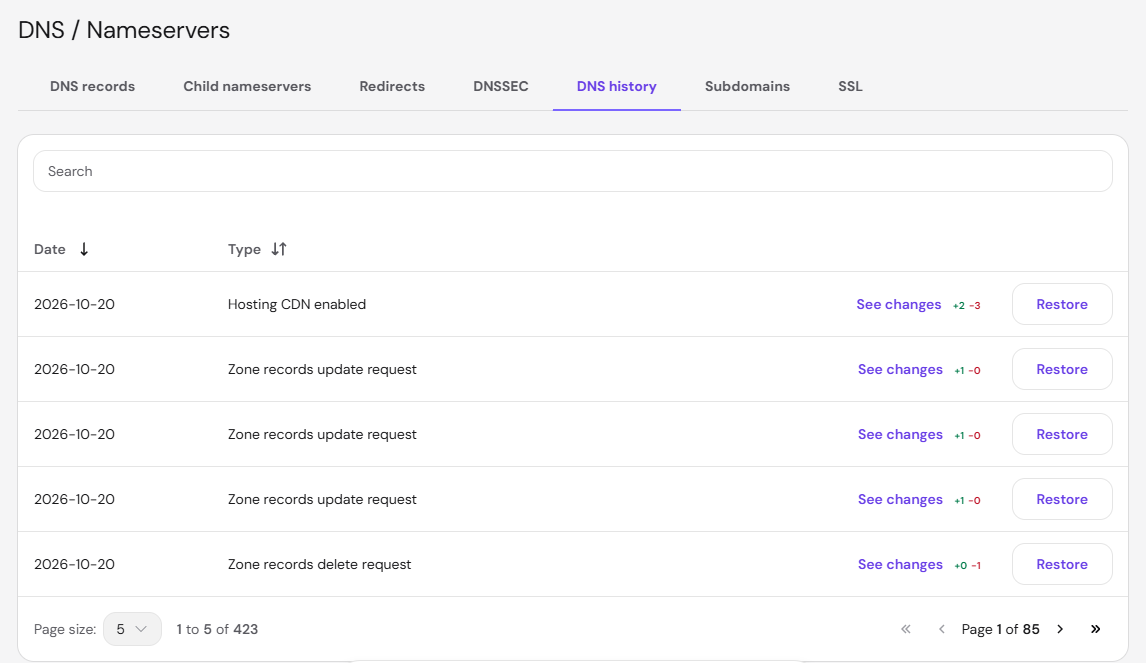
The DNS history tab lists every change made to your domain’s DNS zone, with the date and type of each change. Change types include Zone records delete request and Hosting CDN enabled. Click Restore next to an entry to revert your DNS zone to that point. Use the Search bar to find a specific change, and sort the list by Date or Type.
Manage subdomain DNS records
The Subdomains tab lets you manage DNS records for each subdomain of your domain separately. Select a subdomain under Select a subdomain, or click Create subdomain to add a new one. To point a subdomain to another provider, follow How to point a subdomain from Hostinger to an external server.
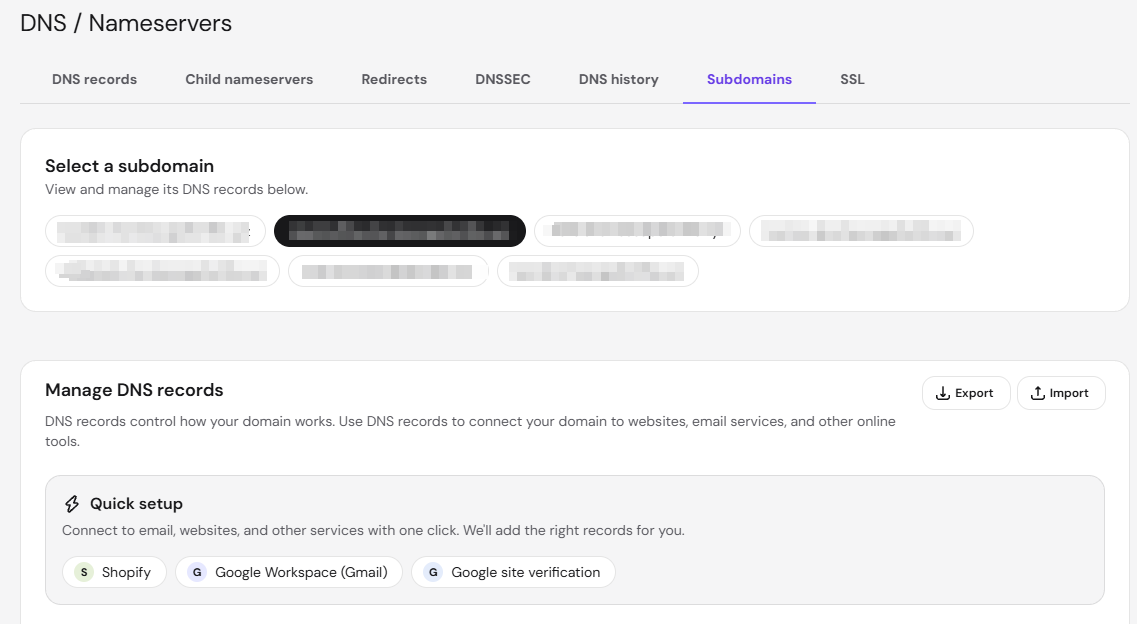
The Manage DNS records card for the selected subdomain includes three tools:
- Quick setup – connect the subdomain to services like Shopify, Google Workspace (Gmail), or Google site verification with one click, which adds the required records automatically.
- Add Record – choose the record Type, such as an A record, CNAME record, MX record, or TXT record. Enter the Name, Value, and TTL, then click Add Record.
- Export and Import – download the subdomain’s DNS records or upload records from a file.
To set up these services manually instead, follow How to Point a Domain to Shopify at Hostinger, How to Set Up a Domain for Google Workspace Email at Hostinger, or How to Add a Domain to Google Search Console.
The records list below the form shows each record’s type, name, priority, content, and TTL, with edit and delete icons for each record.
Check your domain’s SSL certificate status
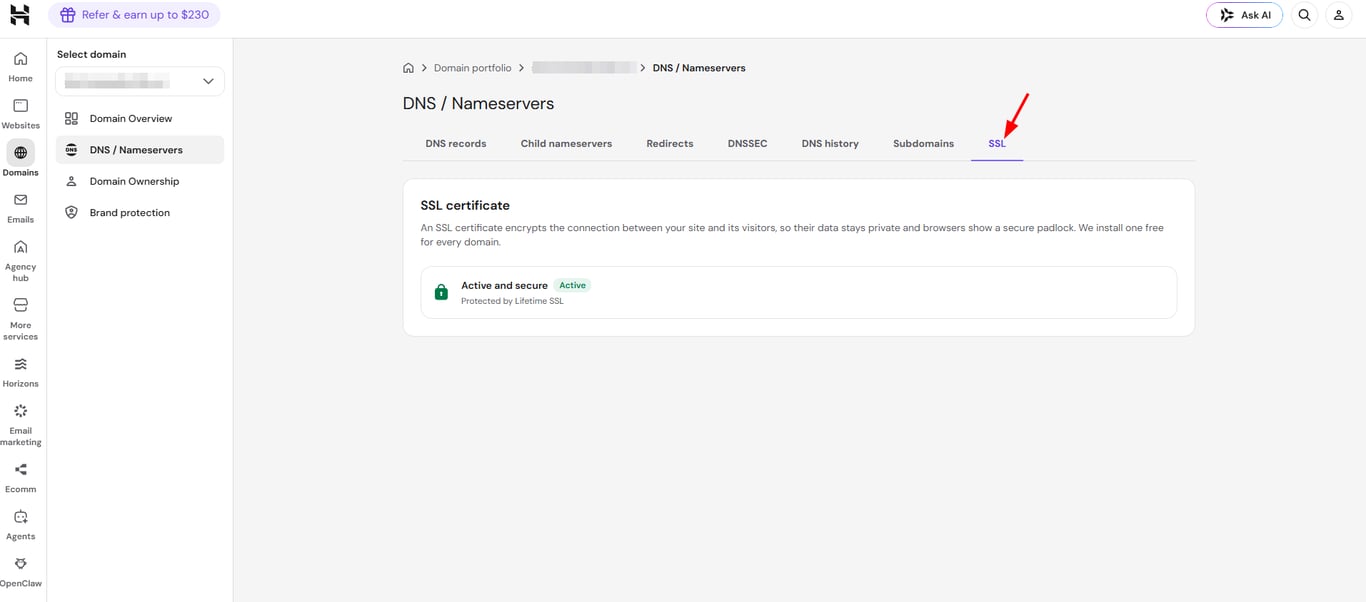
The SSL tab shows whether your domain has an active SSL certificate and which certificate protects it, such as Lifetime SSL. Availability of the SSL tab depends on how your domain is connected:
- Domain connected to hosting, but not to Hostinger AI Builder – the SSL tab shows your SSL status. Click Install SSL to open your hosting plan’s SSL tab if SSL isn’t installed.
- Domain connected to Hostinger AI Builder – the SSL tab is hidden, and SSL status only appears on the Domain Overview page.
- Domain not connected to hosting – the SSL tab is visible, and you can install SSL directly from it if SSL isn’t installed yet.
View domain contact details on the Domain Ownership page
The Domain Ownership page shows your current domain’s contact details, such as name, address, email address, and phone number for you to edit.
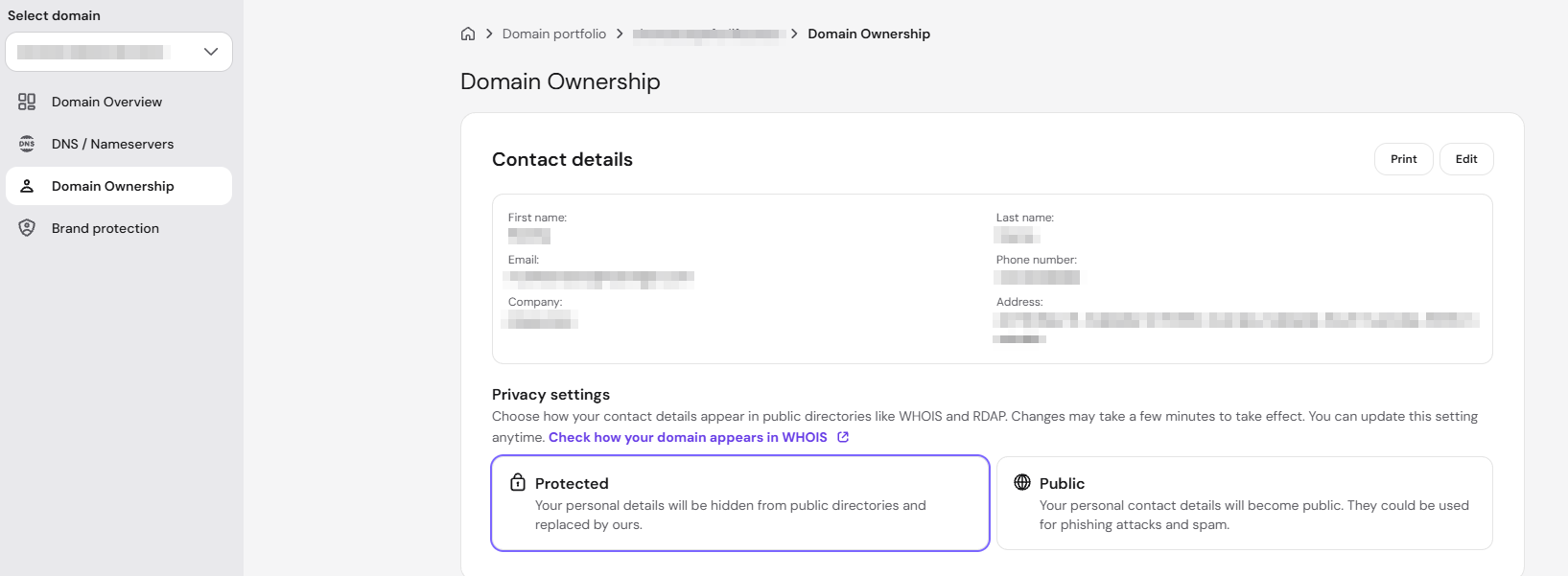
If you need to change them, for instance, to move the domain to a different account, follow the steps in this article: How to Edit a Domain’s Contact Details.
NOTE
-
For .es domains, contact details need to be updated on the ESNIC page: How to Change Domain Contact Details for .es Domains.
Secure other domain extensions on the Brand Protection page
The Brand Protection page shows how you can secure other TLDs for the same domain name that you own, helping ensure consistent branding and reducing the risk of lookalike domains using your name.
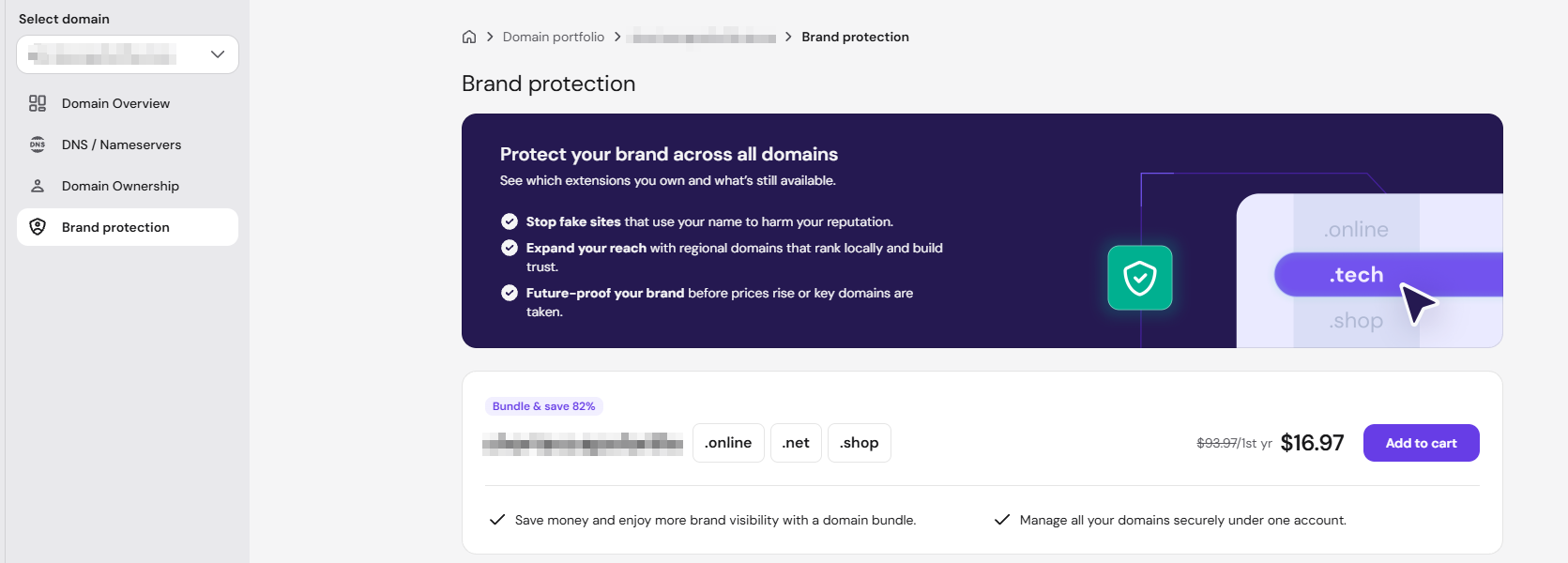
You can select and purchase multiple domain variations directly from the Brand Protection page in a single checkout flow — no need to search and add each TLD separately.
To purchase multiple domain variations from the Brand Protection page:
- Go to Hostinger dashboard → Domains and select your domain.
- In the left sidebar, click Brand Protection.
- Browse the available TLD variations and select the ones you want to secure.
- Click Continue to cart to review your selection.
- Complete the checkout in a single payment.
This makes it easier to protect your brand identity and secure your presence across relevant TLDs in one go.
Find and register a domain with Domain search
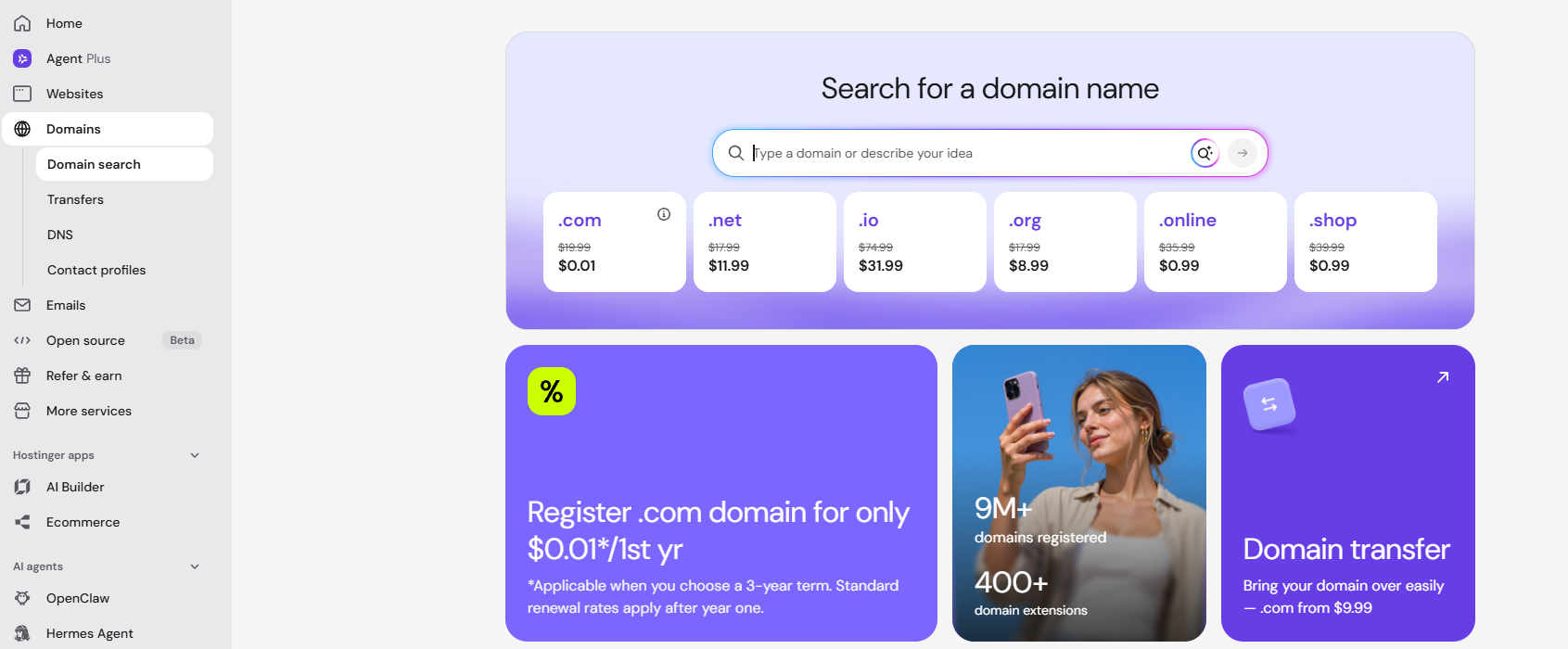
The Domain search page lets you check whether a domain name is available. Type a domain name or describe your idea in the search bar to get domain suggestions, then follow How to purchase a domain name at Hostinger to complete the purchase. To learn how domain pricing works, see How much does it cost to register a new domain at Hostinger.
Transfer or move domains from the Transfers page
The Transfers page has two options:
- Transfer to Hostinger – move a domain registered elsewhere to Hostinger, as explained in How to transfer a domain to Hostinger.
- Move to another account – move a domain to a different Hostinger account, as explained in How to move a domain between Hostinger accounts.
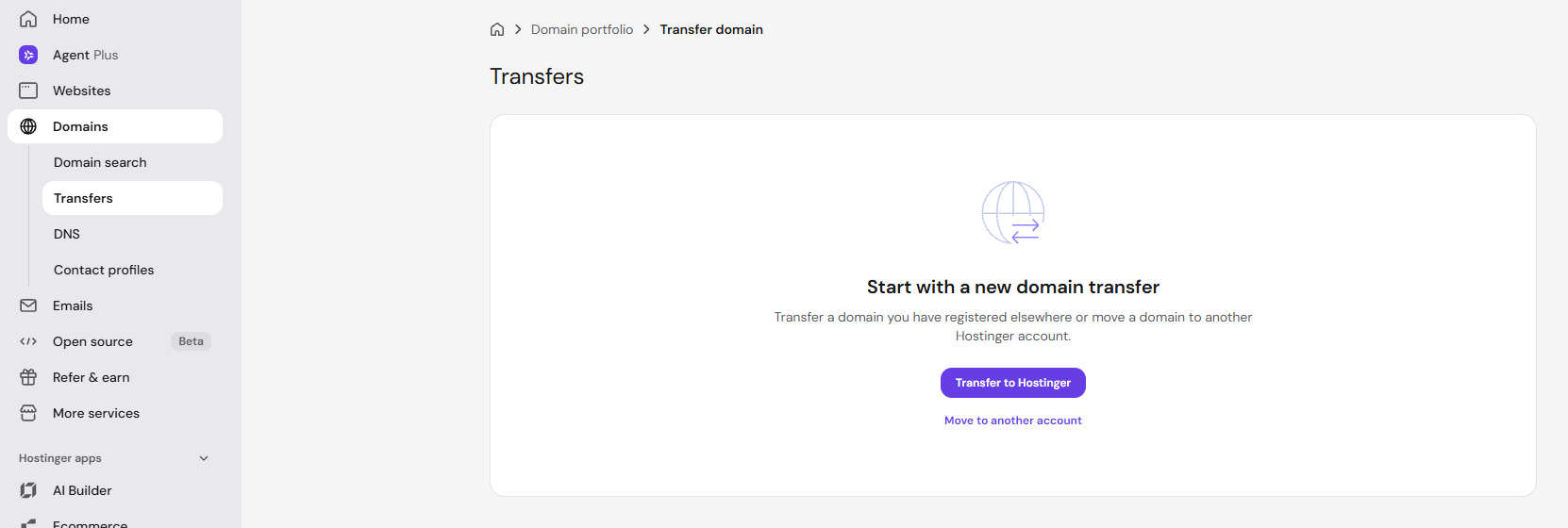
Once a transfer starts, check the domain transfer status on the same page.
Open a domain’s DNS records from the DNS Zone Editor
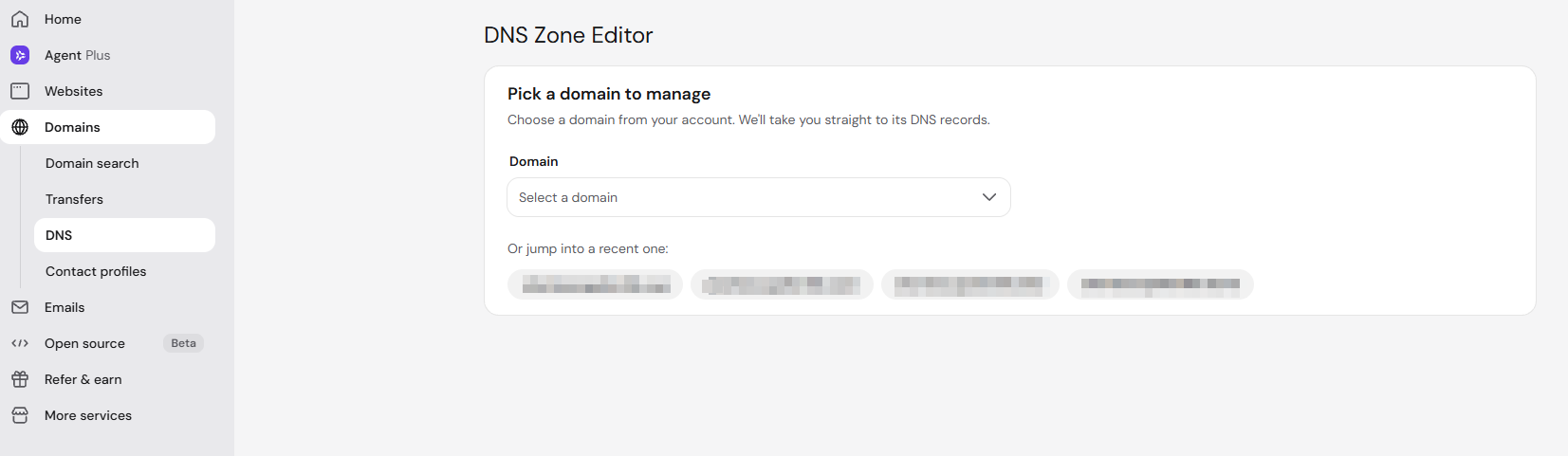
The DNS page opens the DNS Zone Editor. Select a domain from the Domain dropdown, or click one of your recent domains, to go straight to its DNS records. To add, edit, or delete records, follow How to use Hostinger’s DNS zone editor and How to Manage DNS Records at Hostinger.
Manage domain contact profiles
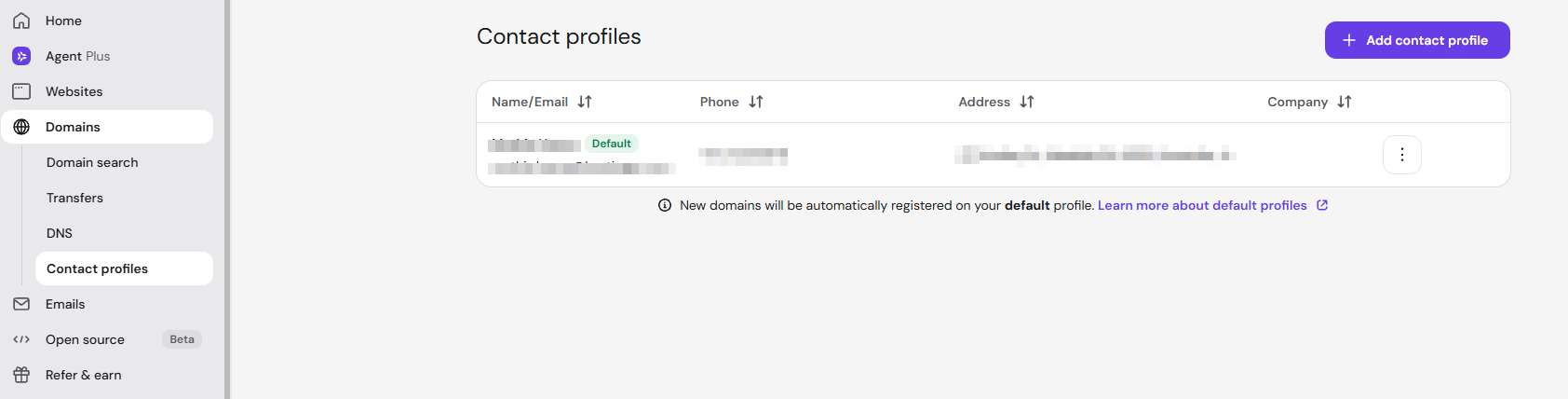
The Contact profiles page lists your saved contact profiles, with each profile’s Name/Email, Phone, Address, and Company. New domains are automatically registered with the profile marked Default. Click Add contact profile to create a profile, or click ⋮ next to a profile for more options. For details, see How to manage domain contact profiles at Hostinger. To change the contact details of a domain you already registered, follow How to change domain contact details at Hostinger.
With the Domains section in Hostinger dashboard, you can register, transfer, organize, and configure all your domains from one place. To explore the other areas of the control panel, see Hostinger dashboard: overview of the control panel.