Check the email service included in your Hostinger hosting plan in the Emails section of the Hostinger dashboard, where each plan shows Free Email, a Business plan name, or the Titan logo. Web and Cloud hosting plans include either Hostinger Email or Titan Email, never both. New free email claims only offer Hostinger Email, and Titan Email applies only to plans that had it before November 2025.
Since they have different parameters and management interfaces, you may want to identify your type of email.
Email service type
To verify which is your email service type, go to the Emails section on Hostinger dashboard.
And check the details below the Plan Name. If Hostinger Email is free, it will be listed as ‘Free Business Email.’ For paid Hostinger Email plans, it will show either ‘Starter Business Email‘ or ‘Premium Business Email’. Learn how the Hostinger Business Email free trial works, or see how to access the Email section at Hostinger for everything you can manage there.
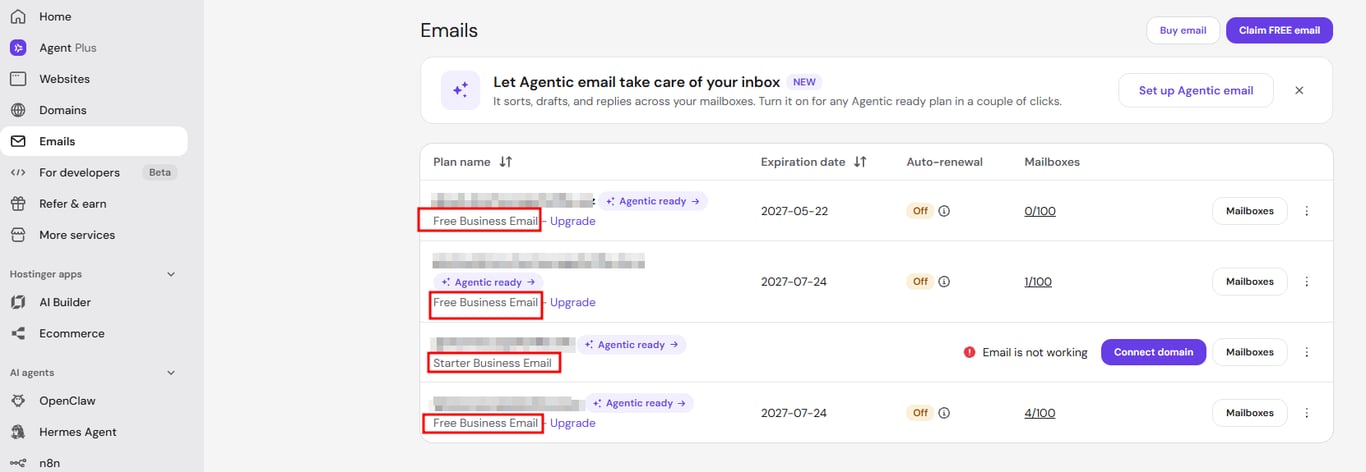
For Titan Email, it has the Titan logo next to the plan name:

In case you have purchased Google Workspace, you will see the Workspace logo instead. If you have a cPanel hosting plan, you will be using cPanel Email.
Email sending options
One more aspect to take into consideration is that you have different options for sending emails, each using different technologies for delivery. For bulk sending limits, see Is mass mailing supported at Hostinger.
Custom PHP scripts
If you send emails using the Sendmail or phpmail() function without connecting to external email providers, it means that you use the default Web hosting emails.
You can recognize them from the sender name, which is a server email address, for example, u123456789@srv999.main-hosting.eu.
In this case, we recommend you switch to PHPMailer for better functionality and deliverability.
Email clients / SMTP
When sending emails through email clients, or utilizing custom scripts, plugins, or contact forms requiring SMTP, remember to configure them accordingly to your email service type:
Email clients and scripts that rely on TLS 1.0 or 1.1 may fail to connect, as explained in End of support for TLS 1.0 and 1.1 protocols.
Webmail
You can access the webmail interface for your email service through the following links:
Once you know your email service type, use its matching configuration details and webmail to set up and manage your mailboxes.