Get your email account configuration details (IMAP, POP, SMTP) for Hostinger Email to set it up on any email client or device.
Configuration details
If you are using Hostinger Email, use the following configuration details to set up your email account on an email client or device:
|
IMAP (Incoming) |
POP3 (Incoming) |
SMTP (Outgoing) |
|
Host: imap.hostinger.com Encryption: SSL Port number: 993 |
Host: pop.hostinger.com Encryption: SSL Port number: 995 |
Host: smtp.hostinger.com Encryption: SSL Port number: 465 |
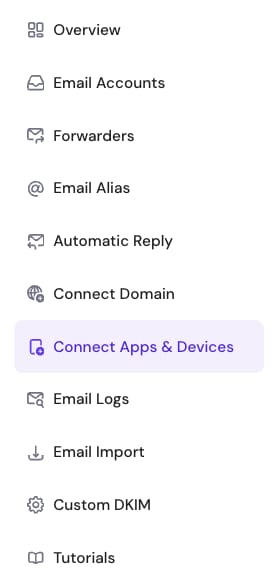
You can always find these details by going to the Emails section on Hostinger dashboard. Click on Manage next to your domain name, and then choose Connect Apps & Devices from the sidebar:
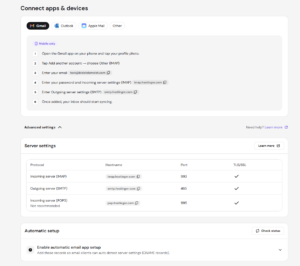
There you will find the details:
If you face encryption issues
If you face issues with email encryption when adding your account to an email client or device, try these settings for the outgoing server (SMTP):
-
Host: smtp.hostinger.com
-
Encryption: TLS or STARTTLS
-
Port number: 587
You will also need your complete email address, like name@domain.tld, and your email account password when setting this up. If you forget your password, don’t worry, you can easily reset it.
Set up email on specific apps and platforms