Hostinger Agent images and videos start from a chat prompt: Hostinger Agent generates new images, edits images you upload, and writes video scripts for short promo clips. Describe the image you need, upload a photo to remove its background or upscale it, or ask for a video script with shot directions. Hostinger Agent can also add a generated image to your Hostinger AI Builder website in agentic mode and create a predicted attention heatmap of your homepage. Rendering a finished video file requires a connected app that supports video generation.
Generate an image with Hostinger Agent
Hostinger Agent generates an image from a text description and shows it directly in the chat. To generate an image:
- Open Hostinger Agent from the Hostinger dashboard.
- Describe the image, including the subject, setting, style, and where you plan to use it. For example: Generate an image of a cozy coffee shop interior for my homepage banner.
- Wait for the Generated an image status to finish. The image appears in the chat, and you can open it in full size.
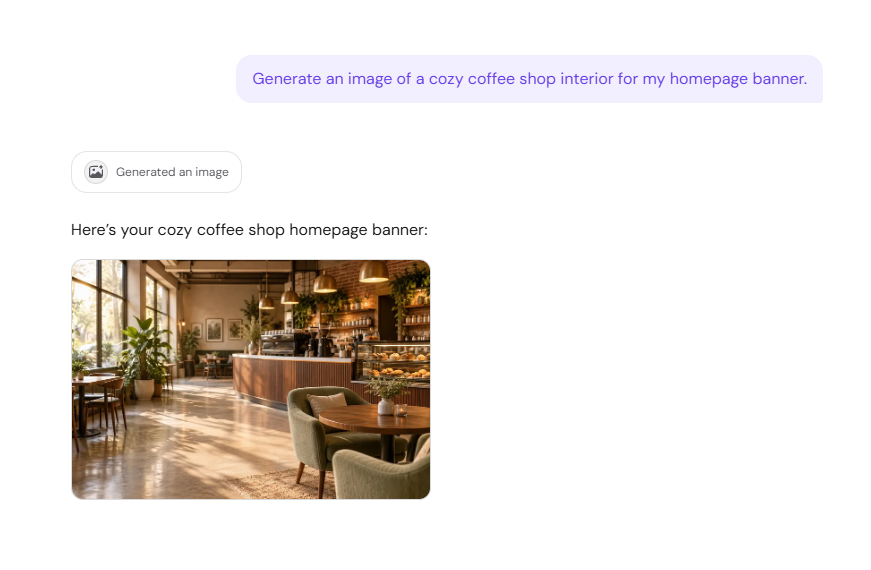
Ask for changes in the same chat to refine the result, for example warmer colors, a different lighting style, or a 16:9 format for a banner. See Hostinger Agent: tips for getting better results for more ways to write clear prompts. To create a logo, use the logo skill instead. See how to design a logo with Hostinger Agent for the full logo flow.
Edit, remove the background from, or upscale an image with Hostinger Agent
Hostinger Agent edits images you upload, including removing the background and upscaling the image to a higher resolution. To edit an image:
- Click the attachment icon in the Hostinger Agent chat input and upload the image.
- Describe the edit. For example: Remove the background from this image or Upscale this image.
- Review the edited image that appears in the chat.
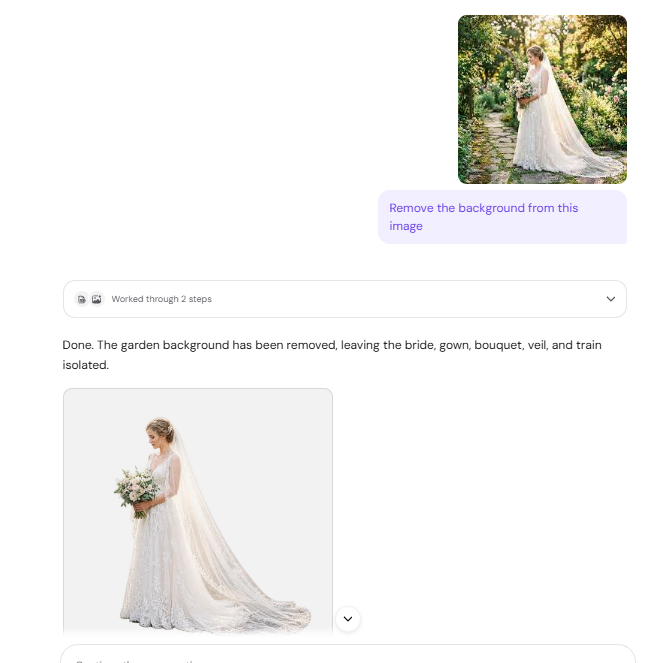
Hostinger Agent keeps the main subject when it removes a background, for example a person, a product, or a bouquet. You can also ask Hostinger Agent to modify an uploaded image, extend it, or use it as a reference for a new image.
Add a generated image to your Hostinger AI Builder website with Hostinger Agent
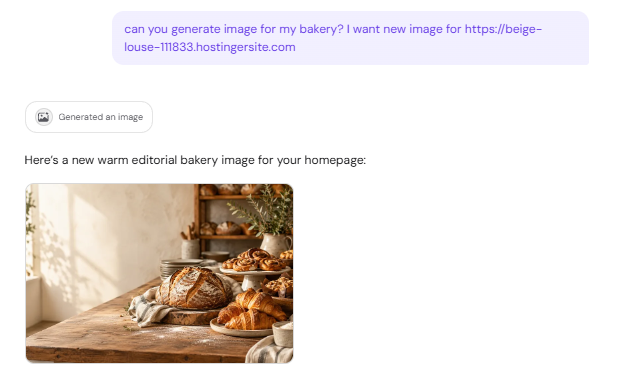
Hostinger Agent can generate an image and place it on your Hostinger AI Builder website in agentic mode, for example as the homepage hero image. Hostinger Agent asks for your approval twice: once to publish the image file and once to edit the website.
- Ask Hostinger Agent for a new image and name the website. For example: Generate a new homepage image for my bakery at domain.tld.

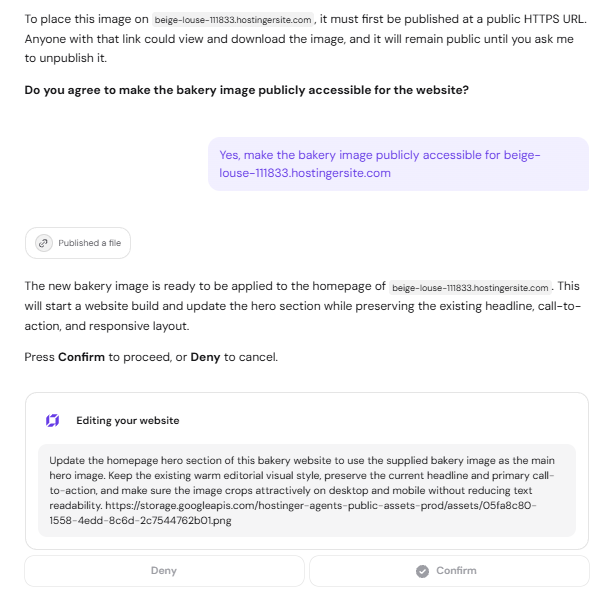
- Agree when Hostinger Agent asks to make the image publicly accessible for the website. A Published a file status appears once the image is ready to use.
- Review the Editing your website card, which describes the change Hostinger Agent plans to make, and click Confirm. Click Deny to cancel.

- Wait for the update to finish. Hostinger Agent shows a preview of the updated page, with Open in AI Builder and View site buttons.
Hostinger Agent can also build the website itself. See how to use Hostinger Agent to create a website for that flow.
Hostinger Agent keeps the existing headline, buttons, and layout unless you ask it to change them. To adjust the image after it is on your website, ask in the same chat, for example Make the image warmer. Hostinger Agent shows a new Editing your website card for each change, so click Confirm to apply it. See Hostinger AI Builder: How to edit and update your project in agentic mode for other ways to change an agentic mode website.
For a Hostinger AI Builder website in manual mode, generate images in the editor instead. See Hostinger AI Builder: AI image generator in manual mode for the steps.
Create a predicted attention heatmap of your website with Hostinger Agent
Hostinger Agent creates a predicted attention heatmap that shows which parts of a web page are likely to draw visitors’ attention. Ask Hostinger Agent to Create a heatmap for domain.tld, and the heatmap appears in the chat as an image of the page.
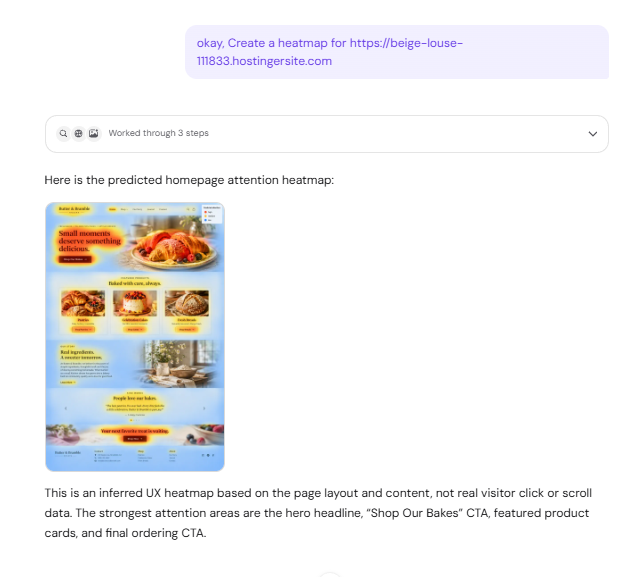
Colored areas on the heatmap mark predicted high, medium, and low attention, with a legend in the corner. The heatmap is a prediction based on the page design, not a record of real visitor clicks or scrolling. For a full health check of the same website, see how to get a website overview with Hostinger Agent.
Write a video script with Hostinger Agent
The Write a video script skill in Hostinger Agent creates a timed script with shot directions for a short promotional video. Write a video script and Generate a video are skills, so you can also start them from the Skills tab or the bolt icon in the chat. See how to use Hostinger Agent skills for both options.
To write a video script:
- Ask Hostinger Agent for a video script. For example: Write a 10-second promo video script for my bakery website.
- Answer the questions in the form, such as where the video will run, its length, and the key message. Select you tell me or a similar answer if you want Hostinger Agent to suggest one.
- Review the script, which lists each time range with the voiceover or on-screen text and the shot to film.
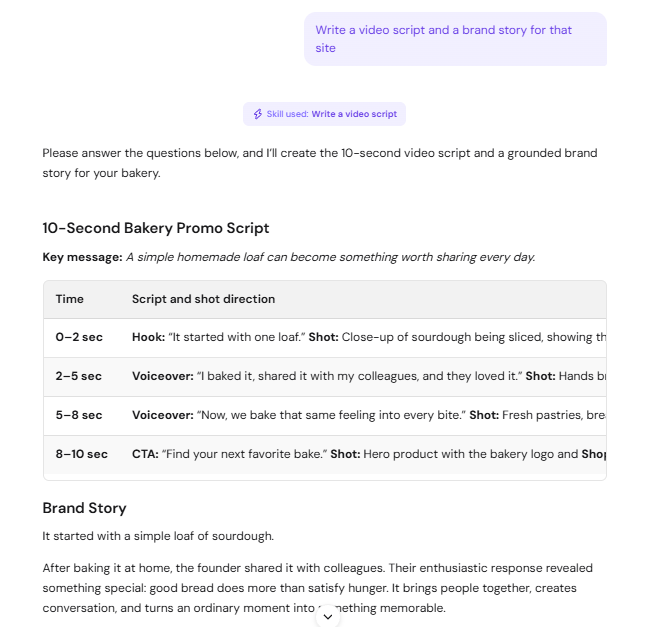
Hostinger Agent can also write a brand story in the same request, based on how your business started and what it stands for. Use the script and shot list to record and edit the video in your own video tool. To plan the social posts that share your video, see how to use Hostinger Agent for marketing.
Generate a video with Hostinger Agent
The Generate a video skill in Hostinger Agent needs a connected app to create a video file. When you ask for a video, Hostinger Agent shows a Canva card with a Connect button so you can authorize your Canva account.
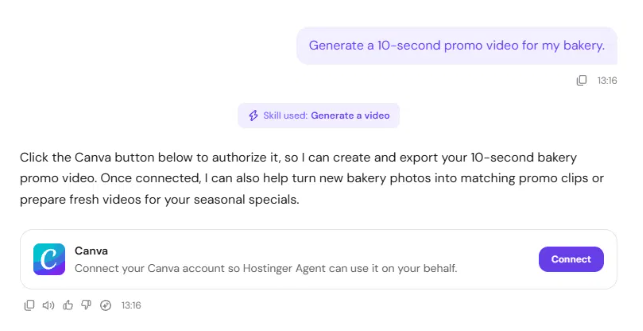
The Canva connection does not generate new video footage from a text description. When no matching Canva design exists, Hostinger Agent offers a script, a scene-by-scene shot list, text overlays, and music direction for you to assemble the video in Canva.
To render a video from a text description, connect a text-to-video tool that exports MP4 files as a custom Model Context Protocol (MCP) server. See connect apps and custom MCP servers to Hostinger Agent for the setup steps.
NOTES
- App connections in Hostinger Agent are included in Agent Plus. See Hostinger Agent pricing for what Agent Plus includes.
Your new images, edits, and video scripts are ready to use on your website, social media, and other marketing channels. All files created or uploaded during your Hostinger Agent sessions are collected in Files, where you can preview and download them.