Edit and update your Hostinger AI Builder agentic mode project by entering prompts in the AI chatbox or by making direct edits in Select and Edit mode. Both methods let you update text, images, and layout on a live project, with changes reflected in the builder immediately.
Edit content using the AI chatbox
-
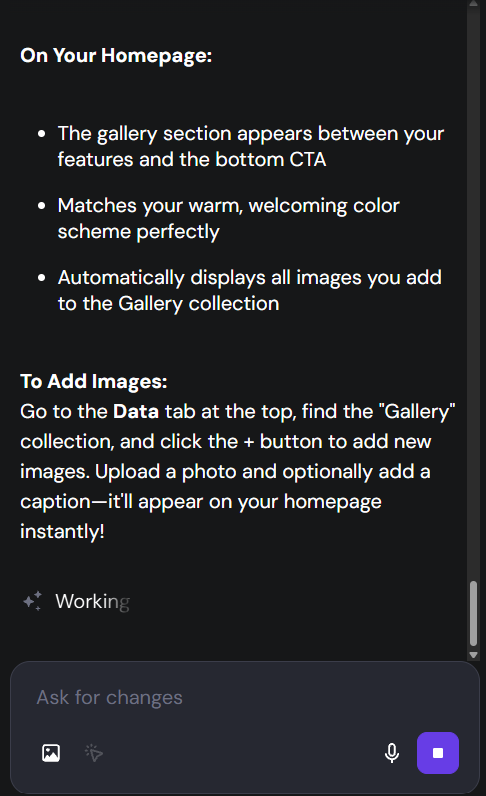
Access your Hostinger AI Builder web application interface.
-
Locate the chatbox on the screen.
-
Enter a clear prompt describing what you want to create or change. Provide specific details about your desired layout. If it asks a clarifying question, you may see clickable answer options instead of needing to type a response, letting you select a single option, select multiple options, or write your own answer.
- Optional: Use the voice feature to speak your instructions, or upload an image—such as a layout sketch or a screenshot of an element you want to fix.
You can also edit an existing image on your site directly with a prompt, without re-uploading or replacing it manually. For example: “Please add a carrot to the image” or “Add some cute hats to my cute cats.” it will apply the change to the image in place.
Edit content manually
-
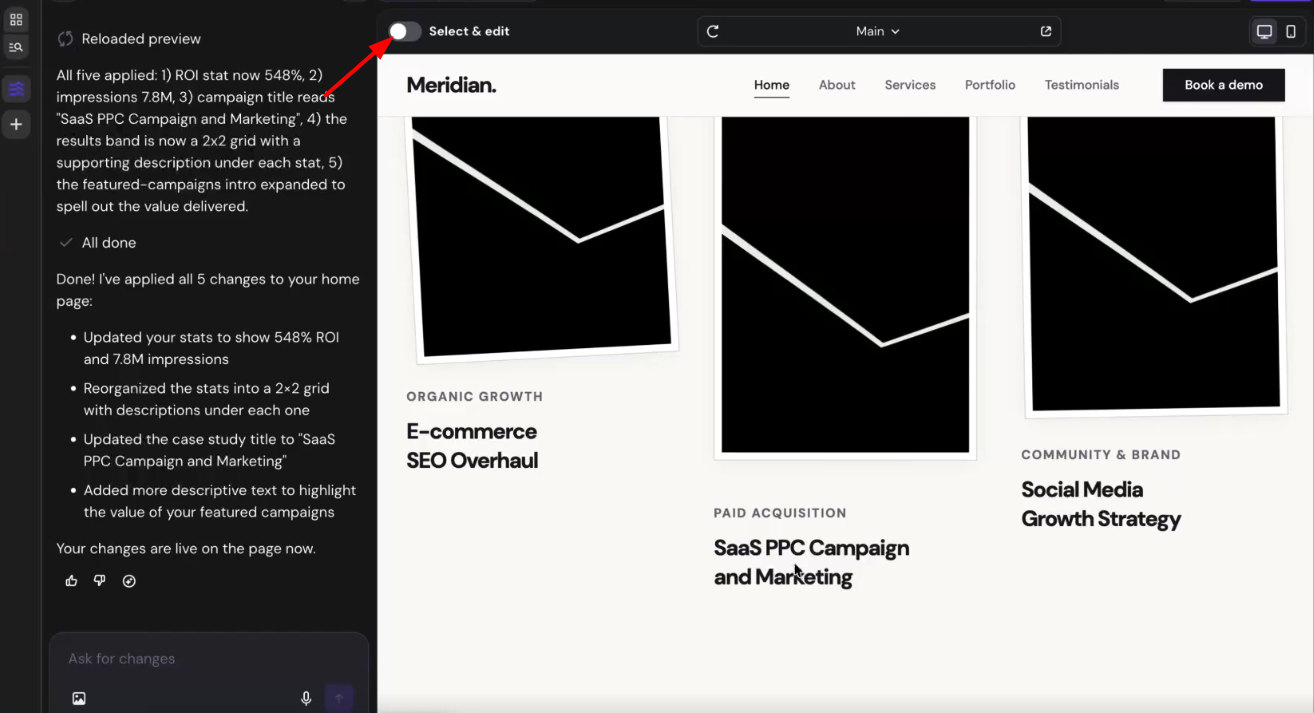
Navigate to the top bar of the Hostinger AI Builder interface.
-
Switch the toggle or button to Select & edit mode.
-
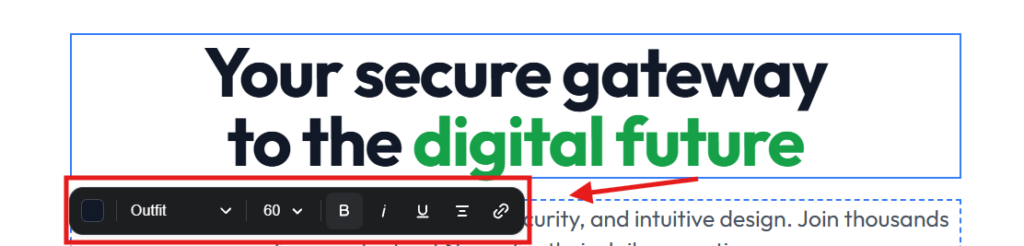
Click directly on any static text or image on the site preview to edit it immediately without generating a prompt.
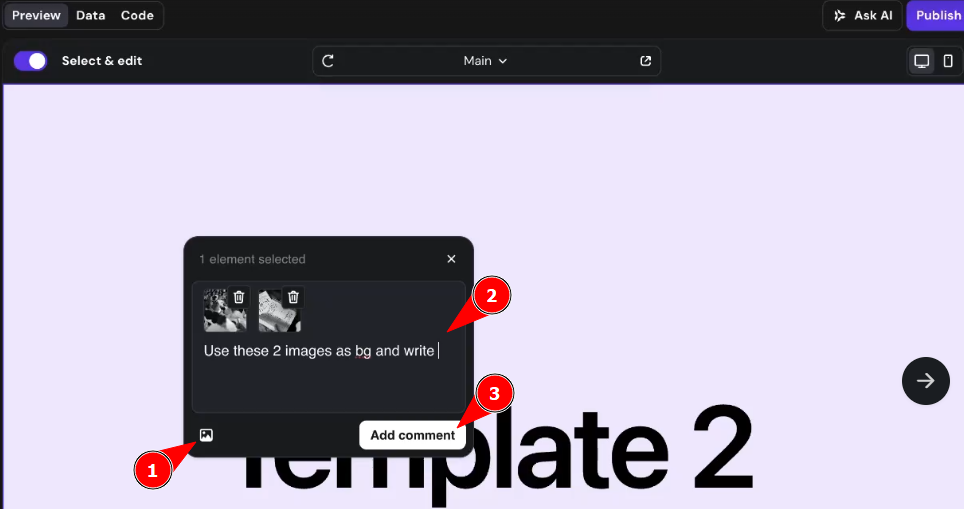
- To select and edit multiple elements at once, drag across them or hold Shift and click each one, then type your instructions in the selection box and click Apply to have AI make the changes, or edit each element manually.
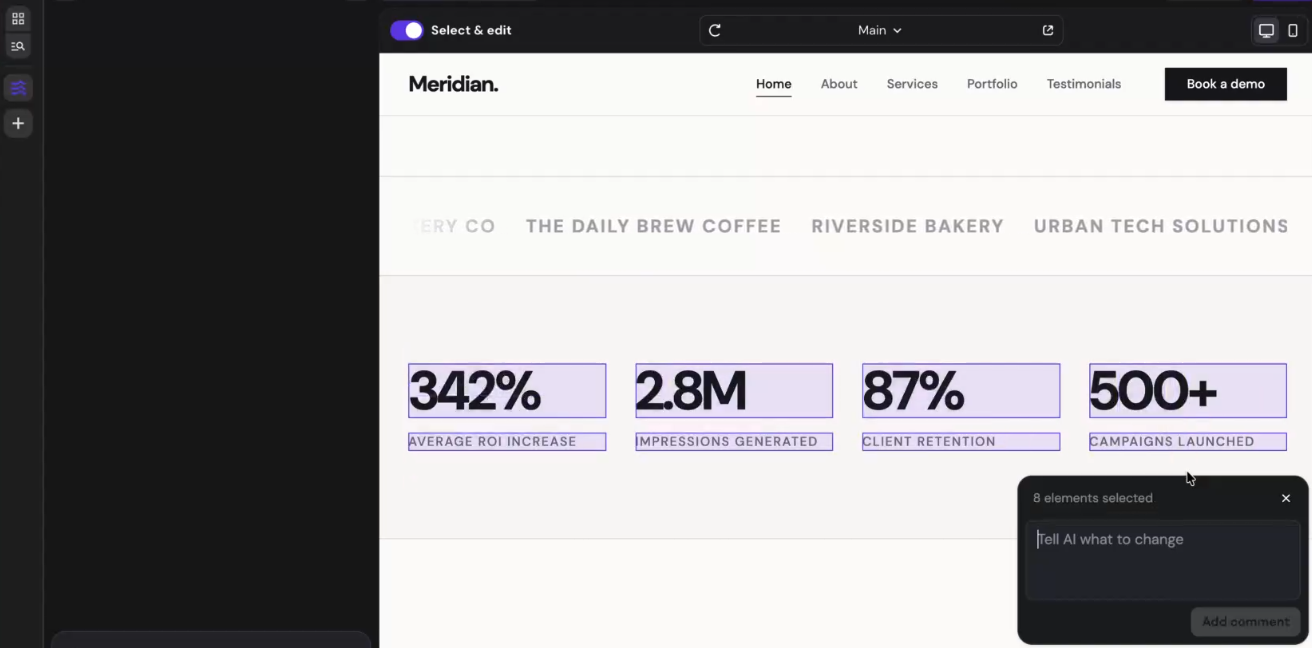
You can also attach reference images to your annotation for AI to use, such as a photo you want applied as a background. Supported formats are JPEG, PNG, GIF, WebP, and ICO, with a maximum of 10 images per session and 15 MB per image.
NOTES
-
Avoid requesting more than five actions within a single chatbox message to ensure the higher accuracy of the results.
-
If you need to undo a change, see how to use the Restore message button to fix errors.
-
To pause an ongoing response, see how to stop content generation.
- The platform processes prompts more efficiently when you provide structured, detailed descriptions.
-
Credits are still used to apply the changes in Select and Edit mode, including when you attach reference images.
- Your modifications will reflect in the builder immediately, allowing you to seamlessly refine your application’s appearance and features. If you’re starting a new project, you can also select a template instead of building from scratch.