Edit static text elements directly on your Hostinger AI Builder agentic mode application using the visual editor, without prompting the AI. Visual edits are precise and fast compared to prompt-based changes. Applying them in Select & edit mode deducts a small number of AI credits from your balance.
Select & edit mode lets you click one or more elements on your website. You can then edit them manually or type instructions for AI to apply changes to the selected elements.
Before you start
-
You need an active website project inside the Hostinger AI Builder platform.
- Select & edit changes use AI credits.
Modifying website content visually
-
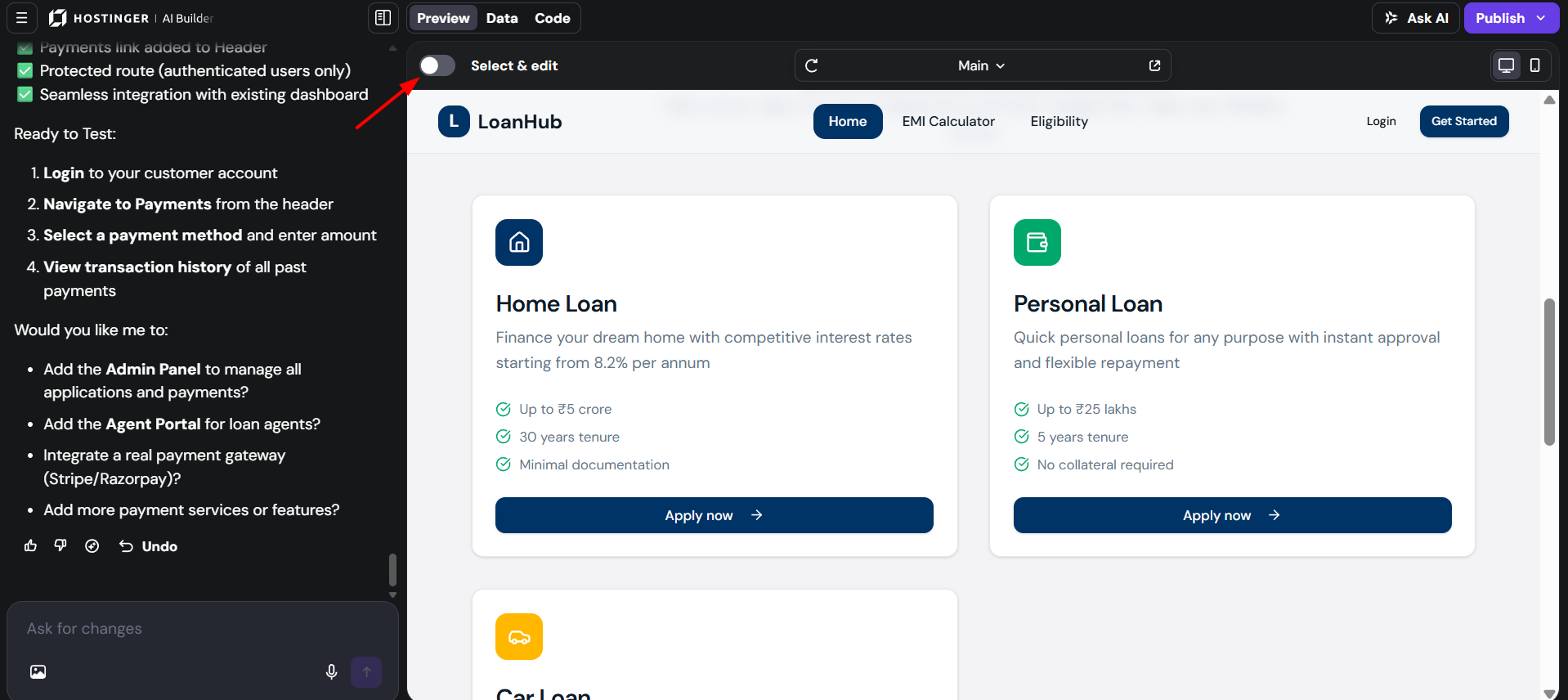
In the preview interface, click the Select and Edit toggle to enable the visual edits mode.
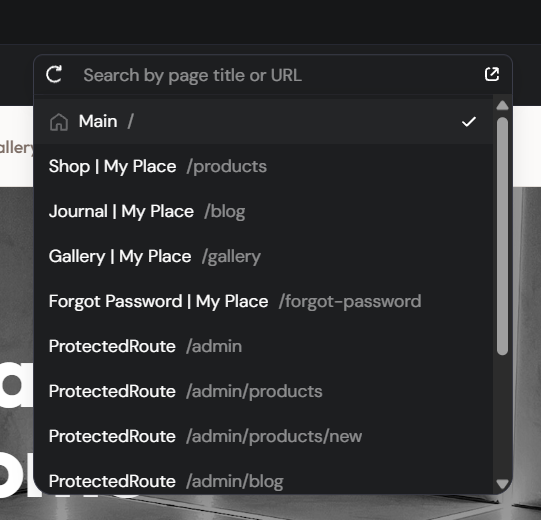
Use the page selector in the editor toolbar to switch between pages of your website without leaving the editor.
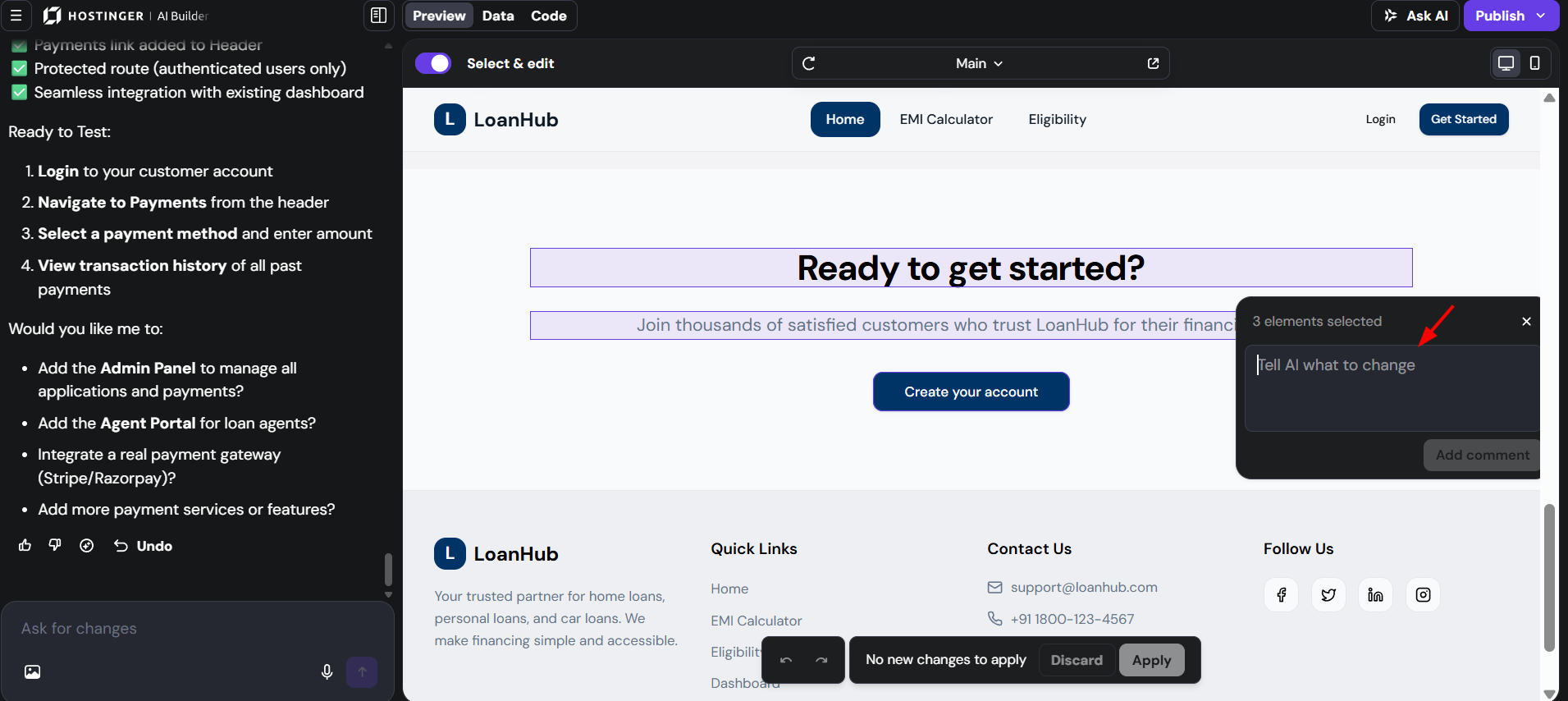
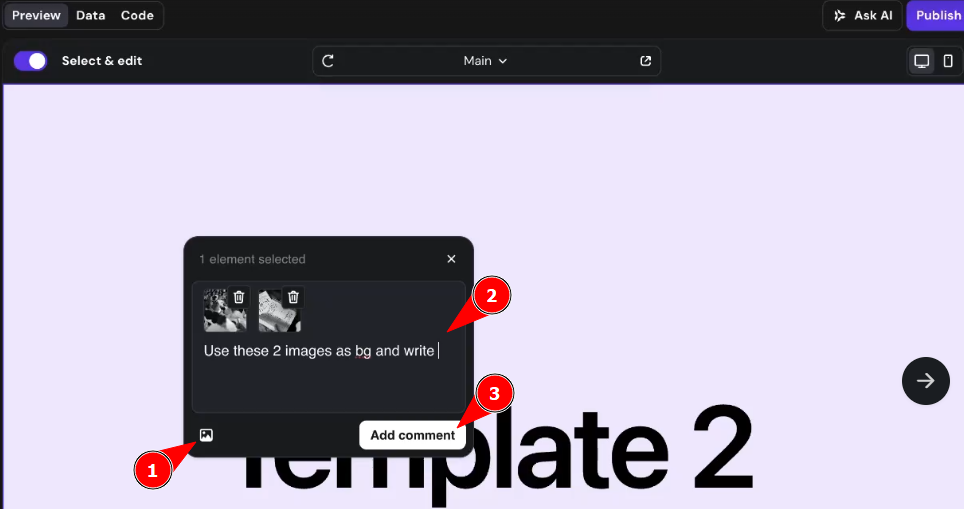
- Click any text or image element to select it. Every text and image element on the page can be edited. To select multiple elements at once, drag across them or hold Shift and click each one. A box showing the number of selected elements appears on the page. To have AI make the changes instead, type your instructions in the selection box (Tell AI what to change for multiple elements, or Add comment for a single element), then click Apply.
-
For text elements, use the inline editor to type and adjust rich text formatting options, such as bolding, colors, font sizes, and hyperlinks.

-
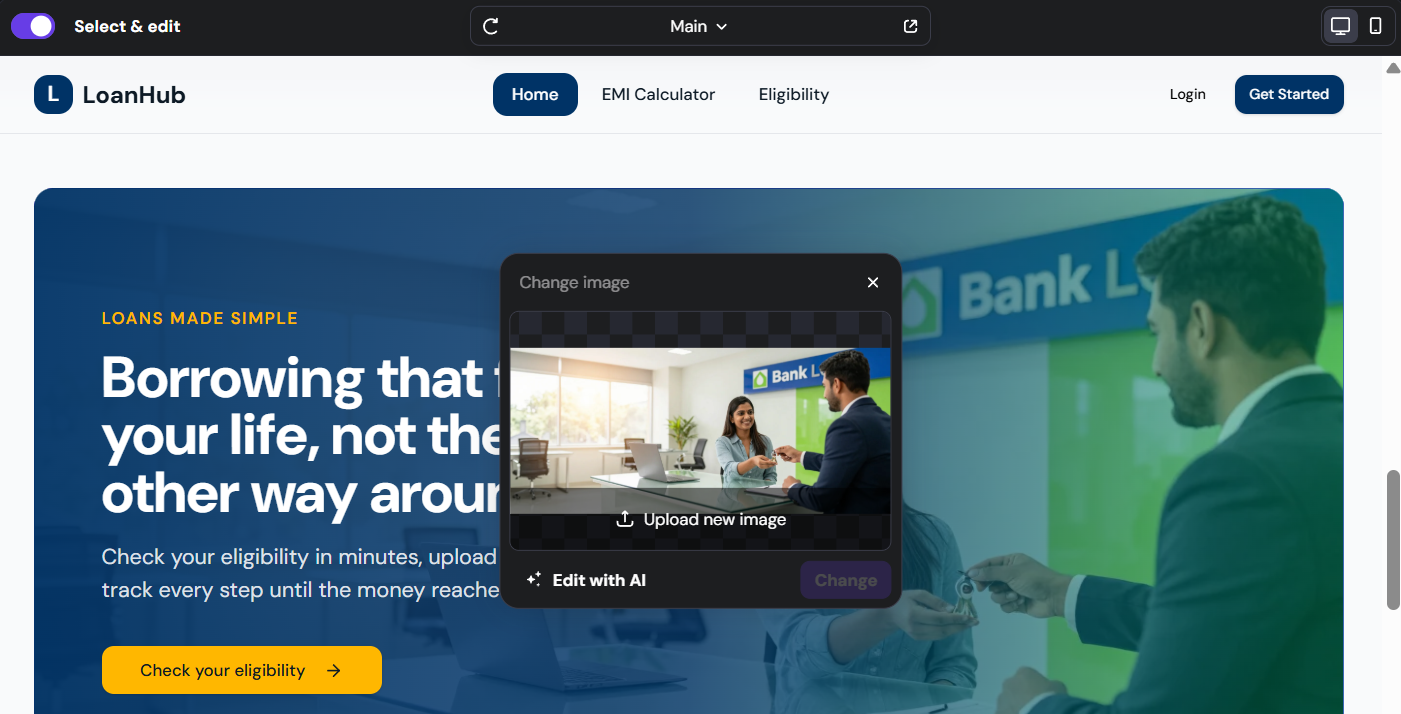
For images, select the photo to open a pop-up window and upload a new image from your device.
You can also attach reference images to your annotation for AI to use, such as a photo you want applied as a background. Supported formats are JPEG, PNG, GIF, WebP, AVIF, and ICO, with a maximum of 10 images per session and 15 MB per image.
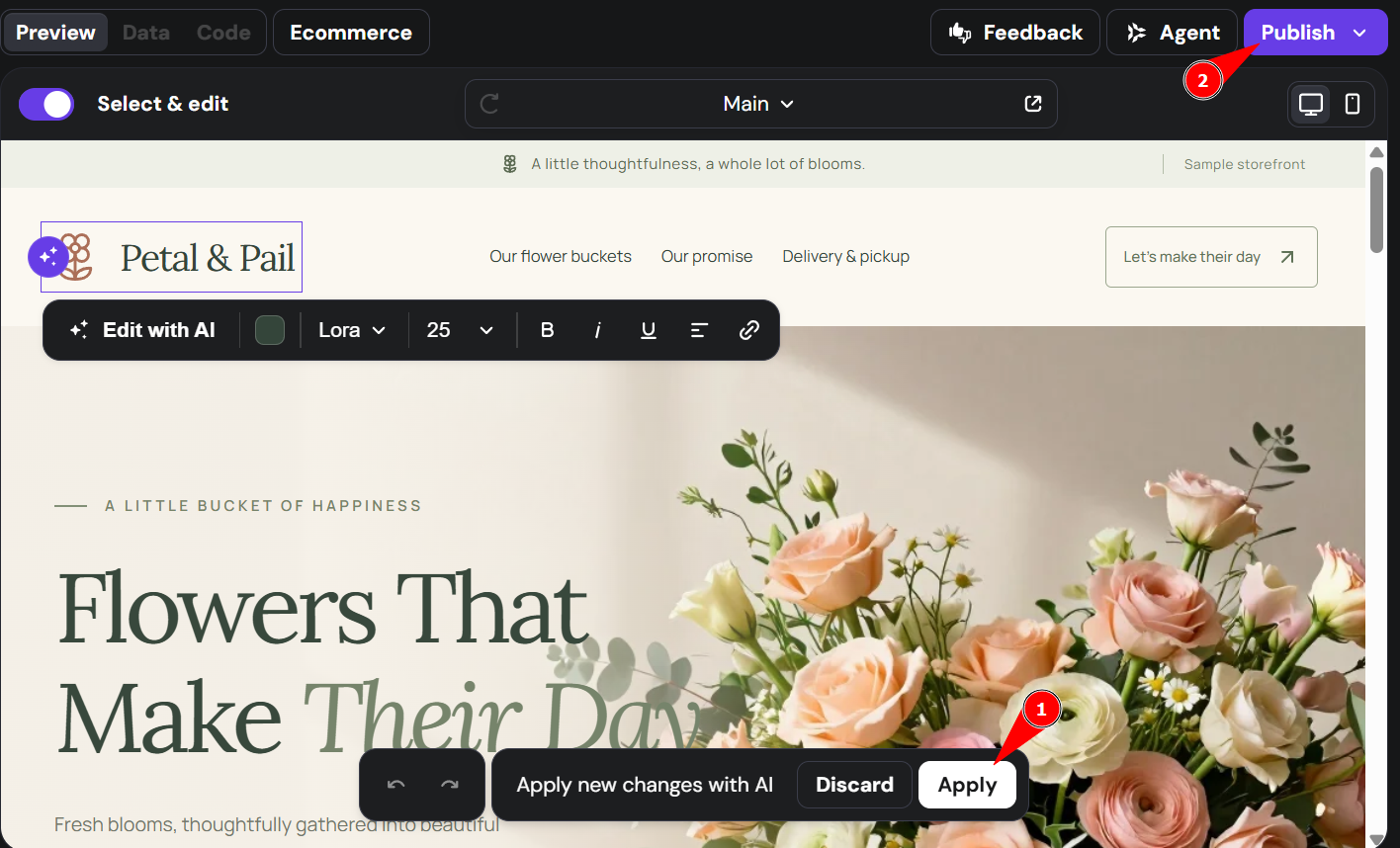
- After you finish editing, click Apply to process the changes. Click Publish afterward to make the changes live.
-
To return to the standard preview mode, click the Select and Edit toggle again to disable it.
Select and Edit mode supports editing across multiple pages in a single session. Switch pages using the page selector while Select and Edit mode is active to make visual edits on different pages without toggling the mode off and on.
Your website updates are now saved and ready for final review before publishing.