Undo the latest change or restore a previous version to fix errors and revert unwanted AI changes in your Hostinger AI Builder agentic mode application. Hostinger AI Builder operates through iterative patterns, so it may occasionally require repeated guidance or a different prompting approach to achieve the desired result.
Undo the latest change
If the most recent response produced an error or an unwanted design change, you can use the Undo function.
- Locate the most recent message in the chat panel.
- Click the Undo button (curved arrow icon) below the message.
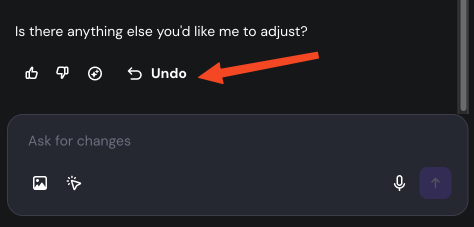
- Confirm the action in the pop-up window.
When you use Undo, your last message and the Horizon’s corresponding response are permanently deleted.
Restore a previous version
If you need to go back further in your project history –for example, if the application entered an “error loop” or several prompts led to an unsatisfactory result– use the Restore feature.
- Scroll through your chat history to find the specific point where the project was working correctly.
- Click the Restore button located under that specific message.
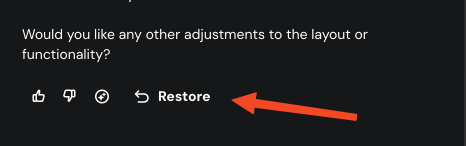
- Review the confirmation prompt: All your messages after this message will be permanently deleted.
- Click Restore to confirm and revert your project to that state.
Restore individual code changes
When Hostinger AI Builder edits your project, each modified file appears as a separate Code changes entry below the response, with its own Restore button.
- Locate the Code changes entry for the specific edit you want to revert.
- Click the Restore button next to that entry.
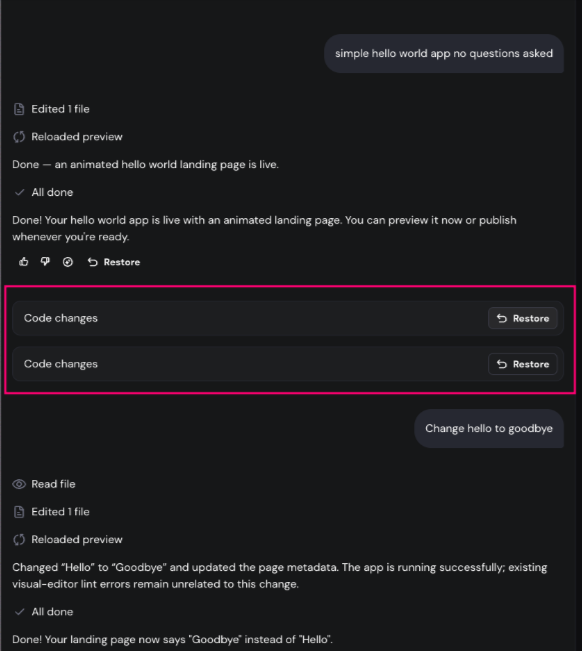
Restoring a code change reverts only that specific change, without affecting your chat history or other edits made in the same response.
What to do after restoring
To optimize credit usage and improve the quality of your web app, consider these strategies after reverting:
- Refine your prompt: If Hostinger AI Builder failed to apply a change, try rewriting your request with more context or simpler instructions.
- Manual edits: For small changes to static elements like text or images, use the visual editor manually instead of using a prompt.
- Avoid error loops: If an error persists after one attempt to fix it, it is best to Restore immediately rather than sending multiple prompts to fix the same error, as this can lead to further complications.
By using the Undo and Restore functions, you can maintain control over your development process and quickly recover from technical hurdles. This allows you to experiment freely and refine your web app until it matches your vision.
Additional resources