If you use Hostinger AI Builder manual mode to run an online store and want to create product subcategories, you need to complete three main steps:
-
Create product subcategories in the store management area
-
Display the subcategories on the website
-
Structuralize categories and subcategories
Step 1 – Create product subcategories in the store management area
- In the store management area → Products → Categories
- Click Add category
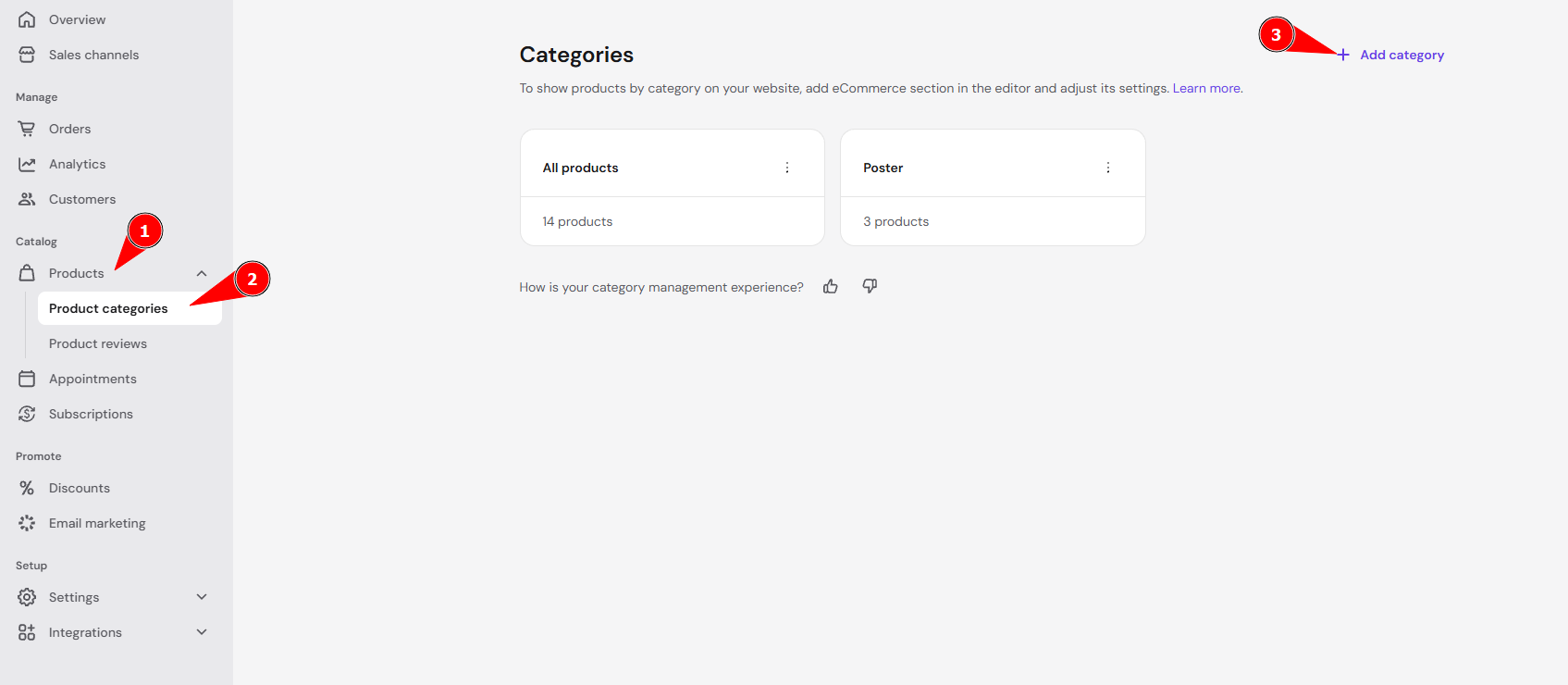
- Write subcategories name and assign the products there.
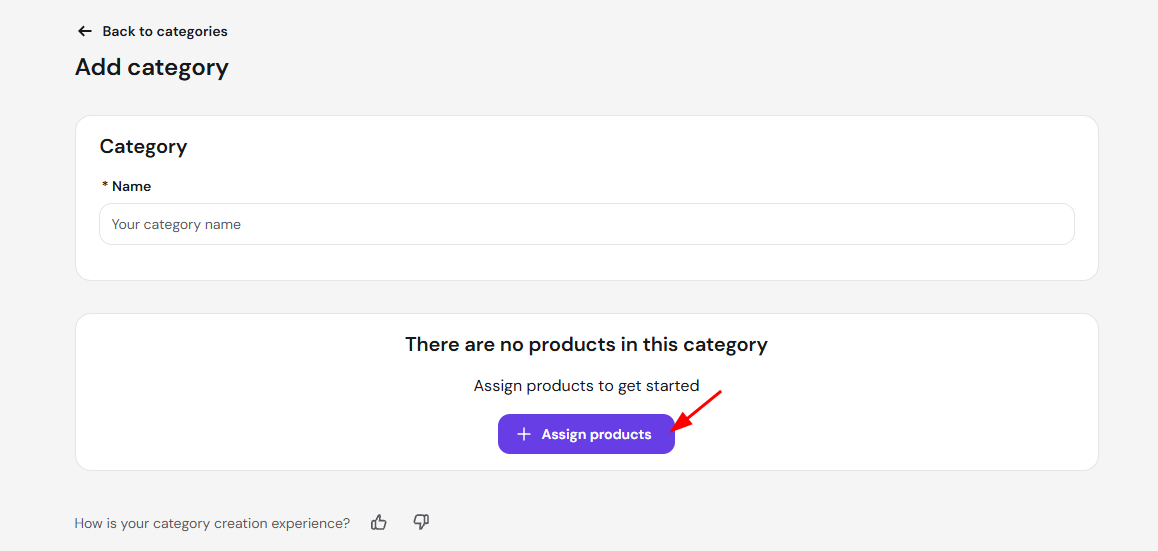
You can create subcategories just as you’d create categories. One product can be assigned to multiple categories/subcategories.
For example, the product Golden ring can belong to:
-
The category/subcategory Accessories
-
The category/subcategory Rings
-
The category/subcategory Golden rings
-
The category/subcategory Golden accessories, etc.
This way, you may create multiple categories and subcategories.
Step 2 – Display product subcategories on the website
You can display your product subcategories by creating pages and using product list sections:
-
Within the website editor, open the Pages and navigation panel on the left
-
Click on Add page – this way, you can create as many pages as many product subcategories you have
-
Rename the new pages according to your product subcategories
-
Insert a product list section within each page
-
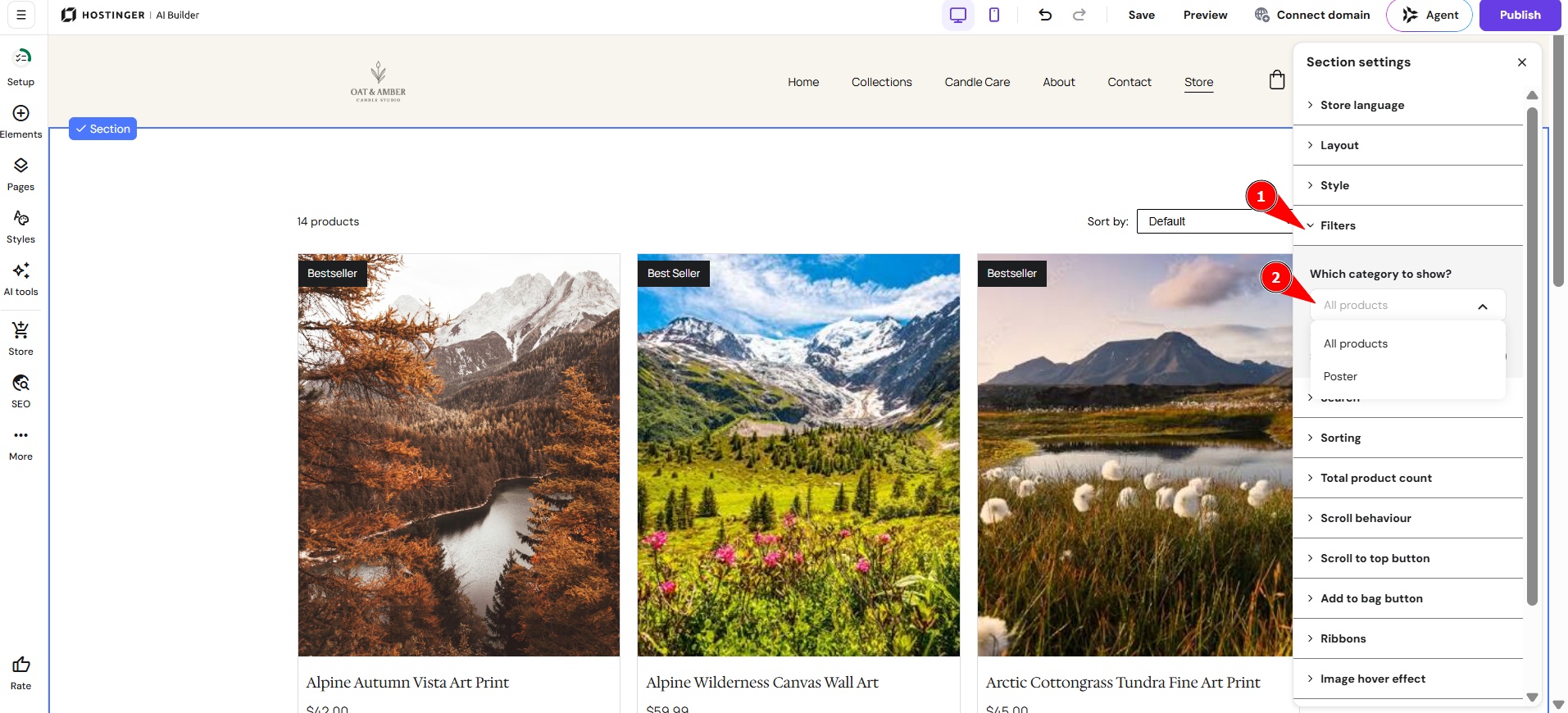
Click on the product list section to open its settings, and specify the preferred product subcategory to display
-
(Optional) Hide product subcategory pages from the website’s navigation menu
Make sure to specify the preferred category or subcategory in the product list section settings:
Step 3 – Structuralize categories and subcategories
- On your preferred page – homepage, store page, or any other– add elements (text, buttons, or images) to illustrate categories. Then, link those elements with product category pages.
- On the product category pages, add elements (text, buttons, or images) to illustrate subcategories. Then, link those elements with product subcategory pages.
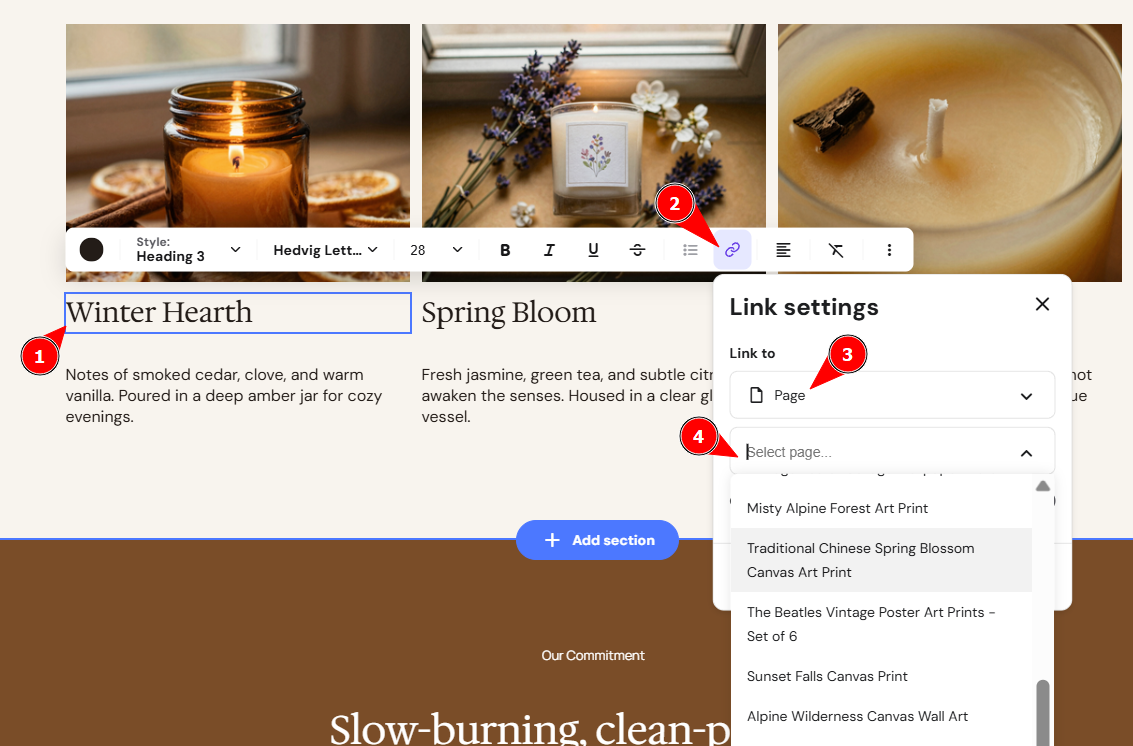
That’s it! This way, you can display multiple product categories and subcategories on your website.
NOTES
- See product pages for other details about product page customization.
- See recommended products for other details about showcasing related products.
- See products in multiple languages for other details about multilingual store behavior.