Hostinger AI Builder builds a website for you: add a website, choose Manual or Agentic mode, then describe your business so the AI generates the site.
Before you start
- Confirm your hosting plan meets the hosting requirements for Hostinger AI Builder.
- Try it for free if you haven’t used Hostinger AI Builder yet.
- See how to get started with Hostinger if you just started.
Step 1 – Add website
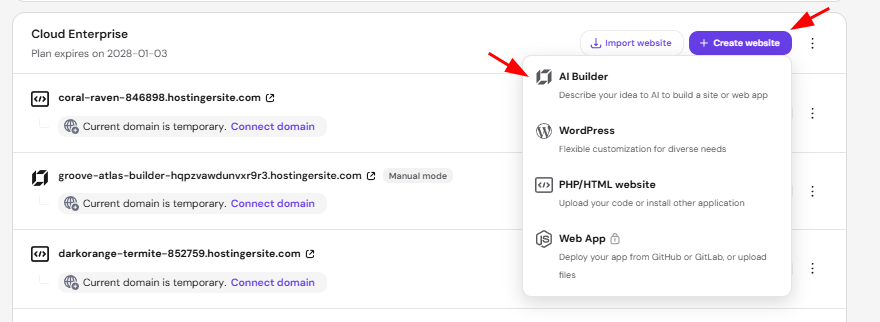
- Log in to Hostinger dashboard then head to Website section.
- Click Create website in the hosting plan you want to build your website.
- Choose AI Builder.
Step 2 – Choose how you want to build your website
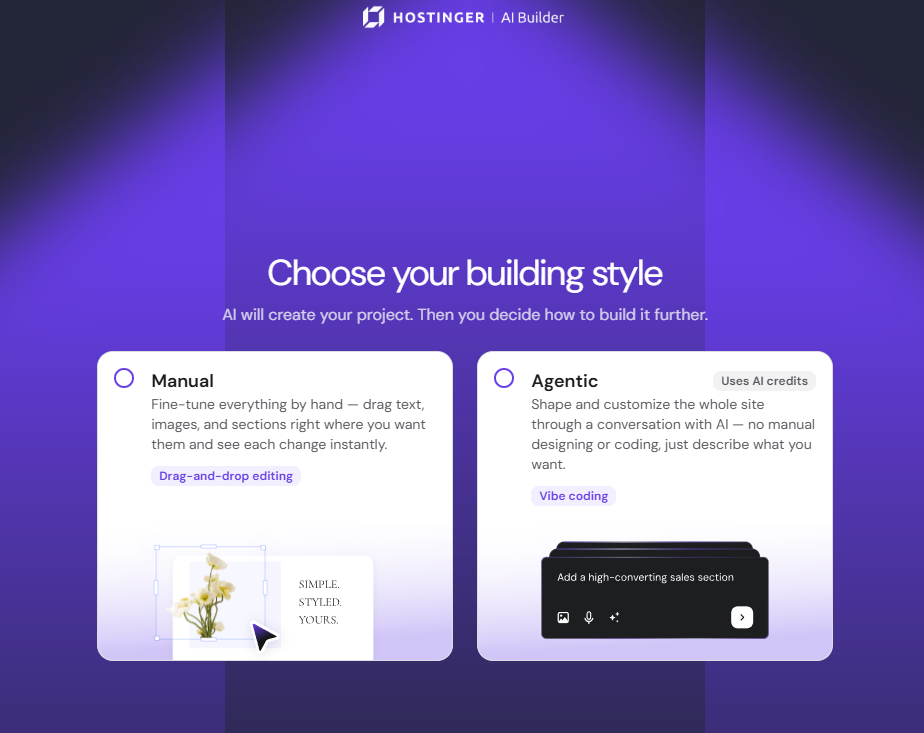
Select how you want Hostinger AI Builder to build your site:
|
Mode |
How it works |
Best for |
|
Manual |
Drag and edit text, images, and sections by hand. See how to use Hostinger AI Builder in manual mode. |
Full control over layout and design. |
|
Agentic |
Describe changes in a chat with AI, which edits the whole site for you. Uses AI credits. See the agentic mode product overview. |
Building or updating a site without manual editing. |
Step 3 – Describe your website
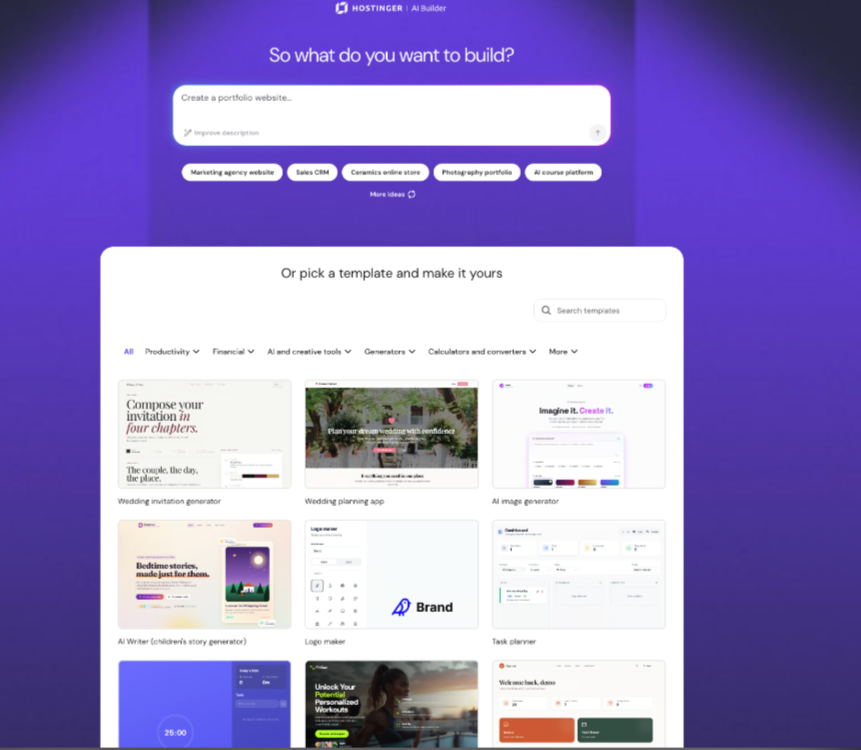
On the Let AI create your online presence screen, describe your website or business in the text box. Click one of the suggested prompts, such as Create a business website or Launch an appointments website, if you’re not sure what to write, or scroll down to pick a ready-made template instead. You can also speak your initial prompt instead of typing it, using the microphone icon on the prompt screen, or attach an image or PDF to guide the AI, such as a design reference or a document with your business details.
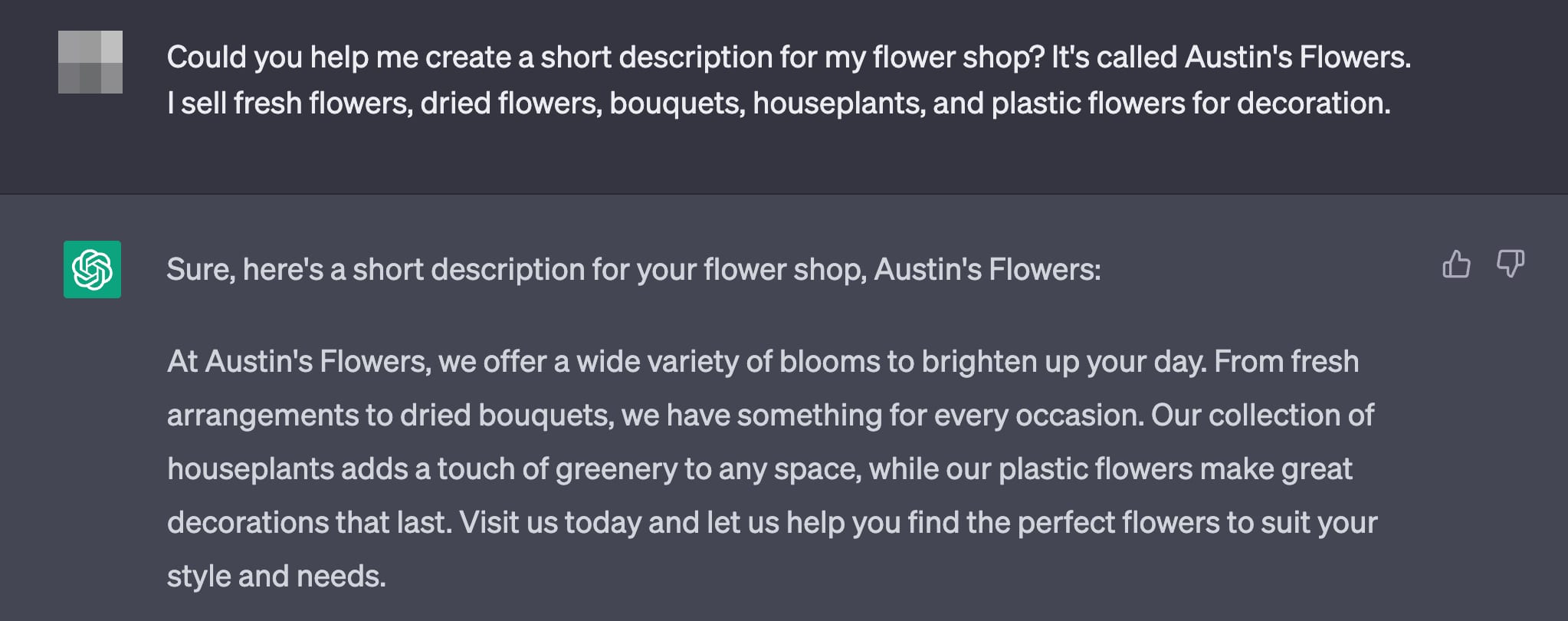
Include specific details about your business, audience, and goals in your description. If you’re not sure how to describe your business, use ChatGPT to draft a short description first.
The description should not exceed 700 characters (including spaces).
Shortly, you’ll be presented with the result and be able to proceed with any desired changes. Your website is now ready for further customization in manual or agentic mode.
Frequently asked questions
Can I edit my website after Hostinger AI Builder generates it?
Yes. Once the AI generates your site, you can customize it in Manual mode or continue refining it through Agentic mode.
Does Hostinger AI Builder work if I don’t know what to write?
Yes. You can click one of the suggested prompts on the description screen, or pick a ready-made template instead of writing a description.
Can I use an image or document to guide the AI?
Yes. You can attach an image or PDF, such as a design reference or a business document, when describing your website.
More Hostinger AI Builder features
- How to Customize a Website Template
- How to switch to agentic mode
- SSL certificates
- Website speed
- Change your domain
- Data center locations
- How to make your website appear on Google
- Join our community