Switch your Hostinger AI Builder website from manual mode to agentic mode to elevate your project with AI, add custom tools, and expand its functionality through chat-based editing. Hostinger AI Builder recreates your manual mode website in agentic mode, so you can continue building from where you left off.
Before you start
- Make sure you have an active Hostinger hosting plan with a website created in Hostinger AI Builder manual mode.
Switch to agentic mode
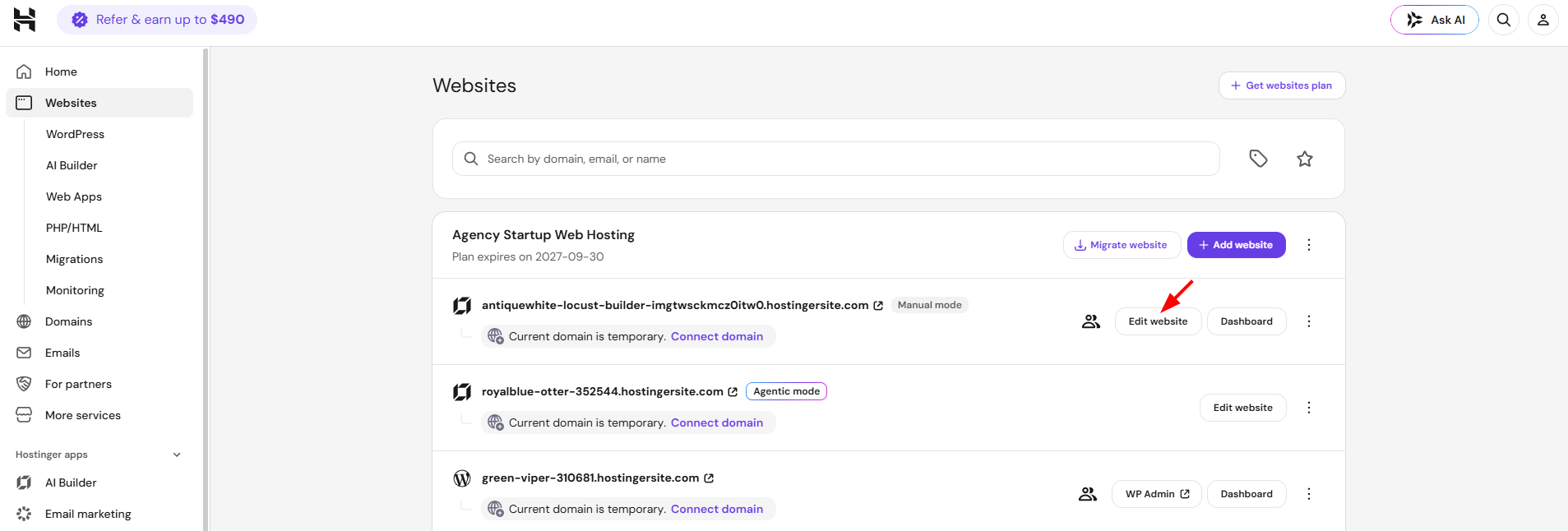
- Log in to Hostinger dashboard and go to Websites.
- Find the website you want to switch and click Edit website to open the Hostinger AI Builder editor.
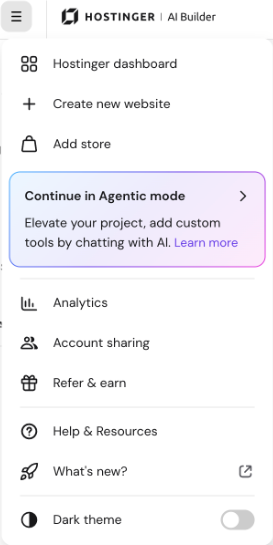
- Click the menu icon in the top-left corner of the editor.
- Select Continue in Agentic mode.
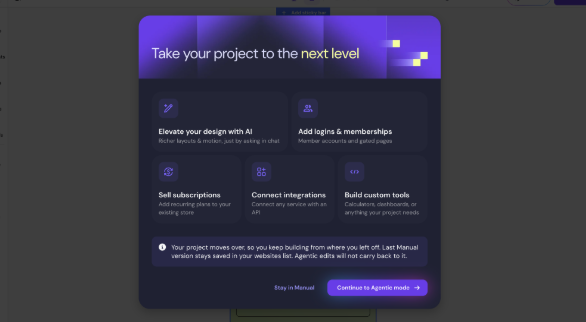
- Review the features shown in the Take your project to the next level window, including elevating design with AI, adding logins and memberships, self-subscriptions, connecting integrations, and building custom tools.
- Click Continue in Agentic mode to confirm, or Stay in Manual to cancel.
NOTES
- Your existing manual mode website is saved and remains unchanged after the switch.
- A new agentic mode website is created and counted as an additional website on your plan.
- The new agentic mode website looks identical to your manual mode website.
- Websites using Ecommerce, the Instagram element, or search are not supported for this switch.
- Existing Hostinger Reach forms convert to native forms automatically, and the site stays connected to the same Reach profile. See Forms & Contact Collection in Hostinger Reach for details.
Your website is now available in agentic mode, where you can continue building your project by chatting with AI.