Getting started with Hostinger Reach, the AI email marketing assistant, takes four main stages: connect your domain, add brand details and contacts, generate an email template with AI, and send and track your first campaign. Hostinger Reach uses the brand information you provide to generate on-brand email campaigns.
The Hostinger Reach free plan includes up to 200 emails and up to 100 unique recipients per month. Free plan access lasts one year and is available to all users, including non-Hostinger customers.
Watch how a small business can use Hostinger Reach to create a lead magnet, build a landing page, and automate an email sequence to turn subscribers into customers:
How to get started with Hostinger Reach
To help you move through the setup process efficiently, Hostinger Reach features proactive onboarding toasts. These notifications appear automatically after you complete a task, guiding you toward the next logical step in this prioritized sequence:
-
Add contacts
-
Connect domain
-
Create template
-
Create first campaign
Step 1 – Sign up and access the dashboard
To get started:
-
Visit the Hostinger Reach page and choose the preferred plan.
-
You’ll be asked to log in to your Hostinger account or create one.
-
After you successfully log in, you’ll be taken to the home page of Reach.
See Hostinger Reach: How to sign up and access the dashboard for the full explanation of this step.
Step 2 – Connect your domain
To improve deliverability and build trust, connect a domain first. You only have to do this once.
- Navigate to Settings and find Domain settings
- Select your domain from Hostinger and click Connect domain. If your domain is from another provider, click Add domain from another provider.
- Choose whether to send from the domain directly or from a separate subdomain of it, such as mail.yourdomain.com. If you choose a subdomain, name it on the next screen; Reach suggests common names such as mail, send, or news.
Hostinger recommends a separate subdomain, since it keeps marketing email traffic apart from your root domain’s DNS records and reputation.
- For domains at Hostinger, all of your DNS records (SPF, DMARC, DKIM) will be handled automatically, and it’s usually pretty fast. In some cases, however, it can take up to a few hours. We recommend sending your first email campaign only after this time has passed.
- External domains will need to be verified first by adding a record as a proof of ownership. You can choose a subdomain for an external domain only after ownership verification is complete.
- Go to Sender details and adjust your sender name to match your personal or business brand.
If you’d like to get replies from your recipients, use a sender email that has a mailbox. You can get an email plan and set up an email at Hostinger - Click Save Changes.
New users who have not yet connected a domain or site to Reach will see a Welcome screen upon first login. From this screen, you can connect your domain and site in a single step, and choose whether to send from the domain directly or from a separate subdomain of it.
One-click connection automatically:
- Connects your Hostinger domain to Reach
- Configures SPF, DKIM, and DMARC DNS records
- Connects your Hostinger website
- Optionally auto-fills your brand details
After the connection completes, a summary modal confirms what was set up. If you skip the welcome screen, you can connect your domain manually via Settings → Domain settings at any time.
See how to connect your domain for the full article explanation of this step.
Step 3 – Add brand details
Enter your business details to comply with email marketing regulations and show your audience that you run a real business. Business details will be used in your templates for compliance and reputation.
-
Navigate to Settings and find the Brand details page.
-
Fill in your company or personal business information. Use the information of your legally registered entity, if applicable.
-
Set your brand colors, business description and all other fields to ensure your templates are on-brand and weekly campaign suggestions are highly personalized.
-
Click Save changes.
Step 4 – Add contacts
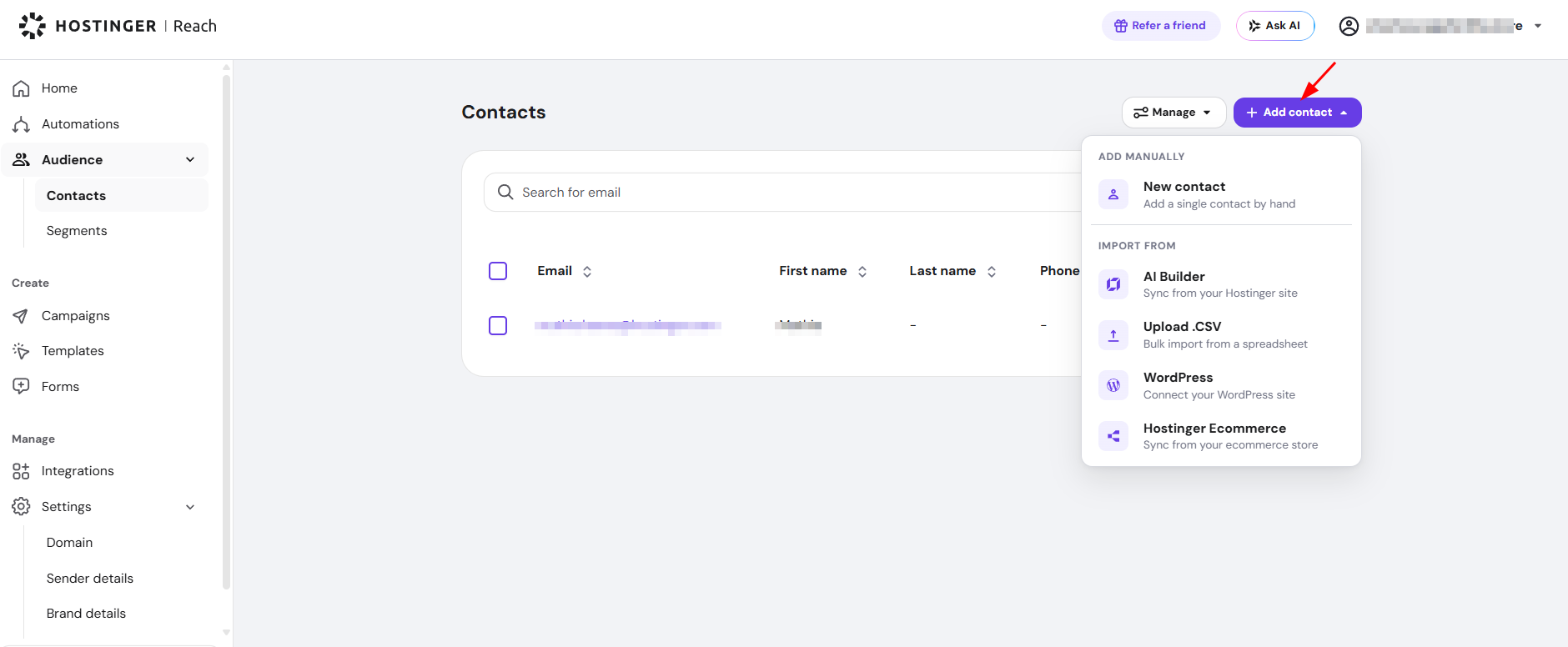
You can add recipients manually, import them from a .CSV file, or use available Integrations such as Hostinger AI Builder, WordPress, or Public API. Once your contacts are added, look for the onboarding toast at the bottom of the screen to proceed to the next setup phase.
Add manually
-
Navigate Audience then head to Contacts.
-
Click New contacts.
-
Fill in the recipients details.
-
Toggle Add another if you want to continue adding more.
-
Click Add contact. You’ll see a message that contacts were added successfully.
Import via CSV
-
Click Upload .CSV.
-
Check the formatting requirements. Your CSV must include an email column, for example.
-
Upload the file.
Auto-sync with Hostinger AI Builder or WordPress
If your website is built with Hostinger AI Builder or WordPress, you can navigate to the Integrations page to connect your site and sync contacts automatically.
Step 5 – Create your first campaign
If you’ve completed steps 1 through 5, you’re ready to send your first campaign!
- Navigate to Campaigns.
- Click Create campaign.
- Select or create an email template to send.
- In the Campaign details step, enter the subject and the internal campaign title, which is visible only to you. See Hostinger Reach: How to create an email campaign for all campaign settings, including how to add an emoji to the subject.
- Select your recipients by either sending to all contacts, or selecting specific segments (filtered lists of your contacts).
- Choose when to send a campaign and get back in a few days to check your campaign results!
Open Campaign ideas in the Hostinger Reach sidebar to generate or save email campaign ideas when you are unsure what to send. See How to use Campaign ideas for details.
Step 6 – Generate an email template with AI
-
Click Create template.
-
Use a suggested prompt or write your own idea.
-
Replace placeholders (like [your business name]) with real information.
-
Click the arrow button to generate your template.
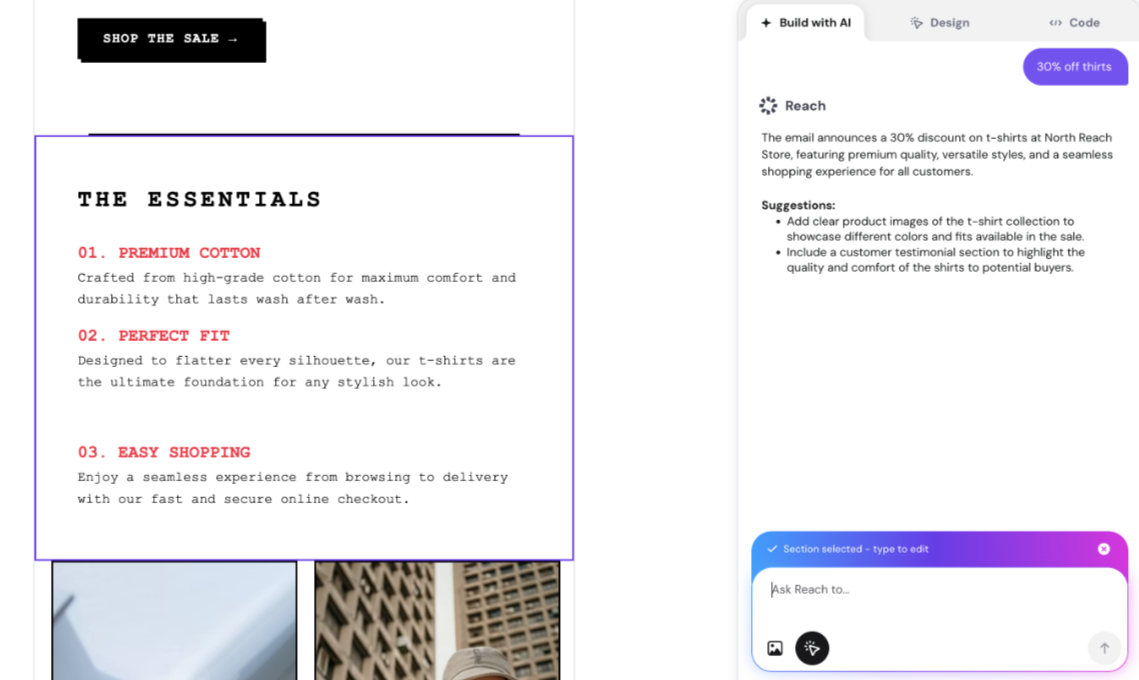
You’ll see a desktop and mobile version. You can keep asking the AI to change the layout and the content until you’re happy with the email.
Instead of regenerating the whole template, click any section in the preview to select it — it stays highlighted while you work, and the chat clearly shows a section is selected. Prompt the AI to edit only that section (e.g. “make this shorter” or “change the tone to friendly”). Click the X in the chat to clear the selection and return to full-template editing.
The full explanation for this step can be found in the article here.
Step 7 – Choose recipients and send the campaign
-
Select the recipients for your campaign.
-
Click Continue.
-
Review the campaign.
-
Click Finish and send or Save as draft if you’re not ready to send just yet.
- If you click Finish and send, you’ll be asked to confirm that you want to send the email right away. Click Send now, and the campaign will be sent to your recipients.
The full explanation for this step can be found in the article here.
Step 8 – Track your campaign’s performance
From the Campaigns tab:
-
Click the arrow icon to view metrics:
-
Open rate
-
Click rate
-
Click-to-open rate
-
Unsubscribe rate
-
Hover over the info icons to learn what each metric means. Aim for high open and click rates, and keep unsubscribe rates low. Results may take a few days to settle, so give it time before drawing conclusions.
See for track your campaign’s performance the full explanation of this step.
Tips for success
-
Don’t worry if your first campaign underperforms. Focus on testing and improving.
-
Stay consistent with your branding across channels.
-
Experiment with different subject lines and content styles.
-
Keep growing your recipients list and delivering valuable content.
You can also manage your Reach account by chatting with Hostinger Agent instead of using the Reach dashboard directly. Ask it to add or look up contacts, build segments from a description, or pull campaign and automation reporting. See Hostinger Agent: Features and overview for details.
Check this video about Email Marketing for Beginners!
Also check out this video on Email Marketing with AI!
Need help?
If you have questions about Hostinger Reach, contact our support team. We’re here to help you succeed in your email marketing journey.
Once your first Hostinger Reach campaign is sent, the Campaigns tab tracks its open, click, and unsubscribe rates so you can refine your next email marketing campaign.
More about Hostinger Reach accounts and plans