To create an email campaign in Hostinger Reach, go to Campaigns, click Create campaign, and complete four steps: choose a template, add the campaign details, select recipients, and send or schedule the campaign. You can also save the campaign as a draft and send it later.
Before you start
- Connect your domain to Hostinger Reach so your campaign sends from your own domain.
- Add contacts to Hostinger Reach so you have recipients to send to.
Step 1 – Choose an email template for your Hostinger Reach campaign
- In the Reach sidebar, select Campaigns, then click Create campaign.
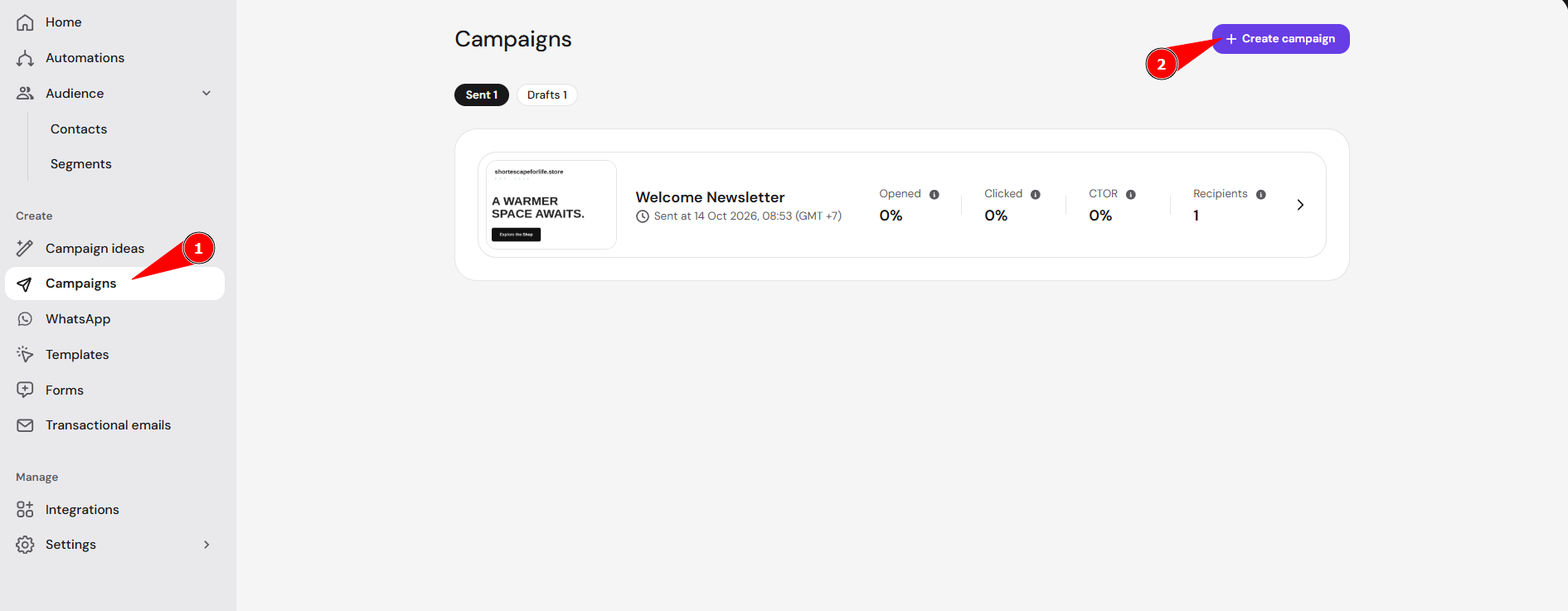
- Select a template under Choose a template, or click Create template to make a new one.
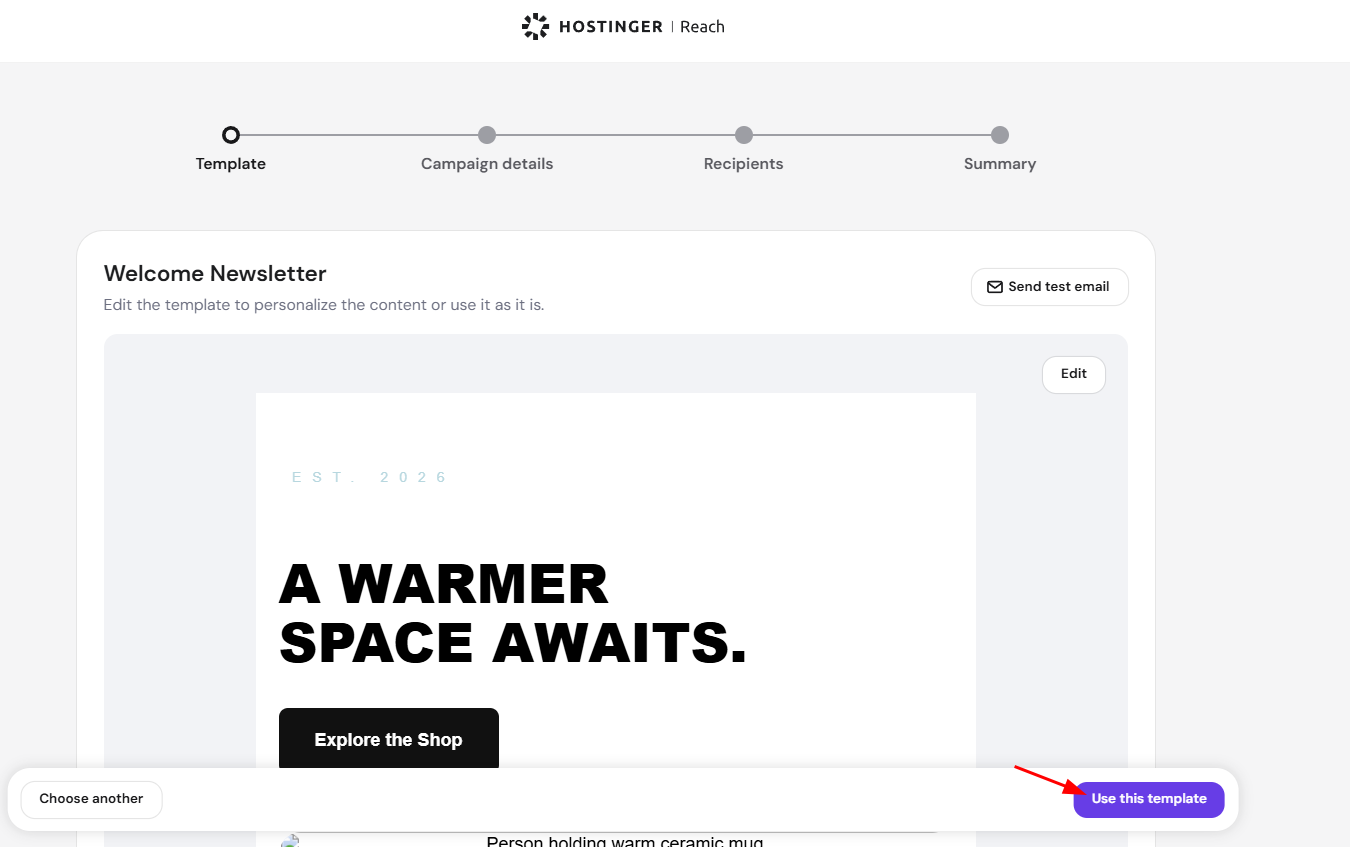
- Review the template preview. Click Edit to change its content, or click Send test email to check how it looks in an inbox.
- Click Use this template, or click Choose another to pick a different template.
Step 2 – Add the Hostinger Reach campaign details
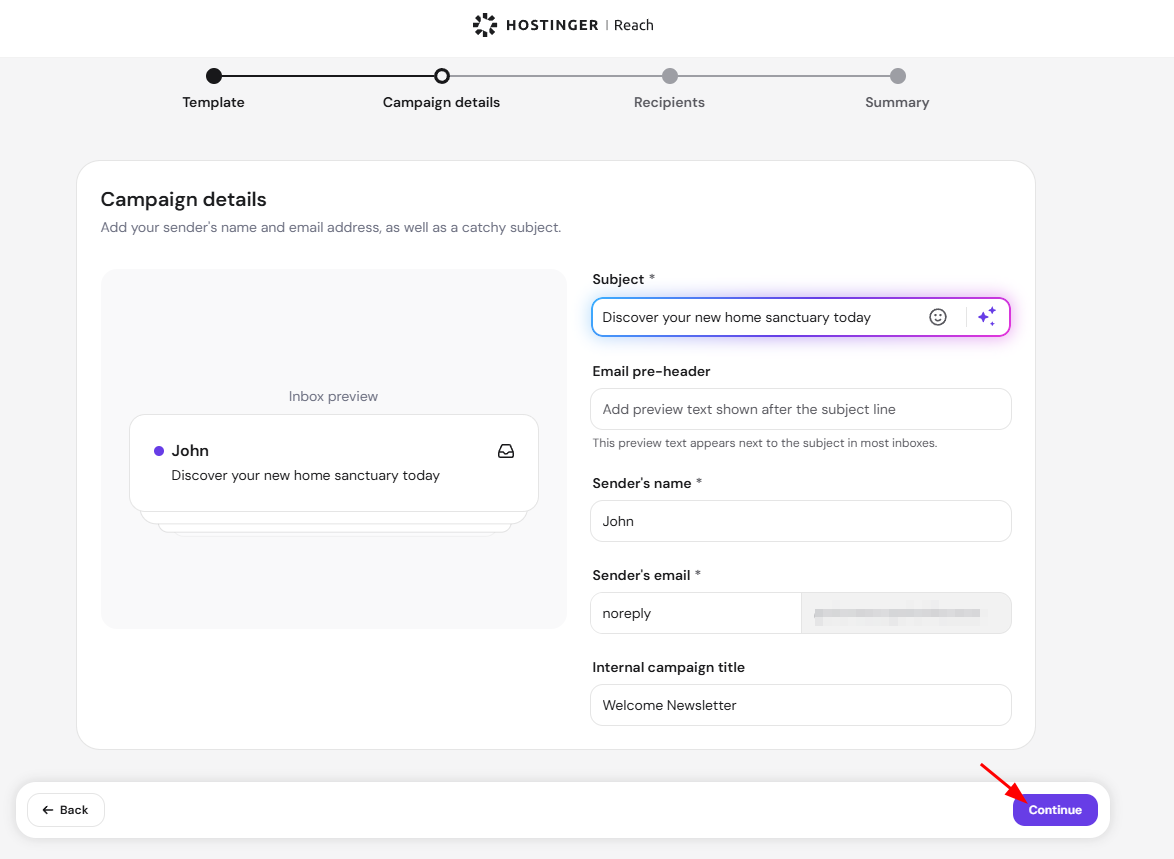
- Enter the Subject, which recipients see in their inbox. To add an emoji, click the emoji icon in the Subject field and select an emoji.
- Enter an Email pre-header if you want one. The pre-header appears next to the subject in most inboxes.
- Check the Sender’s name and Sender’s email.
- Enter an Internal campaign title, which is visible only to you.
- Check the Inbox preview, then click Continue.
Step 3 – Select recipients for the Hostinger Reach campaign
The Select recipients step shows only segments and contacts with the Subscribed status. There are three ways to choose recipients:
- Turn on Select all contacts to send to your full list.
- Select one or more segments under Your segments.
- Describe who you want to reach in Describe who you want to send to, and Agent creates a new segment for you.
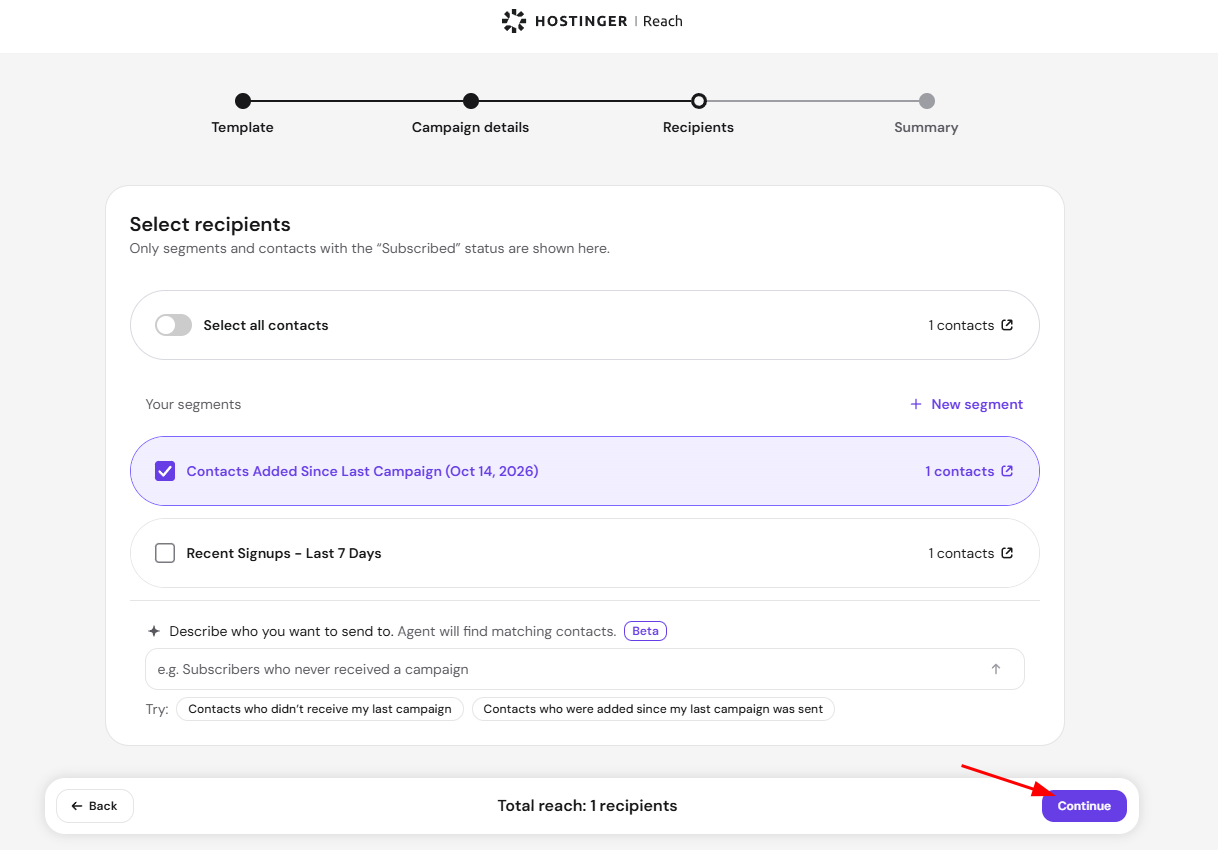
The total number of recipients appears next to Total reach at the bottom of the screen. Click Continue when you’re done. See How to use Audience Segmentation in Hostinger Reach for details on segments and exclusions.
Step 4 – Review and send the Hostinger Reach campaign
The Summary step shows the template preview, sender’s name, sender’s email, subject, pre-header, and number of recipients.
- Review the campaign summary. Click Back to change anything in an earlier step.
- Select Send now, or select Schedule send and choose a date and time.
- Click Send campaign, or click Save as draft if you’re not ready to send yet.
Your campaign is sent or scheduled, and sent campaigns appear on the Campaigns page with their open, click, and recipient results.