Campaign ideas in Hostinger Reach is a dedicated space for viewing, generating, and saving email campaign ideas. Choose Welcome, Promotional, or Educational to generate 2 ideas for each selected topic, or connect a store to get ideas from store events automatically. Save an idea to find it later, or open an idea to set up an email campaign based on it.
Open Campaign ideas in Hostinger Reach
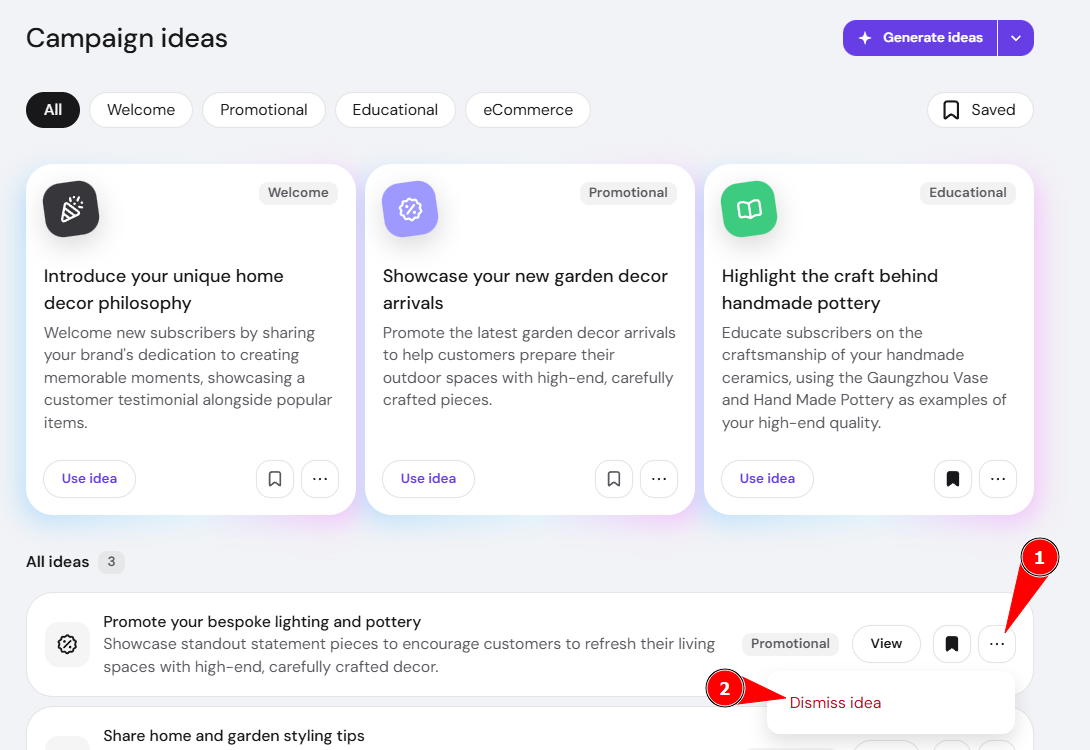
To open Campaign ideas in Hostinger Reach, click Campaign ideas in the left sidebar. The page shows your ideas as cards at the top and as rows under All ideas.
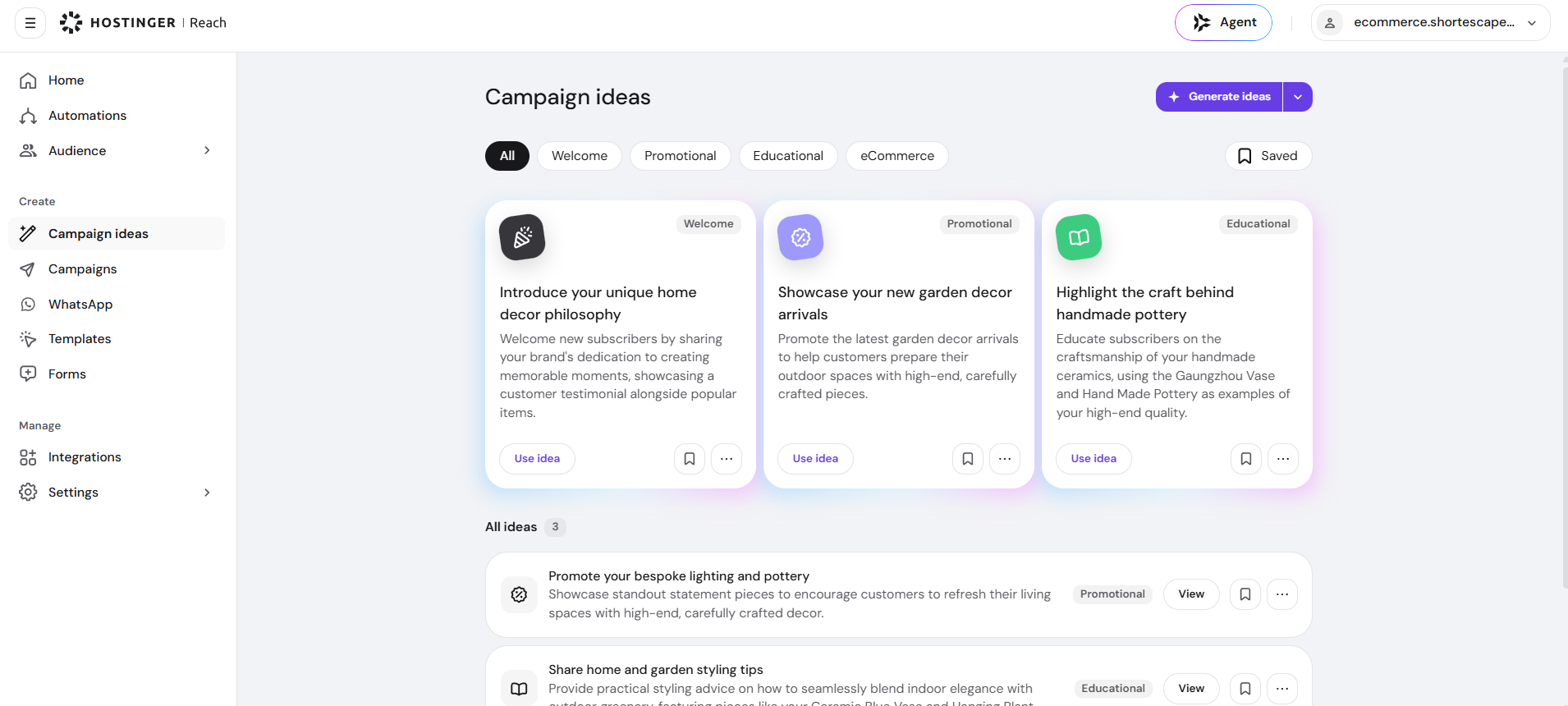
Each idea has a type label: Welcome, Promotional, Educational, or eCommerce. Use the All, Welcome, Promotional, Educational, and eCommerce filters at the top of the page to show ideas by type.
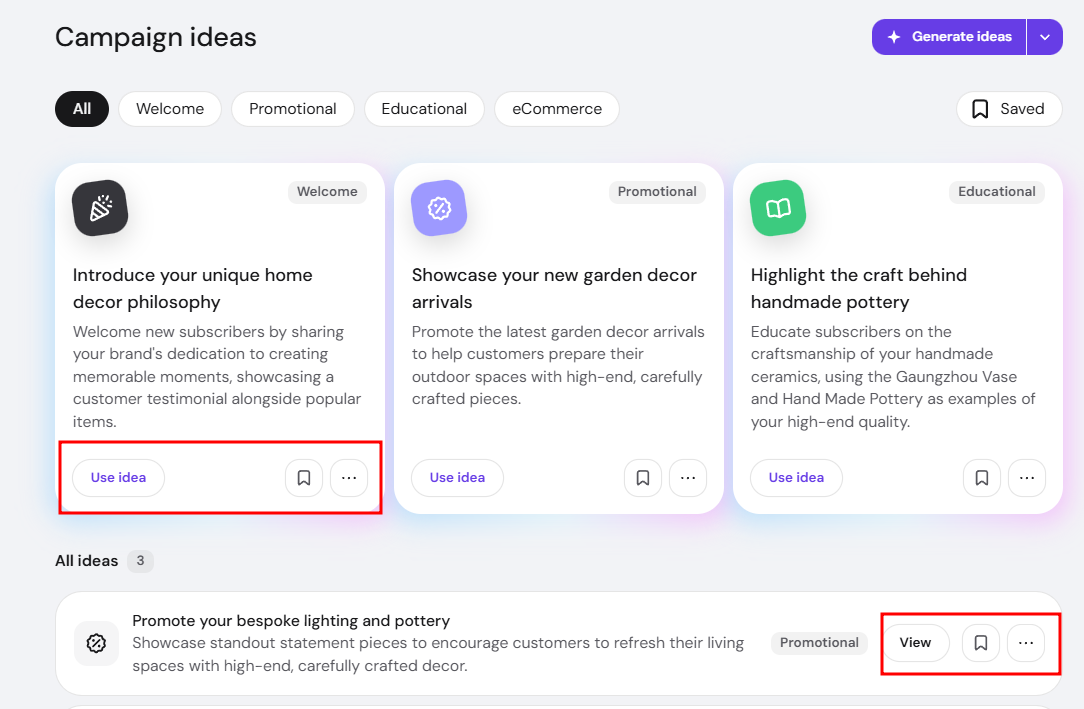
Each card shows a title, a description, a Use idea button, a bookmark icon, and a ⋯ menu. Each row under All ideas shows a title, a description, a type label, a View button, a bookmark icon, and a ⋯ menu.
Generate Campaign ideas on demand in Hostinger Reach
Generate new ideas by choosing the idea types you want and clicking Generate ideas. Hostinger Reach generates 2 ideas for each selected type.
- Open Campaign ideas.
- Click the arrow next to Generate ideas.
- Under Generate idea types, select Welcome, Promotional, or Educational. You can select more than one type.
- Click Generate ideas.
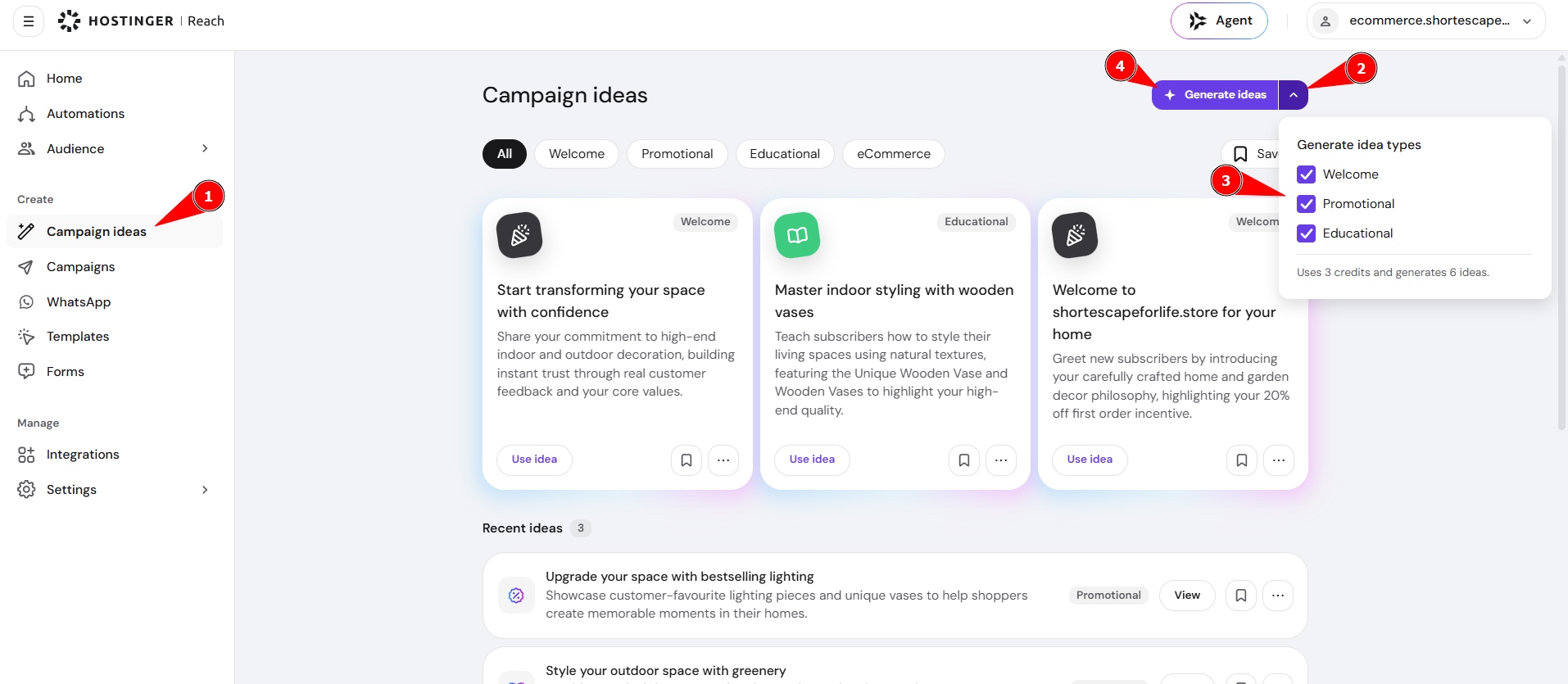
Each selected idea type uses 1 credit and generates 2 ideas. Selecting Welcome, Promotional, and Educational uses 3 credits and generates 6 ideas.
Get automatic Campaign ideas from store events in Hostinger Reach
Hostinger Reach generates Campaign ideas automatically from store events when a store is connected, and you do not need to set anything up. For example, a new product creates an idea for introducing it to your audience, and a new discount creates a discount promotion idea.
Save and dismiss Campaign ideas in Hostinger Reach
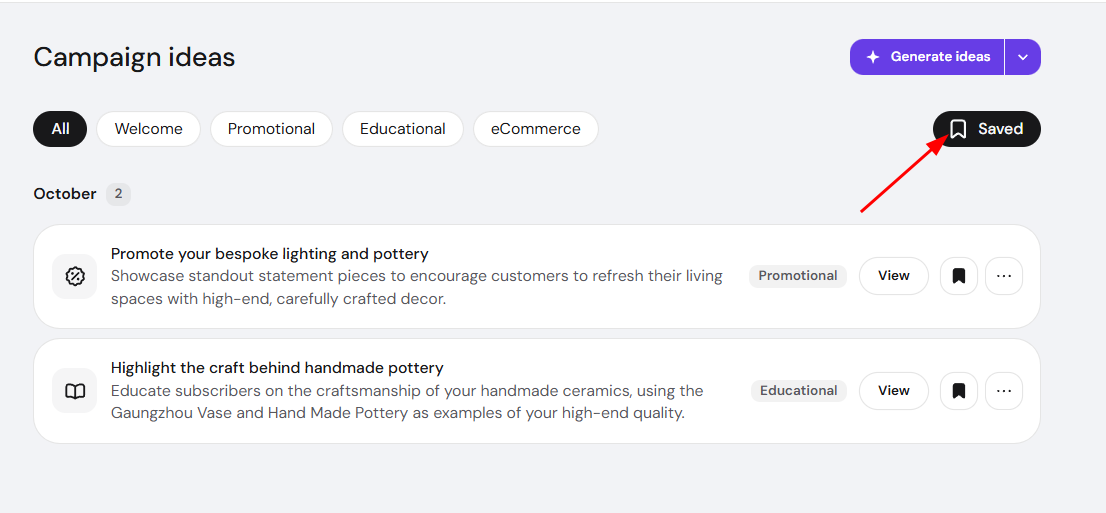
Click the bookmark icon on an idea to save it. Saved ideas show a filled bookmark icon.
Click Saved at the top of the page to show your saved ideas. The list appears under a month heading, such as October.
To dismiss an idea, click the ⋯ menu next to it and select Dismiss idea.
Set up an email campaign from a Campaign idea in Hostinger Reach
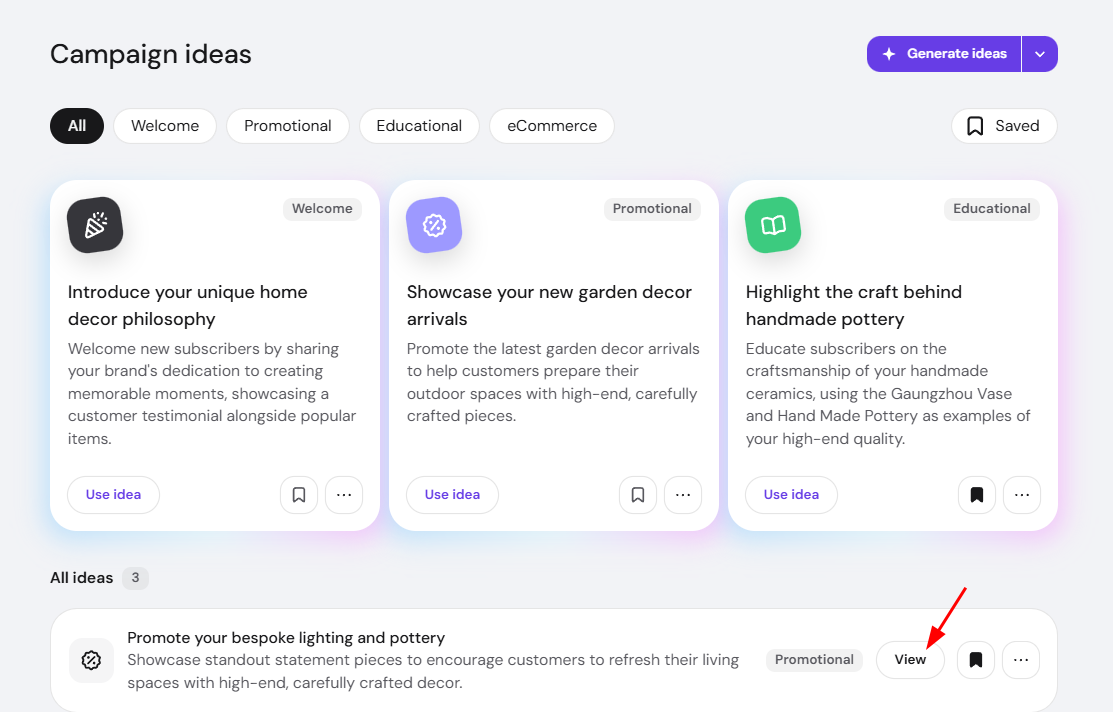
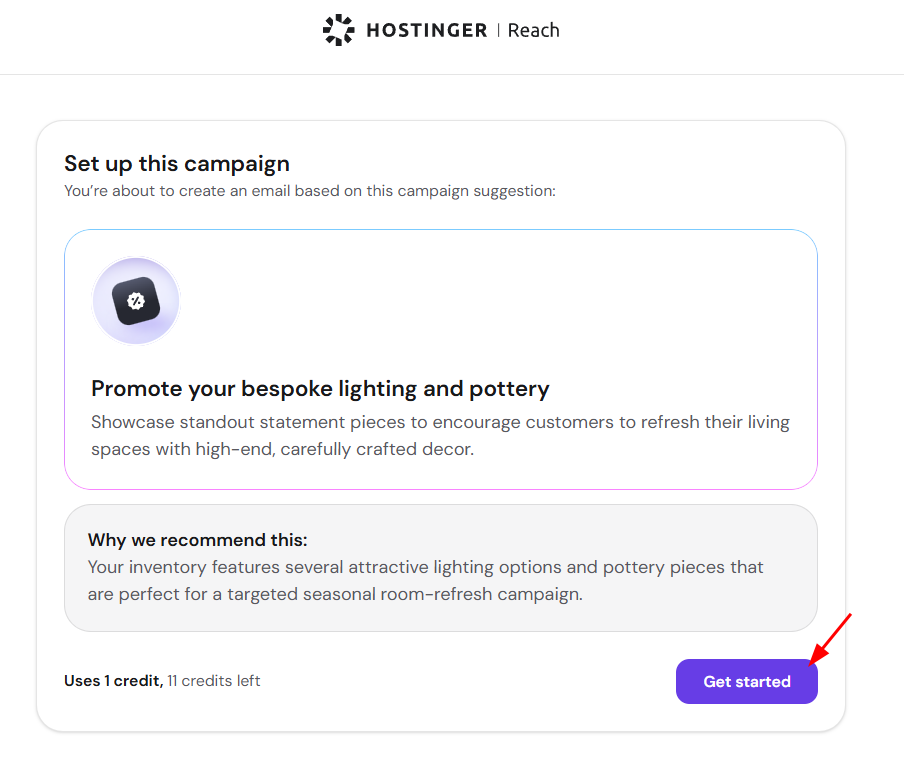
To set up an email campaign from an idea, click View next to the idea, click Get started, and choose a starting point for the email. The Get started button uses 1 credit.
- Click View next to an idea under All ideas.

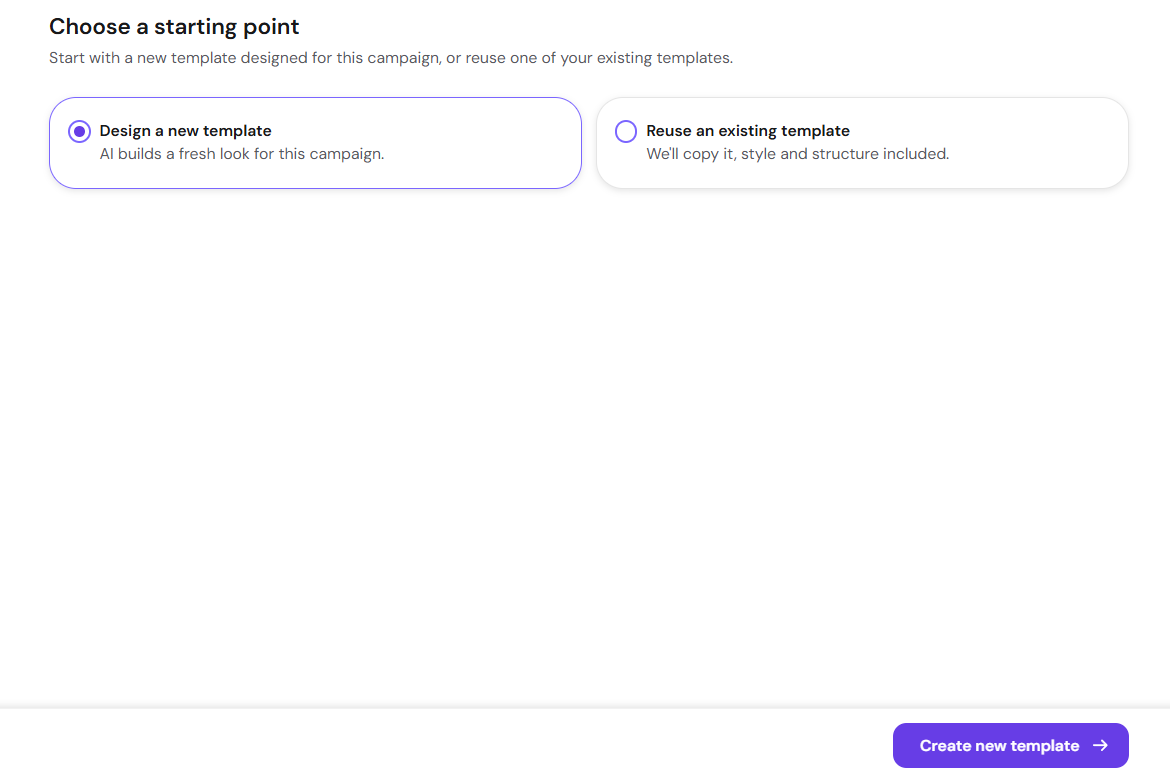
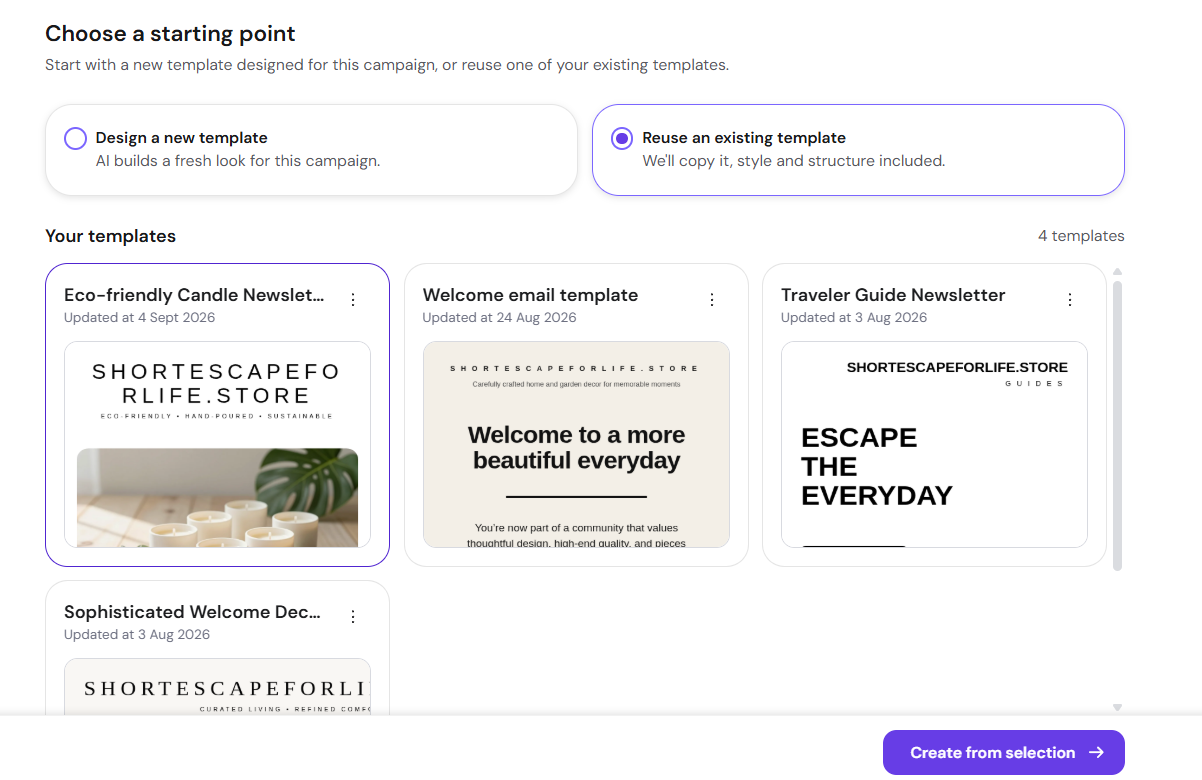
- Click Get started. The Choose a starting point screen opens.

- Select how to start the email:
- Design a new template – AI builds a fresh look for this campaign. Click Create new template.

- Reuse an existing template – Reach copies the template, including its style and structure. Select a template under Your templates, then click Create from selection. A progress message states that this usually takes about a minute.

- Design a new template – AI builds a fresh look for this campaign. Click Create new template.
- Wait for the email editor to open. The Build with AI chat shows a prompt for the email. When you reuse a template, Reach names the copy Duplicate of followed by the original template name.
- Use the Build with AI, Edit, and Code tabs to keep editing the email. See Hostinger Reach: Creating email templates with HTML, AI, and Design tools for details.
To create a campaign from your own description instead of an idea, see Hostinger Reach: How to create full campaign draft with AI.
You now know how to generate, save, and open Campaign ideas to start your next email campaign in Hostinger Reach.
FAQ
How many ideas does Hostinger Reach generate at once?
Hostinger Reach generates 2 ideas for each idea type you select under Generate ideas. Selecting Welcome, Promotional, and Educational generates 6 ideas.
How many credits do Campaign ideas use in Hostinger Reach?
Each selected idea type uses 1 credit when you generate ideas. The Set up this campaign screen also states that the email uses 1 credit.
Does Hostinger Reach create Campaign ideas for my store automatically?
Yes, when a store is connected to Hostinger Reach. Store events such as a new product or a new discount create ideas automatically.
Where do I find the Campaign ideas I saved in Hostinger Reach?
Click Saved at the top of the Campaign ideas page to show your saved ideas.