Dreamweaver tutorial: How to build a website step by step
Oct 21, 2026
/
By Luqmanul M.
/
10 min Read
Adobe Dreamweaver is a website development tool that combines a visual editor with HTML, CSS, and JavaScript code editing. It lets you create and customize web pages, manage website files, and publish your site to a web hosting server.
To build a website using Dreamweaver, start by setting up a local site and creating an HTML page. You can then add content, customize its appearance with CSS, or use a ready-made template to speed up development. Once your website is ready, preview it across different screen sizes and upload the files to your hosting server.
Dreamweaver is useful for users who want control over their website’s code while benefiting from visual editing tools. However, it requires a paid subscription and some knowledge of web development to make full use of its features.
How to build a website with Dreamweaver
To build a website from scratch with Dreamweaver, start by setting up a local site and creating your homepage using HTML. Then, add content, customize the layout and styling with CSS, and preview your changes before publishing. This approach gives you full control over your website’s structure and design without relying on a prebuilt template.
1. Create a new site
In your Adobe Dreamweaver CC dashboard, go to Site -> New Site and a window will pop up.
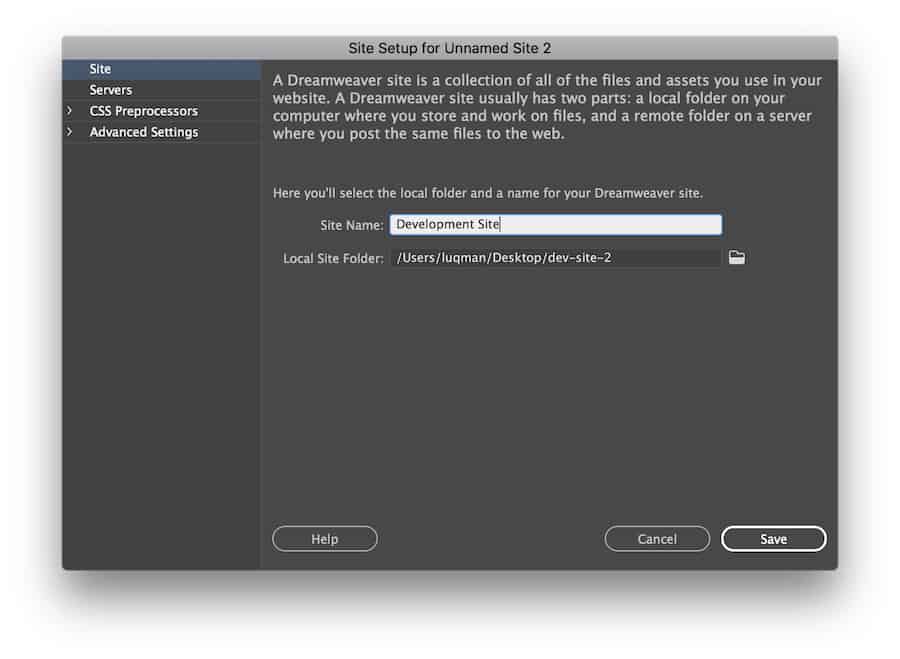
The first step is to name your website and save it in a single folder. This helps to organize the files and will make the uploading process easier.
If you want to include images in your site, you can do so by navigating to Advanced Settings -> Local Info. The images folder should also be created within your site’s folder.
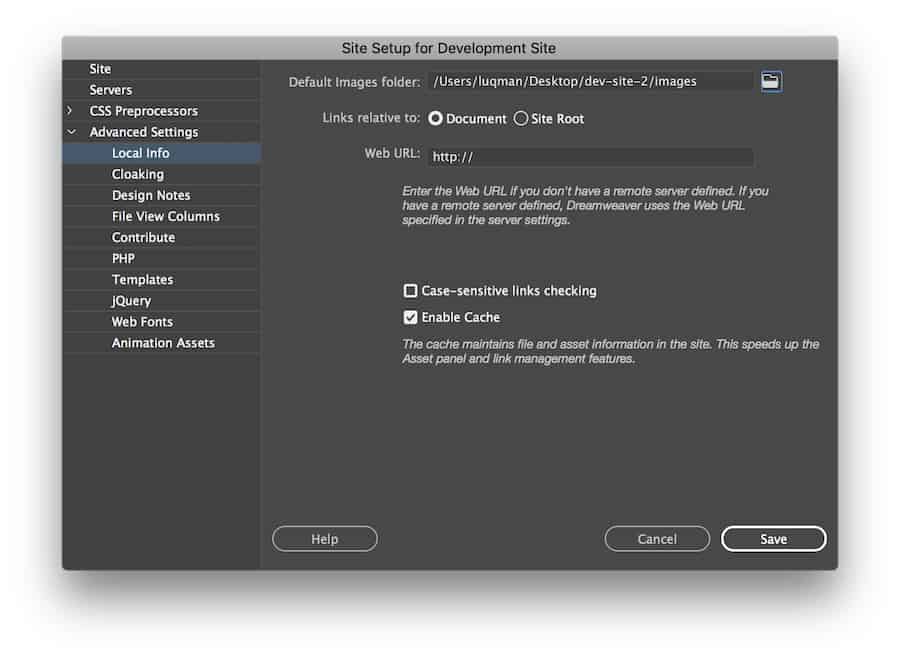
Click Save when you finish.
Before adding content to your website, consider its overall structure and layout. Following a clear website design process helps you organize pages, plan navigation, and maintain a consistent visual style.
2. Create the homepage file
You’ll get a blank workspace to start with. But, take a look at the top-right panel, your site’s files should be there. Now, we will create the homepage file.
Go to File -> New and choose New Document. Select HTML as the document type and click Create. Giving a title to the document is optional at this stage.
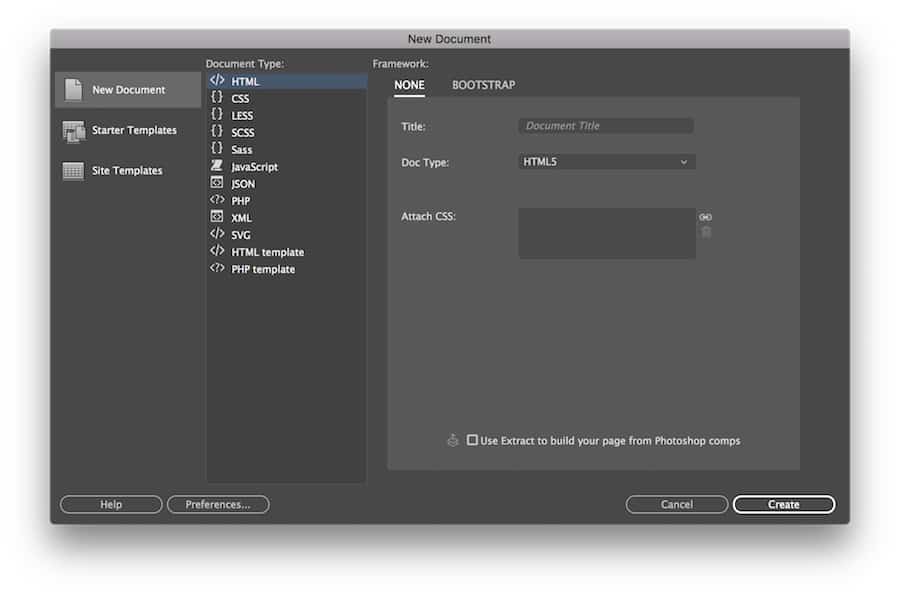
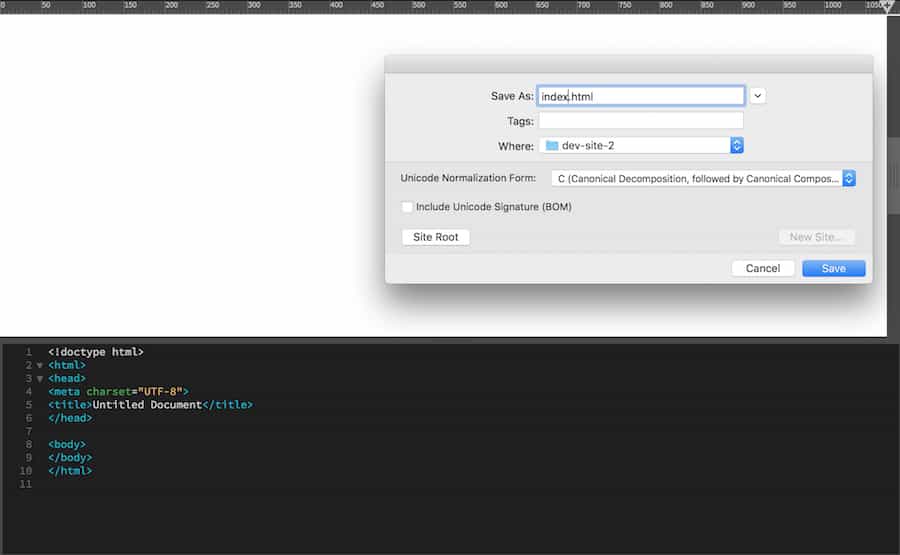
You’ll be directed back to the workspace and will see a white page with several lines of HTML code. Save that HTML file as index.html, and place it within the site’s folder.
3. Create a header
We’re going to create the header for the website. This usually consists of the logo and the name of your site.
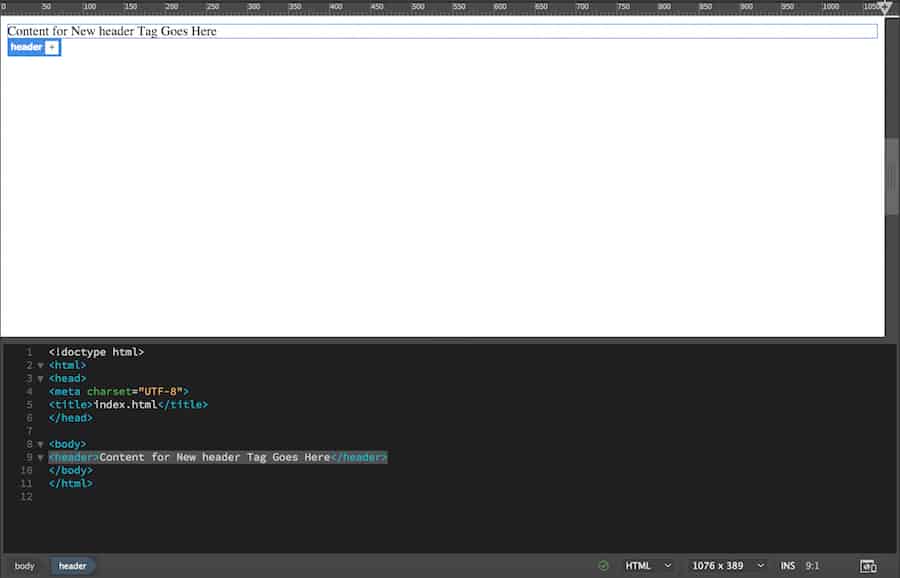
Click on the white page or choose a specific place within the <body> element on the editor. Go to the top-right panel and click Insert. This will give you a list of common HTML elements that you can add to your page.
Search for the Header element.
Click or drag-and-drop it to your workspace, and it will add to your website along with its code.
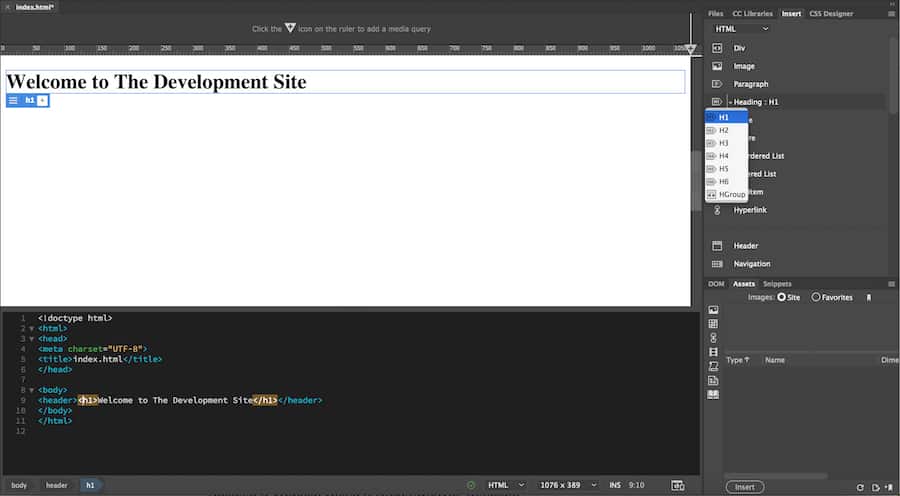
Next, we’ll turn the header into a heading with <H1>…</H1> tag. Proper tags are important for SEO purposes and to inform the search engine what is your site about. Mark the text in that section and go to the Insert panel. Search and click the Heading: H1.
After that, change the text to your website’s title. It has to be something descriptive and representative. Here, we’ll use “Welcome to The Development Site.”
4. Add home navigation
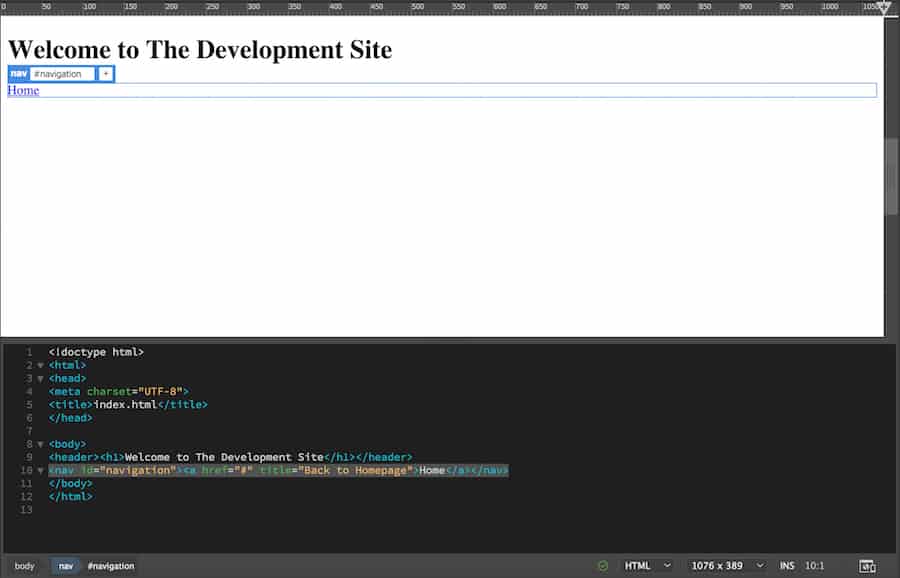
To add a navigation button, add a line after the header by pressing return or enter. Now go to the Insert panel and search for the Navigation element. When you click it, a window will pop up. Write navigation as the ID and click OK.
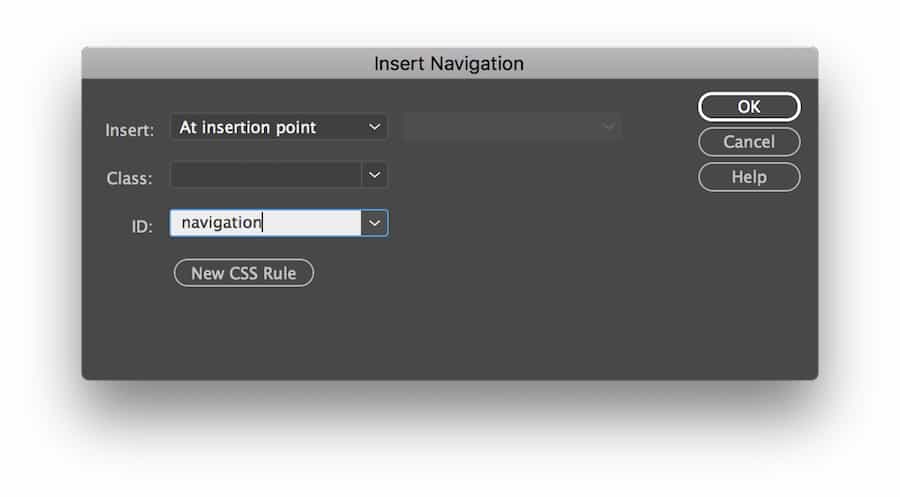
This will add a navigation element to the editor. While you’re in the element content, look for Hyperlink in the Insert panel. Click it and fill in the details as follow:
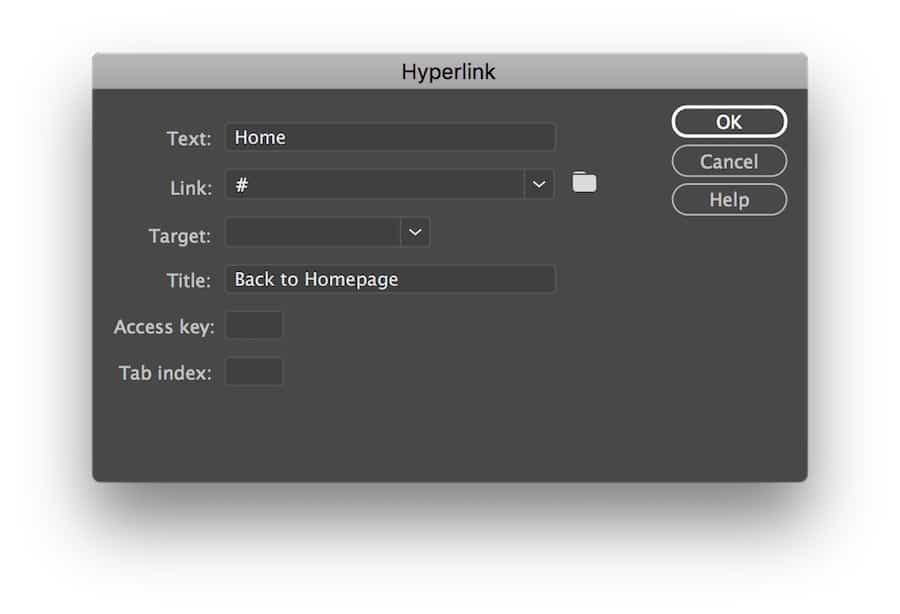
Important! The link will correspond with the page you’ll navigate to on your website. Currently, we’re using a hashtag as a placeholder.
When you finish, click OK. Now it is a clickable home link.
5. Add a website description
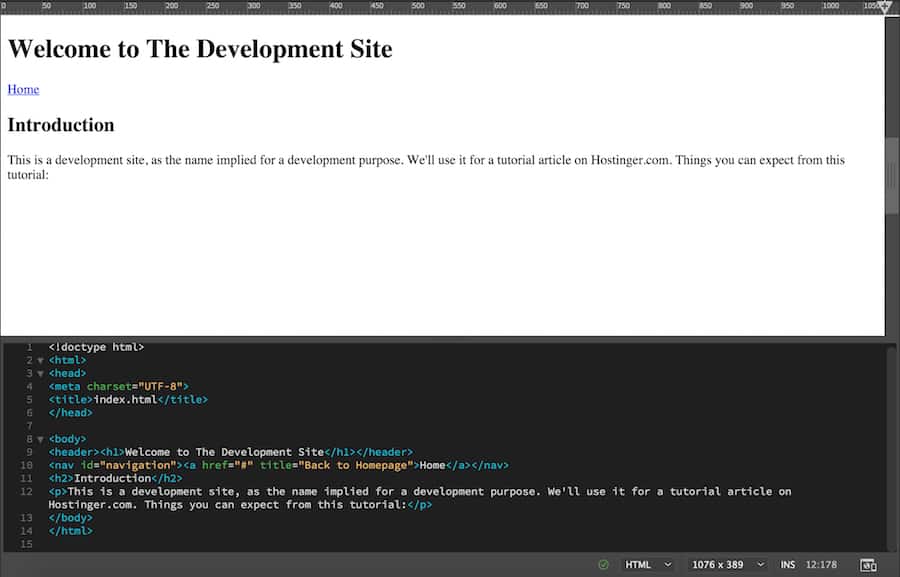
We’ll insert a secondary header, paragraph, and several bullet points as the description.
Add a line after the navigation code and click Header: H2 and Paragraph in the Insert panel. It will add the <h2> and <p> tag on the editor. Put your content in.
To add bullet points, add another line below the paragraph code. Go to the Insert panel and click the Unordered List. It should add the <ul> tag on the editor. While you’re at it, click List Item in the Insert panel and it’ll add the <li> tag inside the <ul> tag.
For HTML lists, you have to manually add several tags yourself consistent with the number of your points. Ours will look like this.
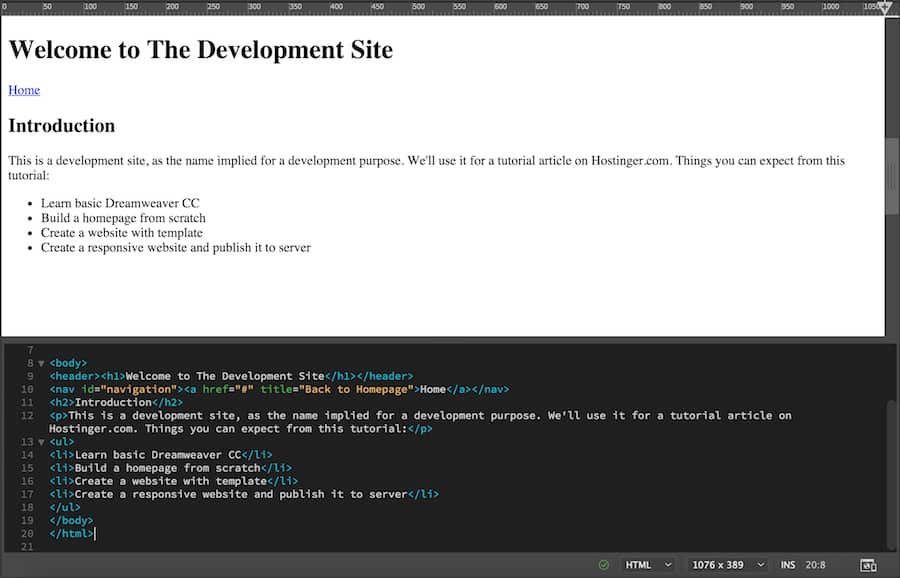
You’ve essentially created the basic homepage structure. You can also add more content such as forms, videos, and images, but this is okay for a starter.
While it looks dull at the moment, we’re going to add the style sheet to make it more appealing.
6. Create a CSS file
The Cascading Style Sheets (CSS) language is used to stylize elements in HTML. Think about HTML as the structure of the page, and CSS as the aesthetic part that makes the page content visually appealing.
Now, the first thing to do is to give your Header an ID. Go to the bottom-right of the Dreamweaver panel and choose DOM panel. You’ll see an overview of your website’s structure there.
Click Header, and you’ll notice it will mark your header in blue, along with the label and the plus sign.
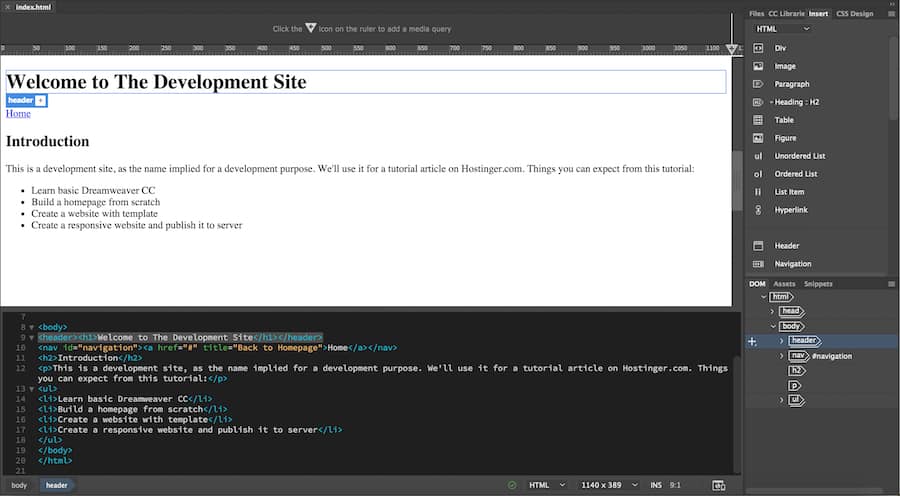
Click the plus sign and type #header. The hashtag means we’re assigning an ID to that element. Press return or enter. In the upcoming menu, select a source: Create a New CSS file.
A new window will pop up. Choose Browse and locate your site’s folder. Type style.css and click save. Then, click OK.
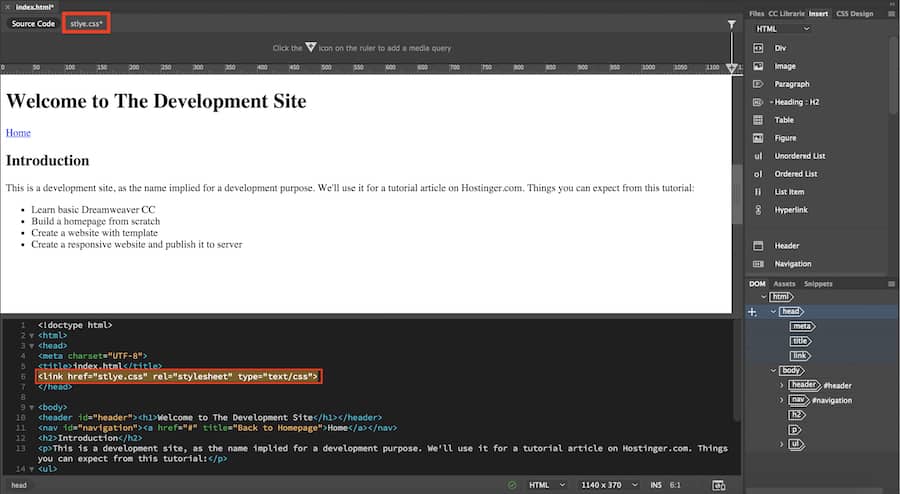
You’ll notice a new style.css appear at the top of the live view and new link element on the code editor.
Do the same for all elements that need stylization. This time, instead of creating a new CSS file, save it in the same style.css file that you’ve created earlier.
Now, you’re ready to style it using CSS selector.
7. Create a CSS selector for the website title
We will change the font and align our website title to center.
Mark the H1 under your header from the DOM panel. Then, choose CSS Designer from the panel above.
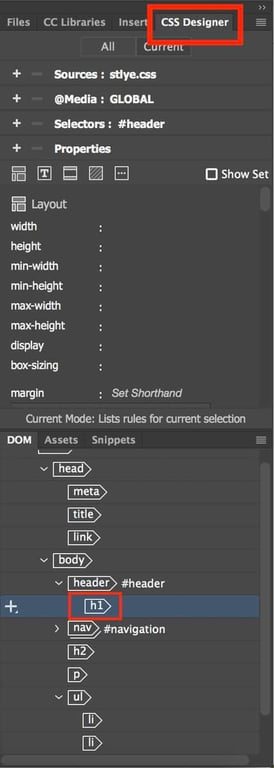
Click the plus sign right behind the Selectors. It will automatically propose a name like #header h1. Hit return.
Important! This means that you’re only targeting the element named h1 inside the #header element. This way, the style will only apply to the written text (your website title) and not the header element itself.
8. Change the title font
Make sure the selectors point at #header h1.
Click Properties and uncheck the Show Set to unlock the Layout, Text, Border, Background, and More options.
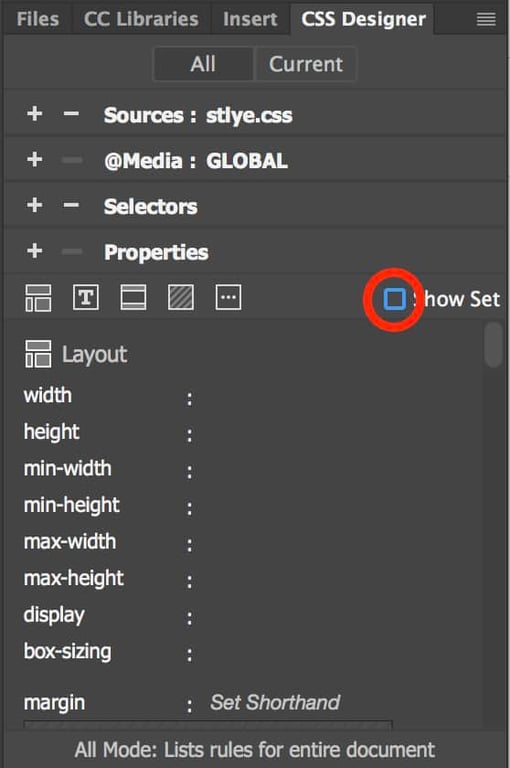
Click the Text option and hover over font-family and click on default font. It will give you plenty of options to choose from.
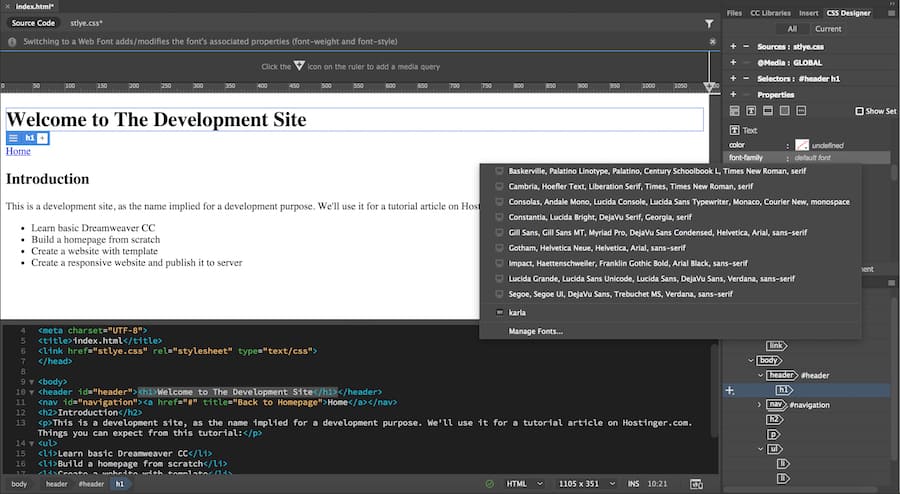
Additionally, the Manage Fonts menu will give you another range of options from the Adobe Fonts database.
Choose your preferred font by clicking it. Here, we’re using one called Karla. When you finish, it will change your website’s title font and add the necessary code to the Source Code and style.css.
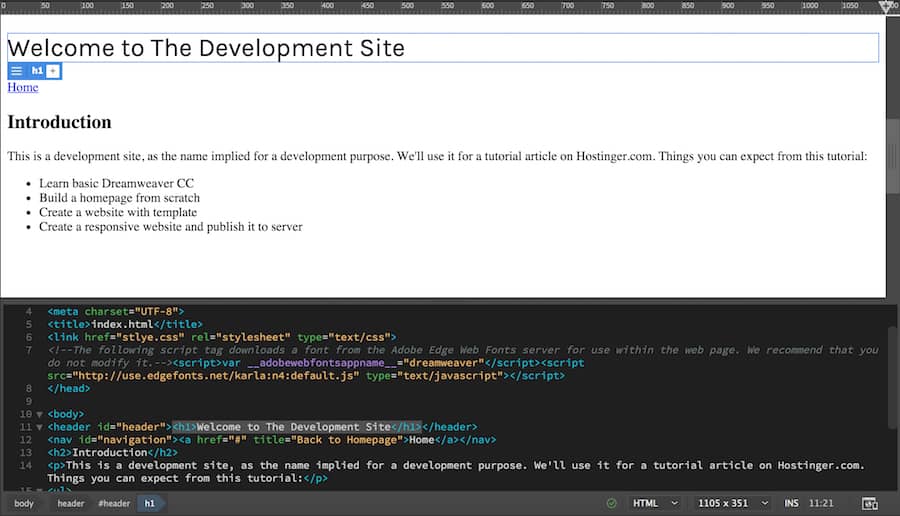
9. Align the title to center
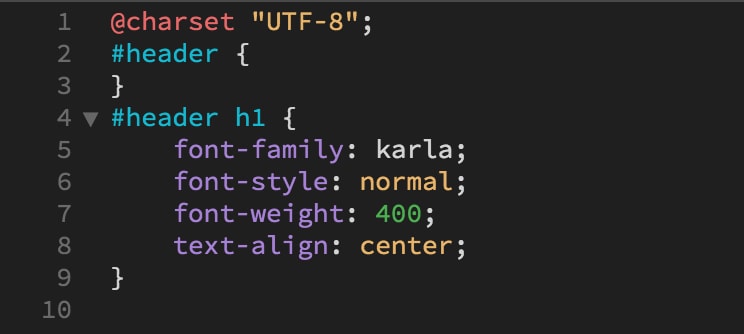
In the Text option, hover over text-align and click center. You’ll notice the change happen and additional code added to the style.css.
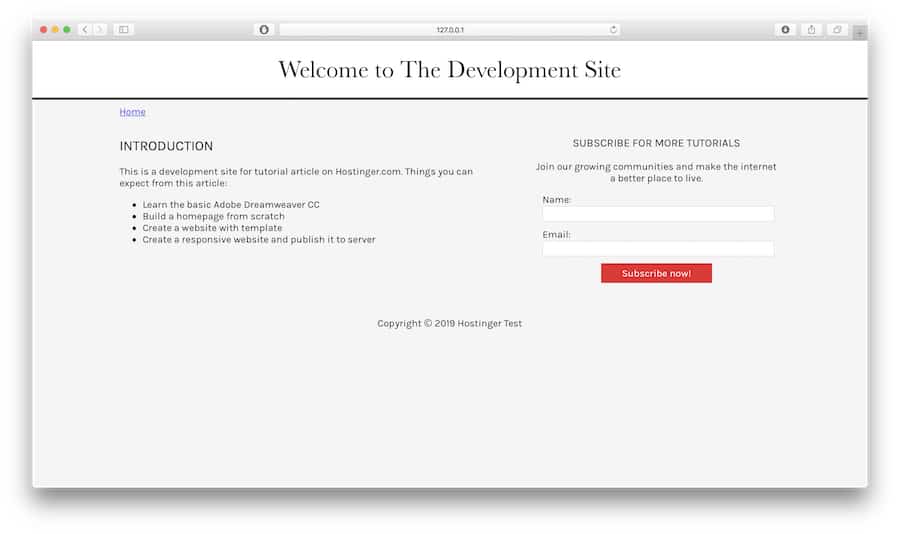
Make all the necessary changes to your website’s content. For this tutorial, we’ve also added more content and styled our site. Here is the final look:
How to build a website using a Dreamweaver template
You can also create a website with a premade template in Dreamweaver. With a template, you’ll be one step ahead and get the advantage to see how the final site will look like along with the code that followed.
Let’s go through another Dreamweaver tutorial and learn how to use a template:
1. Choose the template
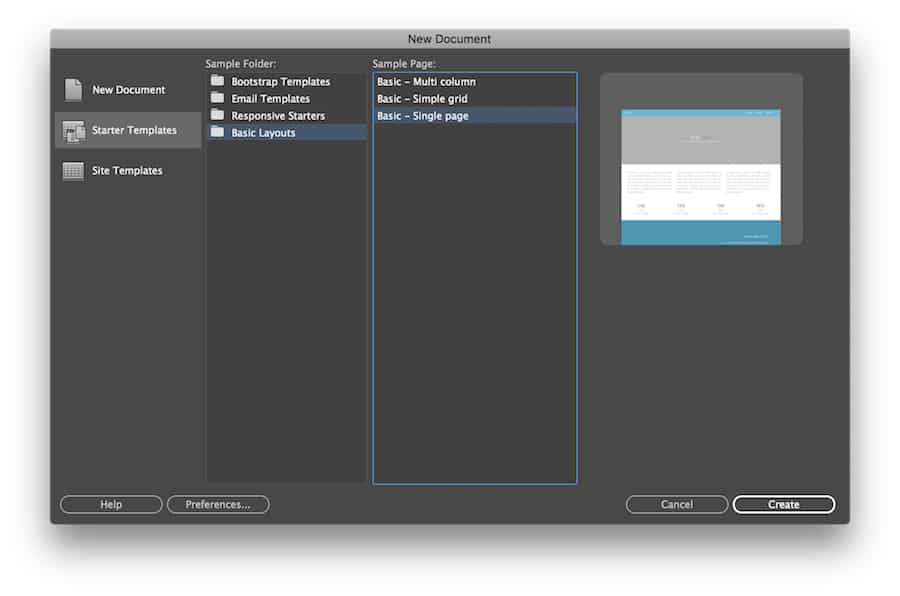
To do that, go to File -> New. Choose Starter Templates -> Basic Layouts. We’ll use the single page for this tutorial. Click Create.
Dreamweaver gives you all the necessary structure and style for your website. All that’s left is to add your content and tweak the style to your needs.
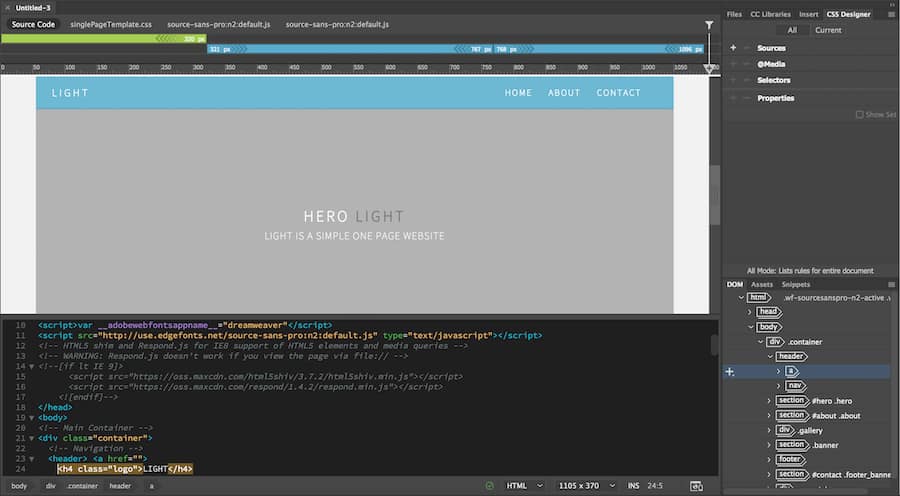
In this tutorial, we will only do basic changes like editing the website’s title and description, and also change the website’s background color.
2. Change the logo and header text
To change the text logo, click the h4 .logo in the DOM panel. It will highlight the code line on the editor, change it to whatever name you want.
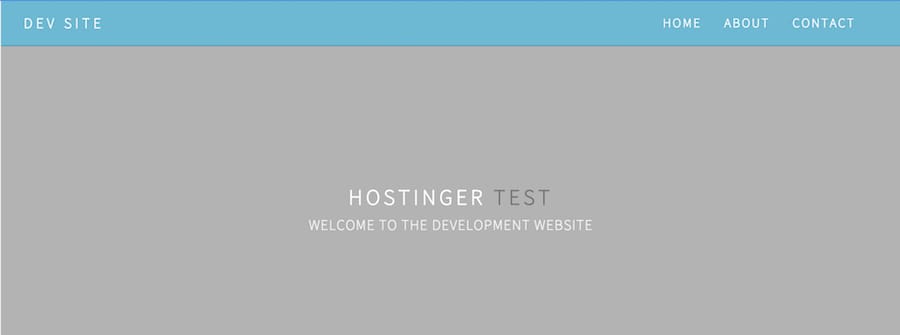
Alternatively, you can also double click the logo box in the live view and change the text from there. Do the same for website header and tagline. Ours changed to something like this.
3. Change the header background color
To change the color of the background, go to the .css file and look for the header element. In this case, it is .hero. Look for the background-color line, and you’ll notice a certain cryptic number.
That number is actually the HTML color code. Every color has its own number representation that you can check on the official website.
The cool thing about Dreamweaver, you don’t have to go somewhere else to figure out the color code. Simply block that number, double-click it, and choose Quick Edit. It will pop up a color picker window, and you can adjust it from there.
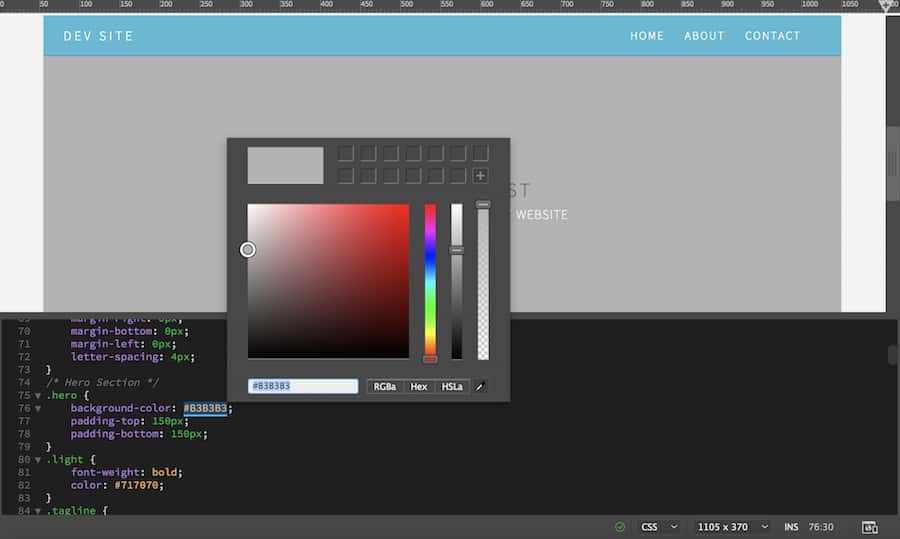
We can change ours to be something like this.
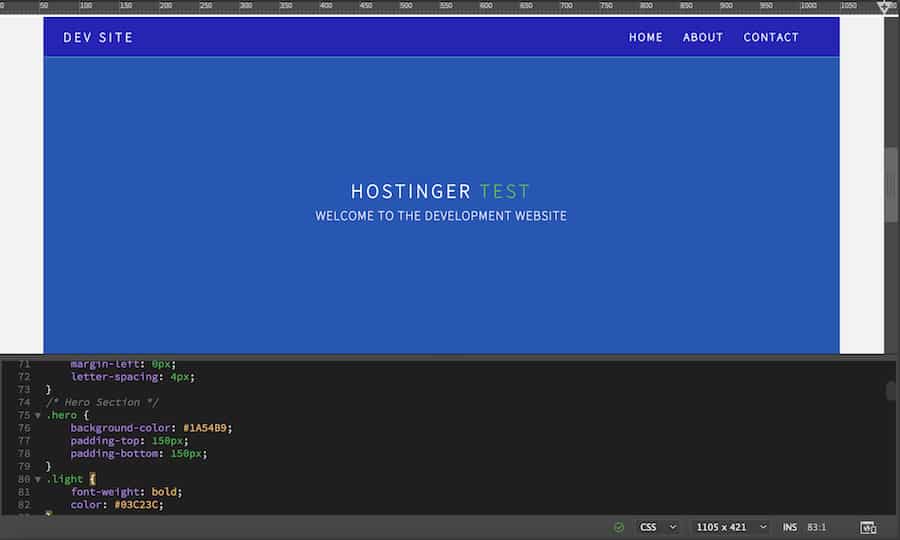
Of course, you still have some work to do. There’s content you need to add and styles to adjust. These are just basic changes that you can make to the template.
When you finish working on the website, you can then upload it to your server.
How to preview your Dreamweaver website on mobile
In the mobile era, having a responsive website is a must. Otherwise, many of your visitors will abandon the website. And one of the cool features in Dreamweaver is that you can preview how your site looks on mobile devices. Here’s how to do so:
Go to Real-time Preview at the bottom-right of your workspace. Open a browser on your phone and scan that barcode, or type the URL manually.
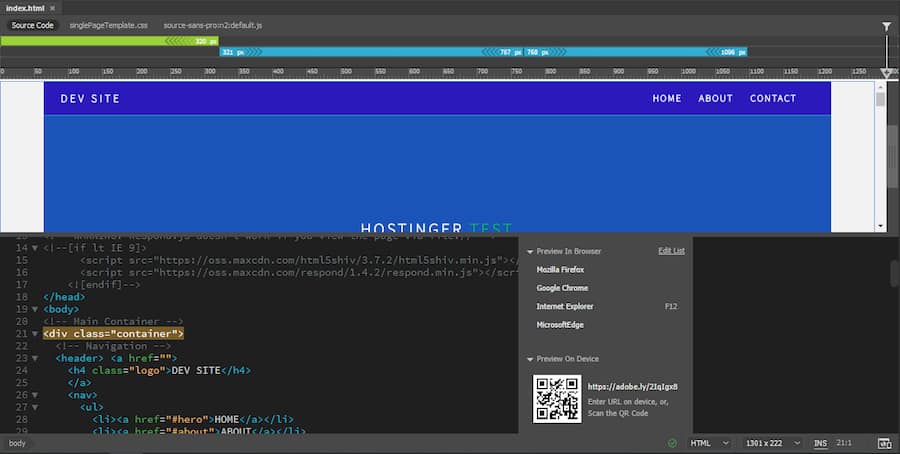
Important! To do this, you have to use the same Adobe ID on your Dreamweaver and mobile device. Also using the same WiFi network, and have Javascript and cookies enabled.
Alternatively, you can use the built-in mobile view feature in Dreamweaver. Head over to the Windows Size menu and choose your device option.
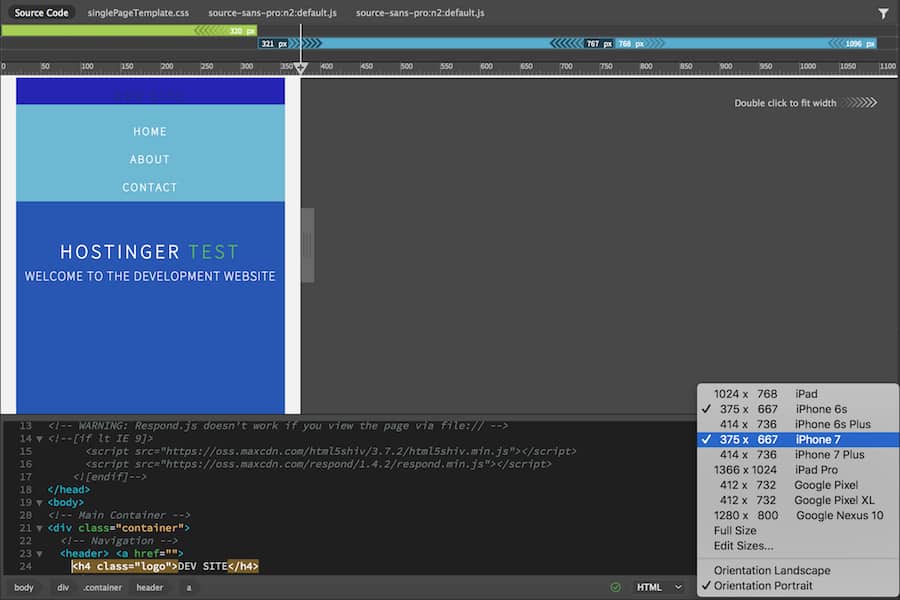
You should be aware that the templates are predominantly made to be mobile-friendly. But, this is not the case if you build your website from scratch.
To do that, you have to add media queries in your CSS code and adjust the pixel size and screen percentage accordingly.
How to publish a Dreamweaver website
When you finish building a website, you can publish it online from within Dreamweaver. To do so, all you need to is an active web hosting plan with an FTP account set up.
To establish an FTP connection with Dreamweaver, go to Site -> Manage Sites. In the following window, choose the website that you’ve developed, and click the pencil icon at the bottom. A new window will pop up. Go to Servers.
1. Create a new FTP connection
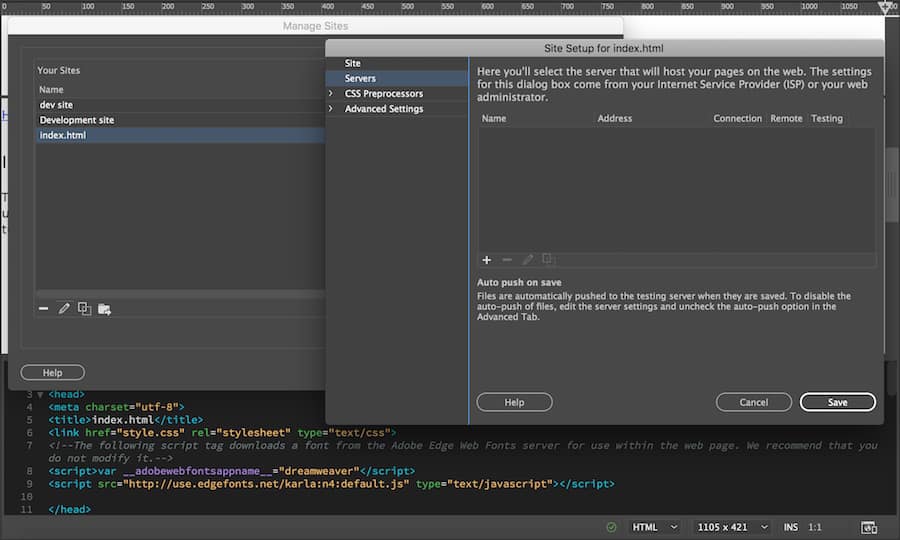
Click the plus icon on the Servers window, and it will display the FTP connection form. You need to fill that out.
If you’re on Hostinger, you can find the FTP details on your Hostinger dashboard. Go to your Hosting Account dashboard -> FTP Accounts. If you forgot the password, feel free to change it.

2. Fill out the connection details
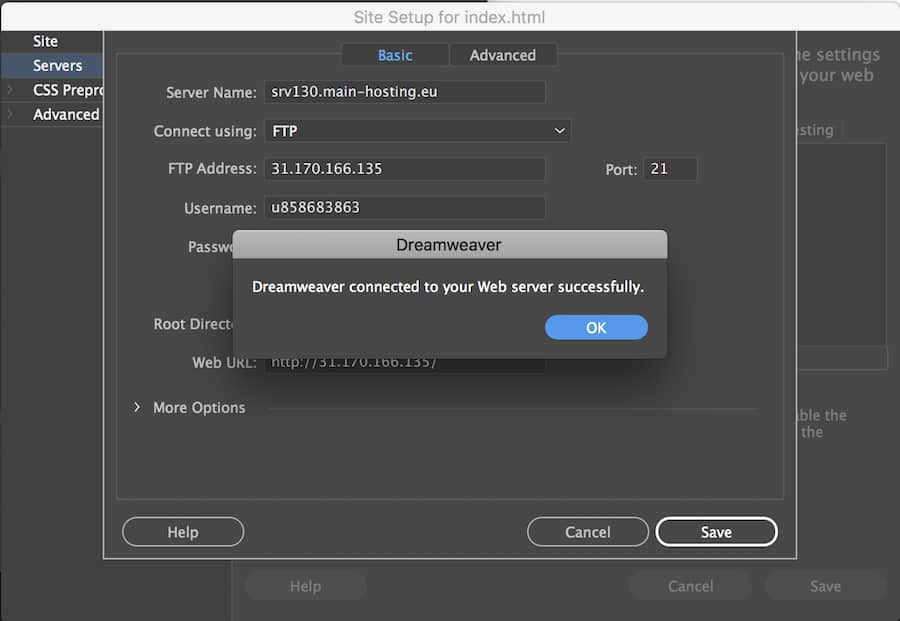
Fill out the form using the FTP Address, Username, and Password you’ve located before. Then click Test. Dreamweaver will tell you if the connection is successful. Don’t forget to click Save.
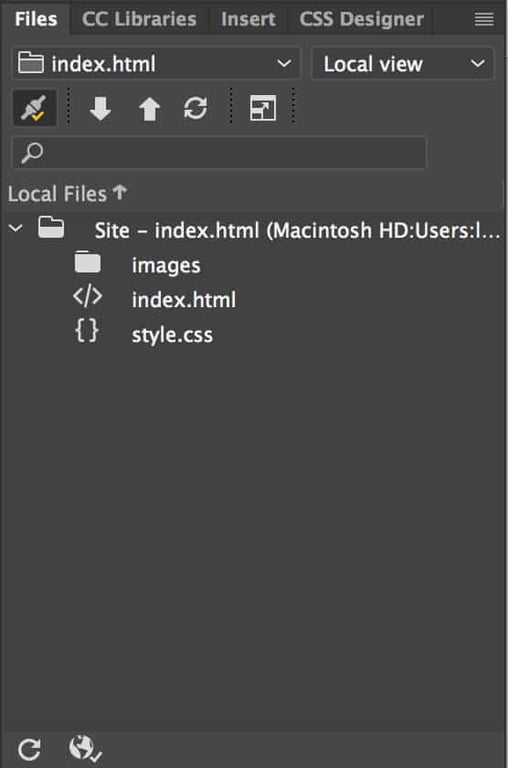
From your Files panel you can now initiate a connection to the server, along with options such as Get and Put and Synchronize.
What are Dreamweaver’s features and limitations?
Adobe Dreamweaver combines visual website editing with code development tools, making it useful for designing web pages and working directly with HTML, CSS, and JavaScript. Its features help streamline website creation, but the software also has limitations, particularly when it comes to pricing, ease of use, and website maintenance.
Key features of Adobe Dreamweaver
Dreamweaver provides several tools for creating, customizing, and managing websites:
- Visual editing and live preview. Design web pages using a visual interface and see how changes affect the layout without constantly switching to a browser.
- Built-in code editor. Write and edit HTML, CSS, and JavaScript with syntax highlighting, code hints, and other tools that make development easier.
- Responsive web design. Use CSS media queries and Bootstrap integration to create layouts that adapt to different screen sizes.
- Starter templates. Build websites faster using predefined page layouts that you can customize to match your design.
- Git integration. Track code changes and manage different versions of your website directly within Dreamweaver.
- Creative Cloud Libraries. Access shared design assets, including images and graphics, across compatible Adobe applications.
- Website publishing tools. Connect to a web hosting server and upload website files directly from Dreamweaver.
These features make Dreamweaver particularly useful for developers and designers who prefer combining visual editing with direct control over website code.
Limitations of Adobe Dreamweaver
Despite its website development features, Dreamweaver has several drawbacks to consider:
- Learning curve. Although the visual editor simplifies basic tasks, customizing complex layouts and troubleshooting issues often requires HTML, CSS, and JavaScript knowledge.
- Subscription cost. Dreamweaver requires a paid Adobe subscription, which may not be worthwhile for occasional website projects.
- Manual website maintenance. Unlike hosted website builders, Dreamweaver doesn’t automatically handle web hosting, server configuration, backups, or website updates.
- Limited no-code functionality. While Dreamweaver provides visual editing tools, creating a complete website without writing or modifying code can be challenging.
Dreamweaver is a practical choice for users who want control over their website’s structure and code. However, beginners looking for a simpler way to build and manage a website may find a dedicated website builder more suitable.
Pro Tip
If you feel like Adobe Dreamweaver CC is not your thing, you’re not alone. In fact, some 43.5% of websites on the internet use WordPress (as of 2025). It’s even better if you use Hostinger's WordPress hosting, as our AI tools and 24/7 support make things really easy. Alternatively, you can use our AI Builder to build your own website easily too.
How much does Adobe Dreamweaver cost?
Adobe Dreamweaver starts at $22.99/month in the US with an annual subscription billed monthly. The plan includes access to Dreamweaver and additional Adobe Creative Cloud benefits.
You can also get Dreamweaver through Adobe Creative Cloud Pro, which includes more than 20 creative applications. This plan costs $69.99/month with an annual commitment billed monthly, although promotional discounts may be available.
Adobe offers a seven-day free trial, allowing you to test Dreamweaver before purchasing a subscription.
Prices vary by region, billing cycle, and available promotions. Check the official Adobe Dreamweaver pricing page for the latest rates.
Improve and maintain your Dreamweaver website
Once you’ve published your Dreamweaver website, check that its pages, images, navigation links, and styles display correctly. Test the website on different devices to identify any layout or usability issues.
To keep improving your website, focus on these areas:
- Optimize website performance. Compress images, minimize unnecessary code, and check loading times to improve the user experience.
- Improve accessibility. Add descriptive image alt text, use clear navigation, and ensure your website works with keyboard controls.
- Maintain your website. Back up your files, fix broken links, and test changes before uploading them to the live server.
As your website grows, regular maintenance becomes essential. Having a website maintenance plan can help you identify performance, security, and usability issues before they affect visitors.
All of the tutorial content on this website is subject to Hostinger's rigorous editorial standards and values.

Luqman is a self-proclaimed social scientist. He is passionate about education, technology, and everything in between. He wants to help create a high-quality education system. Having spent the past four years as a social researcher and blog guru, he lends his skills to Hostinger's digital content team. As for free time, he enjoys reading scientific (and not-so-scientific) literature with a cup of black arabica coffee as a companion.