The Hostinger Reach contacts page shows your audience stats and every contact in one table. Four overview cards at the top count your total contacts, email subscribers, WhatsApp subscribers, and new contacts from the last 30 days. Below the cards, you can search contacts by email or phone number, filter them by tag, and sort the table by column.
Open the Contacts page in Hostinger Reach
The Contacts page is under Audience in the Hostinger Reach sidebar.
- Go to Hostinger dashboard → Email marketing.
- Locate your subscription and click Open Reach.
- Go to Audience → Contacts.
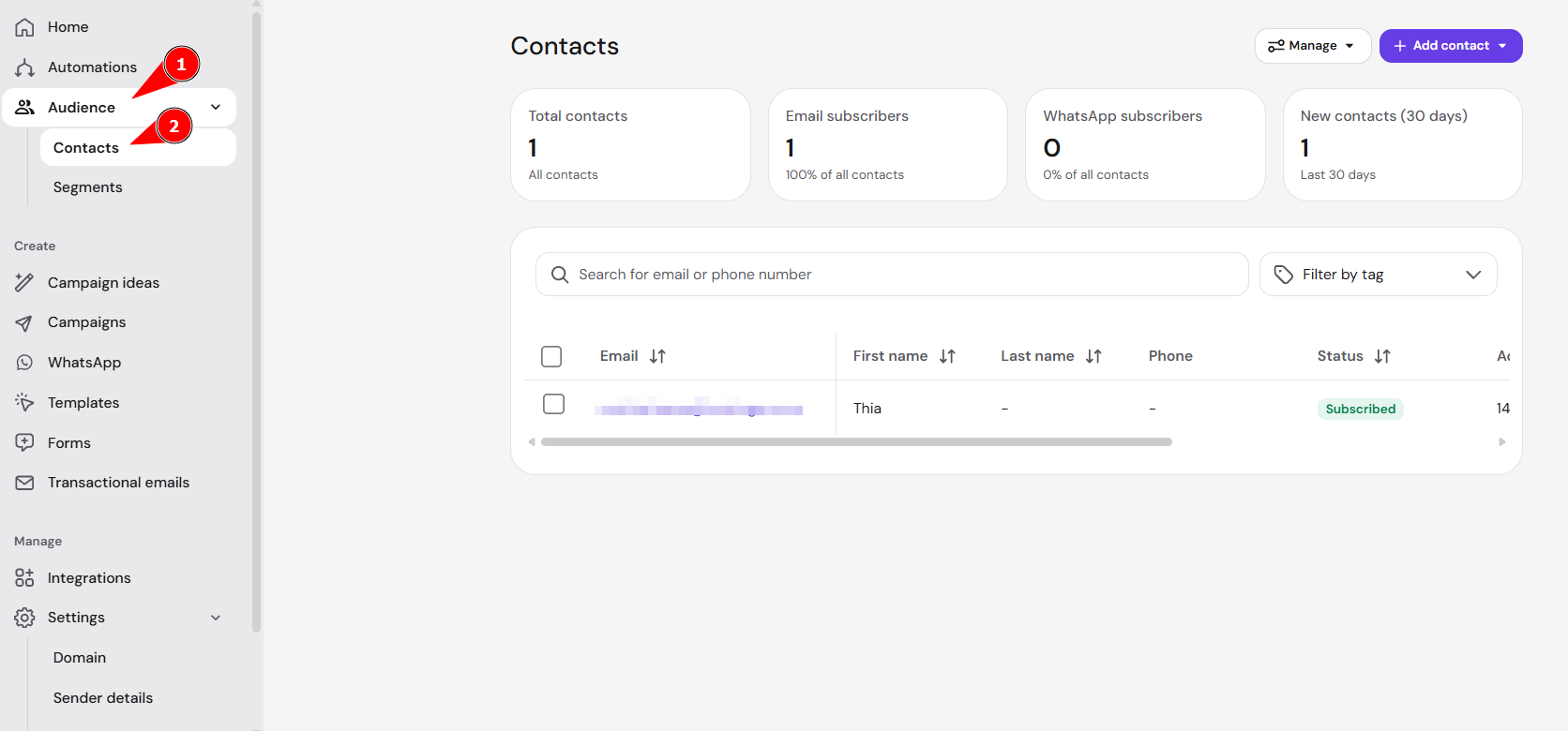
Audience overview cards on the Hostinger Reach Contacts page
Four overview cards above the contacts table summarize your Hostinger Reach audience. The cards always count your whole Reach workspace, even when you search or filter the table.
|
Card |
What it shows |
|
Total contacts |
The number of contacts in your Reach workspace. |
|
Email subscribers |
The number of contacts subscribed to email, with their share of all contacts as a percentage. |
|
WhatsApp subscribers |
The number of contacts subscribed to WhatsApp, with their share of all contacts as a percentage. |
|
New contacts (30 days) |
The number of contacts added in the last 30 days. |
Search and filter contacts in Hostinger Reach
Use the search bar above the contacts table to find a contact by email address or phone number. Use the Filter by tag dropdown next to the search bar to show only contacts with a specific tag. Searching and filtering change the contacts table only, not the overview card counts.
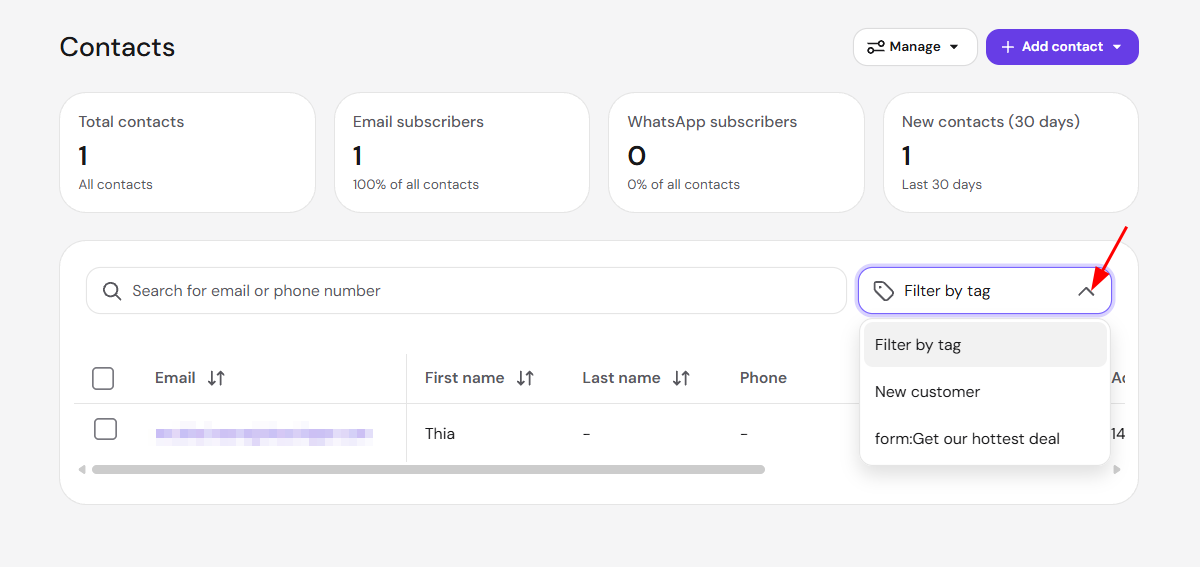
Contacts table columns in Hostinger Reach
The Hostinger Reach contacts table has eight columns: Email, First name, Last name, Phone, Status, Added, Tags, and Details. The Status column shows the contact’s subscription status, for example Subscribed. The Added column shows the date the contact was added to Hostinger Reach.
- Sort the table by Email, First name, Last name, Status, or Added by clicking the arrows next to the column name.
- Scroll the table horizontally to see more columns. The Email column stays fixed, so you always know which contact a row belongs to.
- Check the Tags column to see the contact’s tags as labels. Contacts without tags show a dash (—).
- Hover over in the Tags column to see tags that don’t fit in the cell.
- Click the email to open the contact’s profile.
Add and organize contacts from the Hostinger Reach Contacts page
The Add contact and Manage buttons in the top-right corner of the Contacts page open the tools for adding and organizing contacts.

- Add contact → New contact adds a single contact by hand, as described in Hostinger Reach: How to add Contacts.
- Add contact → Upload .CSV imports contacts in bulk, as described in Hostinger Reach: How to import contacts via CSV.
- Add contact → Hostinger Ecommerce syncs contacts from your online store, as described in how to connect and use the Hostinger eCommerce integration.
- Add contact → AI Builder syncs contacts from your Hostinger AI Builder website forms, as described in Hostinger Reach: How to integrate with Hostinger AI Builder manual mode contact forms.
- Add contact → WordPress syncs contacts from your WordPress site forms, as described in How to integrate WordPress with Hostinger Reach.
- Manage → Custom fields stores extra contact details, as described in Hostinger Reach: Custom contact fields and how to use them.
- Manage → Tags creates and manages contact labels, as described in Hostinger Reach: Assigning tags to contacts.
With the overview cards, search, and the Tags column, you can check your audience size and find the contacts you need without opening each contact profile.