Import contacts to Hostinger Reach in bulk by uploading a CSV file that includes an Email column. Go to Audience → Contacts, click Import contacts, and upload your file. Then name a segment, add tags, and complete the import.
Before you start
Make sure to have:
- An active Hostinger Reach subscription.
- A contact list saved in
.csvformat. - An Email column included in your file (required).
Upload your contacts to Hostinger Reach
To import your subscriber list:
- Go to Hostinger dashboard → Email marketing.
- Locate your subscription and click Open Reach.
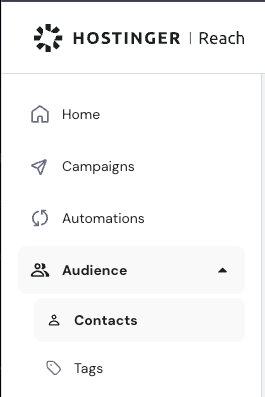
- Navigate to Audience → Contacts.
- Click Import contacts.
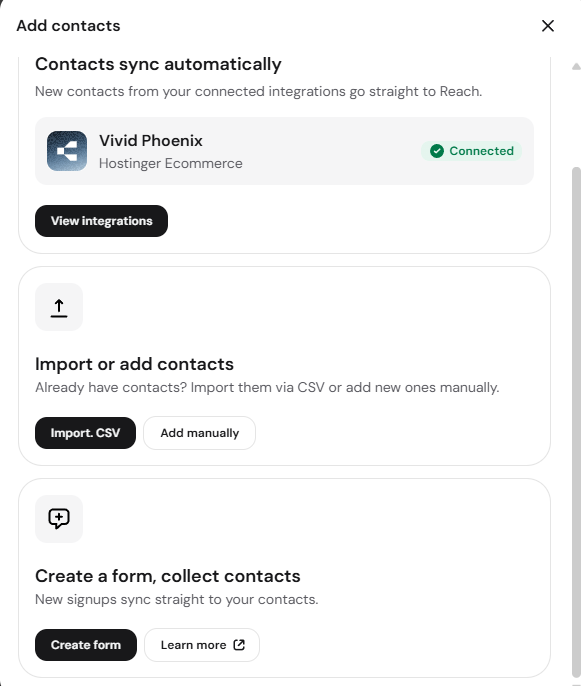
- If no contacts have been added yet, the option will appear after you click Add contacts:
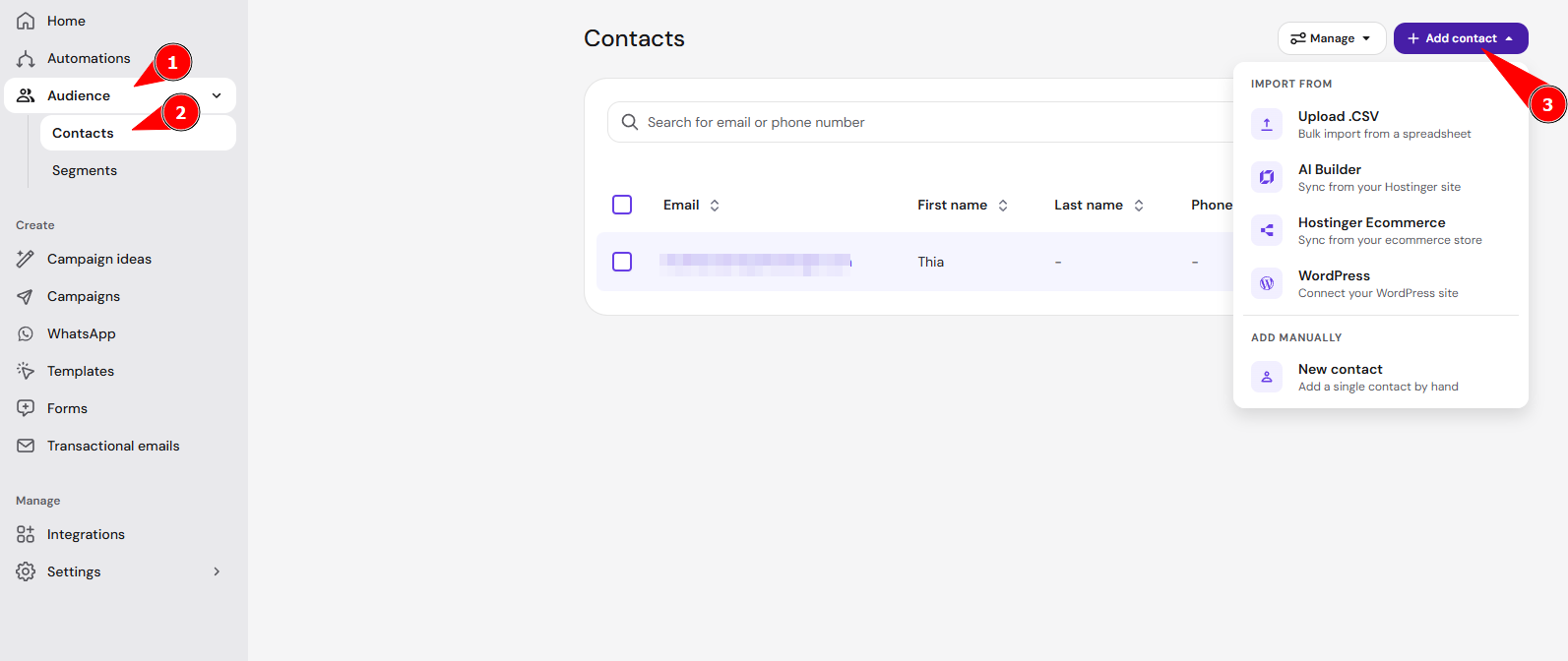
- If contacts already exist, click the Add contact dropdown and select Upload .CSV.
- If no contacts have been added yet, the option will appear after you click Add contacts:
- Upload the file by selecting it from your device or dragging it and dropping it into the upload area.
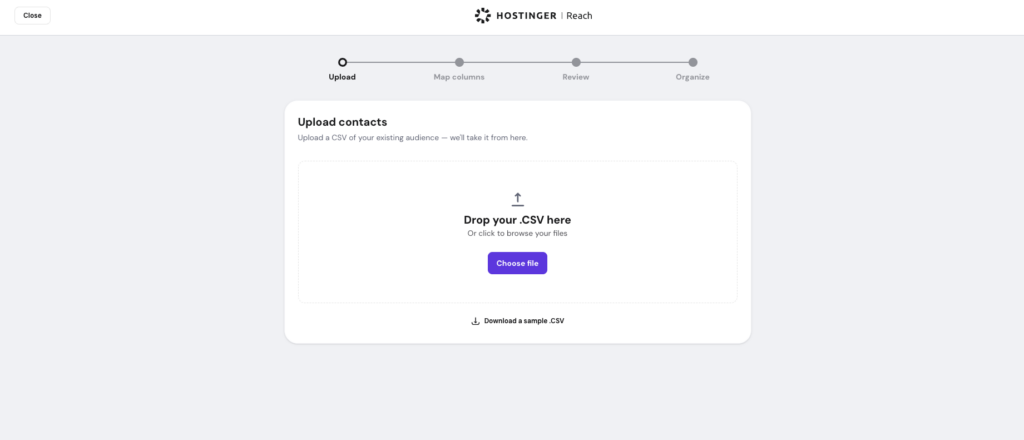
You can also download the CSV template at this step and use it to prepare your data before uploading.
Complete the import
After uploading the file, review the import details and configure the following:
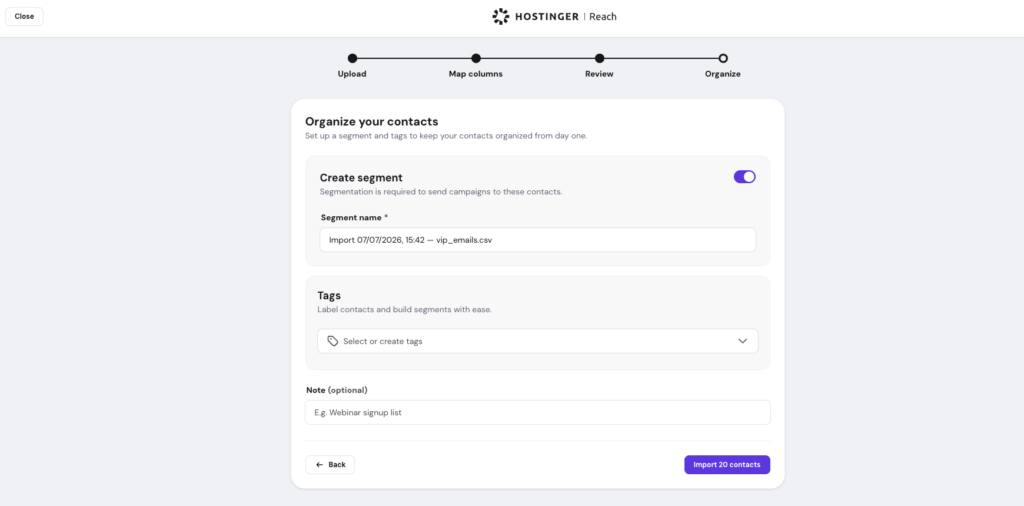
- Create segment: Segmentation is required to send campaigns. Enter a segment name or use the suggested one.
- Tags: The segment name is automatically applied as a tag. You can add additional tags if needed.
- Note (optional): Add any internal information about this import.
- Click Import contacts to complete the import.
To use another source file, click on Upload different file and repeat the process.
Troubleshooting common import issues
If some contacts cannot be imported, you will be able to download the error report in the Review step. We recommend overseeing the issues and re-uploading again.
Error: Unsupported file type
In case you try to upload a file and the file type is not supported, follow these steps:
- Ensure the file is in
.csvformat, not Excel (.xlsx).- In Excel or Google Sheets, use File → Download/Save As → CSV (Comma-separated values).
- Do not upload compressed files (
.zip). - If special characters cause issues, re-save the file using standard CSV encoding.
Duplicated email addresses
If duplicate email addresses exist in the file, you will be able to choose whether to skip them or update them with data from your file. In case any duplicates will be found, you’ll see that in the Review step.
Once the import is complete, your contacts appear in Hostinger Reach with the segment and tags you set, ready for your next email campaign. See Hostinger Reach: How to add contacts for other ways to grow your audience.
NOTE
- Ensure you have the necessary permissions and consent from your recipients before importing their data to comply with anti-spam regulations.